

1 in 8 People Uses Excel
Worldwide 750 Million Active Excel Users
Want to Master this Amazing Tool?
Here is How You can Master Excel in 11 Steps.
- Thread -
Worldwide 750 Million Active Excel Users
Want to Master this Amazing Tool?
Here is How You can Master Excel in 11 Steps.
- Thread -
If you complete these 11 steps you have understood Excel to a Master level.
That is my Goal.
Let's get into it.
That is my Goal.
Let's get into it.
1. Navigating the Excel Interface.
If you've been using Excel, you don't need to complete this step, and if you're confident, you can skip it.
Otherwise, here's a video tutorial on how to navigate Excel's interface.
youtube.com
If you've been using Excel, you don't need to complete this step, and if you're confident, you can skip it.
Otherwise, here's a video tutorial on how to navigate Excel's interface.
youtube.com
2. Learn the Most Useful Shortcuts.
The best way to speed up your day-to-day work in Excel is to learn some useful shortcuts.
Here's a video tutorial to learn the Excel Shortcuts
youtube.com
The best way to speed up your day-to-day work in Excel is to learn some useful shortcuts.
Here's a video tutorial to learn the Excel Shortcuts
youtube.com
3. Learn Freee Panes
Keeping your headings and other labels visible at all times as you scroll around the spreadsheet is an essential Excel skill to know
To activate Freeze Pane:
>Click the Cell you want to freeze
>Click View > Freeze Panes > the first Freeze Panes option
Keeping your headings and other labels visible at all times as you scroll around the spreadsheet is an essential Excel skill to know
To activate Freeze Pane:
>Click the Cell you want to freeze
>Click View > Freeze Panes > the first Freeze Panes option
Now when you scroll down, the first 4 rows remain visible.
And if you scroll to the right, column B remains visible.
Here is how you can do it 👇
And if you scroll to the right, column B remains visible.
Here is how you can do it 👇

4. Mastering Excel Formulas
Formulas are the muscles of Excel
Start with adding, subtracting, multiplying, and dividing numbers.
Learn some common functions. SUM, IF, VLOOKUP, COUNTIF, CONCATENATE.
Here's a video tutorial to learn the Excel Formulas
youtube.com
Formulas are the muscles of Excel
Start with adding, subtracting, multiplying, and dividing numbers.
Learn some common functions. SUM, IF, VLOOKUP, COUNTIF, CONCATENATE.
Here's a video tutorial to learn the Excel Formulas
youtube.com
5. Learn to Create Drop Down Lists with Data Validation
A spreadsheet drop-down list makes inserting text easier and more accurate.
To Make a drop-down list:
Here's a video tutorial to learn to drop down with data validation.
youtube.com
A spreadsheet drop-down list makes inserting text easier and more accurate.
To Make a drop-down list:
Here's a video tutorial to learn to drop down with data validation.
youtube.com
6. Data Visualization with Conditional Formatting
It helps users quickly interpret data.
You can add simple conditions to format cells if a goal is accomplished, a deadline has passed or sales drop below a level
Here's a video tutorial to learn:
youtube.com
It helps users quickly interpret data.
You can add simple conditions to format cells if a goal is accomplished, a deadline has passed or sales drop below a level
Here's a video tutorial to learn:
youtube.com
Quick Break:
✅ Want to learn how to build an engaging audience on Twitter?
✅ Want to write threads to make money on Twitter?
✅ I have packed everything in here, You can get it Free today
thegoldsuite.com
✅ Want to learn how to build an engaging audience on Twitter?
✅ Want to write threads to make money on Twitter?
✅ I have packed everything in here, You can get it Free today
thegoldsuite.com

7. Flash Fill
Flash Fill manipulates data quickly
This functionality can reduce the time spent on data cleansing tasks that previously required formulas and macros.
Here's a video tutorial to learn Flash Fill:
youtube.com
Flash Fill manipulates data quickly
This functionality can reduce the time spent on data cleansing tasks that previously required formulas and macros.
Here's a video tutorial to learn Flash Fill:
youtube.com
8. Summarize data with PivotTables
Excel's PivotTables are awesome.
They simplify summarizing huge datasets.
A PivotTable can be used to see sales by region or by-product in each region.
A PivotTable simplifies creating reports and doesn't require complex formulas.
Excel's PivotTables are awesome.
They simplify summarizing huge datasets.
A PivotTable can be used to see sales by region or by-product in each region.
A PivotTable simplifies creating reports and doesn't require complex formulas.
You just need to drag and drop the columns to make more meaningful and easy-to-read data.
Here's a video tutorial to learn PivotTables
youtube.com
Here's a video tutorial to learn PivotTables
youtube.com
9. Protecting Data
Excel has a few different types of protection that can be applied, but the most popular one is to protect the sheet.
There are 2 steps to protect a sheet.
Excel has a few different types of protection that can be applied, but the most popular one is to protect the sheet.
There are 2 steps to protect a sheet.
First, you unlock cells on the worksheet.
This keeps the cells editable. Then, protect.
Here's a Simple video tutorial to learn Protecting Data in Excel.
youtube.com
This keeps the cells editable. Then, protect.
Here's a Simple video tutorial to learn Protecting Data in Excel.
youtube.com
10. Power Query and Power Pivot
These two Power tools will enhance your performance.
Power Query is a tool used to import and shape data ready for analysis. It is found on the Data tab of the Ribbon.
Power Query can import data from CSV, the web, and a folder.
These two Power tools will enhance your performance.
Power Query is a tool used to import and shape data ready for analysis. It is found on the Data tab of the Ribbon.
Power Query can import data from CSV, the web, and a folder.
Using Power Query Editor you can:
- Clean Data
- split columns
- format
- Removing duplicates
- Unpivoting data
Power Query uses a language called M and fortunately not needed for 99% of Excel users
Here's a Simple video tutorial to learn Power Query
youtube.com
- Clean Data
- split columns
- format
- Removing duplicates
- Unpivoting data
Power Query uses a language called M and fortunately not needed for 99% of Excel users
Here's a Simple video tutorial to learn Power Query
youtube.com
11. Create Macros with VBA
Macros boost efficiency by automating repetitive operations.
For most users, these are simple, often-repeated actions. Macros speed up and simplify activities.
You can find the macro recorder on the View tab of the Ribbon. It is the last button.
Macros boost efficiency by automating repetitive operations.
For most users, these are simple, often-repeated actions. Macros speed up and simplify activities.
You can find the macro recorder on the View tab of the Ribbon. It is the last button.
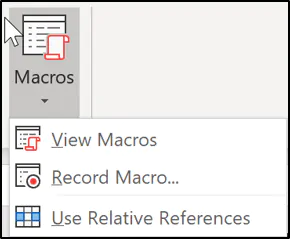
If you want to take things further, you can learn Excel VBA and edit your macros
With VBA you can make your macros do things way beyond recording and create functionality that Excel does not offer
Here's a Simple video tutorial to learn Macros & VBA
youtube.com
With VBA you can make your macros do things way beyond recording and create functionality that Excel does not offer
Here's a Simple video tutorial to learn Macros & VBA
youtube.com
We have to the end.
Here are the 11 Steps you need to complete to master Excel.
1. Navigating the Excel Interface
2. Learn the Most Useful Shortcuts
3. Learn Freee Panes
4. Mastering Excel Formulas
5. Learn to Create Drop Down Lists with Data Validation
cont...👇👇
Here are the 11 Steps you need to complete to master Excel.
1. Navigating the Excel Interface
2. Learn the Most Useful Shortcuts
3. Learn Freee Panes
4. Mastering Excel Formulas
5. Learn to Create Drop Down Lists with Data Validation
cont...👇👇
6. Data Visualization with Conditional Formatting
7. Flash Fill
8. Summarize data with PivotTables
9. Protecting Data
10. Power Query and Power Pivot
11. Create Macros with VBA
7. Flash Fill
8. Summarize data with PivotTables
9. Protecting Data
10. Power Query and Power Pivot
11. Create Macros with VBA
With this, I conclude this thread, If you enjoyed this thread, please:
1. Follow me @thegoldsuite for more
2. Retweet the 1st tweet below to share this thread
3. Check the links in My Bio, there are resources (free) you will find helpful.
1. Follow me @thegoldsuite for more
2. Retweet the 1st tweet below to share this thread
3. Check the links in My Bio, there are resources (free) you will find helpful.
Loading suggestions...