

99.9% of Linux users use the cat command every day.
Despite this, most people do not take advantage of its full potential.
In this thread, I'll explain what the cat command is and show you some options you probably didn't know about (but you should):
Despite this, most people do not take advantage of its full potential.
In this thread, I'll explain what the cat command is and show you some options you probably didn't know about (but you should):
The cat command is one of the most commonly used in Linux. The cat command gets its name from its ability to concatenate files. It has the ability to concatenate files, read and write file contents to standard output.
If you do not specify a filename to read from, or if the filename is replaced with a single hyphen (-), the data will be read from standard input (stdin)
Before we get into how to use the cat command, let's go over the basic syntax.
The syntax for the cat command is as follows:
$ cat [OPTION] [FILE]
The syntax for the cat command is as follows:
$ cat [OPTION] [FILE]
- OPTION - to view the available options that are available use the --help (cat --help) option or its man page (man cat).
- FILE - 0 or more files to concatenate or read data from.
- FILE - 0 or more files to concatenate or read data from.
Now that you know what the cat command is and how its syntax, let's look at how it's used and some of the options it has.

2. Print line numbers
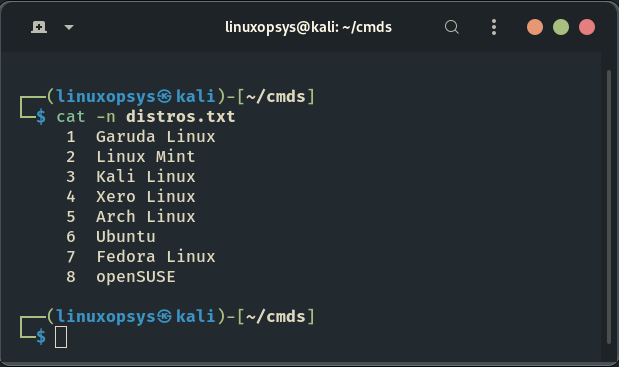
The cat command has excellent option (-n) you can use to check the count of lines on a file . If you ever had a large text document and needed to add lines to it, this option is your best friend.
The cat command has excellent option (-n) you can use to check the count of lines on a file . If you ever had a large text document and needed to add lines to it, this option is your best friend.
Rather than going through the time-consuming process of manually numbering each line , you can simply use this option with cat from the command line and be done in a matter of seconds.
$ cat -n file
This command is equivalent to the 'nl file' command.
$ cat -n file
This command is equivalent to the 'nl file' command.
3. Squeeze repeated blank lines
You may encounter repeated empty lines in your documents and wish to remove them. To accomplish this, use the -s option to instruct cat command to omit the repeated empty output lines:
$ cat -s distros.txt
You may encounter repeated empty lines in your documents and wish to remove them. To accomplish this, use the -s option to instruct cat command to omit the repeated empty output lines:
$ cat -s distros.txt

You can then save the output to a file if you wish to, by just using output redirections operators (> and >>).
$ cat -s distros.txt > nolines.txt
The > operator will create a file (nolines.txt) if it doesn’t exist. Otherwise, it will overwrite the file.
$ cat -s distros.txt > nolines.txt
The > operator will create a file (nolines.txt) if it doesn’t exist. Otherwise, it will overwrite the file.
If you wish not to overwrite the file use >> operator to append the contents to the end of nolines.txt file
$ cat -s distros.txt >> nolines.txt
$ cat -s distros.txt >> nolines.txt
4. Concatenating multiple files
With cat command you can also read (concatenate) contents of multiple files and display it to the standard output.
To do so you just separate the file names with spaces.
With cat command you can also read (concatenate) contents of multiple files and display it to the standard output.
To do so you just separate the file names with spaces.
The following command, for example, will read the contents of file, file2, and file3 and display the results to your standard output (terminal screen)l:
$ cat file file2 file3
$ cat file file2 file3
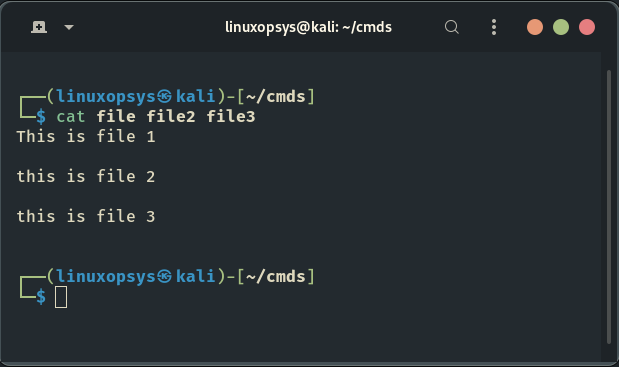
This becomes very handy if you want to combine the contents of different files into one file.
5. Distinguish between TABs and Spaces
If you want to visually distinguish between tabs and spaces, use the -T option in conjunction with the cat command.
If you want to visually distinguish between tabs and spaces, use the -T option in conjunction with the cat command.

6. Create files
To create files, use the cat command (without the file argument) followed by the redirection operator (>) and the name of the file you want to create. Press Enter, type your text, and then press CRTL+D to save the file.
$ cat > data.txt
To create files, use the cat command (without the file argument) followed by the redirection operator (>) and the name of the file you want to create. Press Enter, type your text, and then press CRTL+D to save the file.
$ cat > data.txt
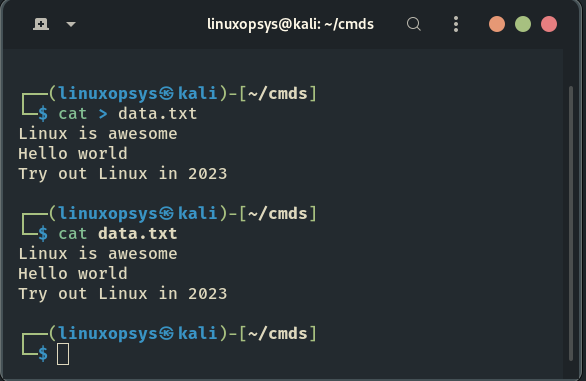
Just like the touch command but cat allows you to have the ability to write text you want to be saved before actually creating a file. You can omit the text if you want to create an empty file.
If the file data.txt exists, it will be overwritten. To append the text to an existing file, use the '>>' operator.
$ cat >> data.txt
This is useful if you want to write to a file without having to open a full-fledged text editor.
$ cat >> data.txt
This is useful if you want to write to a file without having to open a full-fledged text editor.
7. Display end of lines characters
By default, line endings are not visible when displaying the contents of a file or files. If you want to display the invisible line ending character, use the -e option with the cat command:
$ cat -e data.txt
By default, line endings are not visible when displaying the contents of a file or files. If you want to display the invisible line ending character, use the -e option with the cat command:
$ cat -e data.txt
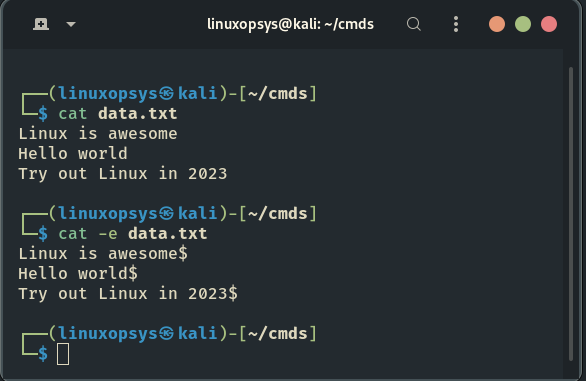
From the output, the $ character represents the line endings.
That's it!
Did you learn anything new from this thread? If so, please let us know by replying in the comments.
If you're new here, do toss us a follow us (@linuxopsys) for more threads, tips and resources on Linux.
That's it!
Did you learn anything new from this thread? If so, please let us know by replying in the comments.
If you're new here, do toss us a follow us (@linuxopsys) for more threads, tips and resources on Linux.
Loading suggestions...