

In Linux, most people use the ls command to check a file's creation, access, and modification times, ownership, and permissions.
What if I told you there is another great way to display detailed information about files and file systems?
Open this thread to learn more about it:
What if I told you there is another great way to display detailed information about files and file systems?
Open this thread to learn more about it:
The Linux ls command typically displays basic or chunk of information about a file; however, what if you want to print more information about the file? This is where the stat command comes in.
stat (short for status) is a command-line utility for displaying detailed information about specific files or file systems. It is commonly used to obtain file timestamps.
How to use the stat command:
The stat command has a simple syntax which is similar to that of the ls command:
$ stat [OPTION]... [FILE]...
The stat command takes one or more FILE names as input and has a number of options that control the command's behavior and output.
The stat command has a simple syntax which is similar to that of the ls command:
$ stat [OPTION]... [FILE]...
The stat command takes one or more FILE names as input and has a number of options that control the command's behavior and output.
With the stat syntax out of the way, let's take a look at our first example to display file status such as size, inode number links, and file timestamps:
$ stat log.txt
The command's output will look like this:
$ stat log.txt
The command's output will look like this:
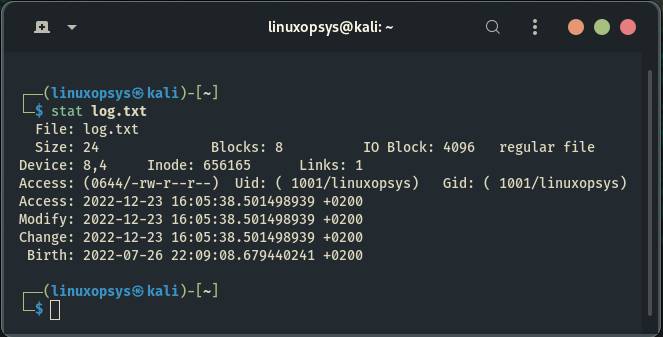
In this case, we ran the stat command with no options other than the file name, and it returned the following file information:
• File – The name of the file.
• Size – The size of the file in bytes.
• Blocks – The number of allocated blocks the file takes.
• File – The name of the file.
• Size – The size of the file in bytes.
• Blocks – The number of allocated blocks the file takes.
• IO Block – The size in bytes of every block.
• File type – (ex. regular file, directory, symbolic link, block file, sockets.)
• Device – Device number in hex and decimal.
• Inode – Inode number ( uniquely existing number for all the files in Linux).
• File type – (ex. regular file, directory, symbolic link, block file, sockets.)
• Device – Device number in hex and decimal.
• Inode – Inode number ( uniquely existing number for all the files in Linux).
• Links – Number of hard links.
• Access – File permissions in both numeric and symbolic modes.
• Uid – User ID and name of the owner .
• Gid – Group ID and name of the owner.
• Context – The SELinux security context.
• Access – The last time the file was accessed.
• Access – File permissions in both numeric and symbolic modes.
• Uid – User ID and name of the owner .
• Gid – Group ID and name of the owner.
• Context – The SELinux security context.
• Access – The last time the file was accessed.
• Modify – The last time the file’s content was modified.
• Change – The last time the file’s attribute or content was changed.
• Birth – File creation time (some Linux distros may not support this, so you will probably see it blank).
• Change – The last time the file’s attribute or content was changed.
• Birth – File creation time (some Linux distros may not support this, so you will probably see it blank).
Displaying filesystem status:
Instead of getting information about the file itself, use the -f option or the long format option --file-system to get information about the file system where the given file is located:
$ stat -f logt.txt
The command's output will look like this:
Instead of getting information about the file itself, use the -f option or the long format option --file-system to get information about the file system where the given file is located:
$ stat -f logt.txt
The command's output will look like this:

The stat command only displays less information when the -f option is used. In the preceding example, the following information was displayed:
• File - The name of the file.
• ID - File system ID in hexedecimal.
• Namelen (name legth) - Maximum length of file names.
• File - The name of the file.
• ID - File system ID in hexedecimal.
• Namelen (name legth) - Maximum length of file names.
• Fundamental block size - The size of each block on the file system.
• Blocks:
• Total - Number of total blocks in the file system
.
• Free - Number of free blocks in the file system.
• Available - Number of free blocks available to non-root users.
• Blocks:
• Total - Number of total blocks in the file system
.
• Free - Number of free blocks in the file system.
• Available - Number of free blocks available to non-root users.
• Inodes:
• Total - Number of total inodes in the file system.
• Free - Number of free inodes in the file system.
• Total - Number of total inodes in the file system.
• Free - Number of free inodes in the file system.
Follow (dereference) symbolic links:
By default, the stat command does not follow symlinks. When you run it on a symlink, the output includes information about the symlink but not the file to which it points.
$ stat sml-chkf.sh
By default, the stat command does not follow symlinks. When you run it on a symlink, the output includes information about the symlink but not the file to which it points.
$ stat sml-chkf.sh
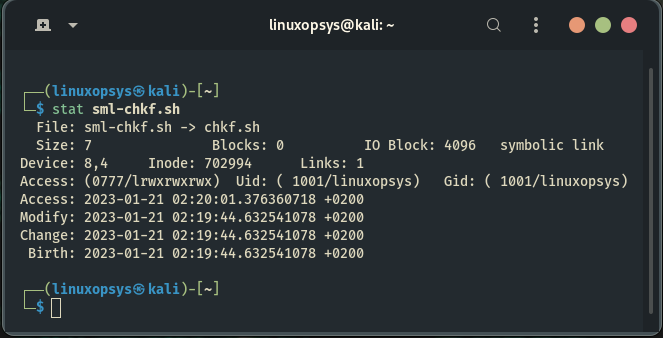
To follow (dereference) the symlink and display information about the file to which it points, use the -L (short option format) or --dereference (long option format):
$ stat -L sml-chkf.sh
$ stat -L sml-chkf.sh

To learn more about symlinks check out this thread:
Customizing the stat output:
The stat command has two options for customizing the output to your needs: -c short option for (--format="format"), and --printf="format".
The stat command has two options for customizing the output to your needs: -c short option for (--format="format"), and --printf="format".
The difference between these two options is that when two or more files are used as operants, --format adds a newline after the output of each operand. Backslash escapes are interpreted by the --printf option.
With --format and --printf, you can use a variety of format directives for files and file systems.
For example, to view only the file type, you would run:
$ stat --format="%F" log.txt
For example, to view only the file type, you would run:
$ stat --format="%F" log.txt
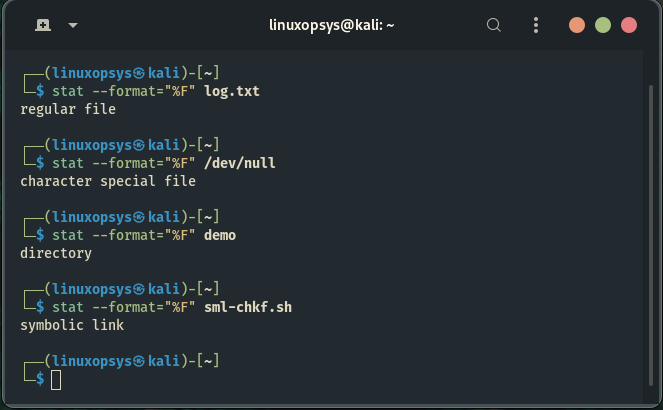
You can combine any number of formatting directives and use custom separators between them if you want. A single character or a string can be used as the separator:
$ stat --format="%n-%F" logs.txt
Here combined two formating directives an used the hiphen (-) as the separator
$ stat --format="%n-%F" logs.txt
Here combined two formating directives an used the hiphen (-) as the separator

You can use the —printf option to interpret special characters such as newline or tab as separators:
$ stat --printf='Name: %n\nPermissions: %a\n' logs.txt
\n characters prints a new line.
$ stat --printf='Name: %n\nPermissions: %a\n' logs.txt
\n characters prints a new line.

The stat can also display data in a terse format. This format is useful for other utilities to parse.
To print the output in terse form, run the command with the -t (—terse) option:
$ stat -t logs.txt
To print the output in terse form, run the command with the -t (—terse) option:
$ stat -t logs.txt

Refer to the stat man pages using the (man stat) command for a complete list of all format directives for files and file systems. You can also refer to the stat help by running (stat —help) in your terminal.
$ stat --help
$ stat --help

That's all for this thread! Thank you for getting this far. I hope you find this thread useful.
If you found this thread valuable:
1. Toss us a follow for more daily threads on Linux, sysadmin and devops → @linuxopsys
2. Like and RT the first tweet so other Linux folks can find it too.
1. Toss us a follow for more daily threads on Linux, sysadmin and devops → @linuxopsys
2. Like and RT the first tweet so other Linux folks can find it too.
Loading suggestions...