

Scholarcy is an AI-powered app to help you with academic reading — think of it as your personal reading assistant.
But most academics don't know much about it.
Here's how to supercharge your reading with Scholarcy:
But most academics don't know much about it.
Here's how to supercharge your reading with Scholarcy:
Go to scholarcy(dot)com and click on the "Start Free" button in the top-right corner.

Put in your credit card details to activate the 14 days free trial.
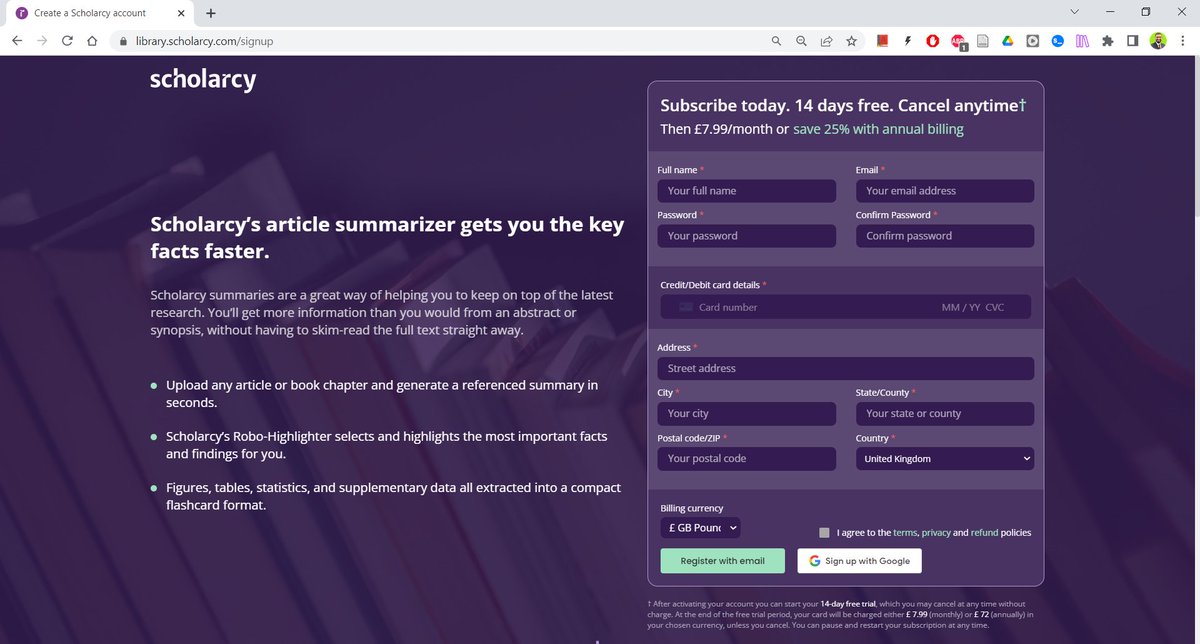
Once logged in, this is how your homepage would look like.
Click on the "Create Library" button in the top-right corner.
Click on the "Create Library" button in the top-right corner.

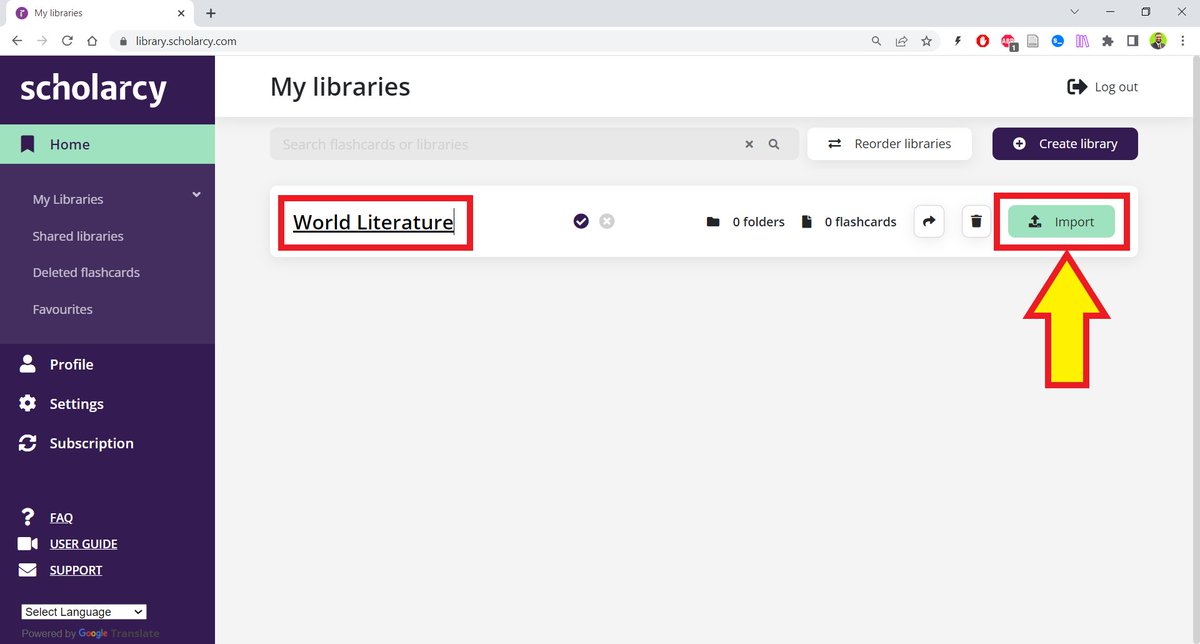
Give your library a title and then click on "Import" to add articles/book chapters to your library.
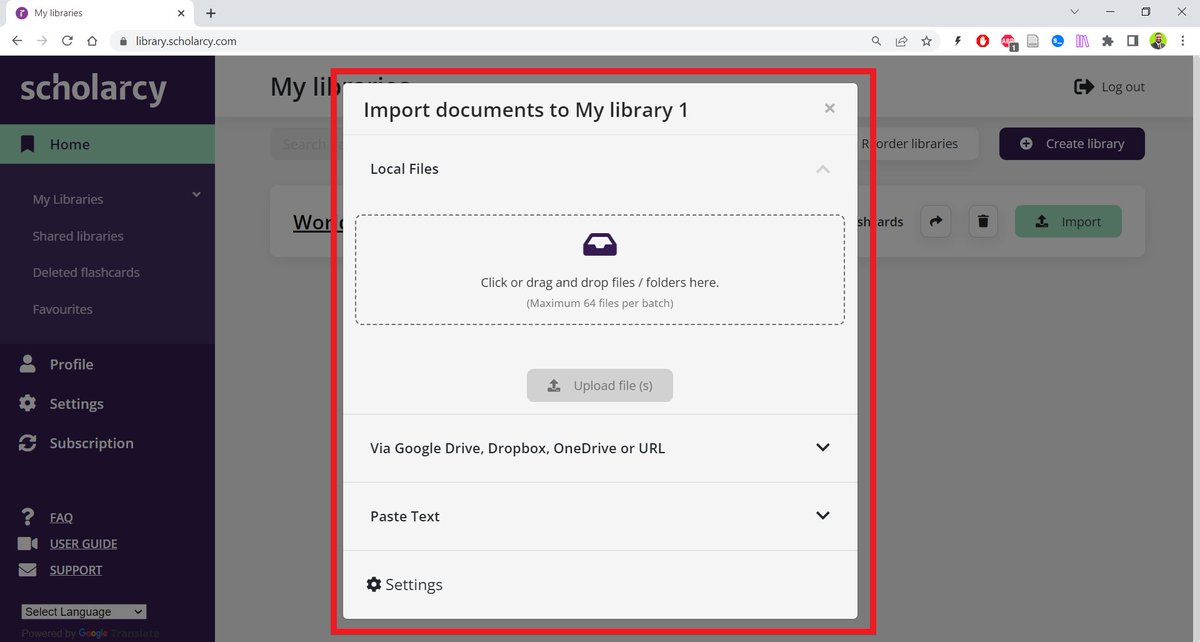
You can articles from your Google Drive, Dropbox, OneDrive.
Or you can simply drag the PDFs in.
Or you can simply drag the PDFs in.
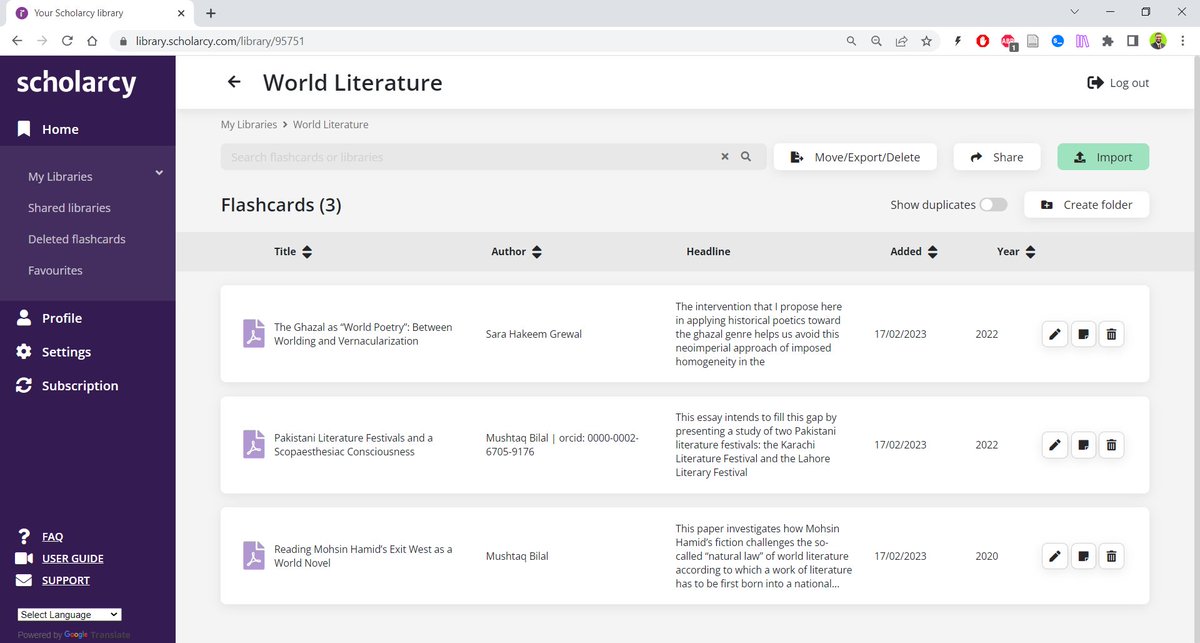
I've added three articles to my "World Literature" library.
Scholarcy creates "flashcards" for articles. But these are no ordinary flashcards.
Scholarcy creates "flashcards" for articles. But these are no ordinary flashcards.
When you click on an article, Scholarcy will give you its main highlights.
But that's not it.
Scholarcy will also create hyperlinks to Wikipedia articles for every important point.
But that's not it.
Scholarcy will also create hyperlinks to Wikipedia articles for every important point.
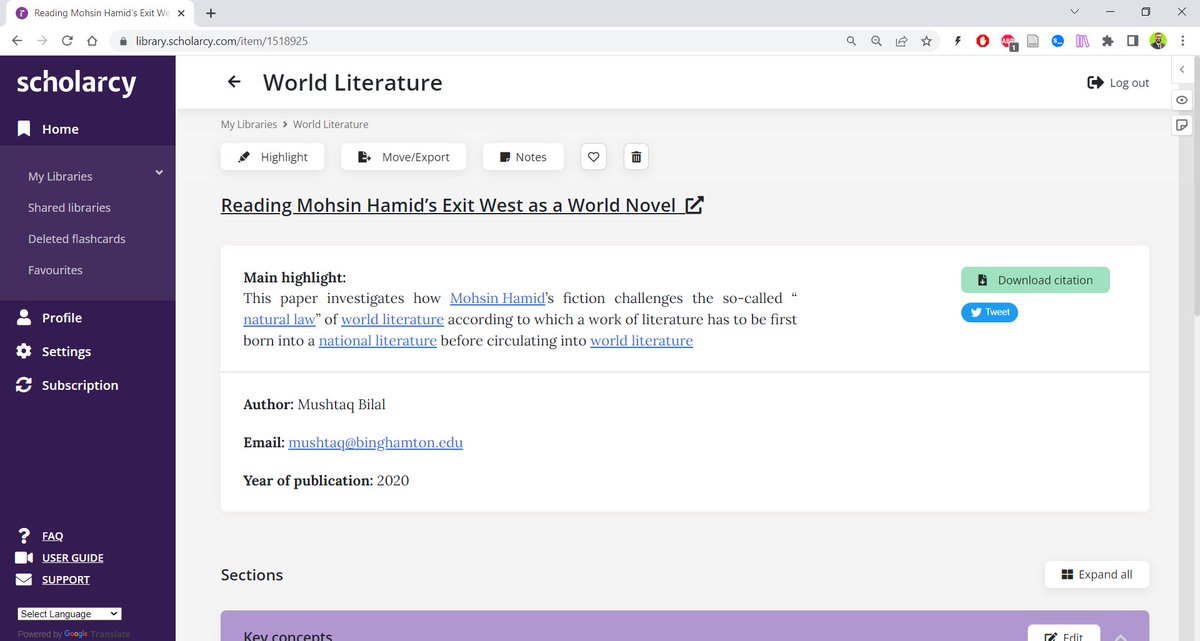
This article is about a novelist Mohsin Hamid, and Scholarcy has hyperlinked his name to the relevant Wikipedia article.
This feature alone can save you a lot of time.
This feature alone can save you a lot of time.

Scholarcy will give you a list of the key concepts in the article.
Again, every key concept will be hyperlinked to Wikipedia articles.
Again, every key concept will be hyperlinked to Wikipedia articles.

Scholarcy will create a synopsis of the article.
This is a very useful synopsis of my article.
This is a very useful synopsis of my article.
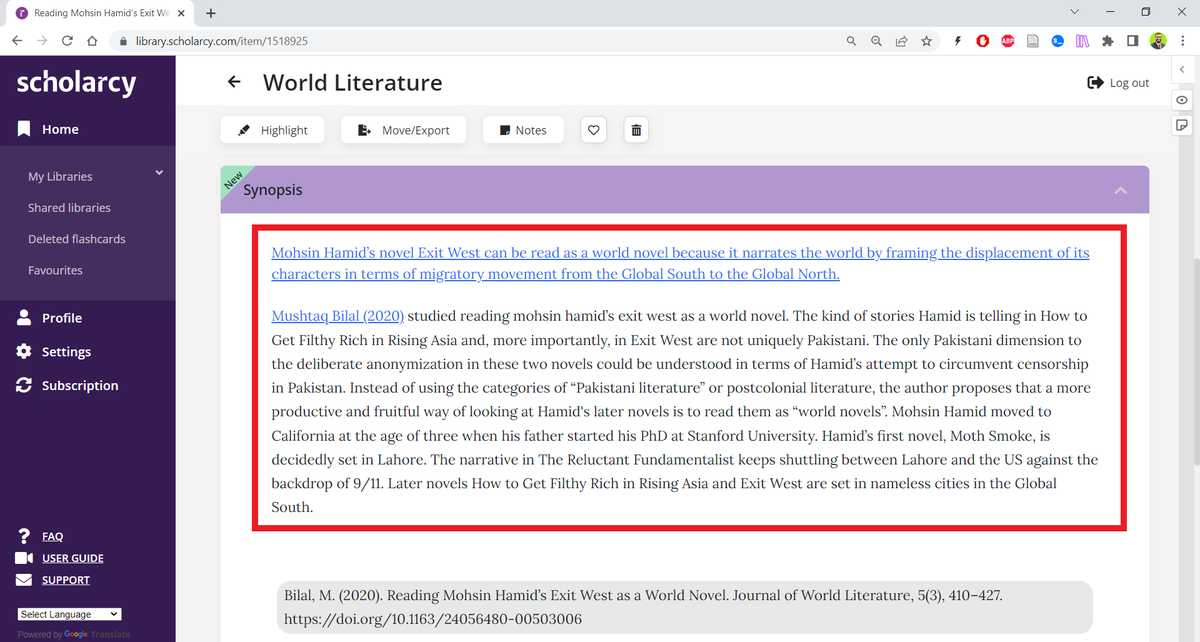
Scholarcy will also give you a list of the article's main points with important words hyperlinked to Wikipedia articles.
If you aren't happy with a hyperlink, you can edit it.
If you aren't happy with a hyperlink, you can edit it.

You will also get an editable summary of the article.
You can delete a point if you think it's not important enough.
You can delete a point if you think it's not important enough.

You can also add your own notes to the summary.

Scholarcy will also give you a comparative analysis of the methods and discussions in a given paper.

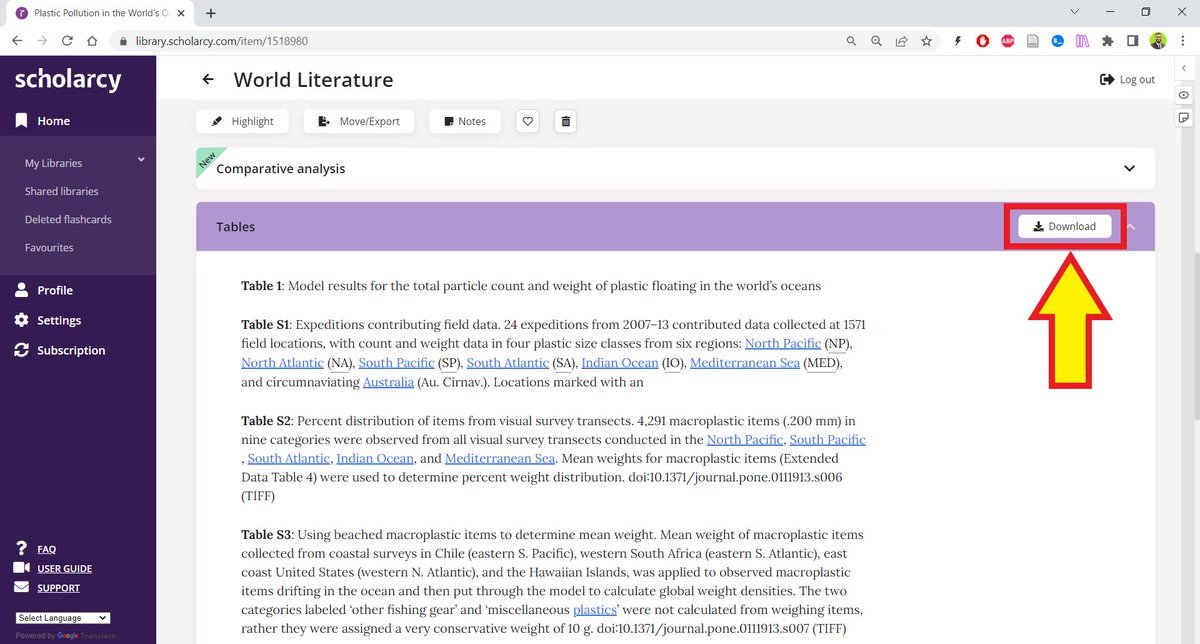
If there any tables in your article, Scholarcy will explain them for you.
It will also give you the option the download the data as an Excel sheet.
It will also give you the option the download the data as an Excel sheet.
If an article has any figures, Scholarcy will collate them for you.

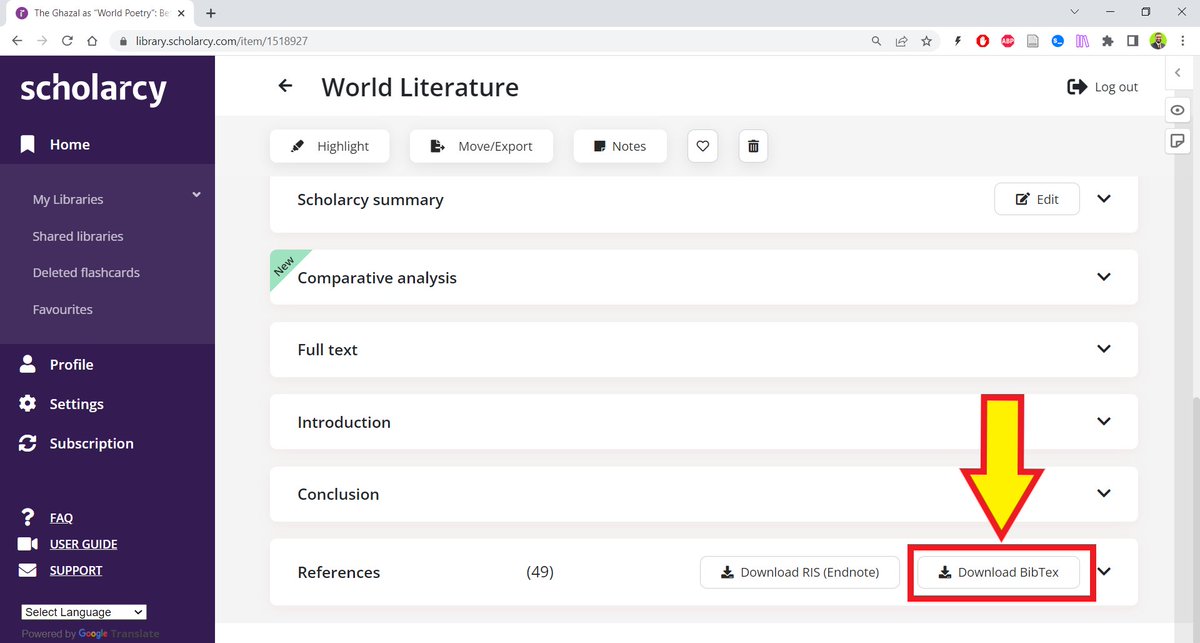
Scholarcy also give you the option to download all the references in a given article.
To do so, click on the "Download BibTeX" button.
To do so, click on the "Download BibTeX" button.
Now open your Zotero desktop app and click on "File" and then "Import."
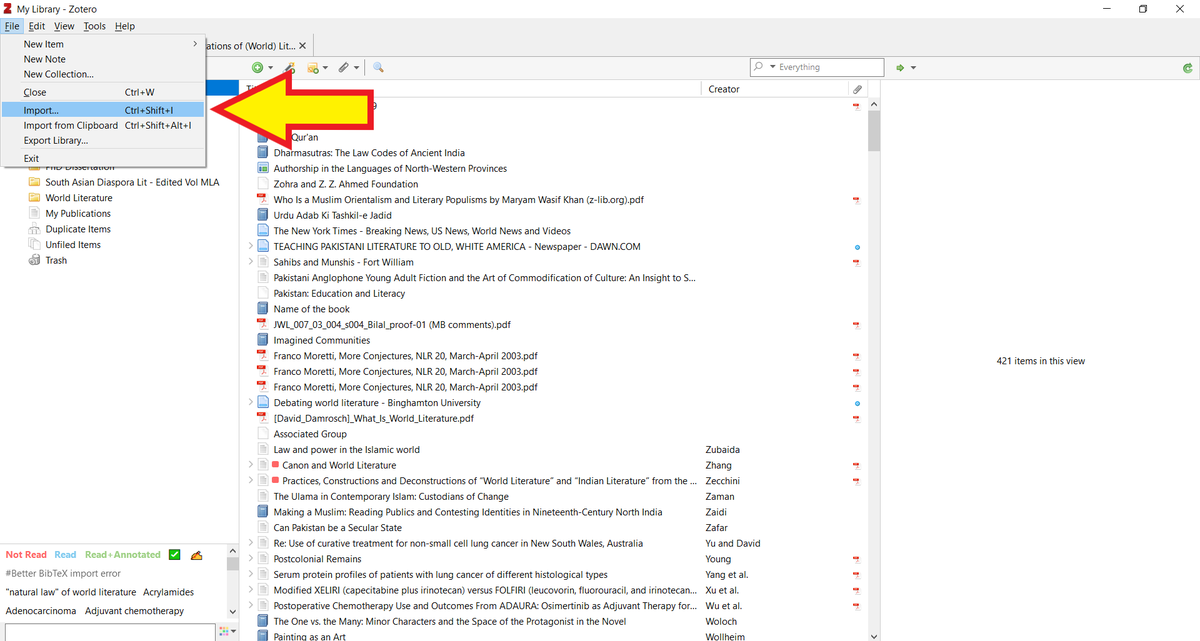
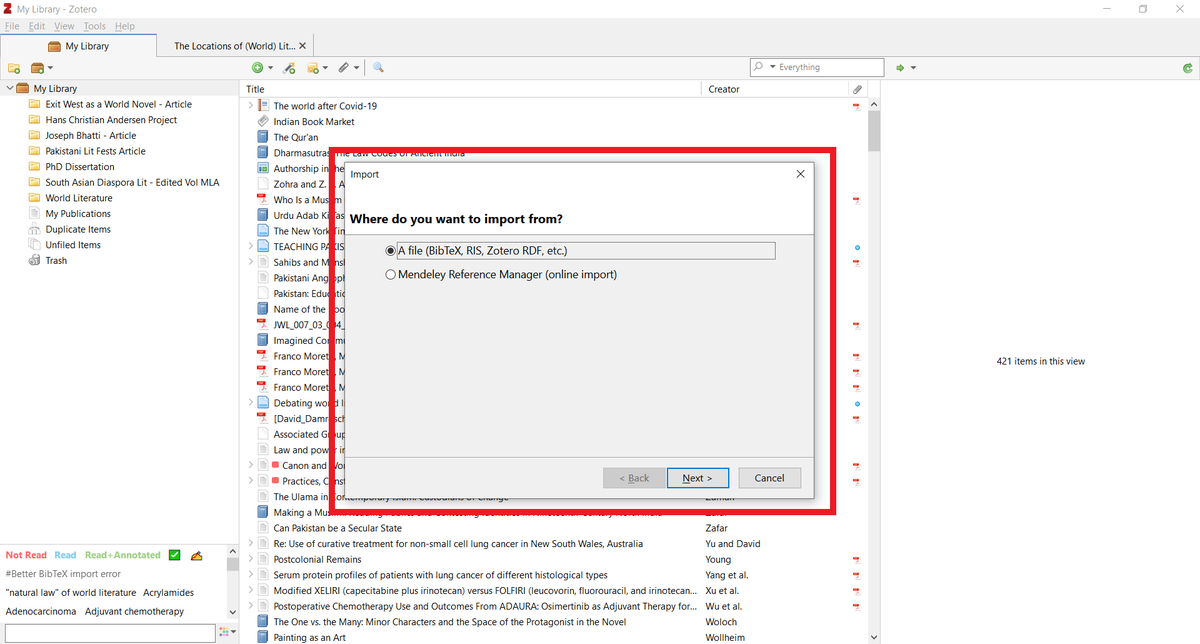
Zotero will ask you what you want to import.
Click on "A File."
Navigate to the BibTeX file you just downloaded and add it to Zotero.
Click on "A File."
Navigate to the BibTeX file you just downloaded and add it to Zotero.
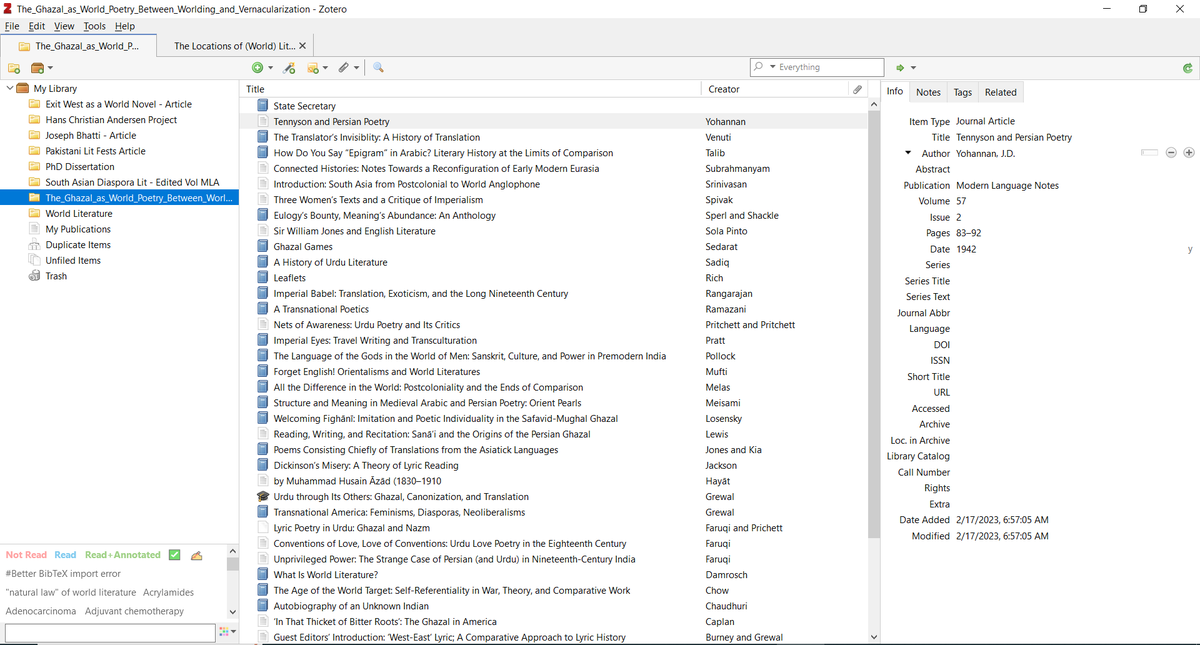
Once added, you will get all the references in a separate Zotero collection.
Scholarcy also has a browser extension for Chrome and Edge.
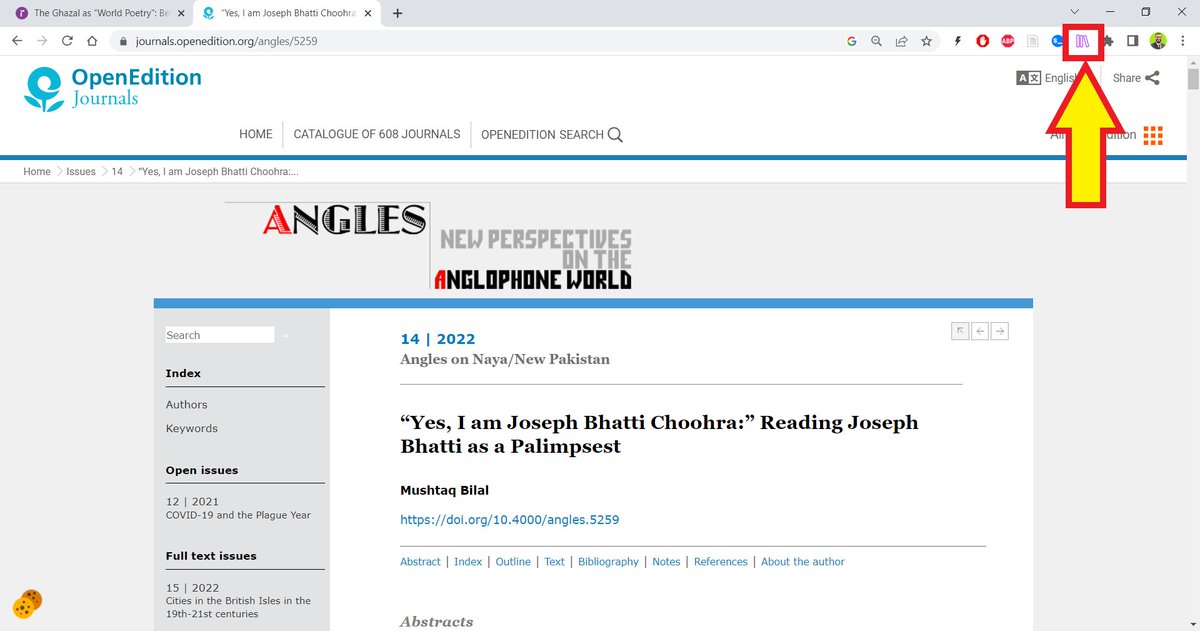
Open an article in your browser and click on the Scholacy extension.
It will create a summary of the article in your browser tab.
It will create a summary of the article in your browser tab.
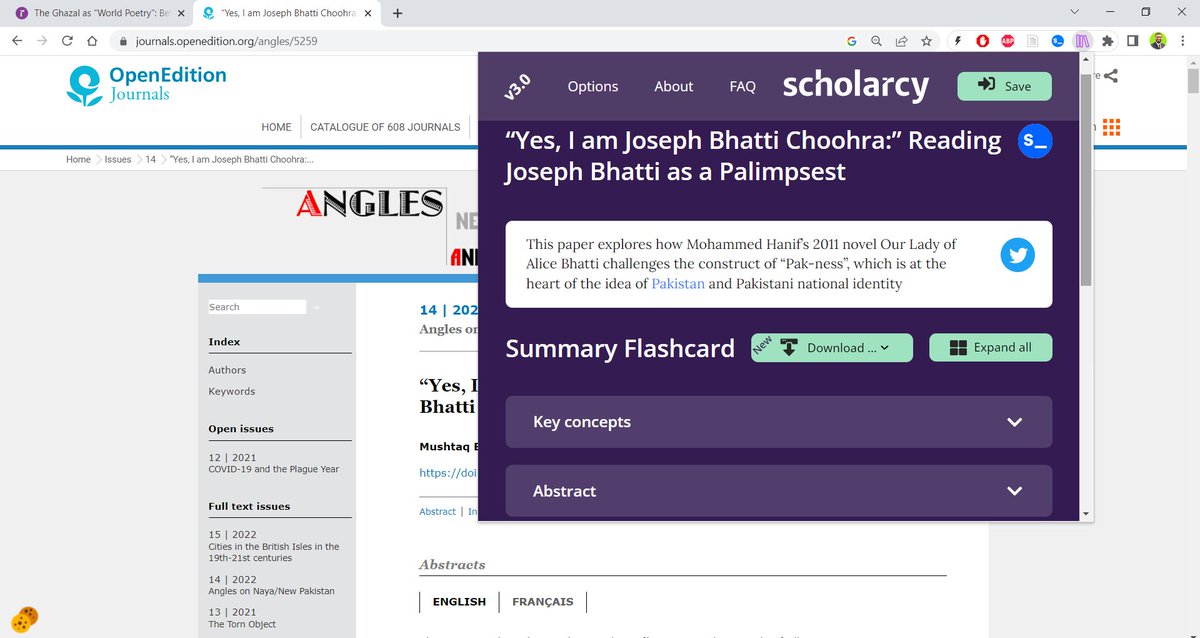
You can also download the summary as a Word or Powerpoint file.
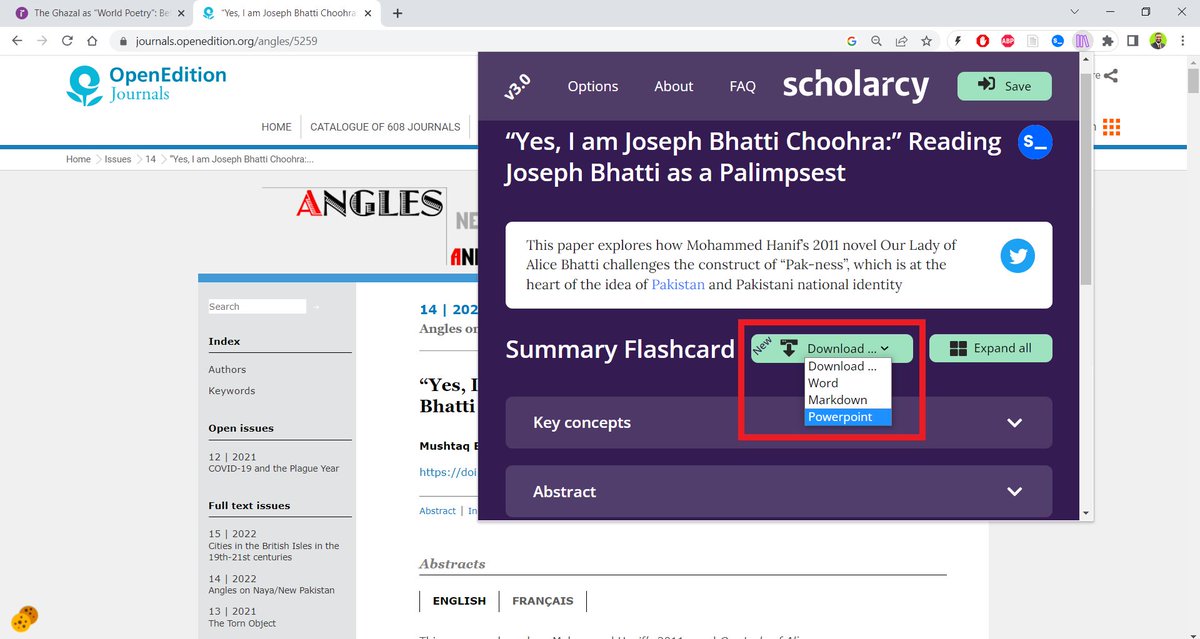
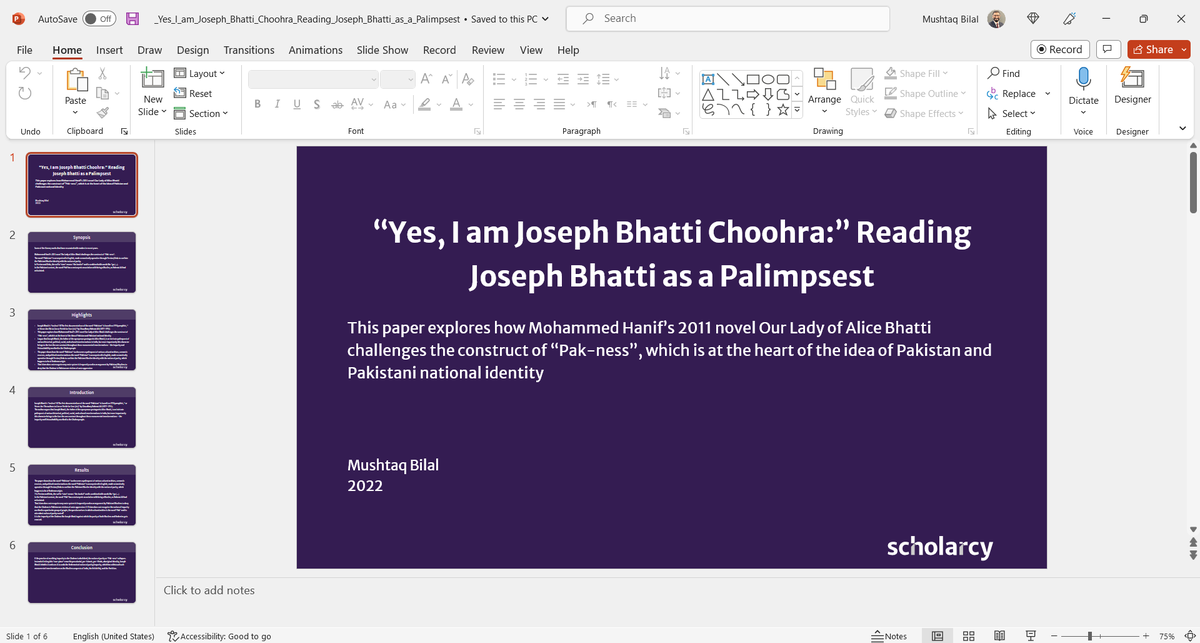
And with a single click you will have a Powerpoint presentation of your article.
Found this thread helpful?
1. Scroll to the top and press the "Like" button on the first tweet.
2. Follow me @MushtaqBilalPhD for regular threads on how to supercharge your academic writing process with the help of AI-powered apps.
1. Scroll to the top and press the "Like" button on the first tweet.
2. Follow me @MushtaqBilalPhD for regular threads on how to supercharge your academic writing process with the help of AI-powered apps.
I am emailing free Zotero tutorials to the subscribers of my newsletter.
Sing up below if you haven't already.
Look out for a confirmation email in your promotions or spam folder.
keepwriting.beehiiv.com
Sing up below if you haven't already.
Look out for a confirmation email in your promotions or spam folder.
keepwriting.beehiiv.com

Loading suggestions...