

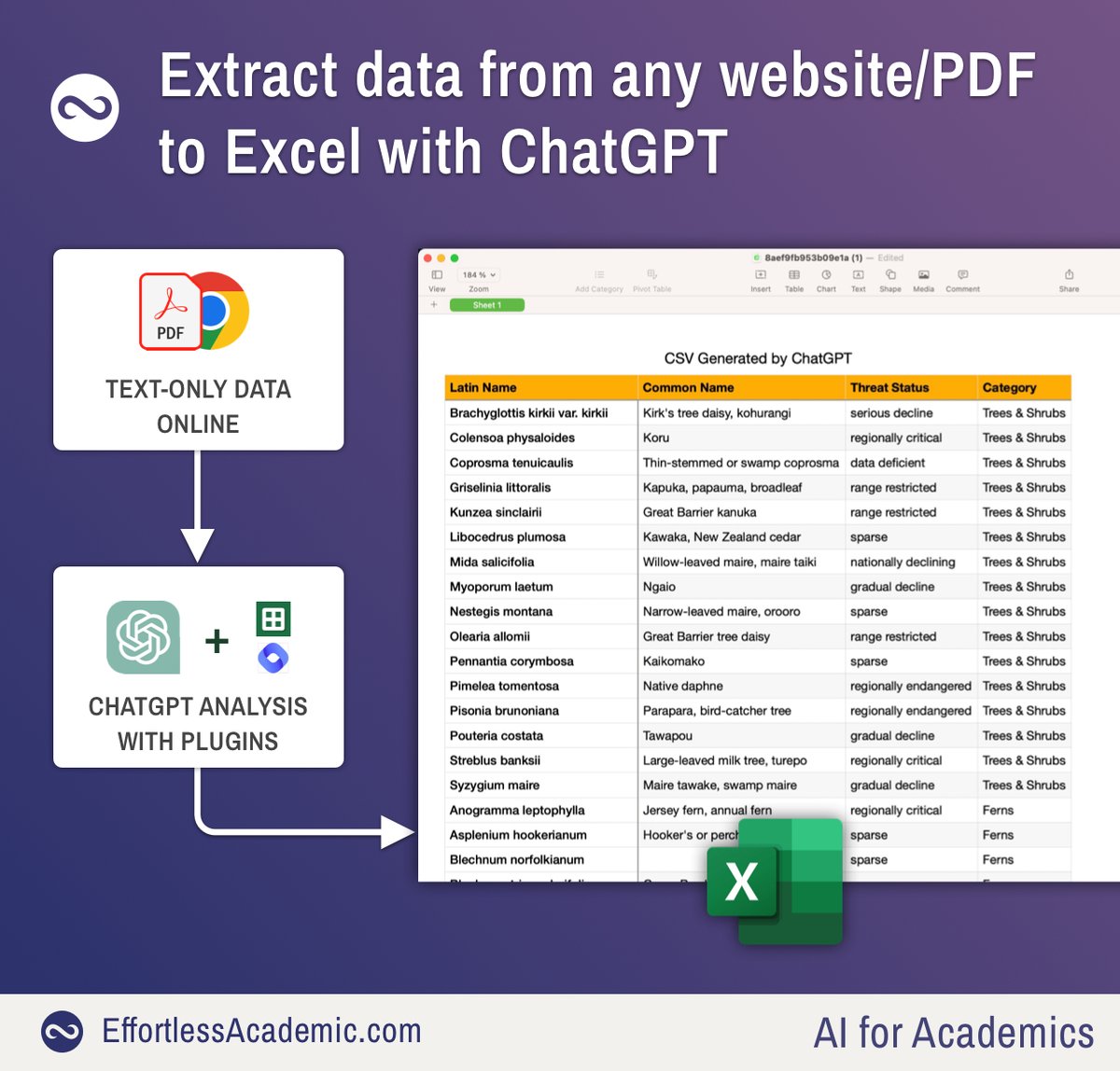
ChatGPT can extract data from any website/PDF straight to Excel.
For my research I needed a list of threatened species, available as a text-only appendix to a paper.
Instead of copy and pasting I used ChatGPT to extract the data in < 1 minute:
👇
For my research I needed a list of threatened species, available as a text-only appendix to a paper.
Instead of copy and pasting I used ChatGPT to extract the data in < 1 minute:
👇
1. Source Link/PDF
It has a table with "threatened and unusual species".
As you can see in the video, I can't copy and paste the entire table.
Let's try chatGPT instead.
It has a table with "threatened and unusual species".
As you can see in the video, I can't copy and paste the entire table.
Let's try chatGPT instead.

2. Enable the plugins WebPilot and Make a Sheet
The former will download the data from the PDF. The latter will convert it into CSV.
The former will download the data from the PDF. The latter will convert it into CSV.

Plugins are a feature that requires a ChatGPT subscription.
The premium GPT-4 model is capable of processing much bigger chunks of text too.
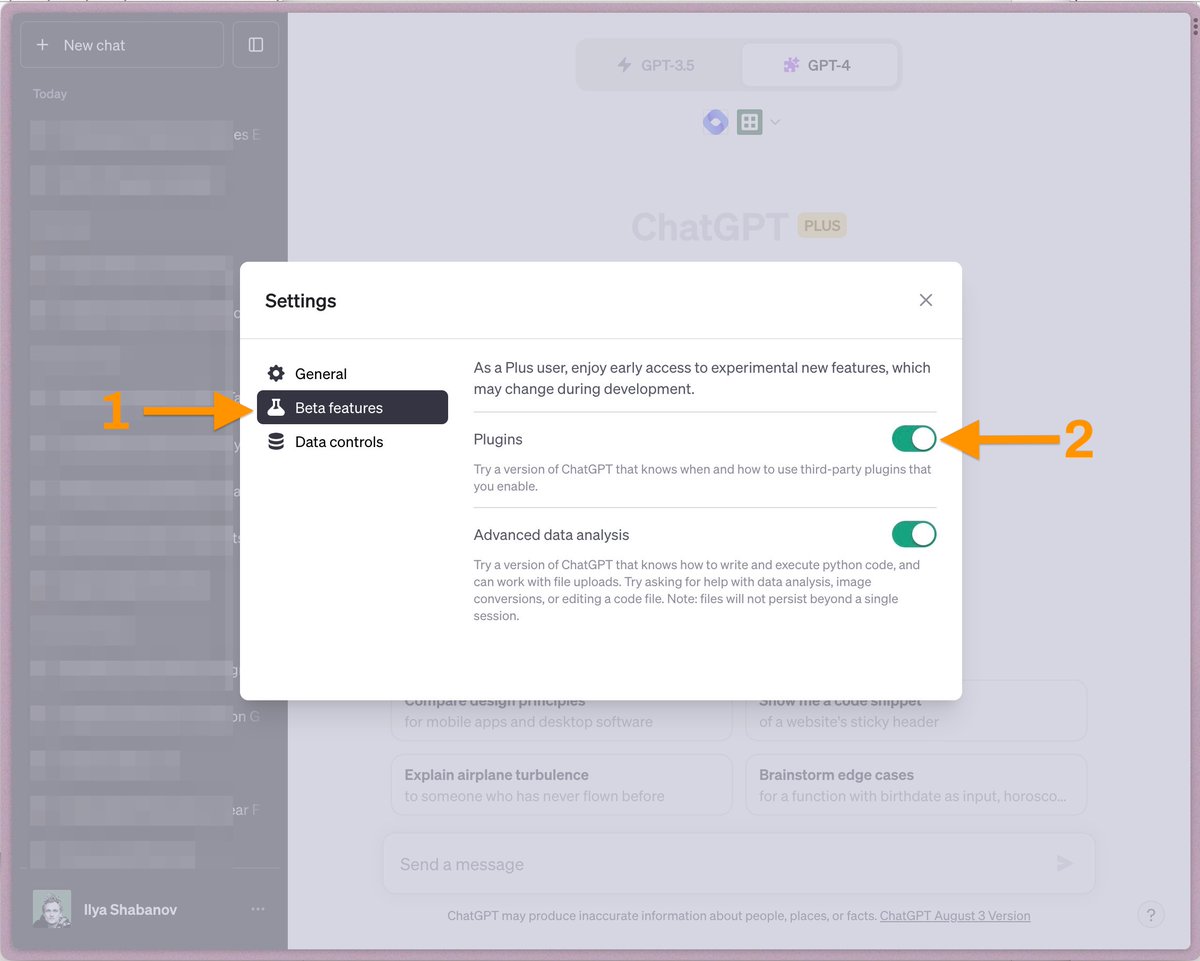
To enable plugins, click the ... dots and go to settings.
Under "Beta Features" enable "Plugins".
The premium GPT-4 model is capable of processing much bigger chunks of text too.
To enable plugins, click the ... dots and go to settings.
Under "Beta Features" enable "Plugins".

3. Talk to ChatGPT in plain language
Visit: <URL> and extract a list of endangered plants as a table with 4 columns: Latin Name, Common Name, Threat Status, Type. Type can be either Tree or Fern.
Include only Trees and Treeferns in the result.
Provide the result as a CSV table.
Visit: <URL> and extract a list of endangered plants as a table with 4 columns: Latin Name, Common Name, Threat Status, Type. Type can be either Tree or Fern.
Include only Trees and Treeferns in the result.
Provide the result as a CSV table.
4. ChatGPT will give you a PREVIEW
First ChatGPT will load the data using the "WebPilot" plugin.
Then it displays the result as a table.
If everything is ok, we tell it to continue.
First ChatGPT will load the data using the "WebPilot" plugin.
Then it displays the result as a table.
If everything is ok, we tell it to continue.

5. Download the CSV
Depending on the data this might take a while.
Internally ChatGPT formats the data and sends it to "Make a Sheet".
The result is a CSV file that is being generated and you can now download!
Depending on the data this might take a while.
Internally ChatGPT formats the data and sends it to "Make a Sheet".
The result is a CSV file that is being generated and you can now download!

6. Download the CSV & Compare
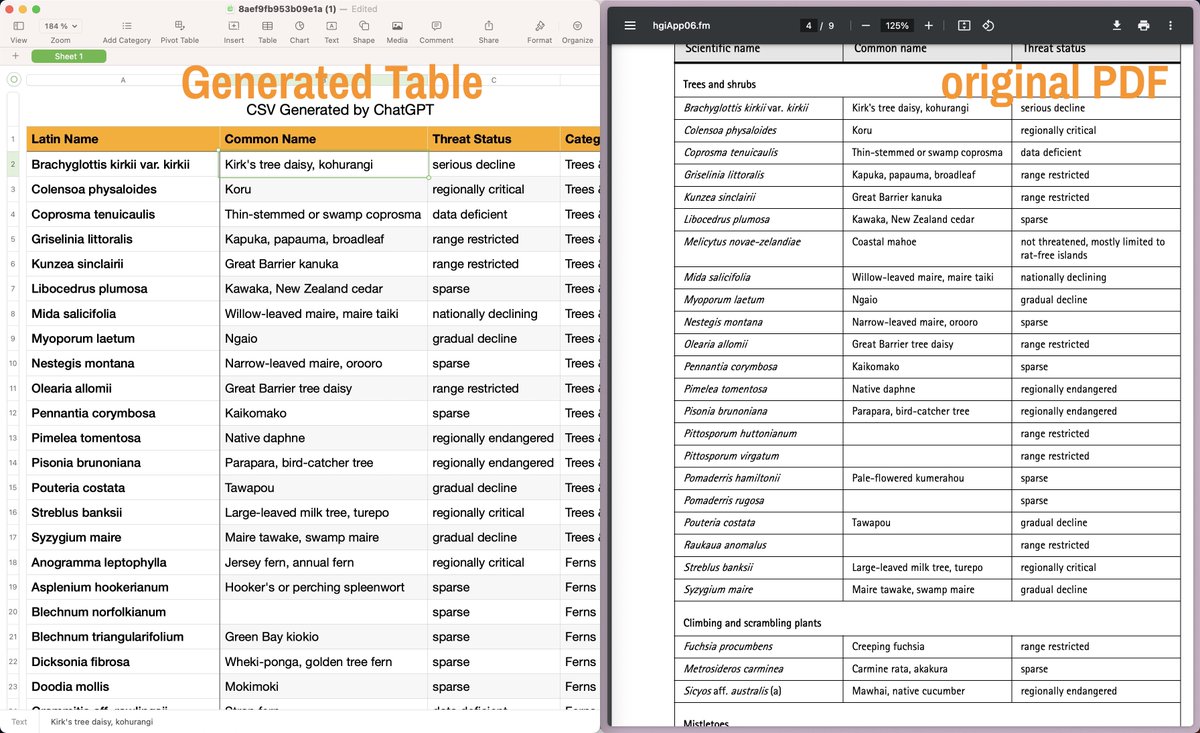
AI can be magical but it is often imprecise when it comes to data.
Be sure to double check the extracted information for omissions.
(In this case 4 rows were missed, which varies with prompt)
AI can be magical but it is often imprecise when it comes to data.
Be sure to double check the extracted information for omissions.
(In this case 4 rows were missed, which varies with prompt)
ChatGPT saved me quite a bit of copy and paste work.
The same technique works for any website.
Use this workflow when you need to EXTRACT data to CSV.
Be precise with your prompts to avoid mistakes.
Join EffortlessAcademic.com for more AI tips in academia.
The same technique works for any website.
Use this workflow when you need to EXTRACT data to CSV.
Be precise with your prompts to avoid mistakes.
Join EffortlessAcademic.com for more AI tips in academia.

Loading suggestions...