

Gmail has 1.8 billion users.
But only a few can use it effectively.
Here're 10 Gmail hacks that you may not know:
[ Bookmark to use later 🧵 ]
But only a few can use it effectively.
Here're 10 Gmail hacks that you may not know:
[ Bookmark to use later 🧵 ]

Looking for remote jobs that pay in USD?
Check out jobresources.co
Get the best job search sites, courses, resume builders, and career platforms AII in one place.
Check out jobresources.co
Get the best job search sites, courses, resume builders, and career platforms AII in one place.


1. Regret sending that email? Undo it in 30 seconds.
Here's how:
1. Click the setting icon (top right).
2. Go to Settings > General.
3. Toggle on 'undo send'.
4. Choose 30 seconds.
No more email mishaps!
Here's how:
1. Click the setting icon (top right).
2. Go to Settings > General.
3. Toggle on 'undo send'.
4. Choose 30 seconds.
No more email mishaps!

2. Bye-bye promotional emails!
Here's how to declutter your inbox:
1. Type "unsubscribe" in the Gmail search bar.
2. Select all emails tagged with "unsubscribe."
3. Hit delete and wave goodbye to them all.
Here's how to declutter your inbox:
1. Type "unsubscribe" in the Gmail search bar.
2. Select all emails tagged with "unsubscribe."
3. Hit delete and wave goodbye to them all.

3. Keep it confidential with a single tap.
Send an email that's strictly confidential. Disable copying, printing, forwarding, and downloading by the recipient with a simple click on the 'lock' symbol while composing your message.
Send an email that's strictly confidential. Disable copying, printing, forwarding, and downloading by the recipient with a simple click on the 'lock' symbol while composing your message.

4. Unleash the power of offline Gmail with these four simple steps:
1. Log in to your Gmail account.
2. Click on the gear icon or "Quick Settings".
3. Hit "See all settings".
4. Choose "Offline" and unleash the possibilities by selecting "Enable".
1. Log in to your Gmail account.
2. Click on the gear icon or "Quick Settings".
3. Hit "See all settings".
4. Choose "Offline" and unleash the possibilities by selecting "Enable".
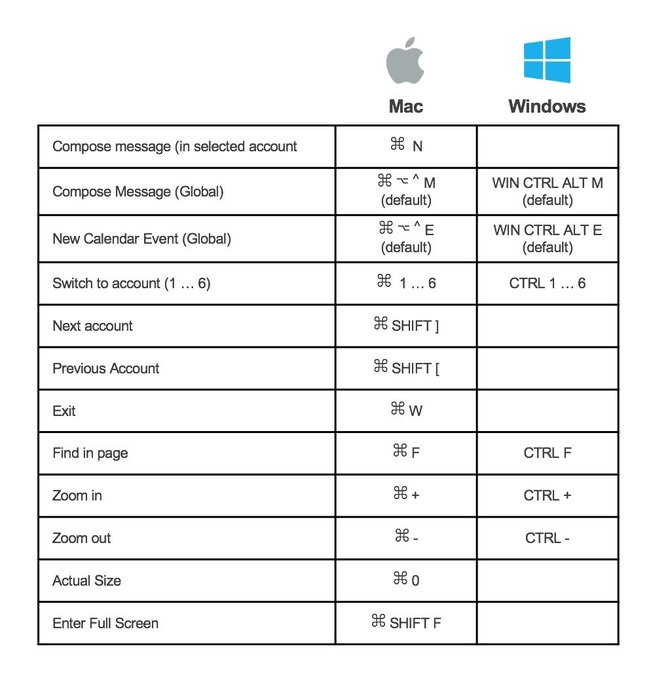
5. Boost your Gmail productivity with these keyboard shortcuts:
✔ Mark as read: Shift + I
✔ Send an email: ⌘ or Ctrl + Enter
✔ Insert a link: ⌘ or Ctrl + K
✔ Compose: C
✔ Search your emails: /
✔ Compose in a new tab: D
✔ Add BCC recipients: Shift + Ctrl + B
✔ Mark as read: Shift + I
✔ Send an email: ⌘ or Ctrl + Enter
✔ Insert a link: ⌘ or Ctrl + K
✔ Compose: C
✔ Search your emails: /
✔ Compose in a new tab: D
✔ Add BCC recipients: Shift + Ctrl + B

6. Take control of your email game with this simple trick:
Send your emails later to create the illusion of productivity even at 10:00 pm.
Here's how:
1. Click the down arrow next to 'send'
2. Choose 'Schedule Send'
3. Select your desired date and time
Send your emails later to create the illusion of productivity even at 10:00 pm.
Here's how:
1. Click the down arrow next to 'send'
2. Choose 'Schedule Send'
3. Select your desired date and time

7. Snooze that email.
Avoid dealing with an email right away?
Simply snooze it for later.
1. Click the clock icon on the right
2. Select your desired snooze duration
3. Watch it magically reappear in your inbox on the chosen date
Avoid dealing with an email right away?
Simply snooze it for later.
1. Click the clock icon on the right
2. Select your desired snooze duration
3. Watch it magically reappear in your inbox on the chosen date

8. Level up your email organization with labels.
Effortlessly streamline your inbox by creating custom labels. Categorize emails into "Work," "Personal," or "Travel."
Just click the "Labels" button in the toolbar and choose the perfect label for each email.
Effortlessly streamline your inbox by creating custom labels. Categorize emails into "Work," "Personal," or "Travel."
Just click the "Labels" button in the toolbar and choose the perfect label for each email.

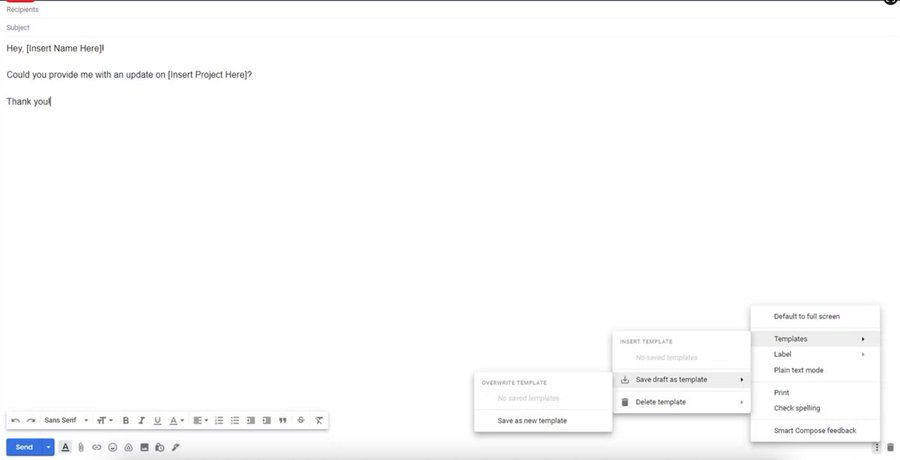
Supercharge your productivity with email templates:
1. Open Compose
2. Enter your desired template text in the email field
3. Click the three-dot menu and go to Templates
4. Save your draft as a new template
Streamline your workflow and save valuable time!
1. Open Compose
2. Enter your desired template text in the email field
3. Click the three-dot menu and go to Templates
4. Save your draft as a new template
Streamline your workflow and save valuable time!
10. Archive important emails (don’t delete them!)

That's a wrap ✨ Hope you enjoyed it.
If you found this thread valuable:
1. Follow me @DevMuzzammil.
2. Like and repost the first post to share👇
If you found this thread valuable:
1. Follow me @DevMuzzammil.
2. Like and repost the first post to share👇
Loading suggestions...