

Congratulations, you are seeing this Tweet; here is a life-changing opportunity to transition into tech today; we're continuing our coding journey.
Course Title: HTML, CSS & JAVASCRIPT
I'll explain like you are 5 years old; kindly retweet for others, and let's begin!!
Course Title: HTML, CSS & JAVASCRIPT
I'll explain like you are 5 years old; kindly retweet for others, and let's begin!!
2/22 Welcome to your second class on web development. To avoid missing subsequent classes in the future, kindly give me a follow.
Recalled in our last class, we did a bit of introduction to HTML; today, we'll go even deeper. Grab your tools, and let's begin
Recalled in our last class, we did a bit of introduction to HTML; today, we'll go even deeper. Grab your tools, and let's begin
3/22 This course will act as a refresher for those who are already acquainted with the foundations of HTML, CSS, and JavaScript.
Let's Create A Basic Html Page
Let's Create A Basic Html Page
4/22 For example, in an HTML file, you might write the following text under the HTML section in your IDE. If you are using an external IDE such as VsCode, create a file with an extension ending in ".html"
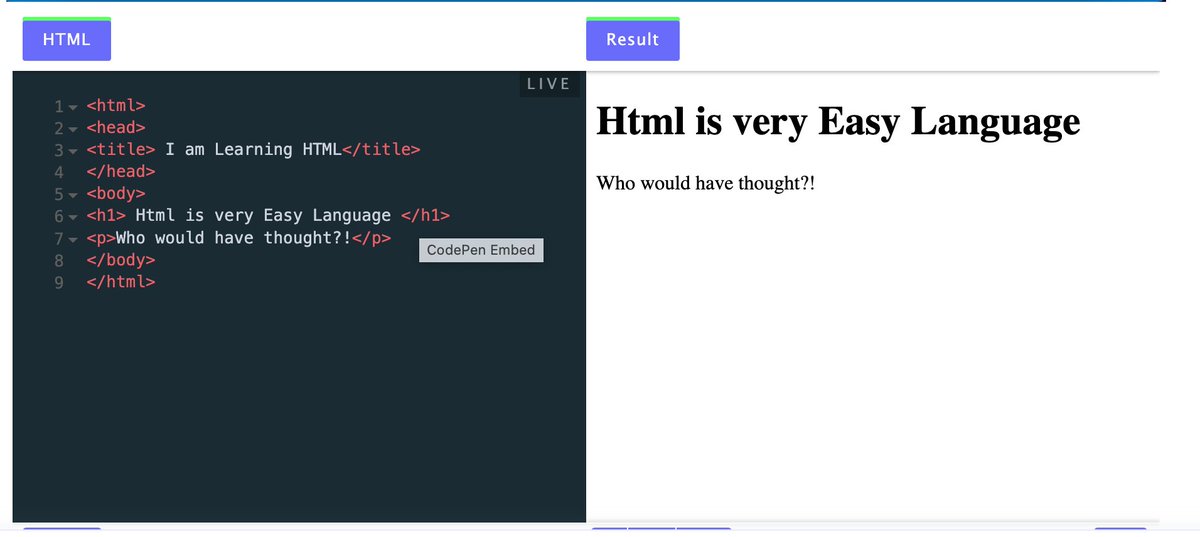
5/22 i.e "meop.html"
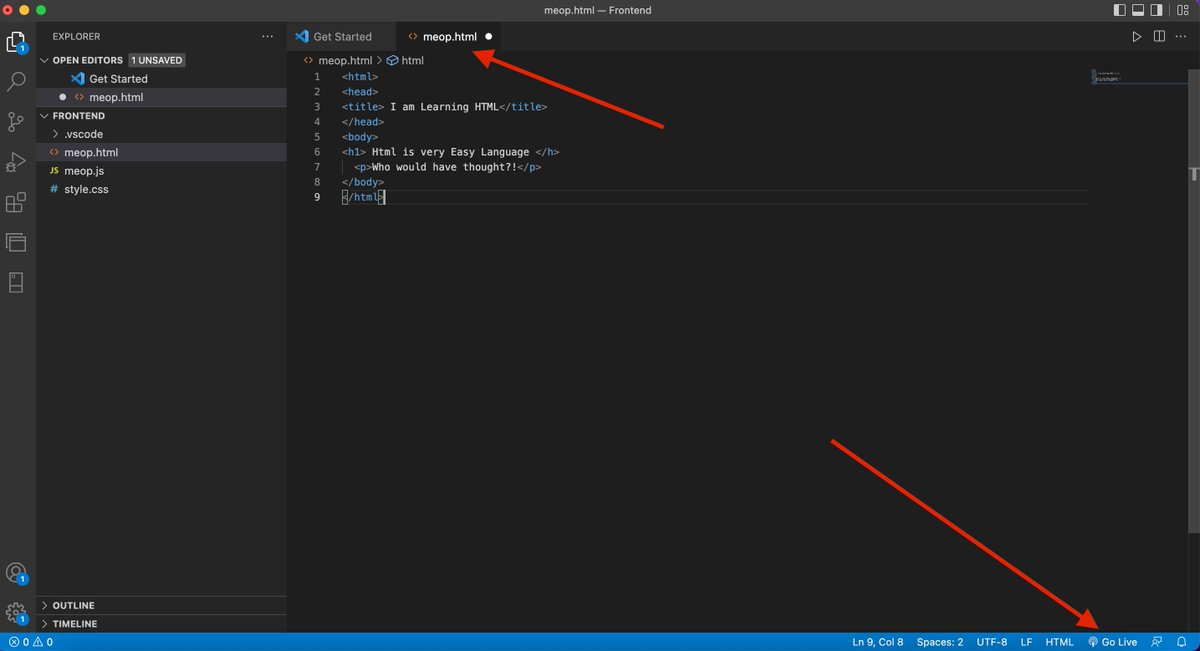
6/22 Now let me explain what's in the code
The above code is a simple Html webpage; you can see how unattractive it is and all it has is just a heading and paragraph.
The above code is a simple Html webpage; you can see how unattractive it is and all it has is just a heading and paragraph.
7/22 It looks like just typing black text on white background. Don't worry at all, we are just bringing the bird out of the pocket.
here is what each tags represent
here is what each tags represent
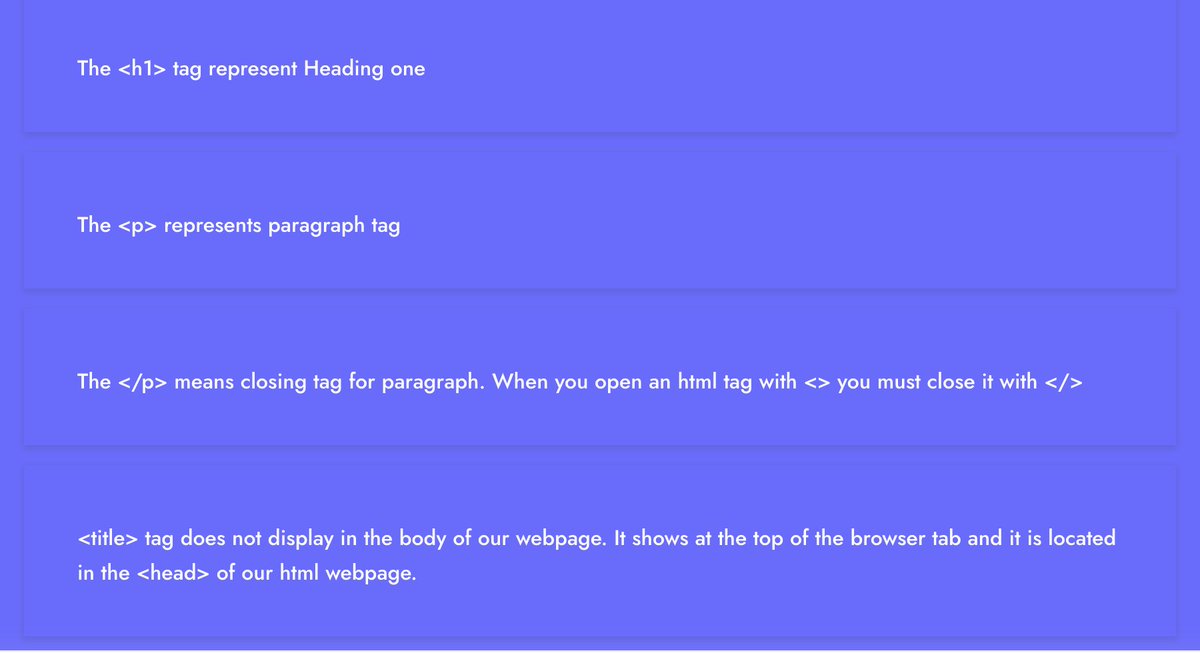
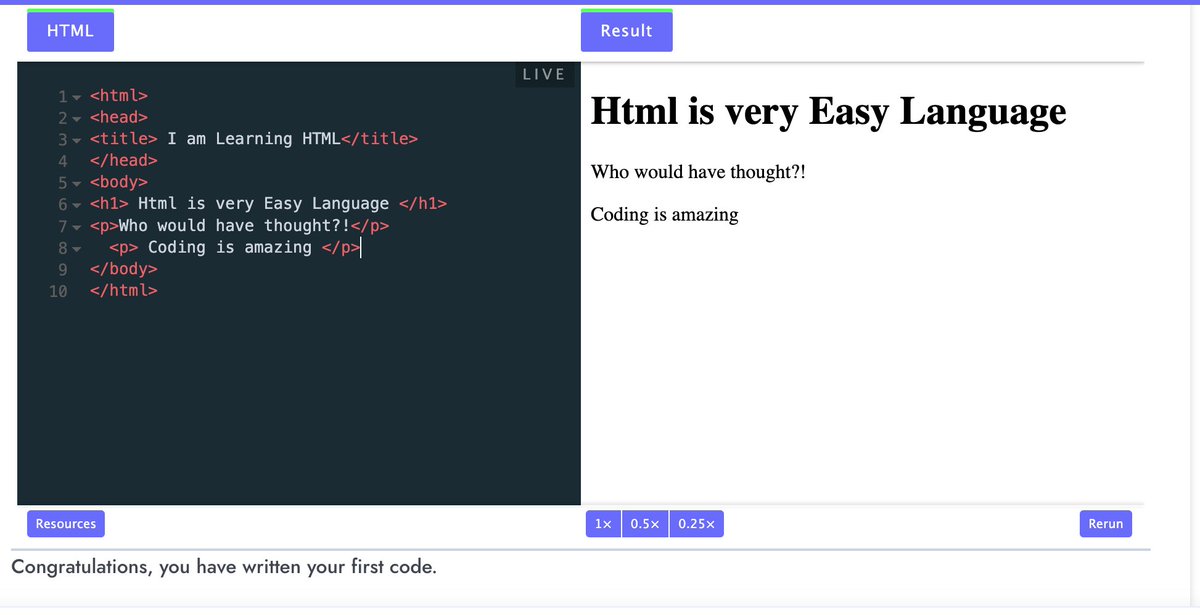
8/22 First task: Create another paragraph tag using the above code and write the following word:
"coding is amazing"
SOLUTION
"coding is amazing"
SOLUTION
9/22 This explainer video will help you if, all this still reads confusing. You'll like and retweet this
aptlearn.io
aptlearn.io
10/22
11/22 Topic. Embbeded Stylesheet on Internal CSS.
While writing our HTML Code, we can customize it even better with CSS without having to create an external CSS file with the ".css" extension; how do we accomplish this? we use Internal CSS
While writing our HTML Code, we can customize it even better with CSS without having to create an external CSS file with the ".css" extension; how do we accomplish this? we use Internal CSS
12/22 If you look at the code below, You will notice the <style> element in the head section, which is used to design your pages and give them a better look.
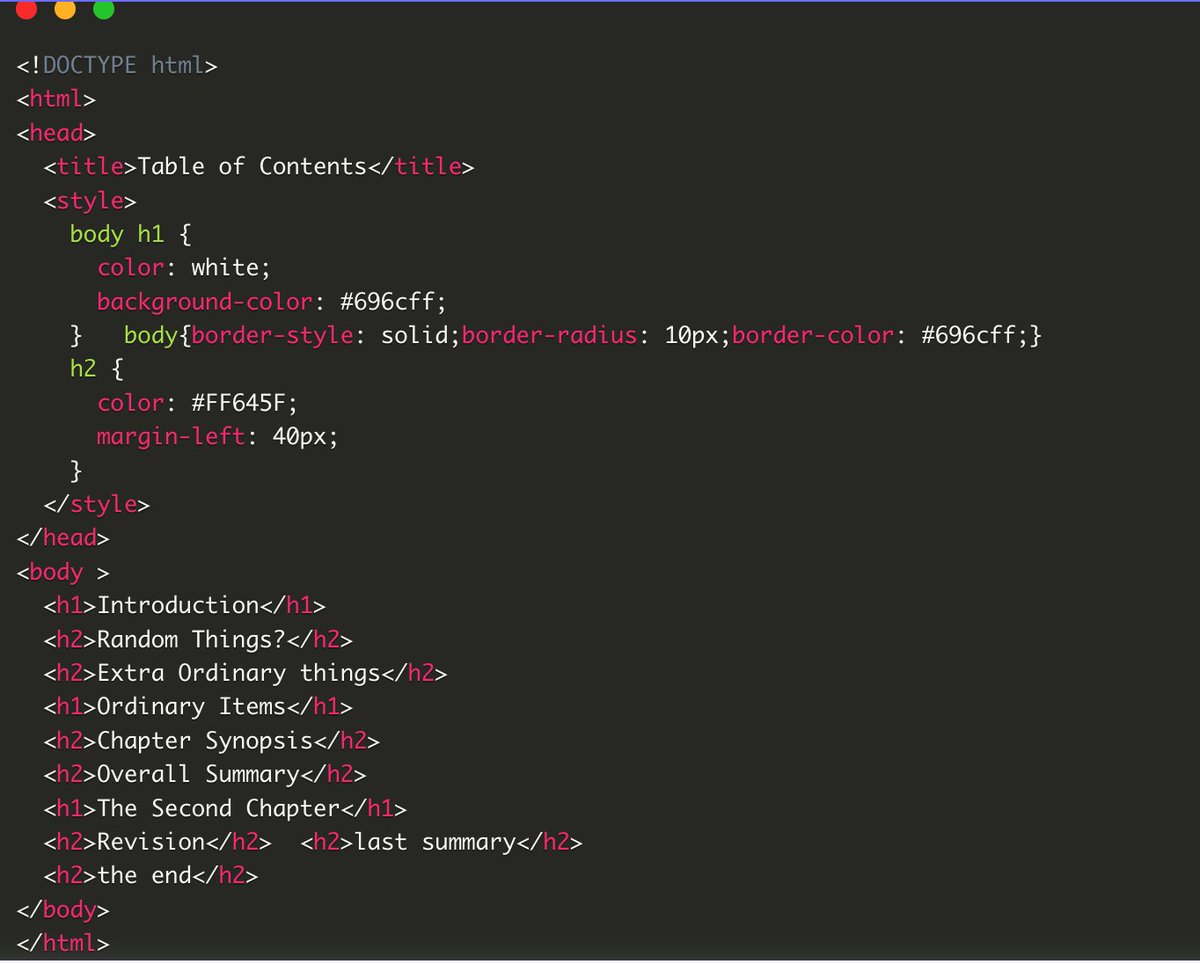
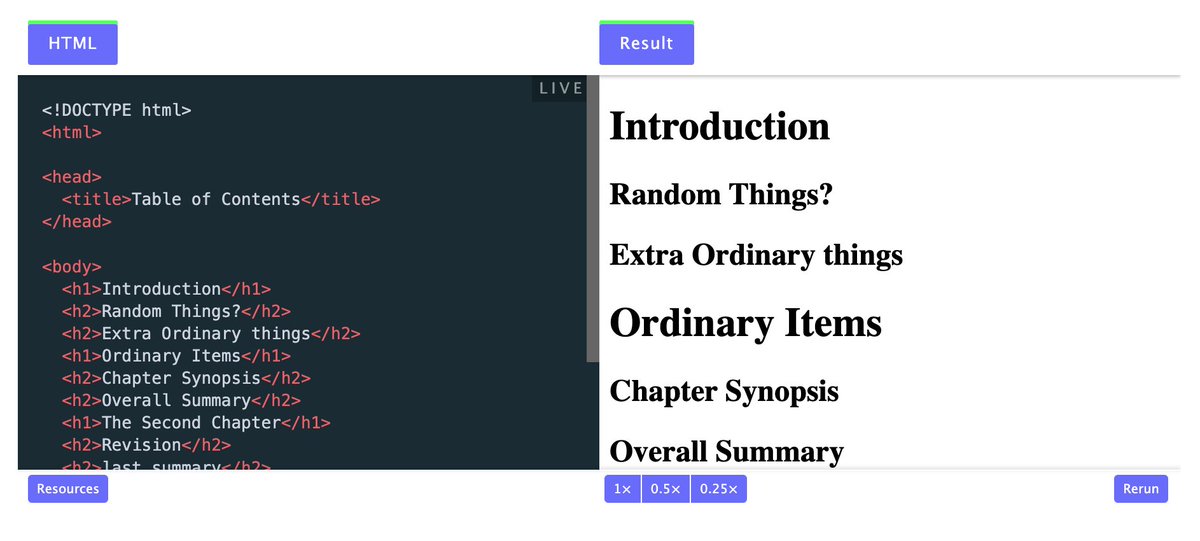
13/22 Let's remove the <style> element we added to the code and see the result.
You will notice <style> merely added a visual attribute that changes the appearance of our webpage content.
You will notice <style> merely added a visual attribute that changes the appearance of our webpage content.
14/22 Now, if we add the style back, you will notice our header's background is now purple while the texts are white, and our heading texts are now red.
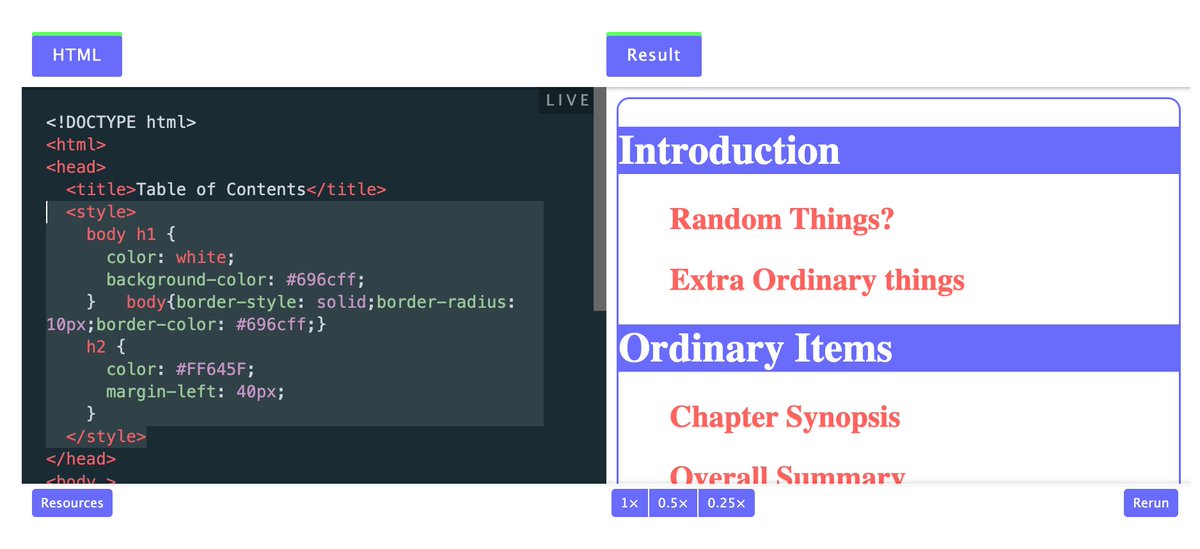
15/22 Before I explain what we did with the <style> element, let's take a look at this example.
The code and The result
The code and The result
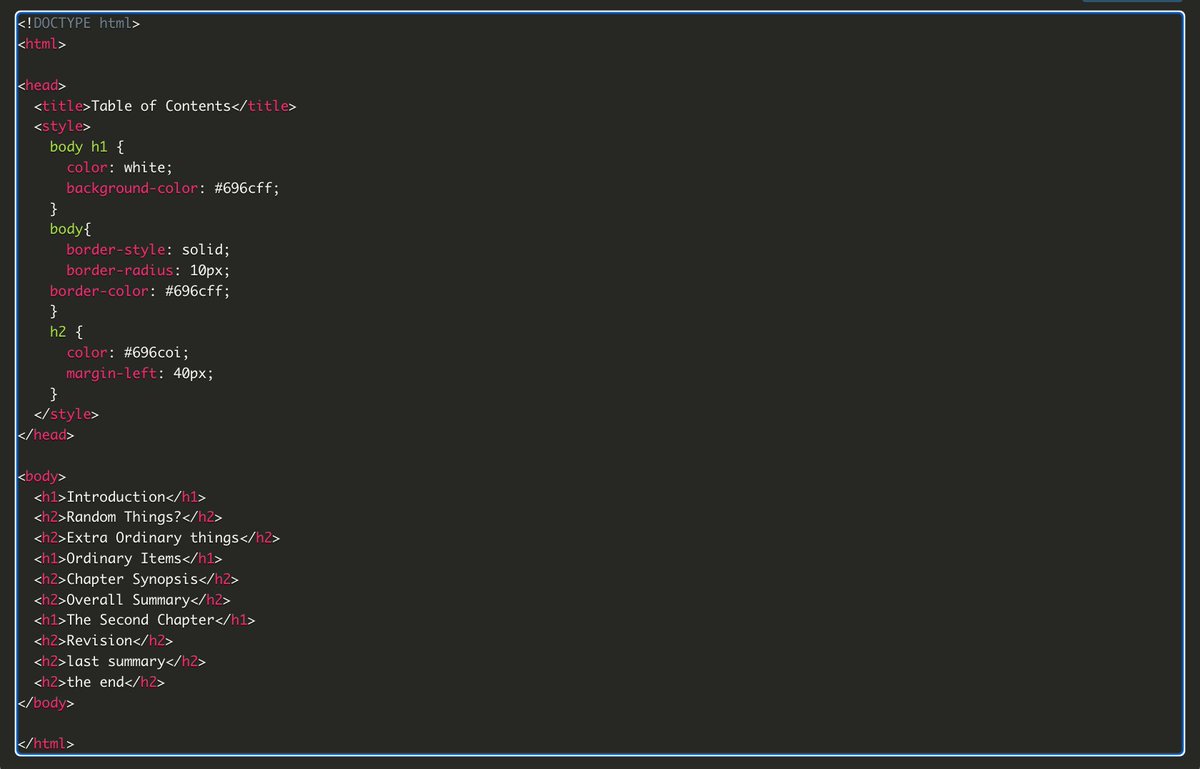
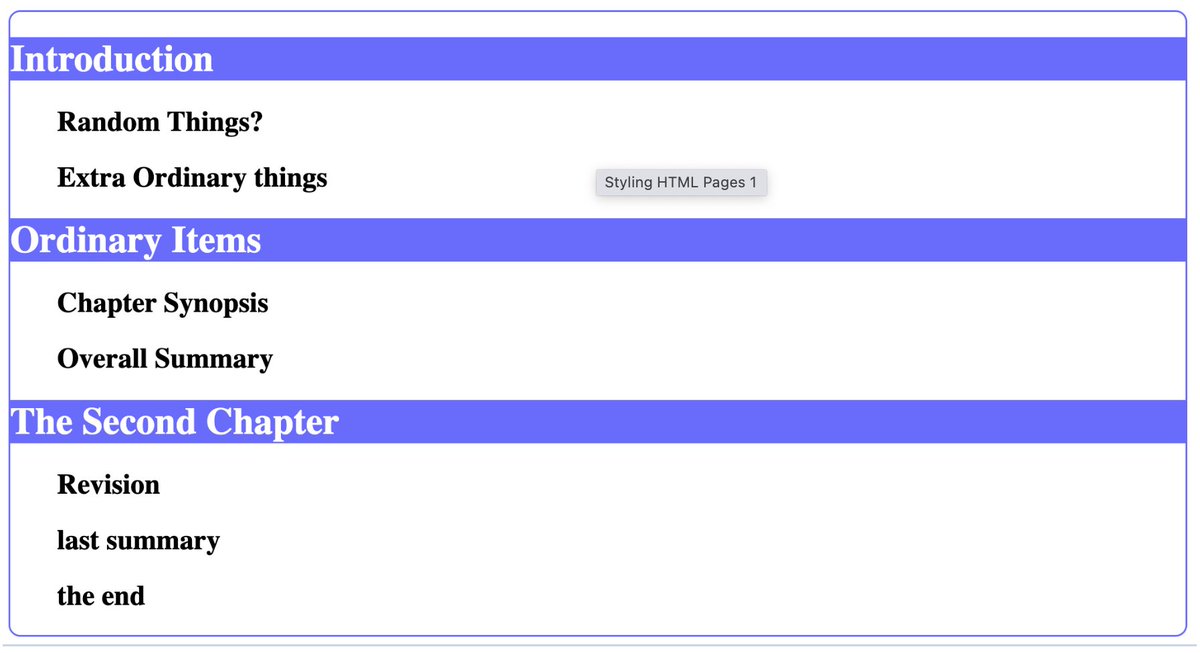
16/22 Look at the image below, inside the styles; we have all the below arrows. Let's take them one at a time. We used a CSS selector called TYPE selector to select an Html tag we wished to style.
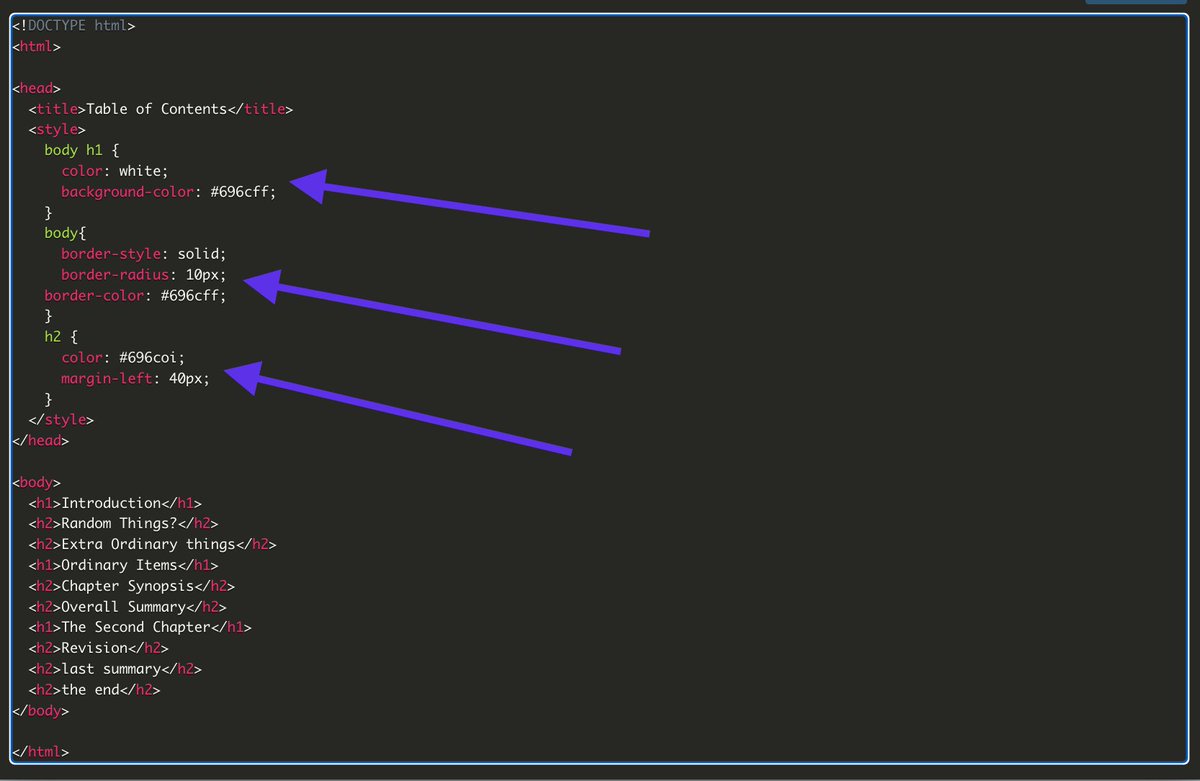
17/22 In the 1st arrow, we selected (body and h1), and we applied the following.
𝗰𝗼𝗹𝗼𝗿: 𝘄𝗵𝗶𝘁𝗲;
𝗯𝗮𝗰𝗸𝗴𝗿𝗼𝘂𝗻𝗱-𝗰𝗼𝗹𝗼𝗿: #𝟲𝟵𝟲𝗰𝗳𝗳;
Color of texts should be white, while background should be purple per color code 696cff
𝗰𝗼𝗹𝗼𝗿: 𝘄𝗵𝗶𝘁𝗲;
𝗯𝗮𝗰𝗸𝗴𝗿𝗼𝘂𝗻𝗱-𝗰𝗼𝗹𝗼𝗿: #𝟲𝟵𝟲𝗰𝗳𝗳;
Color of texts should be white, while background should be purple per color code 696cff
18/22 In the 2nd arrow, we selected just the (body) tag using the type selector again.
𝗯𝗼𝗿𝗱𝗲𝗿-𝘀𝘁𝘆𝗹𝗲: 𝘀𝗼𝗹𝗶𝗱;
𝗯𝗼𝗿𝗱𝗲𝗿-𝗿𝗮𝗱𝗶𝘂𝘀: 𝟭𝟬𝗽𝘅;
𝗯𝗼𝗿𝗱𝗲𝗿-𝗰𝗼𝗹𝗼𝗿: #𝟲𝟵𝟲𝗰𝗳𝗳;
We applied different CSS border property
𝗯𝗼𝗿𝗱𝗲𝗿-𝘀𝘁𝘆𝗹𝗲: 𝘀𝗼𝗹𝗶𝗱;
𝗯𝗼𝗿𝗱𝗲𝗿-𝗿𝗮𝗱𝗶𝘂𝘀: 𝟭𝟬𝗽𝘅;
𝗯𝗼𝗿𝗱𝗲𝗿-𝗰𝗼𝗹𝗼𝗿: #𝟲𝟵𝟲𝗰𝗳𝗳;
We applied different CSS border property
19/22 In the last arrow, we selected (h2), so we could apply.
𝗰𝗼𝗹𝗼𝗿: #𝟲𝟵𝟲𝗰𝗼𝗶;
𝗺𝗮𝗿𝗴𝗶𝗻-𝗹𝗲𝗳𝘁: 𝟰𝟬𝗽𝘅;
Video: aptlearn.io
𝗰𝗼𝗹𝗼𝗿: #𝟲𝟵𝟲𝗰𝗼𝗶;
𝗺𝗮𝗿𝗴𝗶𝗻-𝗹𝗲𝗳𝘁: 𝟰𝟬𝗽𝘅;
Video: aptlearn.io
20/22 Class assignment.
Write out all the code in today's lessons, paste it into your IDE, screenshot, and quote or comment on the main tweet.
Use the hashtag CodeWithAgbaAkin if you wish to find your tweet in the future.
Write out all the code in today's lessons, paste it into your IDE, screenshot, and quote or comment on the main tweet.
Use the hashtag CodeWithAgbaAkin if you wish to find your tweet in the future.
21/22 Thanks to @aptlearn_io for providing us with such a great platform to teach this,
That will be the end of today's class, well-done guys. Keep going, and your resilience will pay off.
See you soon💌
That will be the end of today's class, well-done guys. Keep going, and your resilience will pay off.
See you soon💌
Loading suggestions...