

10 Excel tips they should have taught you in school (but didn't): 📊
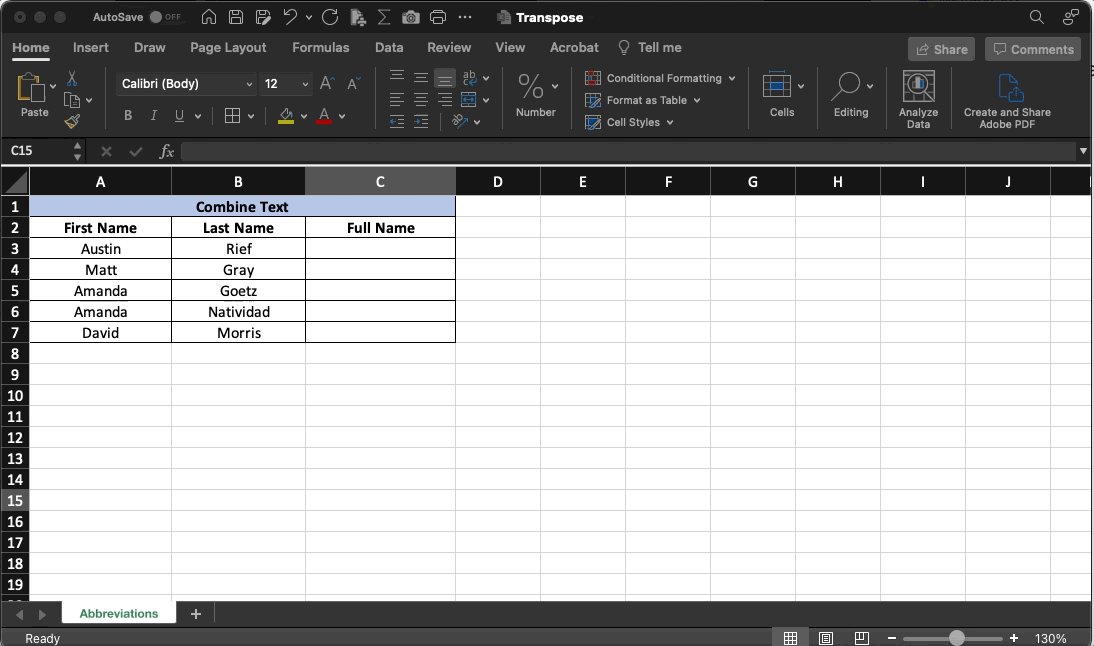
Combine Text using "&"
Let's say you have a list of First & Last names you need to combine.
• Select the destination cell
• For our example the function will be:
👉🏻 =A3&" "&B3
• Press "Enter"
It's that easy.
Let's say you have a list of First & Last names you need to combine.
• Select the destination cell
• For our example the function will be:
👉🏻 =A3&" "&B3
• Press "Enter"
It's that easy.
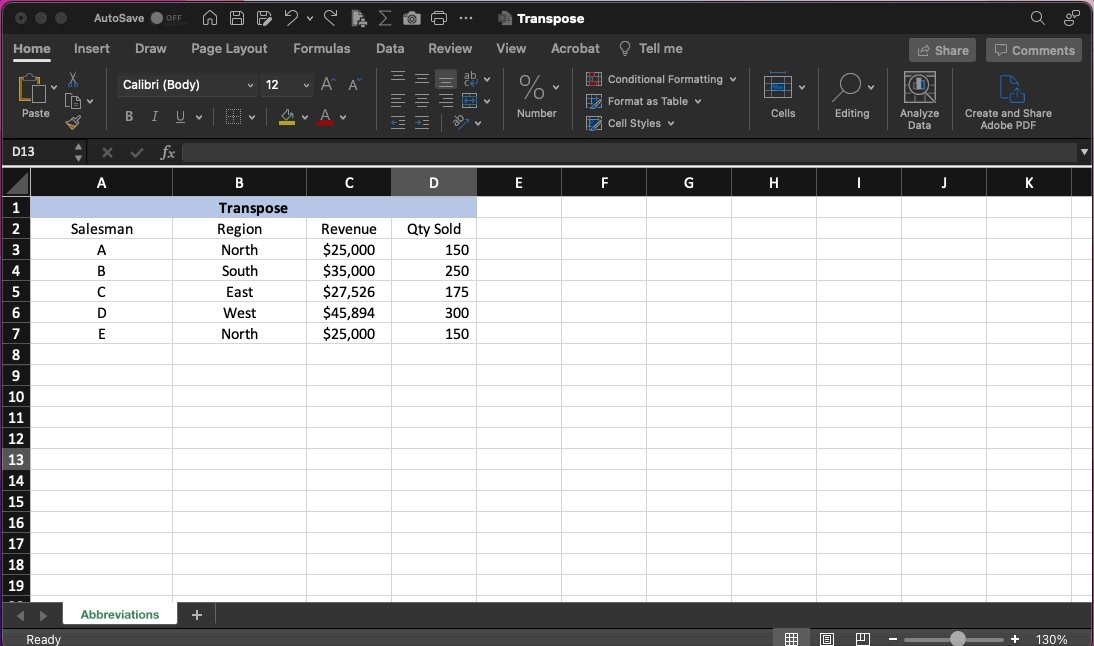
Transpose Data:
Sometimes you have data organized in Rows when you'd rather it be in Columns, or vice-versa.
With the Transpose command, you're only a couple of clicks away.
CTRL or CMD+C to Copy the range of data
Click the arrow next to "Paste"
Select "Transpose"
Done.
Sometimes you have data organized in Rows when you'd rather it be in Columns, or vice-versa.
With the Transpose command, you're only a couple of clicks away.
CTRL or CMD+C to Copy the range of data
Click the arrow next to "Paste"
Select "Transpose"
Done.
Protecting Sheets:
It's a crazy world out there.
You can't just go around sending your worksheets to everyone without adding some protection.
• Right-click on the tab of the sheet
• Select "Protect Sheet"
• Enter a password
• Choose what to allow users to do (or not)
It's a crazy world out there.
You can't just go around sending your worksheets to everyone without adding some protection.
• Right-click on the tab of the sheet
• Select "Protect Sheet"
• Enter a password
• Choose what to allow users to do (or not)

Limit Input:
The last thing you need is people "willy-nilly" entering whatever they want in your sheet.
Use Data Validation to set parameters for what can, and can't, be input into a given cell or range.
Limit length of text, format, or build your own custom list.
Here's how:
The last thing you need is people "willy-nilly" entering whatever they want in your sheet.
Use Data Validation to set parameters for what can, and can't, be input into a given cell or range.
Limit length of text, format, or build your own custom list.
Here's how:

Did you know you can paste data from Excel into Word or PowerPoint and...
It will update automatically?
• Copy from Excel
• "Paste Special" in Word
• Select "Paste link"
• MS Excel Worksheet Object
The picture in Word updates as data changes in Excel!
It will update automatically?
• Copy from Excel
• "Paste Special" in Word
• Select "Paste link"
• MS Excel Worksheet Object
The picture in Word updates as data changes in Excel!

Enter the same data in multiple cells:
Yes, I know you can copy & paste, but ain't nobody got time for that.
When you need to enter the same data in several cells try this:
•Select all of the destination cells
•Type a single entry
• Hit CMD or CNTRL + Enter
Voilà!
Yes, I know you can copy & paste, but ain't nobody got time for that.
When you need to enter the same data in several cells try this:
•Select all of the destination cells
•Type a single entry
• Hit CMD or CNTRL + Enter
Voilà!

Chart Templates:
Customizing charts to look the way you want can be a pain.
Don't let all of your hard work go to waste!
Save them.
• Right-click on the chart
• Save as template
The chart will now be listed in the insert menu for future use, no need to build it again!
Customizing charts to look the way you want can be a pain.
Don't let all of your hard work go to waste!
Save them.
• Right-click on the chart
• Save as template
The chart will now be listed in the insert menu for future use, no need to build it again!

Ever wonder how much time has passed between two dates?
With the DATEDIF function, it's easy to find out.
=DATEDIF(A5,B5,"D")
• "A5"=Start date cell
• "B5"=End date cell
• "D"=Time interval value you'd like to see
D=Days
M=Months
Y=Years
Like this:
With the DATEDIF function, it's easy to find out.
=DATEDIF(A5,B5,"D")
• "A5"=Start date cell
• "B5"=End date cell
• "D"=Time interval value you'd like to see
D=Days
M=Months
Y=Years
Like this:

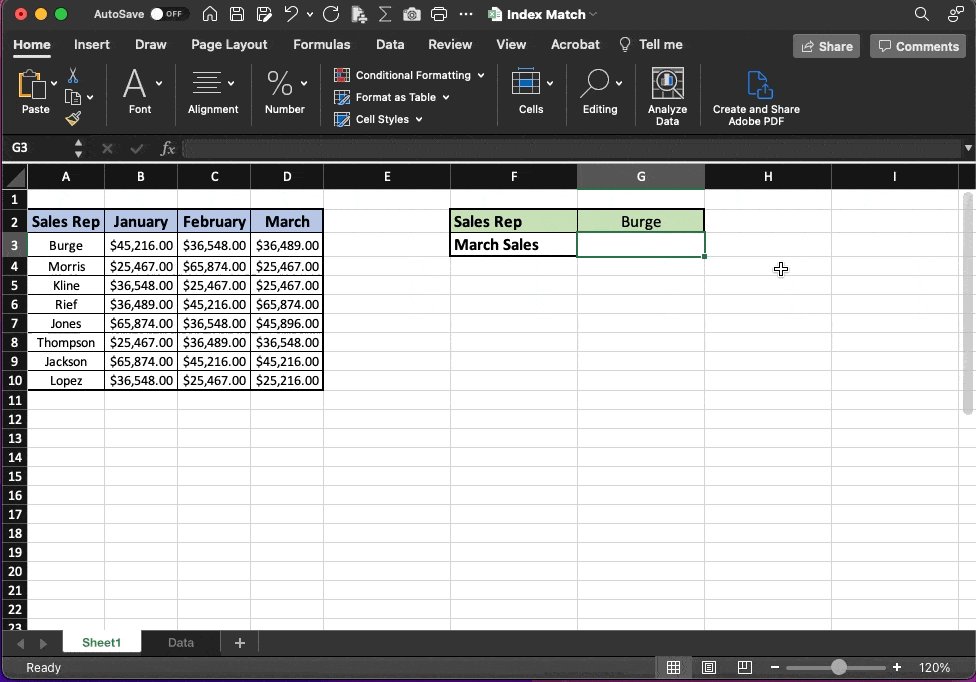
Index Match:
People love combining the INDEX + MATCH functions, and for good reason.
INDEX - Finds a value at a given location within a range.
MATCH - Finds the location of an item within a range.
Put them together, and you're unstoppable.
Here's a quick example:
People love combining the INDEX + MATCH functions, and for good reason.
INDEX - Finds a value at a given location within a range.
MATCH - Finds the location of an item within a range.
Put them together, and you're unstoppable.
Here's a quick example:
Incognito Cell Data:
Sometimes you have data you'd prefer not every wandering eye in the office gets to see.
With hidden values, you keep the data, but the cells appear empty.
• Select the cell or range
• Click "⌄" next to Number
• More formats
• Custom
• Type: ";;;"
Sometimes you have data you'd prefer not every wandering eye in the office gets to see.
With hidden values, you keep the data, but the cells appear empty.
• Select the cell or range
• Click "⌄" next to Number
• More formats
• Custom
• Type: ";;;"

Last:
Threads are great...
But if you really want to get better at Excel, you can't afford to miss this.
I'll keep it simple:
✅ Most jobs require basic Excel skills.
✅ More skills = More money 💰
Get yours!
The next round starts Tuesday 👇🏻
excelfoundations1.carrd.co
Threads are great...
But if you really want to get better at Excel, you can't afford to miss this.
I'll keep it simple:
✅ Most jobs require basic Excel skills.
✅ More skills = More money 💰
Get yours!
The next round starts Tuesday 👇🏻
excelfoundations1.carrd.co

That's it for today.
Follow me at @blakeaburge for weekly threads on business & productivity.
Join 15,000+ others & check out my newsletter––It's free!
•The best of Twitter
•In your Inbox
•Every Sunday
blake.ck.page
Follow me at @blakeaburge for weekly threads on business & productivity.
Join 15,000+ others & check out my newsletter––It's free!
•The best of Twitter
•In your Inbox
•Every Sunday
blake.ck.page
Loading suggestions...