

1/10 How to customize Lux Algo Premium 📈✨
Our main toolkit! (Thread) 🧵
Our main toolkit! (Thread) 🧵
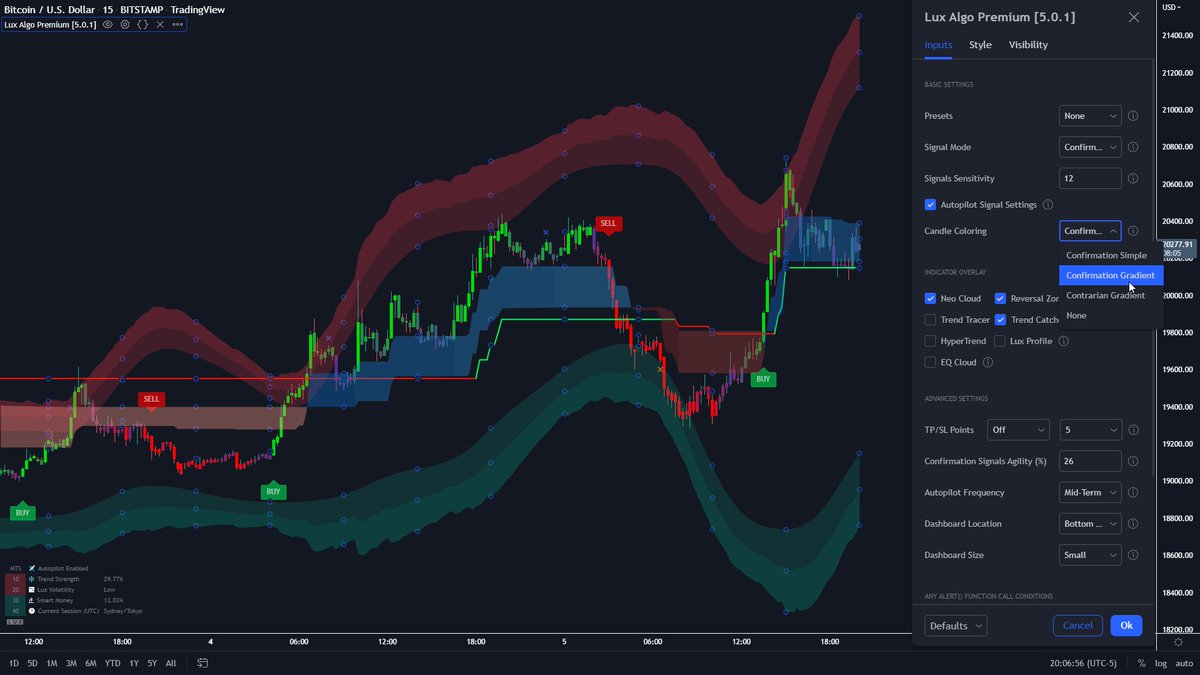
2/10 Once you load up the main Lux Algo Premium indicator you will see just a few of our most popular features, however, there is MUCH more you can choose from within the settings menu. 👀
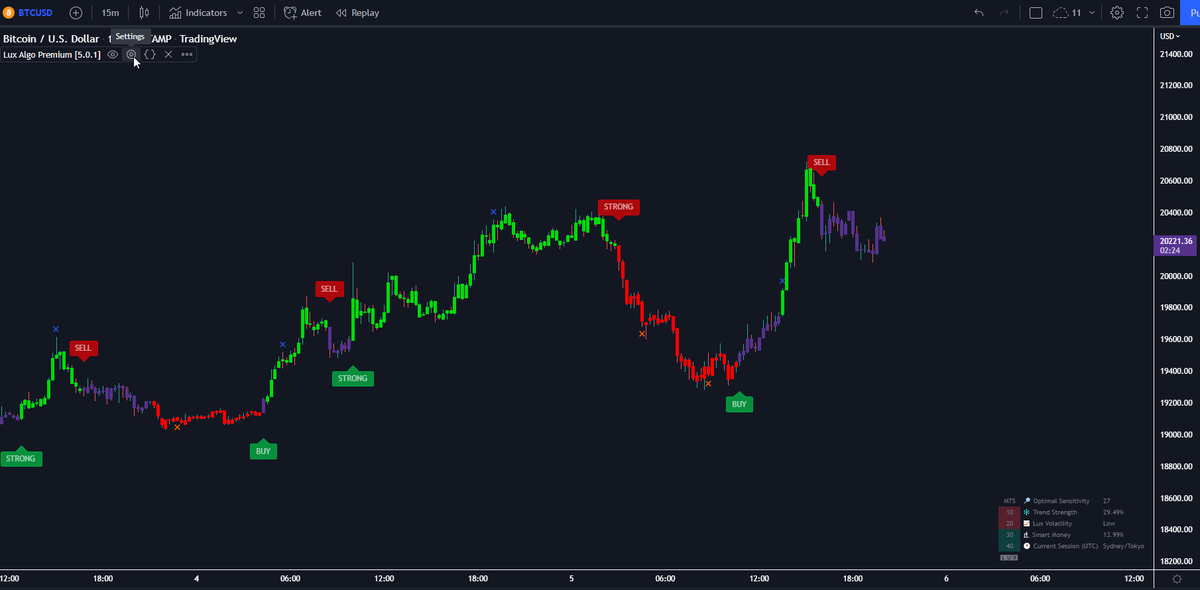
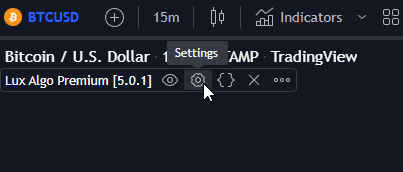
You can access the menu by double-clicking a signal or just by clicking the wheel icon. ⚙️
You can access the menu by double-clicking a signal or just by clicking the wheel icon. ⚙️
3/10 Does this menu look confusing? Overwhelming? Not sure what everything means/does?
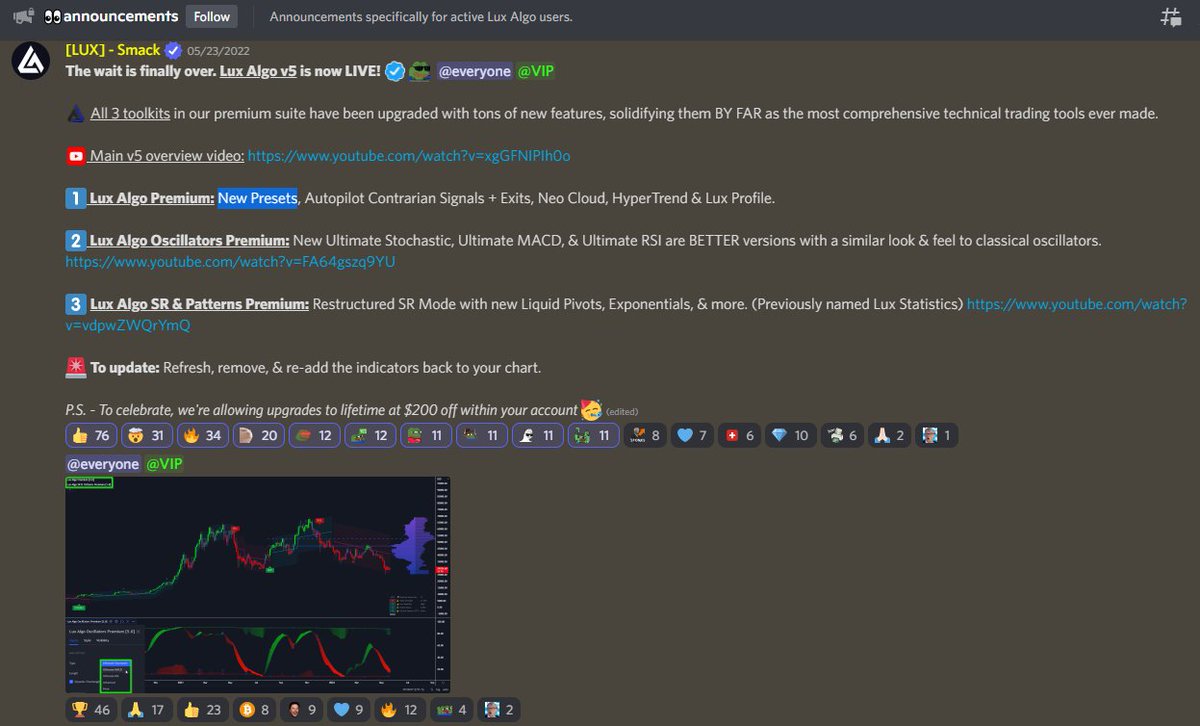
No problem, first try out some Presets at the very top of the settings menu. 🦾
(Note: when a preset is selected, the displayed overlay indicators / toggles may be locked)
No problem, first try out some Presets at the very top of the settings menu. 🦾
(Note: when a preset is selected, the displayed overlay indicators / toggles may be locked)
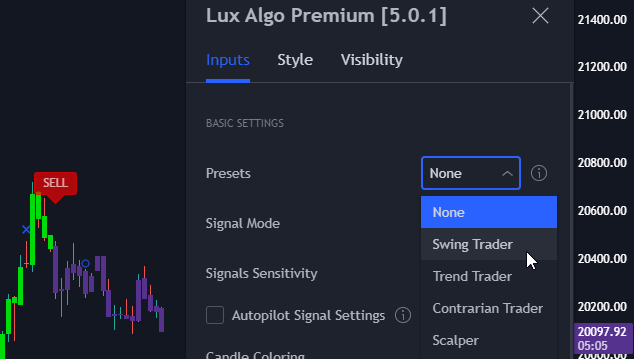
4/10 The "Swing Trader" preset for example will automatically enable the Neo Cloud and put the Confirmation + Exit signals on "Autopilot" mode to dynamically adjust them ⚡️
This can be great for following midterm trends and could suit a swing trader on higher timeframes well.
This can be great for following midterm trends and could suit a swing trader on higher timeframes well.

5/10 There are many more Presets available, and we are continuously looking to add more for our users based on their feedback within discord.gg
Learn more specifics about the settings menu & customizations you can do in the next few tweets
👇👇👇
Learn more specifics about the settings menu & customizations you can do in the next few tweets
👇👇👇
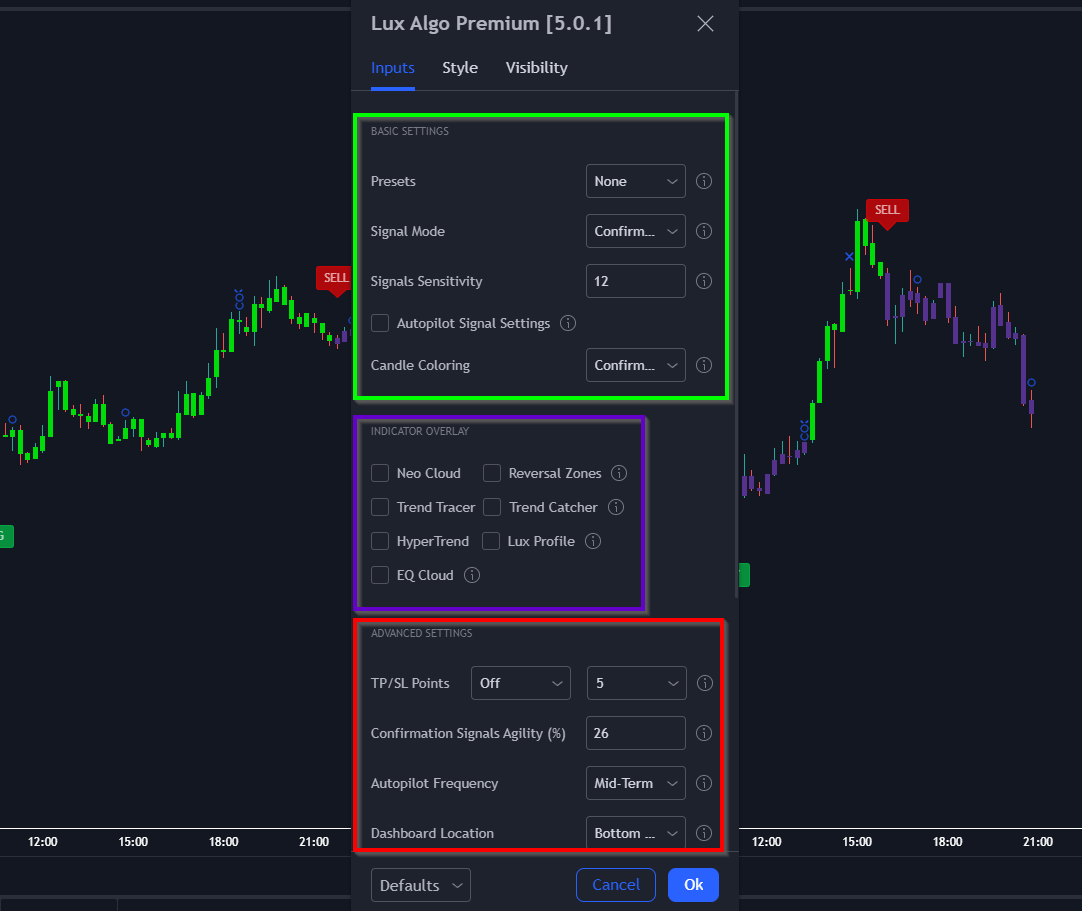
6/10 The settings menu has 3 main sections 👇
Basic Settings is primarily for the Signals & Candle coloring options 🟩
Indicator Overlay displays many different features on top of your chart 🟪
Advanced Settings is for greater customization & is followed by alert options 🟥
Basic Settings is primarily for the Signals & Candle coloring options 🟩
Indicator Overlay displays many different features on top of your chart 🟪
Advanced Settings is for greater customization & is followed by alert options 🟥
7/10 An example of how you could use Signal Mode within Basic Settings to customize your signal labels.
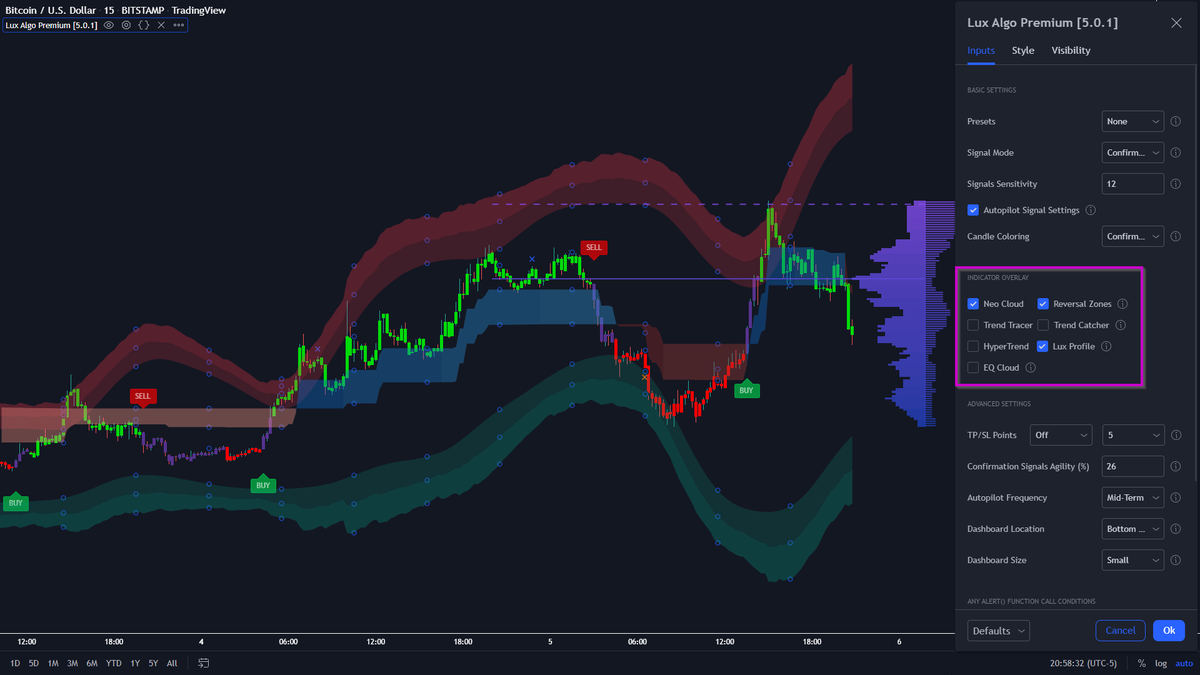
8/10 Here's an example of enabling some of our Indicator Overlays. Pictured below is Neo Cloud, Reversal Zones, and Lux Profile.
These features can help you find support/resistance, good reversal points, and they work great alongside the main Confirmation Signals 🔥
These features can help you find support/resistance, good reversal points, and they work great alongside the main Confirmation Signals 🔥
9/10 An example of an Advanced Settings customization:
10/10 For more guides on customizing Lux Algo Premium, visit our docs: docs.luxalgo.com
Thanks for reading! 🫶📈✨
Thanks for reading! 🫶📈✨
Loading suggestions...