

Linux basics- Linking files or creating shortcuts in Linux. 🧵↓
The ability to link files is a fantastic feature of the Linux filesystem. Consider linking files in Linux to be similar to creating Windows shortcuts.
Links are extremely useful, especially if you need to have two (or more) versions of the same file on the system.
Instead of having multiple physical copies of the same file on the system, you can have one physical copy and numerous virtual copies, known as links.
Instead of having multiple physical copies of the same file on the system, you can have one physical copy and numerous virtual copies, known as links.
A link is a placeholder in a directory that points to the file's actual location. In Linux, there are two types of file links:
• symbolic link
• hard link
• symbolic link
• hard link
Symbolic link
A symbolic link, also known as a soft link, is a physical file that points to another file in the virtual directory structure.
The contents of the two files that are symbolically linked together are not the same.
A symbolic link, also known as a soft link, is a physical file that points to another file in the virtual directory structure.
The contents of the two files that are symbolically linked together are not the same.
To create a symbolic link, the original file must already exist. The ln command, when combined with the -s option, allows you to create a symbolic link.

In the preceding example, the name of the symbolic link, sl_logs.txt, is listed second in the ln command.
You can use ls -l to see if the files are linked together, the -> sign displayed after the symbolic link filename indicates that it is symbolically linked to the file backup.tar
Also, compare the file size of the symbolic link with that of logs.txt file. The symbolic link, sl_logs.txt file, is just 8 bytes long, while the file logs.txt is 46 bytes long.
This is because the sl_logs.txt file is only pointing to logs.txt . They do not share contents and they are two physically separate files.
Viewing their inode numbers is another way to tell that these linked files are separate physical files.
Incase you don't know
The inode number of a file or directory is a unique identification number assigned by the kernel to each object in the filesystem.
Incase you don't know
The inode number of a file or directory is a unique identification number assigned by the kernel to each object in the filesystem.
To view the inode number of a file or directory, use the -i option with the ls command:
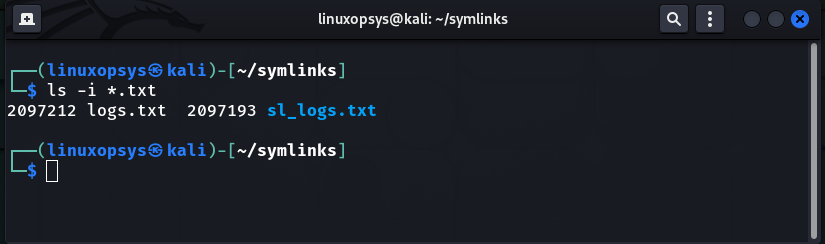
The below example shows that the inode number of the logs.txt file is 2097212, whereas the inode number of the sl_logs.txt file is 2097193. Which clearly shows that these files are different.
The below example shows that the inode number of the logs.txt file is 2097212, whereas the inode number of the sl_logs.txt file is 2097193. Which clearly shows that these files are different.
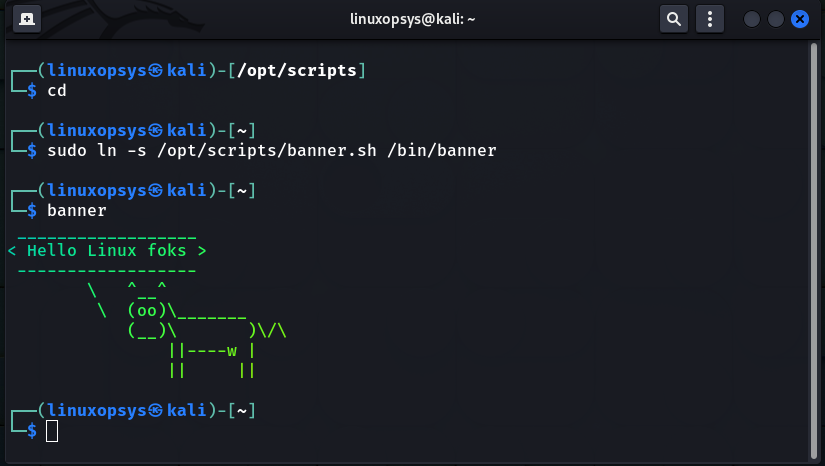
A nice example of utilizing symbolic links is to link third-party binaries downloaded from the internet to the /bin directory so you can execute them anywhere from your command line, rather than navigating to where the binaries are.
Hard Link
A hard link creates a separate virtual file with information about the original file and where to find it. The two files, however, are the same physical file.
A hard link creates a separate virtual file with information about the original file and where to find it. The two files, however, are the same physical file.
To create a hard link, the original file must still exist, but no options are required on the ln command this time.
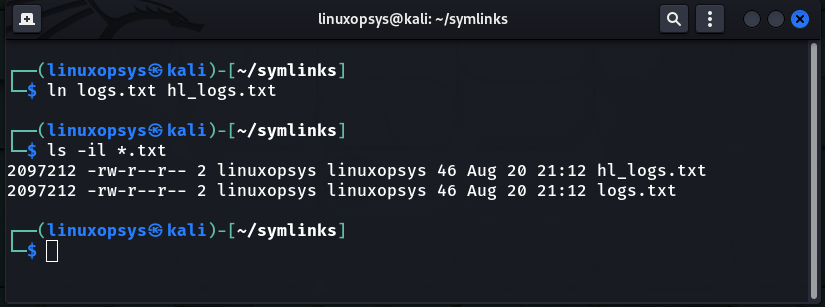
Following the creation of the hard link file, we used the ls -li command to display both the inode numbers and a long listing for the logs.txt and hl_logs.txt files.
It's worth noting that both hard-linked files have the same inode number. This is due to the fact that they are physically the same file. Their file sizes are also identical.
Differences, soft link & hard link:
• Soft links, like shortcuts, can point to any file or
directory in any file system.
• Hard links are similar to shortcuts for files and
folders, but they cannot be created for directories or
files in a different file systems.
• Soft links, like shortcuts, can point to any file or
directory in any file system.
• Hard links are similar to shortcuts for files and
folders, but they cannot be created for directories or
files in a different file systems.
That's it for today's thread!
Thank you for taking the time to read my brief Linux thread!
If you enjoyed this thread, follow us @linuxopsys for future Linux posts, which we will be posting on a daily basis.
Thank you for taking the time to read my brief Linux thread!
If you enjoyed this thread, follow us @linuxopsys for future Linux posts, which we will be posting on a daily basis.
Loading suggestions...