

9 Google Drive tips you'll wish you already knew:
#1: Extract the text from an image.
Need to copy text from an image?
• Right click on the image
• Choose 'Open with GoogleDocs'
• See your text
You can also search in Drive and it'll find the text in your image.
Need to copy text from an image?
• Right click on the image
• Choose 'Open with GoogleDocs'
• See your text
You can also search in Drive and it'll find the text in your image.
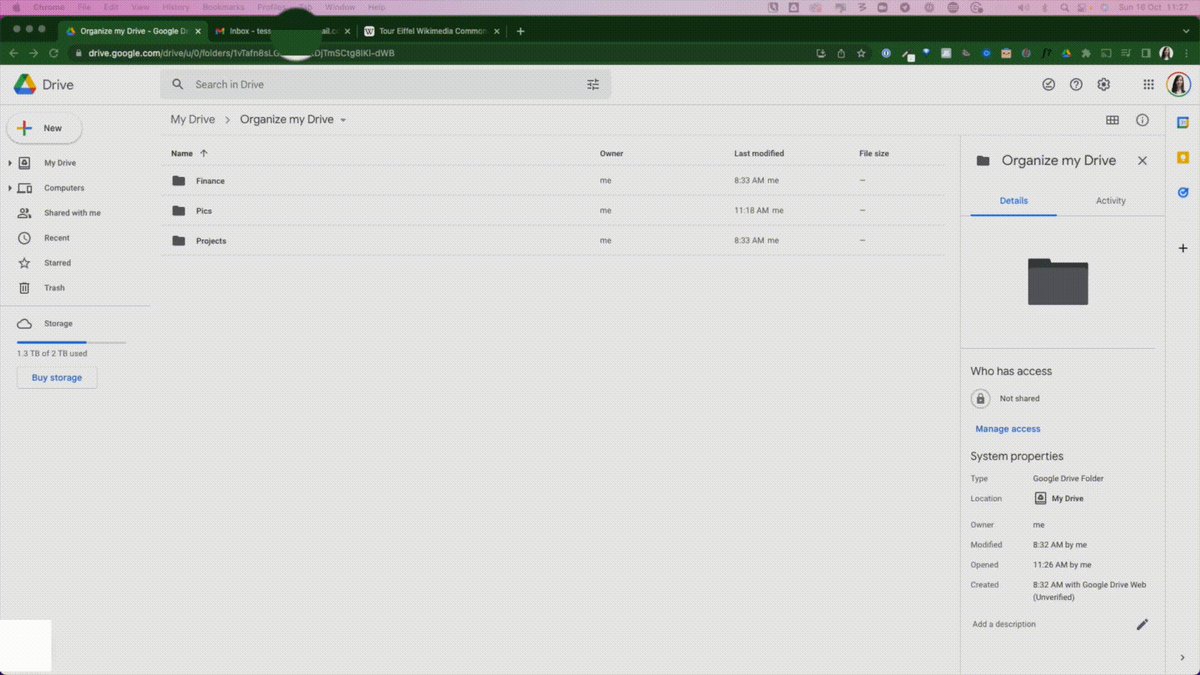
#2: Use your shortcuts.
Want to rename a file or share it quickly?
Use the keyboard shortcuts:
Click to select the file and:
• press N to rename instantly
• press . to share
Instantly save time.
Want to rename a file or share it quickly?
Use the keyboard shortcuts:
Click to select the file and:
• press N to rename instantly
• press . to share
Instantly save time.
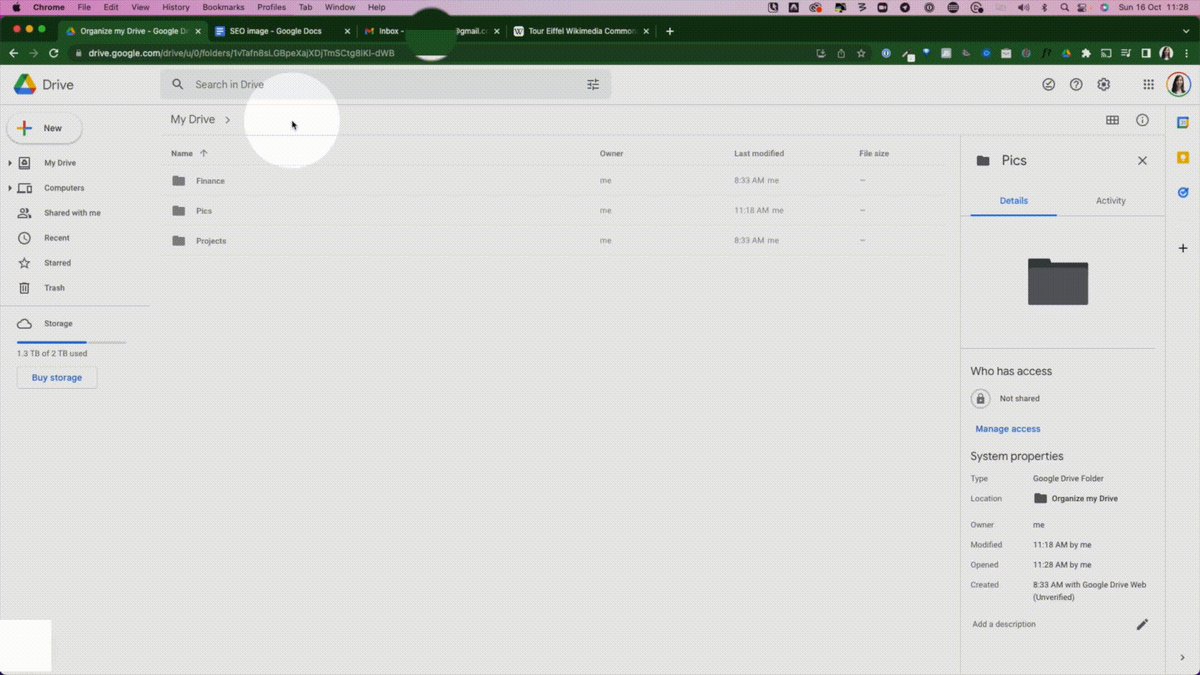
#3: Add color.
A billion gray folders isn't inspiring or easy to naviagate.
Color code your folders:
• Right click on a folder
• Select 'change color'
• Choose your color
Now you can easily see and categorize in a way that works for you.
A billion gray folders isn't inspiring or easy to naviagate.
Color code your folders:
• Right click on a folder
• Select 'change color'
• Choose your color
Now you can easily see and categorize in a way that works for you.
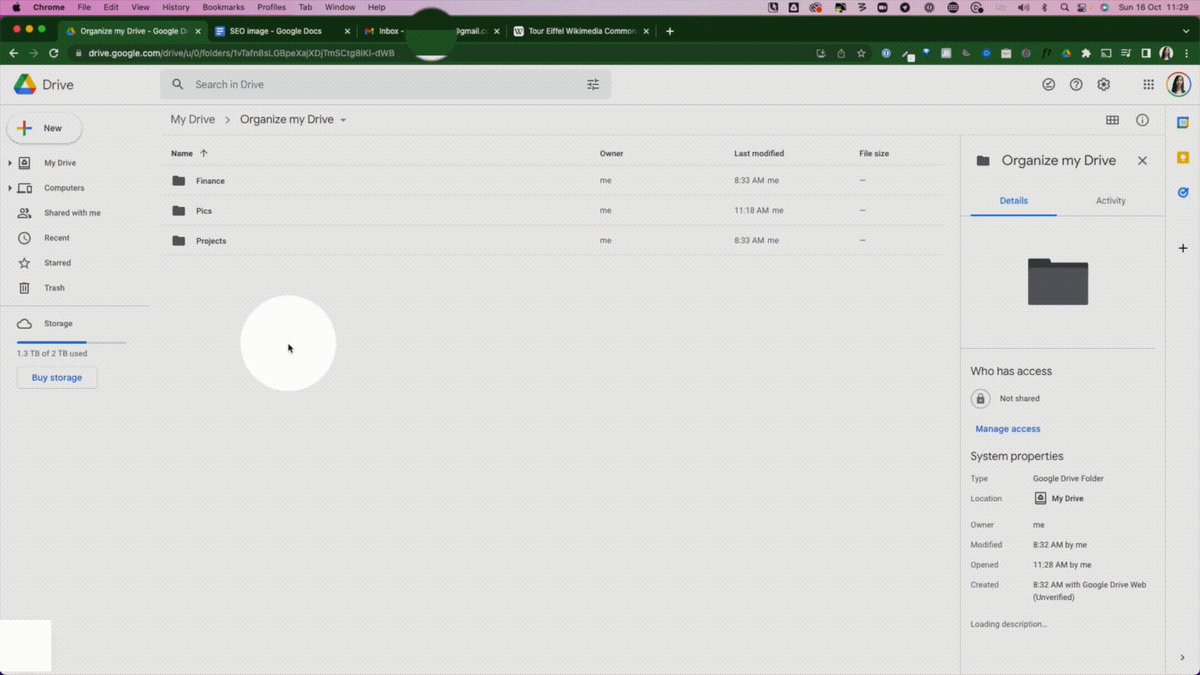
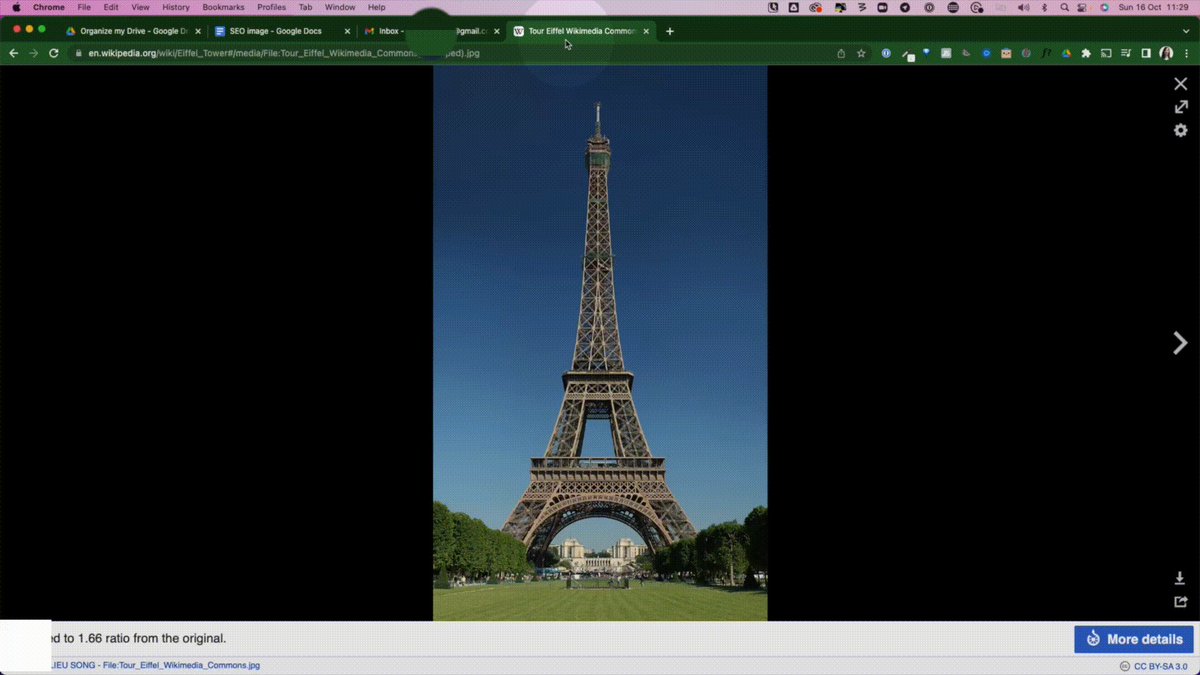
#4: Save images from the web.
Want to quickly save an image from the web?
• Add the 'Save to Google Drive' chrome extension
• Right click on the image
• Choose 'Save to Google Drive'
• Rename and save
No need to download, and reupload any more.
Want to quickly save an image from the web?
• Add the 'Save to Google Drive' chrome extension
• Right click on the image
• Choose 'Save to Google Drive'
• Rename and save
No need to download, and reupload any more.
#5: Get there quicker.
Want to create a new document/sheet/form?
Use .new for everything
• forms.new
• sheets.new
• docs.new
• slides.new
Save yourself time.
Want to create a new document/sheet/form?
Use .new for everything
• forms.new
• sheets.new
• docs.new
• slides.new
Save yourself time.

#6: Turn on offline use.
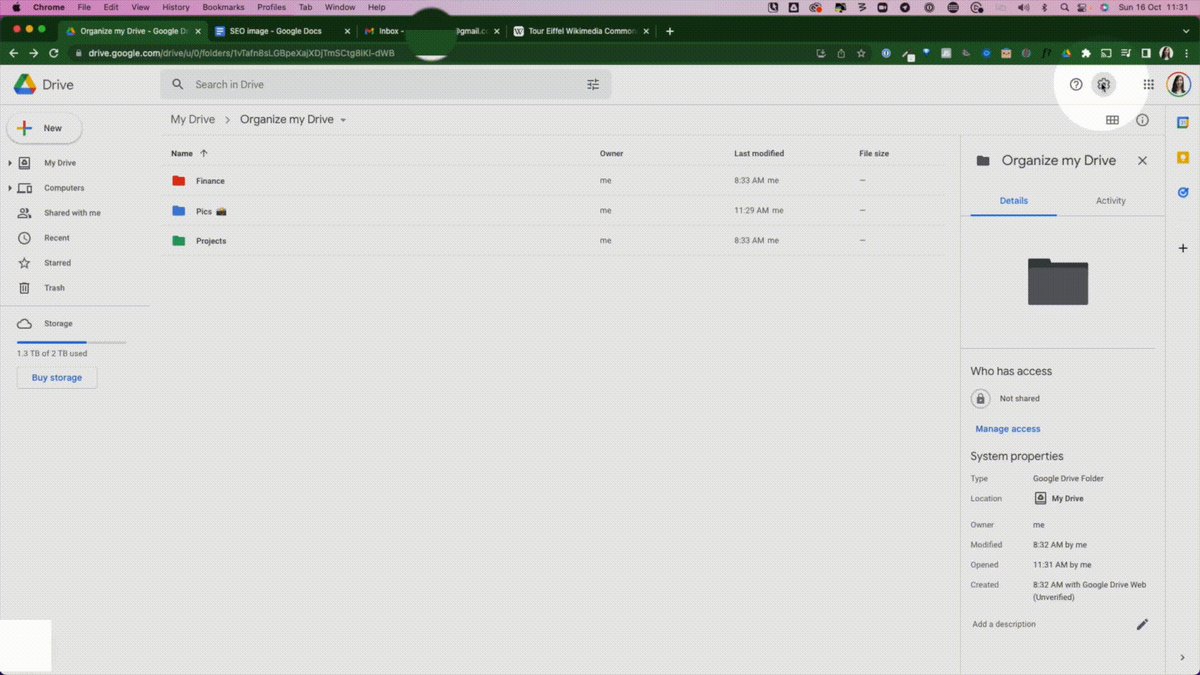
Sometimes you need to be able access files when you're offline:
• Click the Settings gear
• Go to Settings >General
• Check the box to access online
See the offline preview by clicking the checked circle at the top and turning on online preview.
Sometimes you need to be able access files when you're offline:
• Click the Settings gear
• Go to Settings >General
• Check the box to access online
See the offline preview by clicking the checked circle at the top and turning on online preview.
#7: Access files directly on your computer.
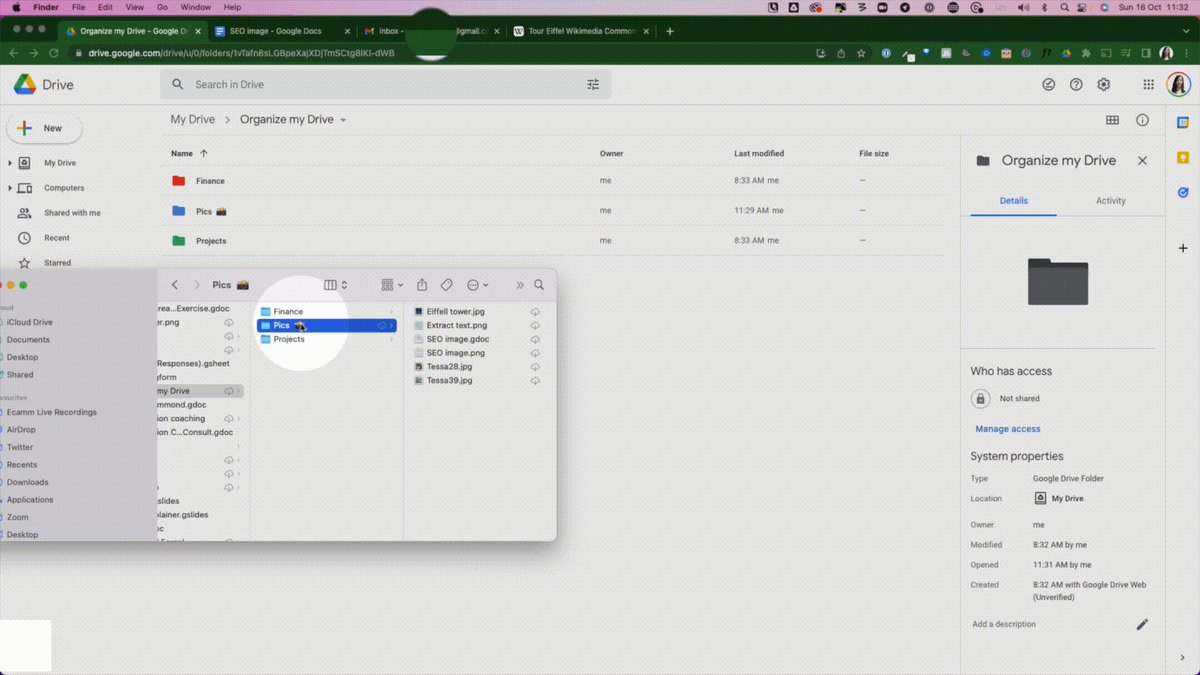
Want to view and organize your files more easily?
Stream them to your computer
• Download the Drive app
• View all your files
• Upload easily by dragging + dropping
• Choose which to sync
Doesn't take up space on your computer.
Want to view and organize your files more easily?
Stream them to your computer
• Download the Drive app
• View all your files
• Upload easily by dragging + dropping
• Choose which to sync
Doesn't take up space on your computer.
#8: Create shortcuts to files.
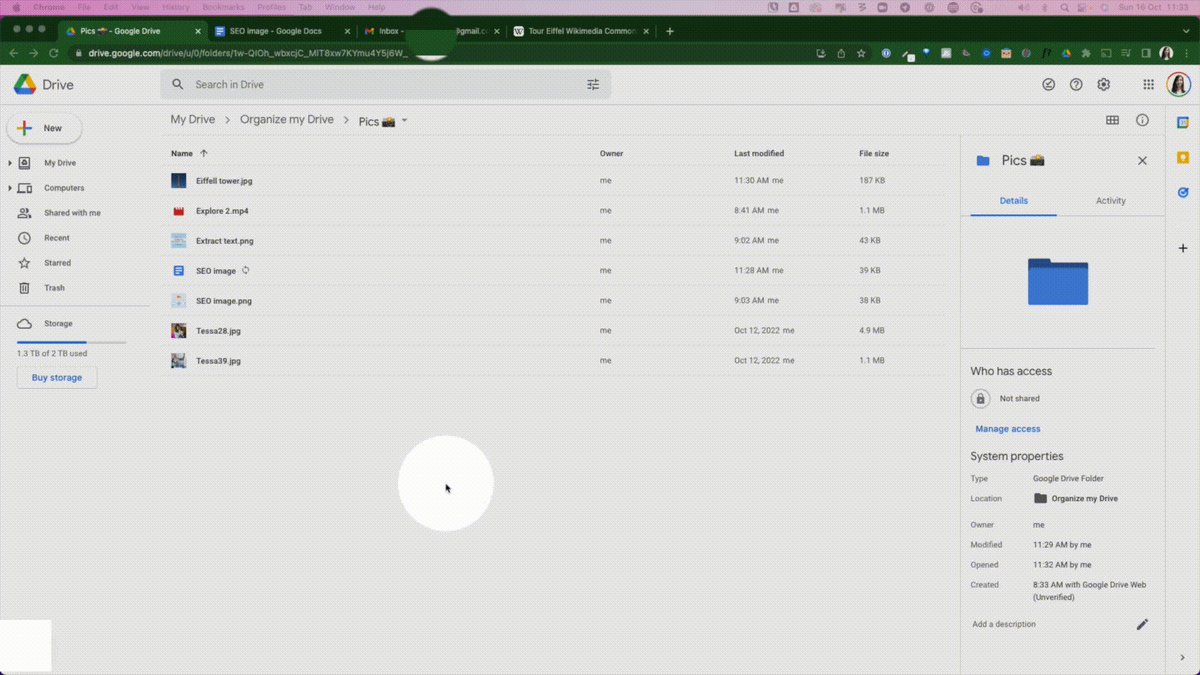
Want to access files from different folders?
Create a shortcut:
• Right click on the file
• Click 'create a shortcut'
• Choose where you want the shortcut to go
Access your files where you need them.
Want to access files from different folders?
Create a shortcut:
• Right click on the file
• Click 'create a shortcut'
• Choose where you want the shortcut to go
Access your files where you need them.
#9: Use Drive links in emails.
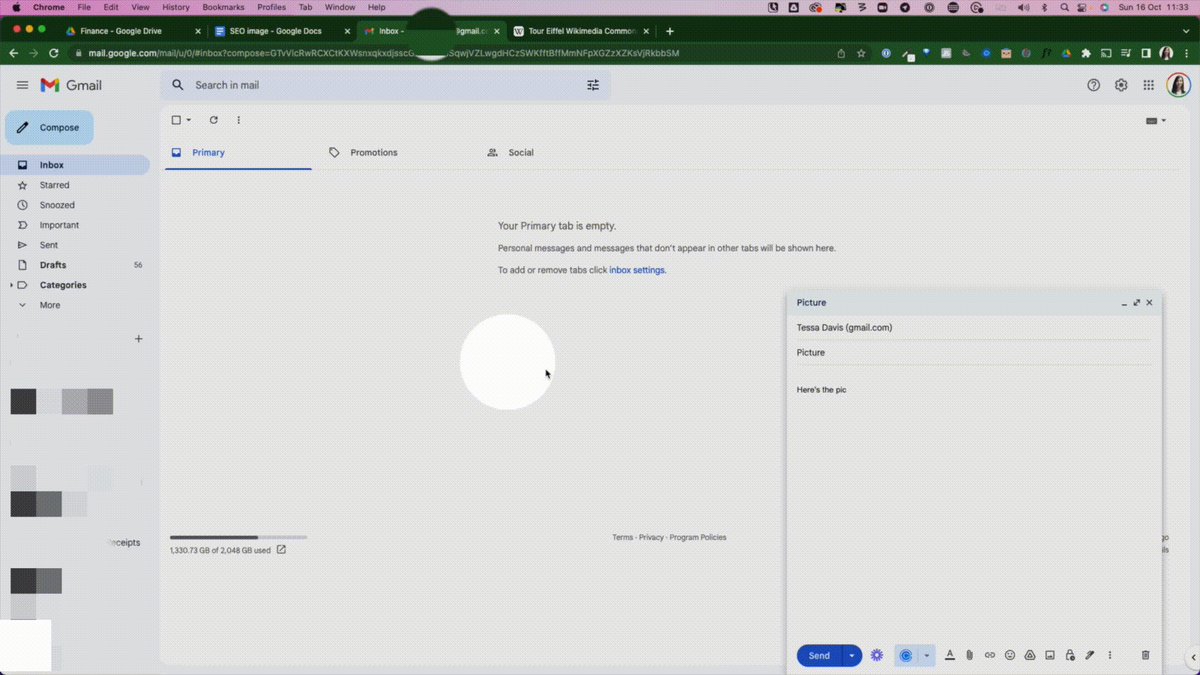
Insert links into emails instead of attaching files.
When sending an email in Gmail:
• Click the Drive icon
• Choose Insert a Drive link
• Send
It looks like it's an attachment but it doesn't take up space.
Everyone views the file on Drive.
Insert links into emails instead of attaching files.
When sending an email in Gmail:
• Click the Drive icon
• Choose Insert a Drive link
• Send
It looks like it's an attachment but it doesn't take up space.
Everyone views the file on Drive.
TL;DR 9 must-know Google Drive tips:
• #1: Get text from images
• #2: Use keyboard shortcuts
• #3: Color-code
• #4: Save images from web
• #5: Create new files fast
• #6: Access offline
• #7: See docs on your comp
• #8: Create shortcuts
• #9: Use email links
• #1: Get text from images
• #2: Use keyboard shortcuts
• #3: Color-code
• #4: Save images from web
• #5: Create new files fast
• #6: Access offline
• #7: See docs on your comp
• #8: Create shortcuts
• #9: Use email links
If you enjoyed this thread, you'll love my brand new Google Mastery course.
A 20-day course that'll revolutionize the way you use your Google Apps.
Early bird available this week:
10xproductivity.gumroad.com
A 20-day course that'll revolutionize the way you use your Google Apps.
Early bird available this week:
10xproductivity.gumroad.com
Loading suggestions...