

5 must-know tips using Go To Special:
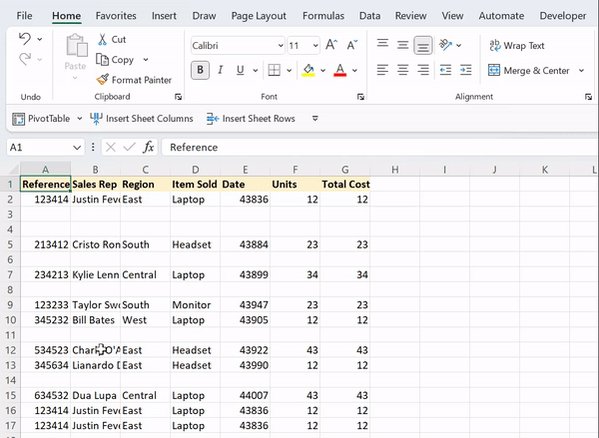
1. Delete Blank Rows
Importing data never goes as smoothly as it should. If your data contains blank rows, instead of deleting blank rows individually, you can delete them all at once using Go To Special: CTRL G > Special > Blanks > OK > CTRL - > Shift cells up > OK.
Importing data never goes as smoothly as it should. If your data contains blank rows, instead of deleting blank rows individually, you can delete them all at once using Go To Special: CTRL G > Special > Blanks > OK > CTRL - > Shift cells up > OK.
2. Delete Constants
If you are worried about accidentally deleting formulas when deleting data from a table, Go To Special is here to help. You can delete all constants at once by pressing CTRL G > Special > Select constants and uncheck all options but Numbers > OK > Delete!
If you are worried about accidentally deleting formulas when deleting data from a table, Go To Special is here to help. You can delete all constants at once by pressing CTRL G > Special > Select constants and uncheck all options but Numbers > OK > Delete!

3. Highlight Formulas
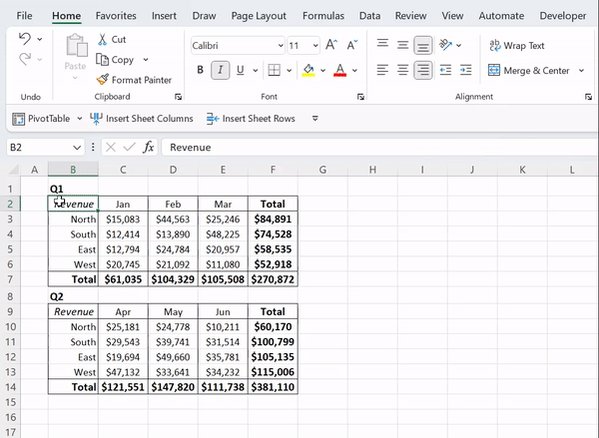
Want to quickly highlight where all formulas are within your worksheet? You can highlight all formulas at once using Go To Special. Press CTRL G > Formulas > OK > now highlight the selected cells!
Want to quickly highlight where all formulas are within your worksheet? You can highlight all formulas at once using Go To Special. Press CTRL G > Formulas > OK > now highlight the selected cells!
4. Fill Blanks
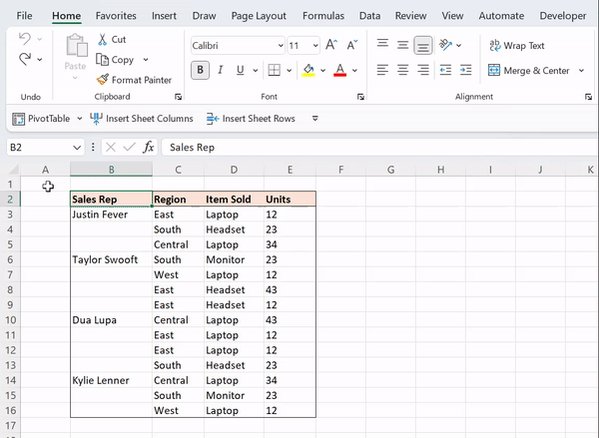
Thanks to Go To Special, pivot table prep just got a lot easier. To fill all blank cells within a dataset, select the data > CTRL G > Blanks > OK. Now, set the blanks equal to the cell above and fill the formula in all selected cells using CTRL ENTER.
Thanks to Go To Special, pivot table prep just got a lot easier. To fill all blank cells within a dataset, select the data > CTRL G > Blanks > OK. Now, set the blanks equal to the cell above and fill the formula in all selected cells using CTRL ENTER.
5. Replace Errors
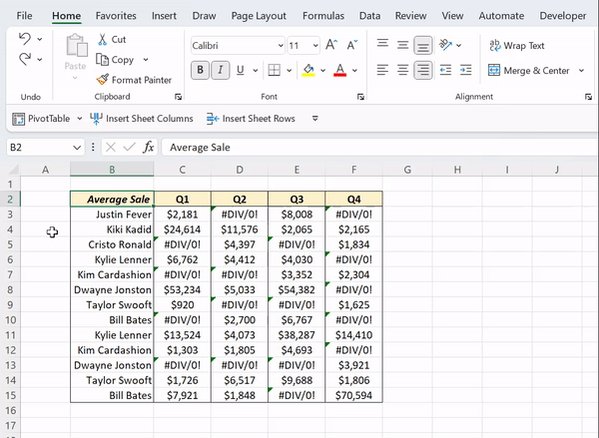
Instead of replacing errors one by one to clean up your data table, you can replace them all at once using Go To Special! Press CTRL G > Select Formulas and uncheck all but errors > OK. Now type ‘0’ and hit CTRL ENTER to fill all selected cells.
Instead of replacing errors one by one to clean up your data table, you can replace them all at once using Go To Special! Press CTRL G > Select Formulas and uncheck all but errors > OK. Now type ‘0’ and hit CTRL ENTER to fill all selected cells.
Go To Special might just be my favorite Excel tool. Can you see why?🤗
Follow me @exceldictionary for even more Excel tips and tricks.
And if you never want to forget my excel tips at your desk, check out my shortcut merch and ebooks.
Follow me @exceldictionary for even more Excel tips and tricks.
And if you never want to forget my excel tips at your desk, check out my shortcut merch and ebooks.
Loading suggestions...