

79% of people wait until the last minute to do their holiday shopping.
Then they overspend.
So I decided to build a Gift Tracker & Budget in Google Sheets to help.
Here's how it works:
Then they overspend.
So I decided to build a Gift Tracker & Budget in Google Sheets to help.
Here's how it works:
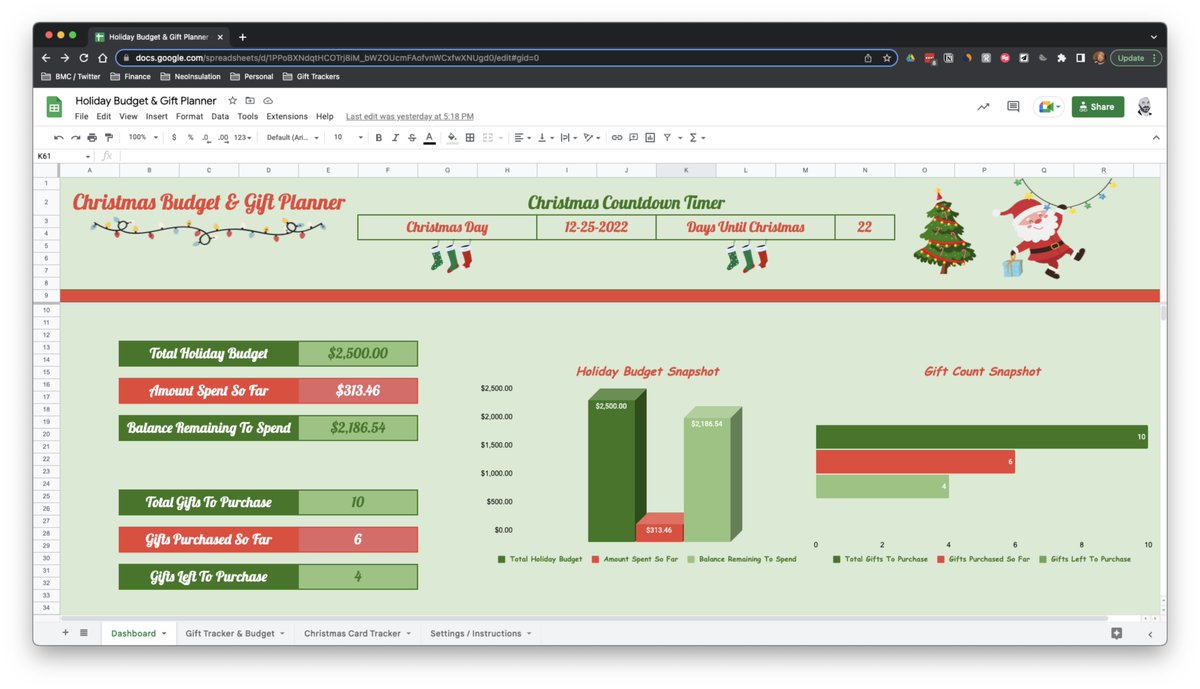
If you're like most people, I'm betting you can relate:
• You wait too long to buy
• Stress creeps in as time runs out
• This leads you to overspend on gifts
This template will help.
(Link at the end of this thread) 👀
Want to build it yourself?
Let's go through it:
• You wait too long to buy
• Stress creeps in as time runs out
• This leads you to overspend on gifts
This template will help.
(Link at the end of this thread) 👀
Want to build it yourself?
Let's go through it:

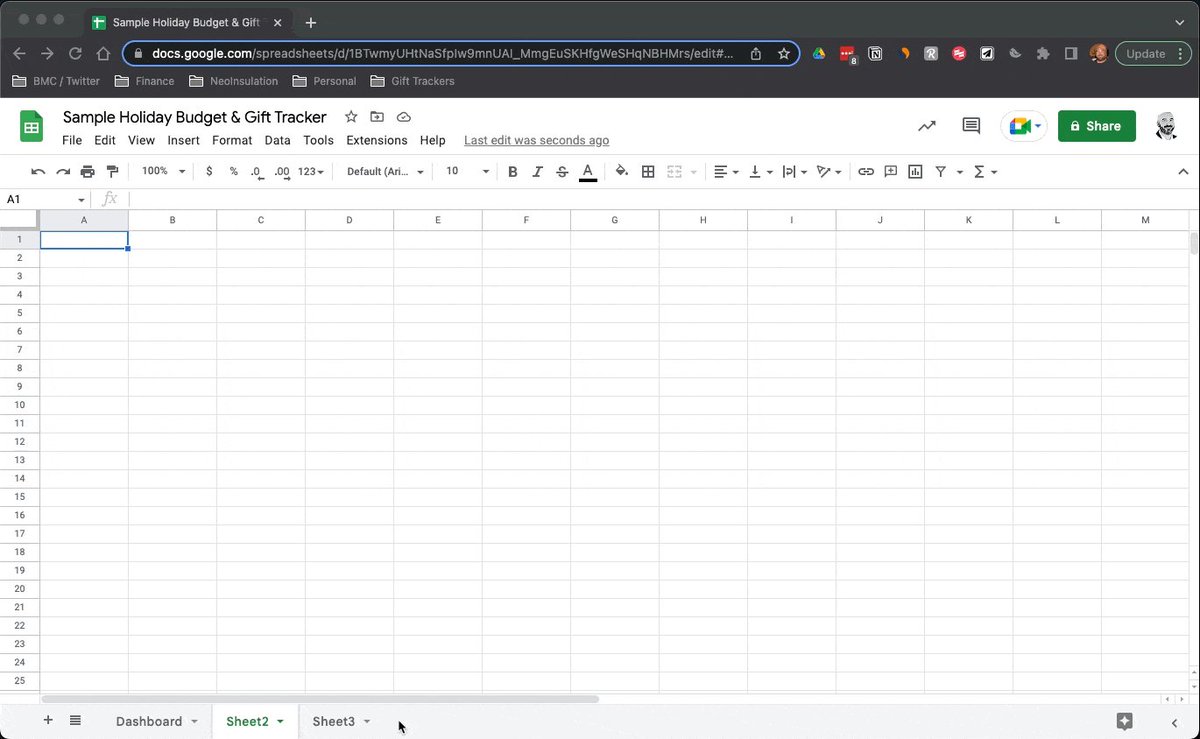
Step 1: You'll need (3) Worksheets to start
• Dashboard
→ An overall snapshot
• Gift Tracker & Budget
→ Present List & Finances
• Christmas Card Tracker
→ Name, Address, & Status
We'll add a light green background for each.
Like this:
• Dashboard
→ An overall snapshot
• Gift Tracker & Budget
→ Present List & Finances
• Christmas Card Tracker
→ Name, Address, & Status
We'll add a light green background for each.
Like this:
Step 2: Gift Tracker & Budget Setup
• Remove Gridlines
• Create Header Area
→ Page Title
→ Budget & Gift Items To Track
→ Insert Custom Image Over Cell
(You can pull these graphics from Canva)
See here:
• Remove Gridlines
• Create Header Area
→ Page Title
→ Budget & Gift Items To Track
→ Insert Custom Image Over Cell
(You can pull these graphics from Canva)
See here:

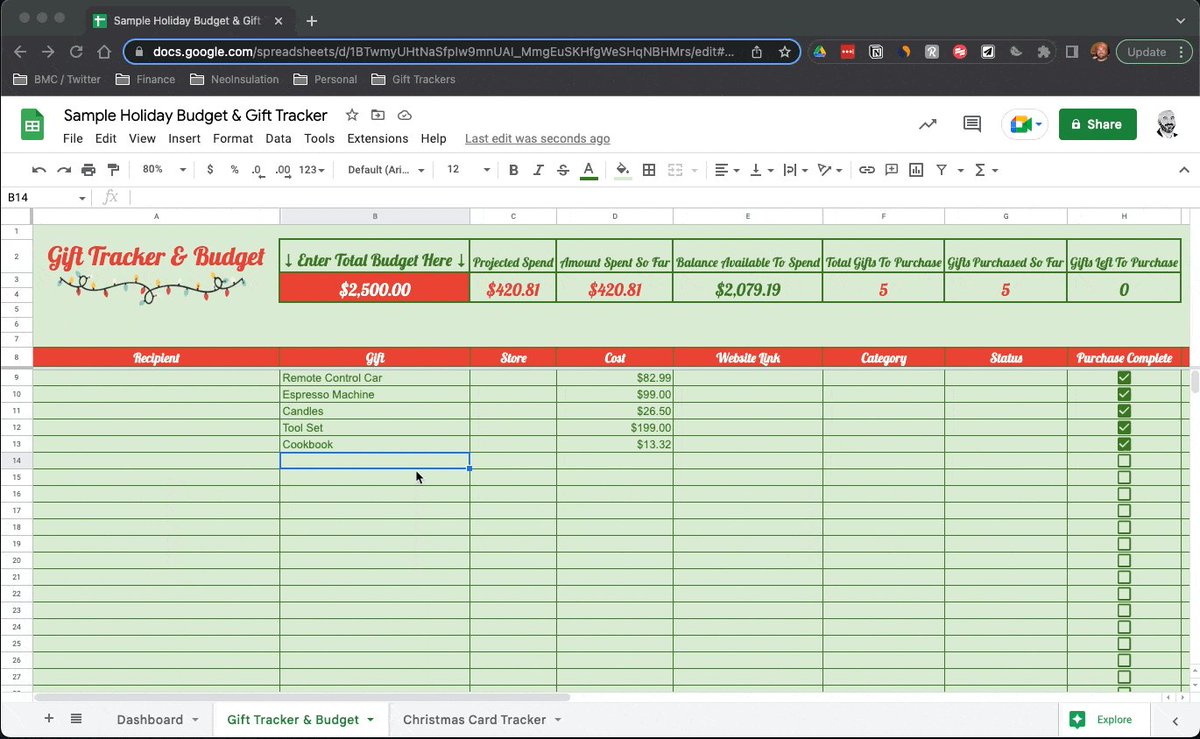
Step 3: Gift Tracker & Budget Table
• Add a header row
• Add gridlines
• Format the 'Cost' column as currency
• Insert checkbox in 'Purchase Complete'
• Freeze up to Row 8
Shown below:
• Add a header row
• Add gridlines
• Format the 'Cost' column as currency
• Insert checkbox in 'Purchase Complete'
• Freeze up to Row 8
Shown below:

Step 4: Top-Level Formulas (1)
• Projected Spend
→=SUM(D9:D)
→Updates as costs are added to each gift
• Amount Spent So Far
→=SUMIF(H9:H,"=TRUE",D9:D)
→ Updates as checkboxes are ticked
• Balance Available To Spend
→=B3-D3
→Total budget minus total spent
• Projected Spend
→=SUM(D9:D)
→Updates as costs are added to each gift
• Amount Spent So Far
→=SUMIF(H9:H,"=TRUE",D9:D)
→ Updates as checkboxes are ticked
• Balance Available To Spend
→=B3-D3
→Total budget minus total spent

Step 5: Top-Level Formulas (2)
• Gifts To Purchase
→=COUNTA(B9:B)
→Updates as gifts are added to the list
• Gifts Purchased So Far
→=COUNTIF(H9:H,TRUE)
→Updates as checkboxes are ticked
• Gifts Left To Purchase
→=F3-G3
→Gifts To Purchase minus Gifts Purchased
• Gifts To Purchase
→=COUNTA(B9:B)
→Updates as gifts are added to the list
• Gifts Purchased So Far
→=COUNTIF(H9:H,TRUE)
→Updates as checkboxes are ticked
• Gifts Left To Purchase
→=F3-G3
→Gifts To Purchase minus Gifts Purchased
Step 6: Data Validation
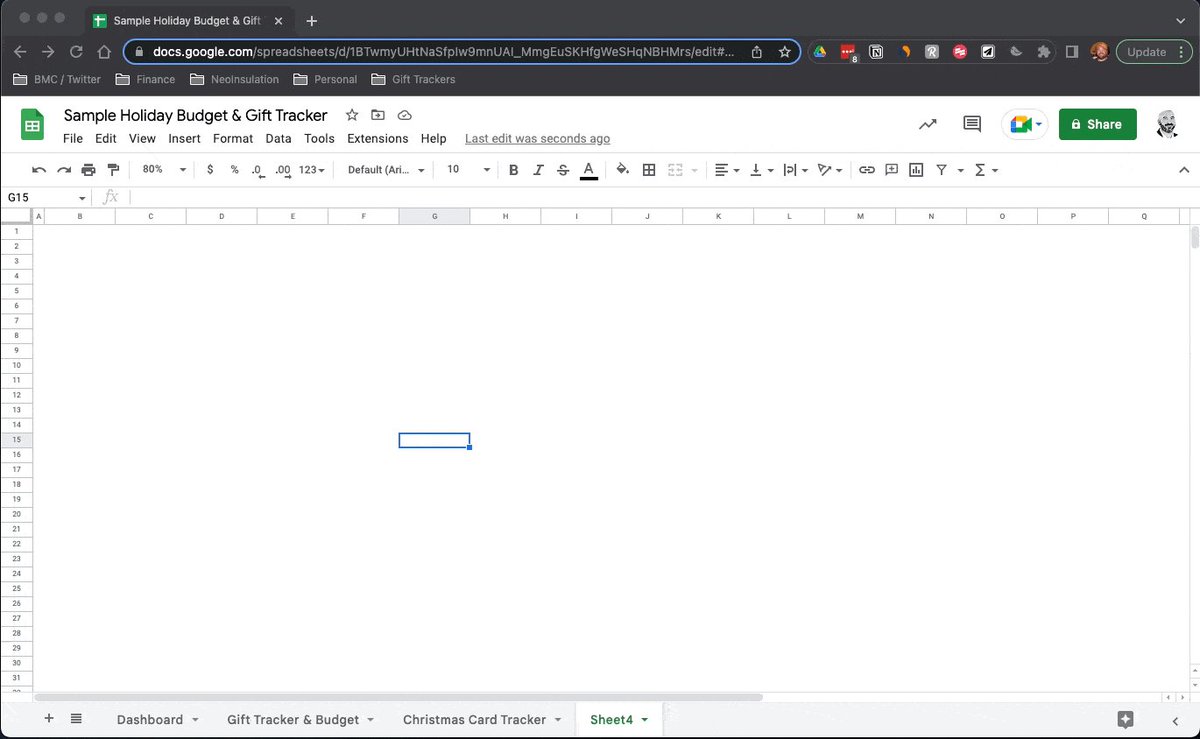
Next, we'll add one more worksheet to serve as the home for our data validation lists.
Create columns for:
• Recipient
• Store
• Category
• Status
Like this:
Next, we'll add one more worksheet to serve as the home for our data validation lists.
Create columns for:
• Recipient
• Store
• Category
• Status
Like this:
Step 7: Tie Budget To Data Validation Lists
For each section listed above, take the following steps:
• Select entire column on the budget tab
• Go to 'Data' → 'Data Validation'
• Choose 'List from Range'
• Select corresponding column on data tab
Repeat for each:
For each section listed above, take the following steps:
• Select entire column on the budget tab
• Go to 'Data' → 'Data Validation'
• Choose 'List from Range'
• Select corresponding column on data tab
Repeat for each:

Step 8: Card Tracker
Using the same principles as outlined above, we'll create our Christmas Card Tracker.
• Build a header row with graphics
• Add simple formulas to track cards sent
• Create a table & list:
→Name
→Address
→City, State, Zip & more.
Here's an example:
Using the same principles as outlined above, we'll create our Christmas Card Tracker.
• Build a header row with graphics
• Add simple formulas to track cards sent
• Create a table & list:
→Name
→Address
→City, State, Zip & more.
Here's an example:

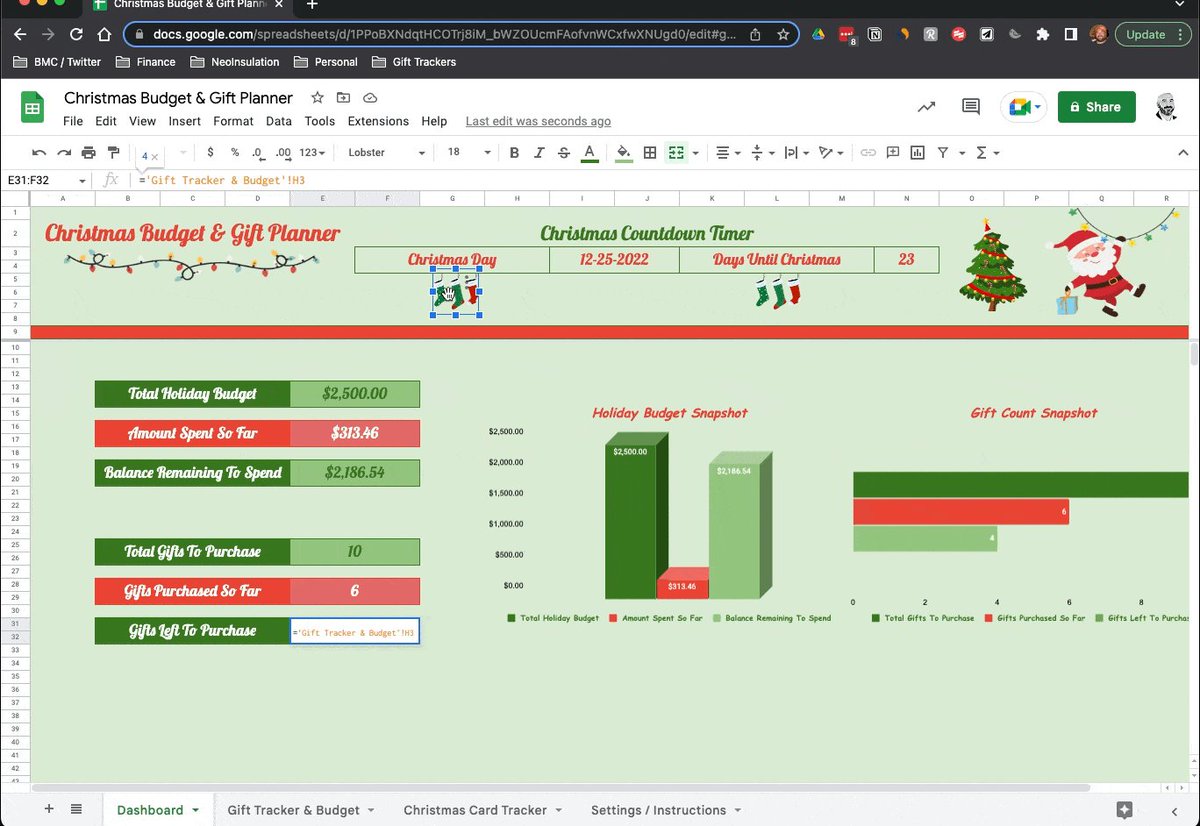
Step 9: Dashboard
Last, here's a look at the dashboard that'll give you an overview of your progress.
• Header & Graphics
→Insert images over cells
• Countdown Timer
→=DATEDIF(NOW(),I3,"MD")
• Total Spending & Purchases
→ See formulas in GIF
• 2 summary charts 👇🏻
Last, here's a look at the dashboard that'll give you an overview of your progress.
• Header & Graphics
→Insert images over cells
• Countdown Timer
→=DATEDIF(NOW(),I3,"MD")
• Total Spending & Purchases
→ See formulas in GIF
• 2 summary charts 👇🏻
Step 10: Template
I'm guessing it'll take you 2-3 hours to build this yourself.
If you'd rather save some time, take 2-3 minutes instead and grab your copy below.
I've created a library of Excel & Google sheets templates you can access here:
blakeburge.gumroad.com
I'm guessing it'll take you 2-3 hours to build this yourself.
If you'd rather save some time, take 2-3 minutes instead and grab your copy below.
I've created a library of Excel & Google sheets templates you can access here:
blakeburge.gumroad.com
Want more breakdowns on how I build templates like this?
Check out my newsletter.
It's free and you'll learn something new each week.
blakeburge.com
Check out my newsletter.
It's free and you'll learn something new each week.
blakeburge.com
Thanks for reading!
If you enjoyed this thread:
1. Follow me @blakeaburge for more Excel and Google Sheets tips & templates.
2. RT the thread below to share with your audience and help everyone stay on track this Holiday Season!
If you enjoyed this thread:
1. Follow me @blakeaburge for more Excel and Google Sheets tips & templates.
2. RT the thread below to share with your audience and help everyone stay on track this Holiday Season!
Loading suggestions...