

How to List Products on Amazon in 10 Minutes
Step-by-step👇
Step-by-step👇

0/ You did your product research
You negotiated with manfuacters to get the item made at a price that works for your business
Next, you need to list your product on Amazon
Here's how:
You negotiated with manfuacters to get the item made at a price that works for your business
Next, you need to list your product on Amazon
Here's how:
1/ What you Need Before Listing
• UPC Code (use GS1 or nationwide barcode)
• Have accurate measurement/weight of the product
• Active Amazon seller act
• UPC Code (use GS1 or nationwide barcode)
• Have accurate measurement/weight of the product
• Active Amazon seller act
2/ Go to the Catalog Section and select "I'm adding a product not sold on Amazon

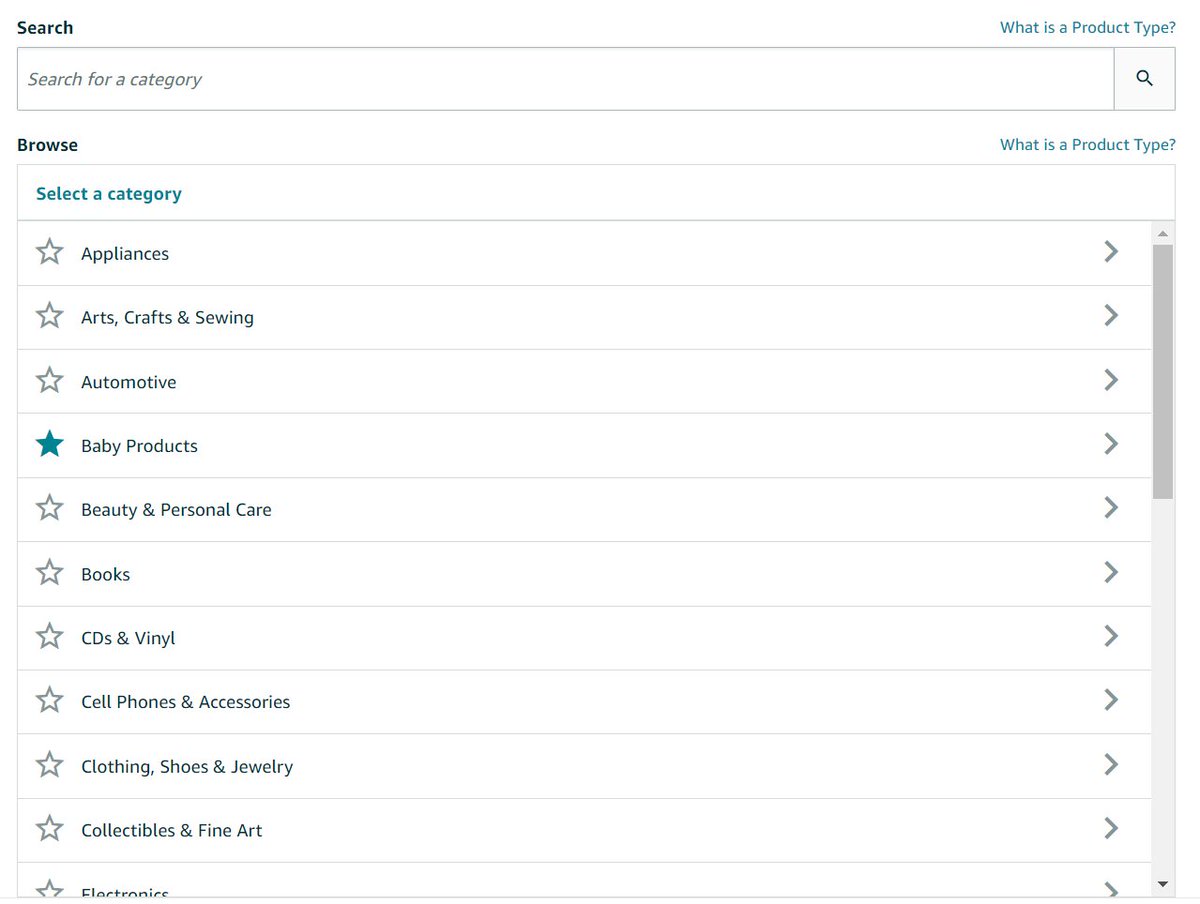
3/ Select the Product Category
This can be changed later but you really don't want to.
If you don't know, look at what categories competitors are in.
This can be changed later but you really don't want to.
If you don't know, look at what categories competitors are in.
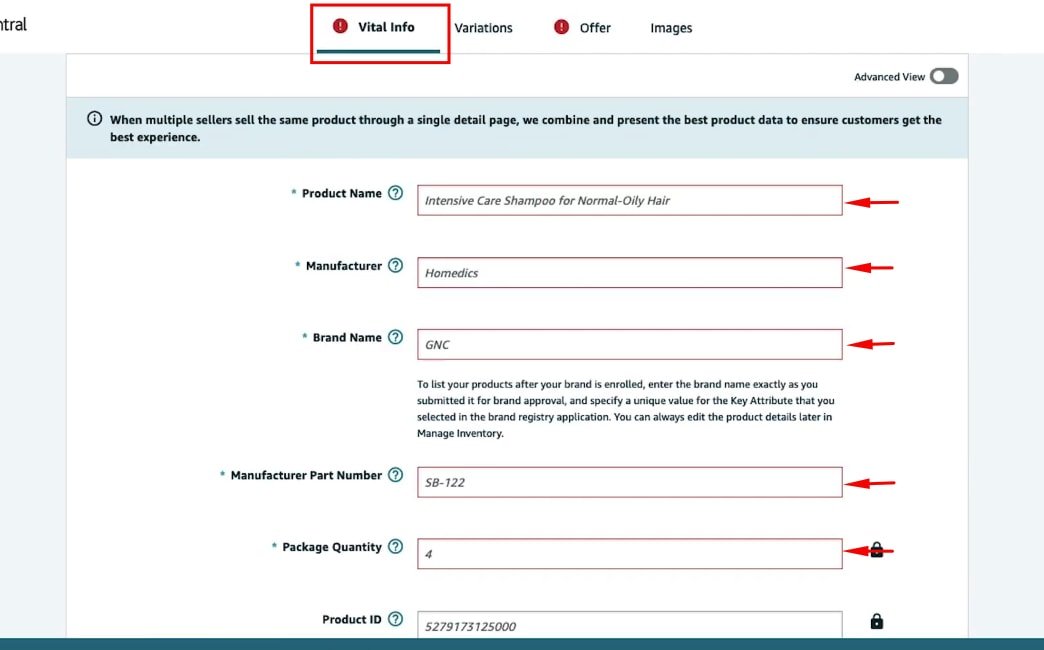
4/ Fill out the Vital Info sections
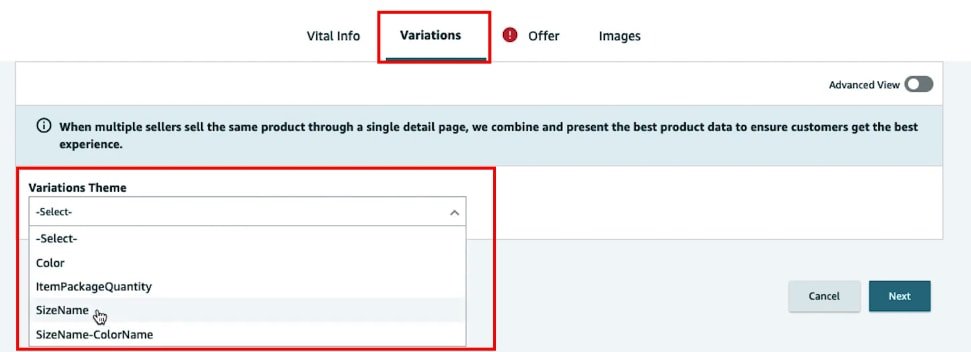
5/ Declare If Your Listings Have Variations
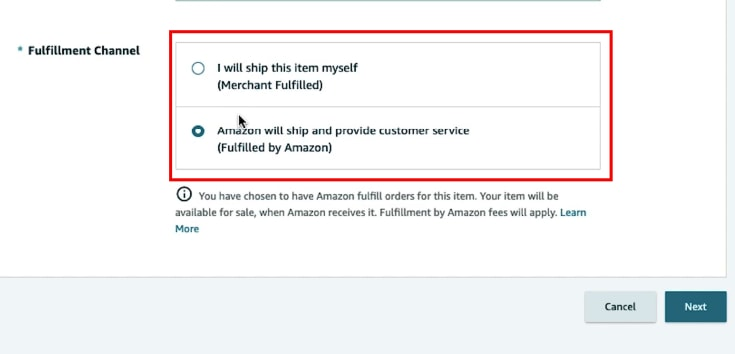
6/ Select FBA (unless you're fulfilling)
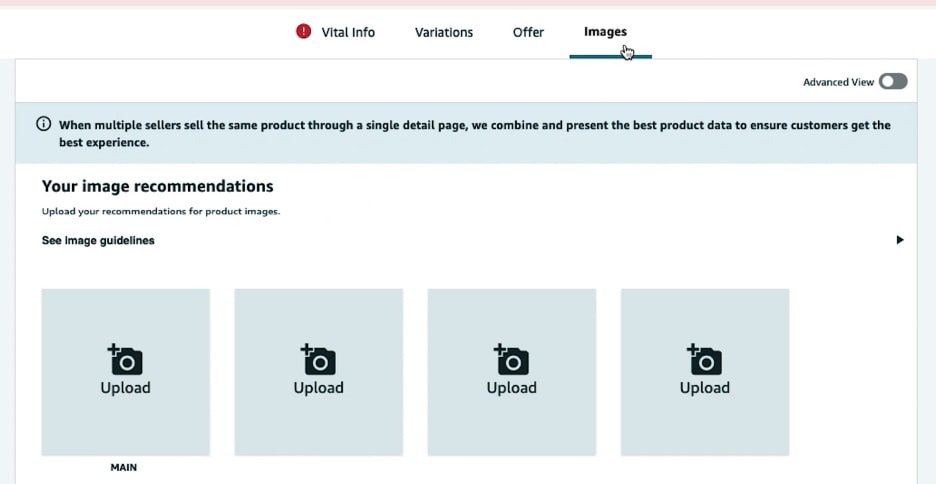
7/ Upload Product Images
Images should be:
• 2000x2000 pixels
• Fill up 85% of space
• Not include text or logos
Images should be:
• 2000x2000 pixels
• Fill up 85% of space
• Not include text or logos
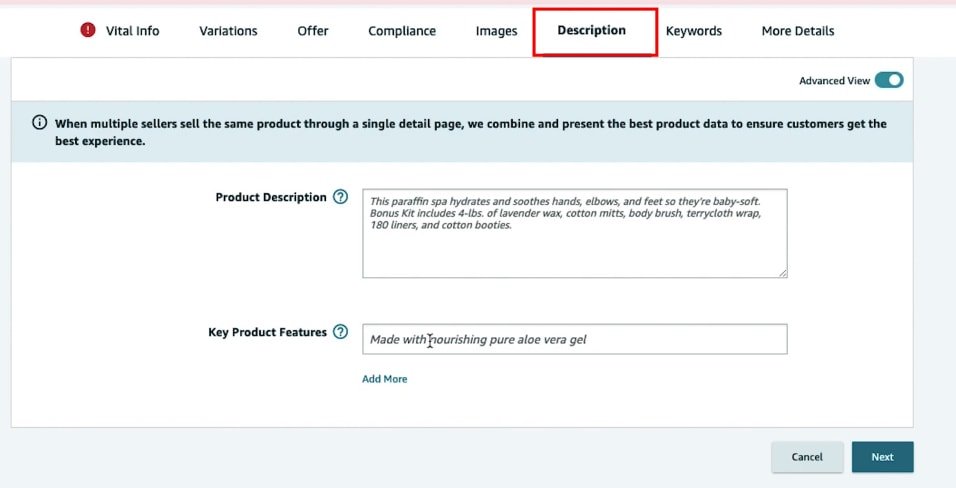
8/ Add Product Listing Copy
9/ Add Product Search Terms
Called "Generic Keywords"
These are the keywords that are not in your listing but still relevant up to 250 characters
This includes:
• Title ("Item Name")
• Bullets
• Product Description ("Key Product Features")
Called "Generic Keywords"
These are the keywords that are not in your listing but still relevant up to 250 characters
This includes:
• Title ("Item Name")
• Bullets
• Product Description ("Key Product Features")

Here's the 9:
1. Go to Seller Central
2. Add a New Product/Select Existing Product
3. Select your product listing Category
4. Fill out Product Listing Information
5. Select variations
6. Select FBA
7. Upload Product Images
8. Add Product Description
9. Add Keywords
1. Go to Seller Central
2. Add a New Product/Select Existing Product
3. Select your product listing Category
4. Fill out Product Listing Information
5. Select variations
6. Select FBA
7. Upload Product Images
8. Add Product Description
9. Add Keywords
One thing to note, every listing category has a slightly different back-end.
So don't get tripped up if yours isn't 100% replicable to the example.
You will figure it out ;)
If you enjoyed this, please RT the first tweet and follow me @wishzen
So don't get tripped up if yours isn't 100% replicable to the example.
You will figure it out ;)
If you enjoyed this, please RT the first tweet and follow me @wishzen
You can build an Amazon Private Label business and quit your 9-5 in under one year.
Go here 👇 theamzaccelerator.com
Go here 👇 theamzaccelerator.com
Loading suggestions...