

Congratulations, you are seeing this Tweet; here is another life-changing opportunity to transition into tech this year.
Another Monday programming class on HTML, CSS & JAVASCRIPT
I'll explain to you like you are 7 years old; kindly retweet for others, and join the class.
Another Monday programming class on HTML, CSS & JAVASCRIPT
I'll explain to you like you are 7 years old; kindly retweet for others, and join the class.
Welcome to your 2nd class on HTML. Kindly follow me and switch on my tweet notification to avoid missing subsequent classes.
If you are finding this for the first time, the previous class is on my pinned tweet, and you might want to check and catch up with us.
If you are finding this for the first time, the previous class is on my pinned tweet, and you might want to check and catch up with us.
𝗛𝗧𝗠𝗟 𝗜𝗻𝗹𝗶𝗻𝗲 𝘃𝘀 𝗕𝗹𝗼𝗰𝗸 𝗘𝗹𝗲𝗺𝗲𝗻𝘁 𝗮𝗻𝗱 𝗗𝗜𝗩
Your web browser interprets each HTML element uniquely. Now that you’ve begun to learn about web page structure, we should go through the disparities between block-level and inline HTML components.
Your web browser interprets each HTML element uniquely. Now that you’ve begun to learn about web page structure, we should go through the disparities between block-level and inline HTML components.
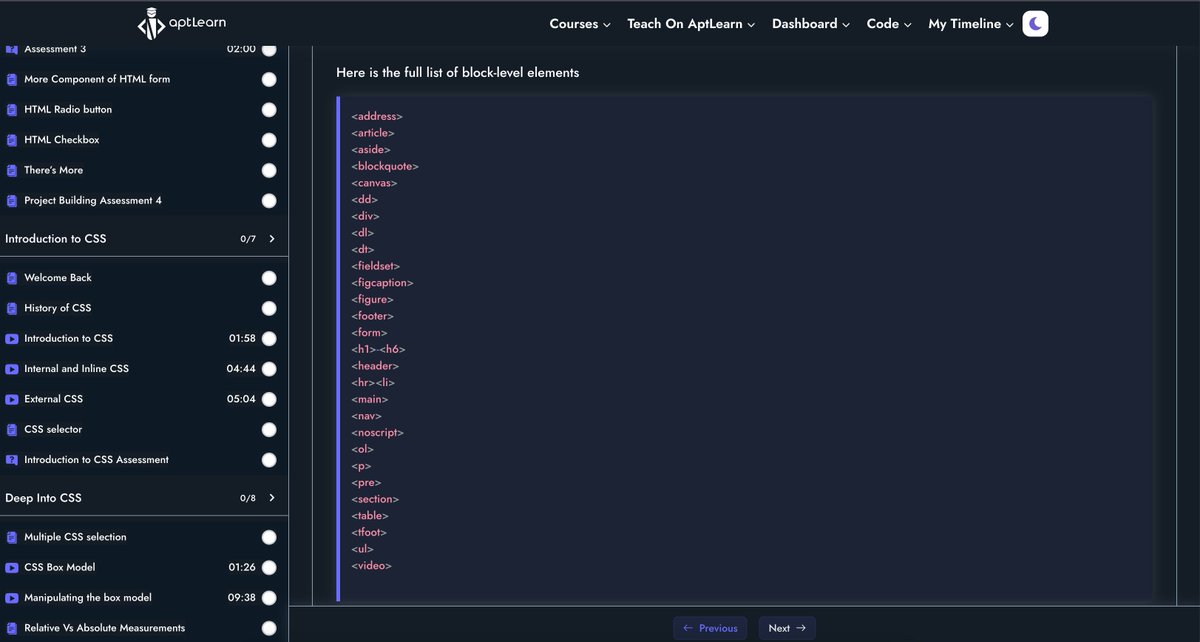
𝗕𝗹𝗼𝗰𝗸-𝗹𝗲𝘃𝗲𝗹 𝗲𝗹𝗲𝗺𝗲𝗻𝘁𝘀
most of the elements we have dealt with so far are block-level elements, including:
☑ Headings (<h1> all the way to <h6>)
☑ Ordered and Unordered Lists (<ol>, <ul>)
☑ List Items (<li>)
☑ Paragraphs (<p>)
most of the elements we have dealt with so far are block-level elements, including:
☑ Headings (<h1> all the way to <h6>)
☑ Ordered and Unordered Lists (<ol>, <ul>)
☑ List Items (<li>)
☑ Paragraphs (<p>)
𝗜𝗻𝗹𝗶𝗻𝗲 𝗘𝗹𝗲𝗺𝗲𝗻𝘁𝘀
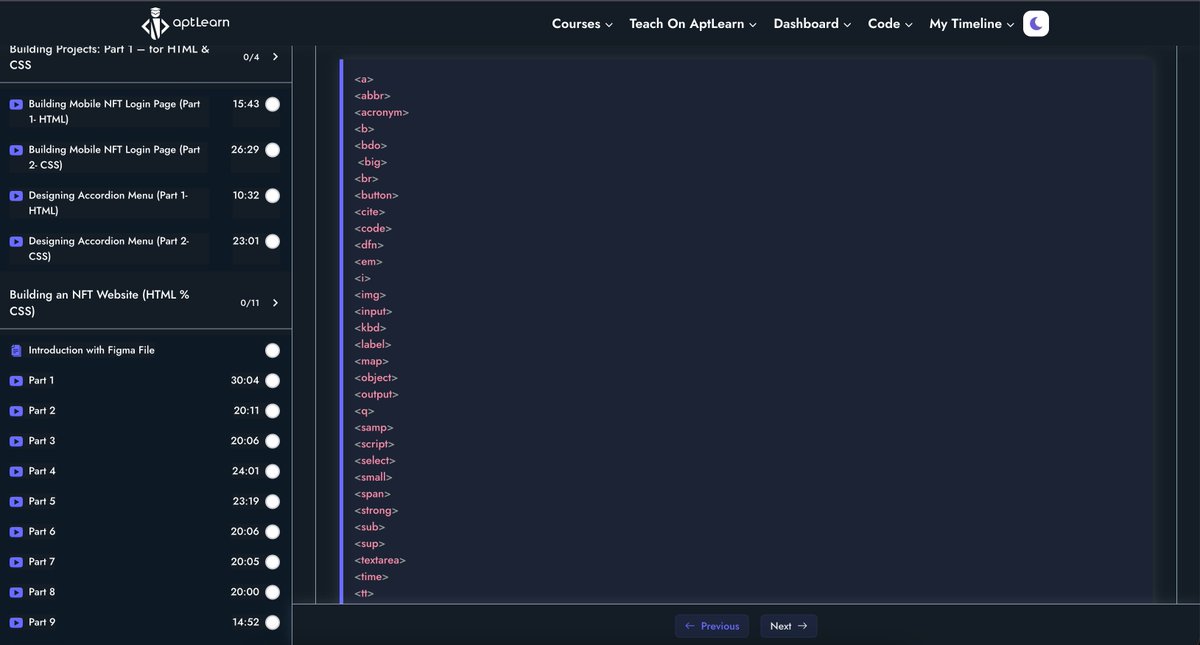
As the name implies, inline elements do not take up the whole width of a web page and are often aligned with text content.
Inline components include:
👉 Anchors (<a>)
👉 Images (<img>)
👉 Bolding Text (<strong>)
👉 Emphasizing Text (<em>)
As the name implies, inline elements do not take up the whole width of a web page and are often aligned with text content.
Inline components include:
👉 Anchors (<a>)
👉 Images (<img>)
👉 Bolding Text (<strong>)
👉 Emphasizing Text (<em>)
More contextual and Video explanation for this lesson is provided in the course you enrolled for, If you are yet to get it please do. If you have you can peruse and compare with this explanation and mark this lesson as complete
𝗗𝗶𝘃𝘀
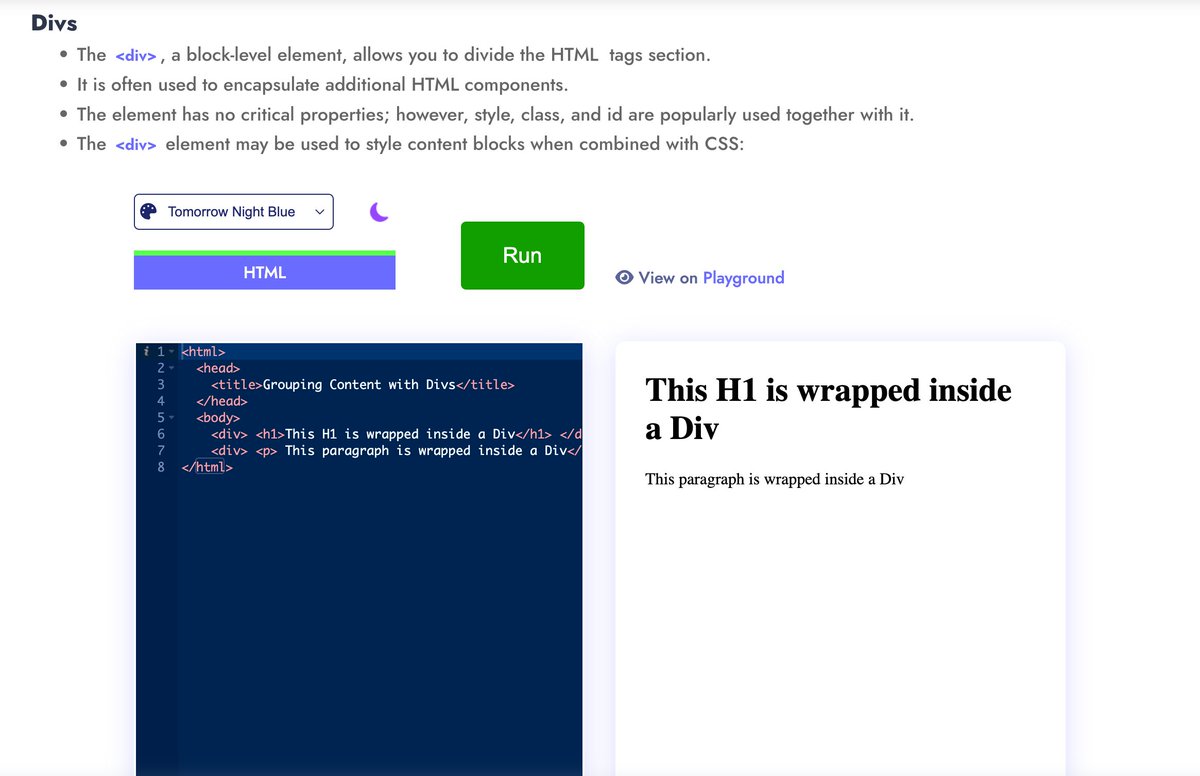
The <div> element has no unique effect on the web page and is mainly used to divide information into discrete groups for organizing or stylistic reasons.
Generally, you will nest other HTML elements within <div> elements to provide the proper structure to your page.
The <div> element has no unique effect on the web page and is mainly used to divide information into discrete groups for organizing or stylistic reasons.
Generally, you will nest other HTML elements within <div> elements to provide the proper structure to your page.
𝗛𝗧𝗠𝗟 𝗦𝗲𝗹𝗲𝗰𝘁𝗼𝗿𝘀
Selector are basically elements identifiers that we can use to pick up an element from our HTML page and manipulate them
There are three types of HTML selectors namely,
1️⃣ Type
2️⃣ Class
3️⃣ id
Video: aptlearn.io
Selector are basically elements identifiers that we can use to pick up an element from our HTML page and manipulate them
There are three types of HTML selectors namely,
1️⃣ Type
2️⃣ Class
3️⃣ id
Video: aptlearn.io
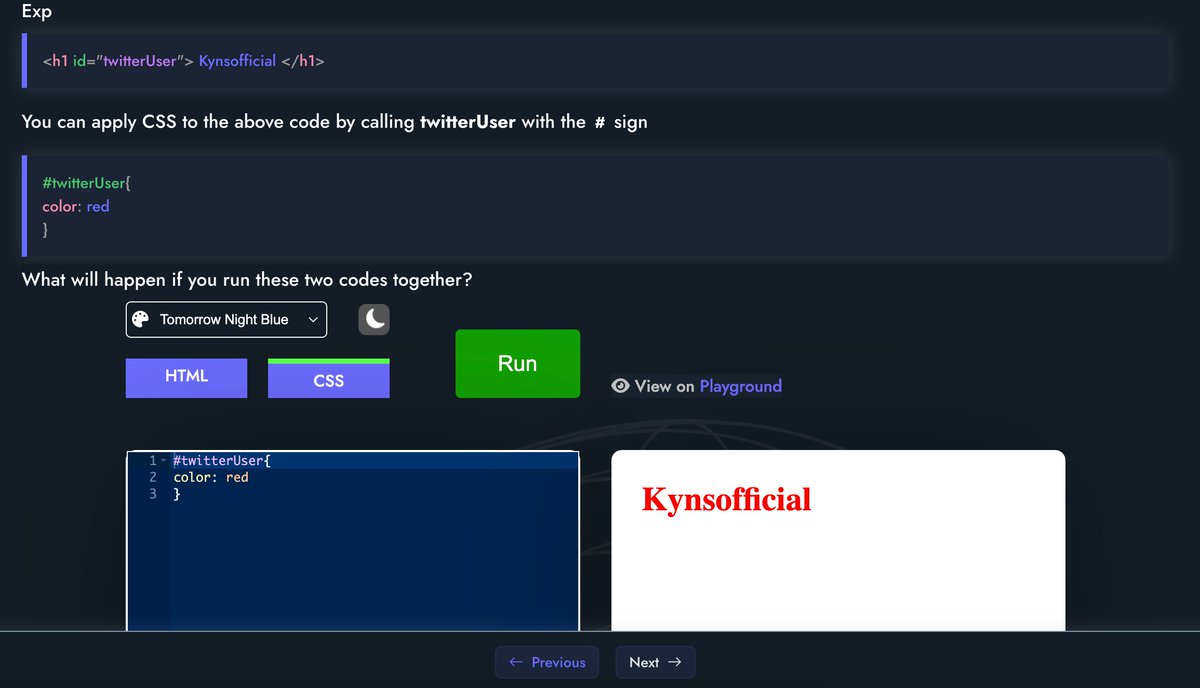
𝗶𝗱 𝗦𝗲𝗹𝗲𝗰𝘁𝗼𝗿
The id attribute provides you with the ability to give any element a unique identifier. This identifier can later be used to apply specific styles with CSS or capture input with some Javascript code.
The id attribute provides you with the ability to give any element a unique identifier. This identifier can later be used to apply specific styles with CSS or capture input with some Javascript code.
𝗡𝗼𝘁𝗲
👉 an id value should only be used for a single element (you will get unexpected behaviour if you use the same id value for multiple elements)
👉 id value must not contain any whitespace.
👉 an id value should only be used for a single element (you will get unexpected behaviour if you use the same id value for multiple elements)
👉 id value must not contain any whitespace.
𝗖𝗹𝗮𝘀𝘀 𝗦𝗲𝗹𝗲𝗰𝘁𝗼𝗿
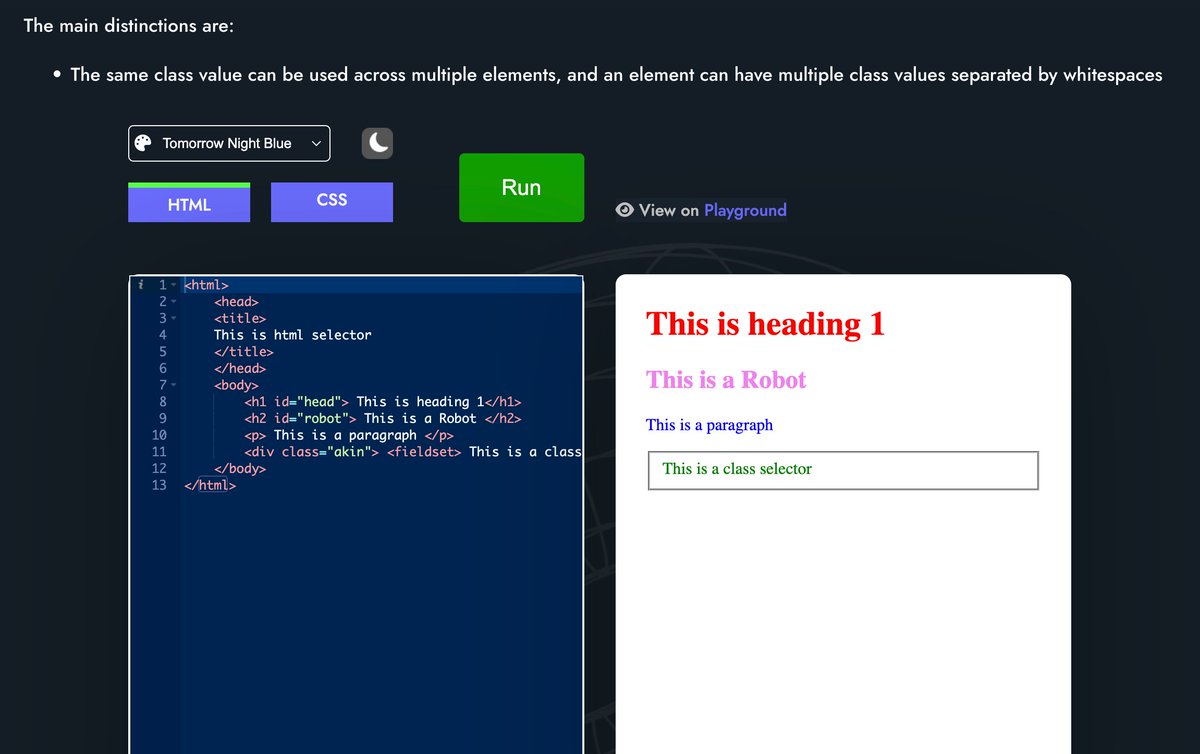
The same class value can be used across multiple elements, and an element can have multiple class values separated by whitespaces
The same class value can be used across multiple elements, and an element can have multiple class values separated by whitespaces

Let's run this code as class selector example
𝗧𝘆𝗽𝗲 𝗦𝗲𝗹𝗲𝗰𝘁𝗼𝗿
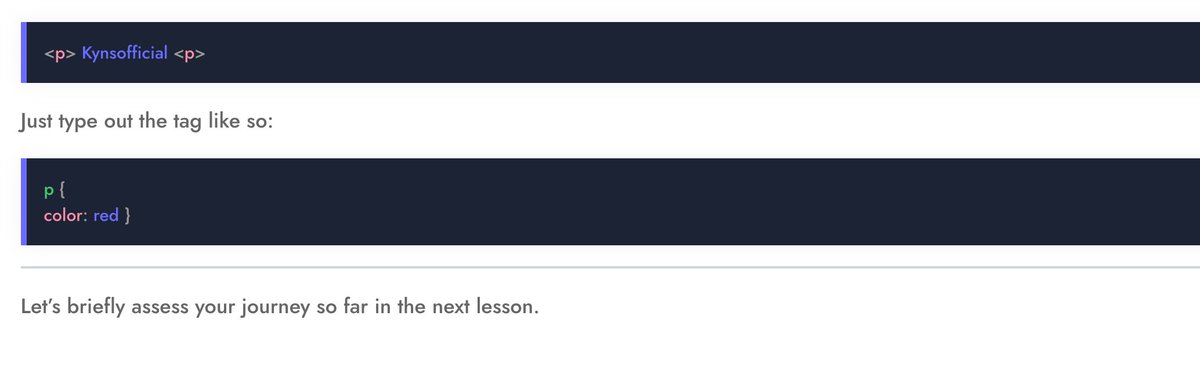
You can apply the type selector here by calling the tag in your CSS with no prefix sign like the Class selector, which uses the . and Id selector, which uses #
Type selector has no sign prefix before the tag. See below
You can apply the type selector here by calling the tag in your CSS with no prefix sign like the Class selector, which uses the . and Id selector, which uses #
Type selector has no sign prefix before the tag. See below
The next lesson is a 5 question test to access your performance on the topics, we've treated so far please enrol for the course using the link below and take your test aptlearn.io
𝗜𝗺𝗮𝗴𝗲 𝗘𝗹𝗲𝗺𝗲𝗻𝘁 𝗶𝗻 𝗛𝗧𝗠𝗟
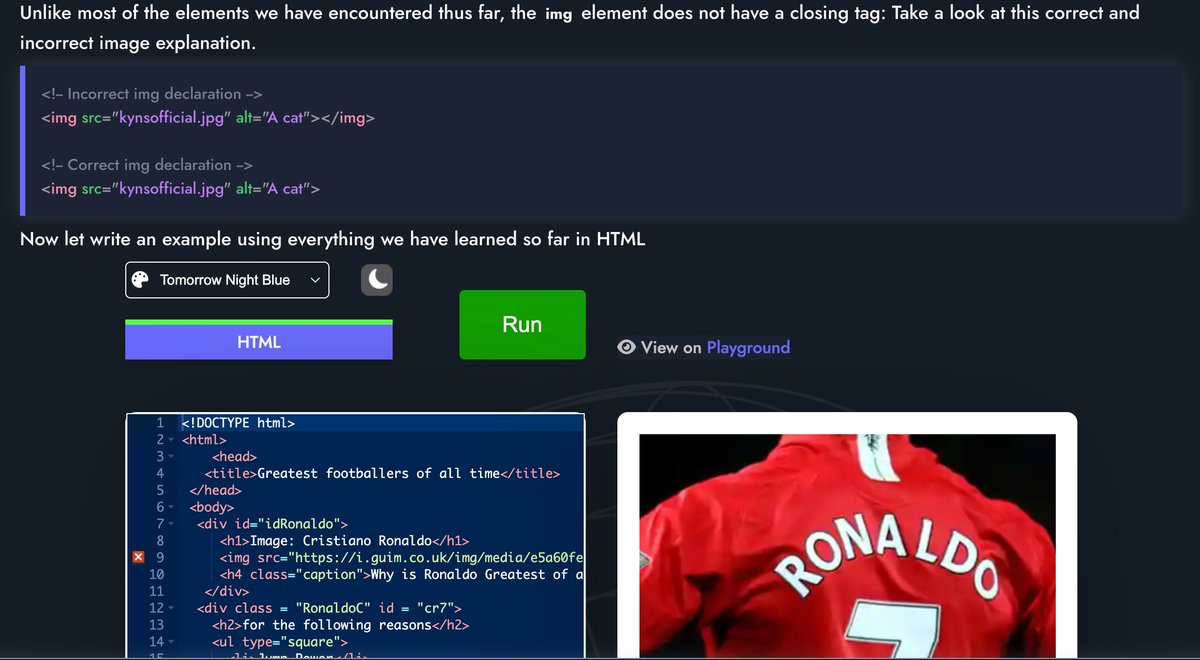
𝗨𝘀𝗲 𝘁𝗵𝗲 <𝗶𝗺𝗴> tag to embed an image into your web page with an src attribute containing a file path to the image you want to be included. Use the 𝗮𝗹𝘁 attribute to provide alternative text with a description of the image
𝗨𝘀𝗲 𝘁𝗵𝗲 <𝗶𝗺𝗴> tag to embed an image into your web page with an src attribute containing a file path to the image you want to be included. Use the 𝗮𝗹𝘁 attribute to provide alternative text with a description of the image
That will be all for today, we have one more class to go on HTML and We will start with CSS by next week.
Class Assignment, combine all the tag we've used so far and quote the tweet or drop a comment with the Screenshots using aptLearn IDE. See you next week. by for now
Class Assignment, combine all the tag we've used so far and quote the tweet or drop a comment with the Screenshots using aptLearn IDE. See you next week. by for now
Loading suggestions...