

Everything you need to know about the `/ etc/passwd` file in Linux :
Understanding the `/ etc/passwd` file is important for managing users in Linux. The `/ etc/passwd` is a plain text file that contains all the crucial information for all system user accounts needed when logging in.
This file is owned by the root user and has 644 (rw-r--r--) access rights or permissions. This file can only be modified by the root user or users with sudo privileges and is readable by all users of the system.
Any file viewer on Linux can be used to view the contents of this file, such as cat, more, less, etc. Alternatively, you can use the "getent passwd" command.
Here is an overview of what the contents of the `/ etc/passwd` file looks like:
$ getent passwd
Here is an overview of what the contents of the `/ etc/passwd` file looks like:
$ getent passwd
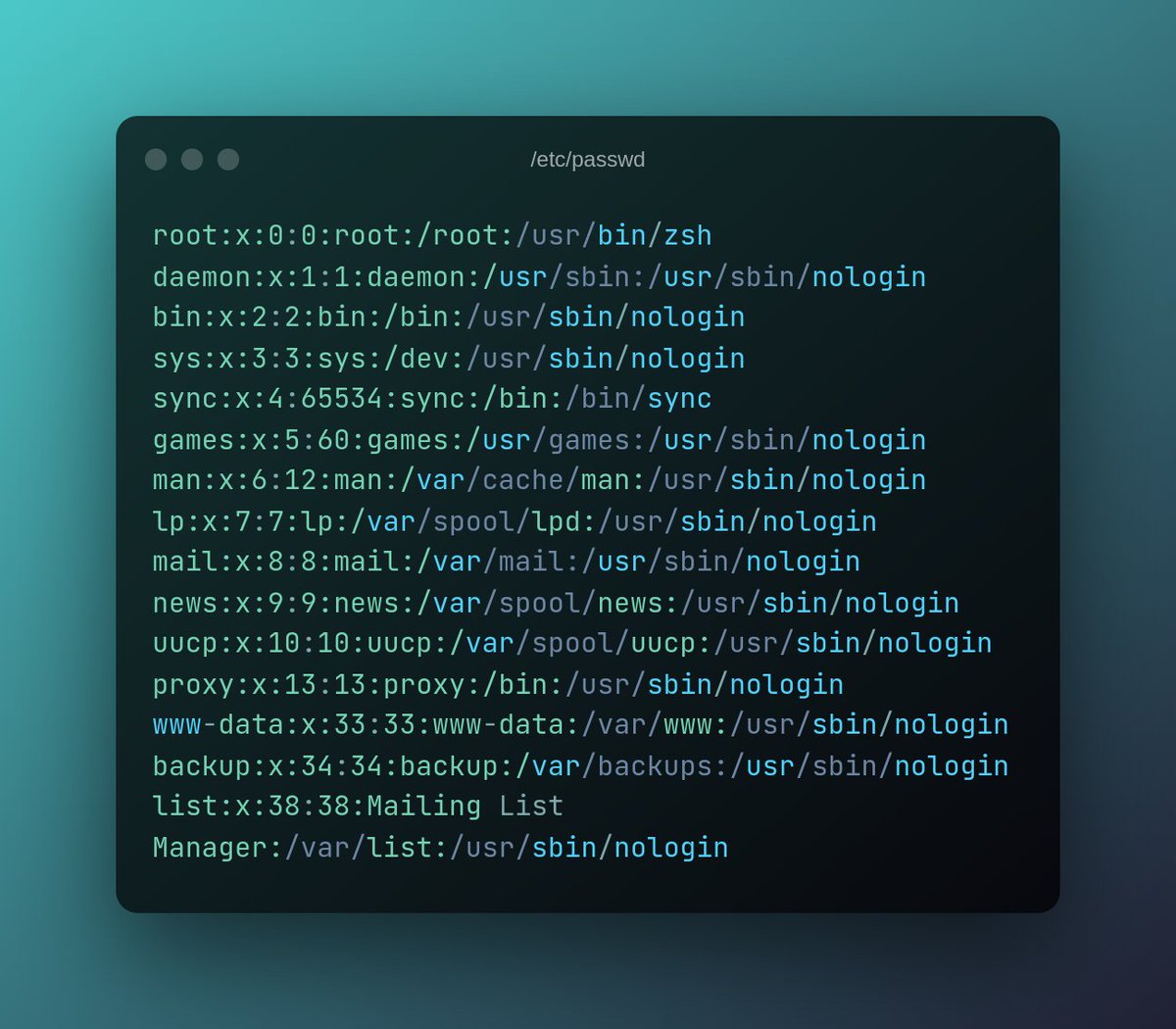
You should avoid manually modifying this file unless you know what you are doing. Always use the command for this purpose.
For example, use the usermod or groupmod command to modify a user account information and use the useradd or adduser command to add a new user account
For example, use the usermod or groupmod command to modify a user account information and use the useradd or adduser command to add a new user account
Getting to know the `/ etc/passwd` file's fields
Each line in the passwd file represents a single user account on the system and contains the following seven fields, separated by a colon (:):
• Username or login name
• Encrypted password
• User ID
• Group ID
Each line in the passwd file represents a single user account on the system and contains the following seven fields, separated by a colon (:):
• Username or login name
• Encrypted password
• User ID
• Group ID
• User description (GECOS)
• User’s home directory
• User’s login shell
• User’s home directory
• User’s login shell
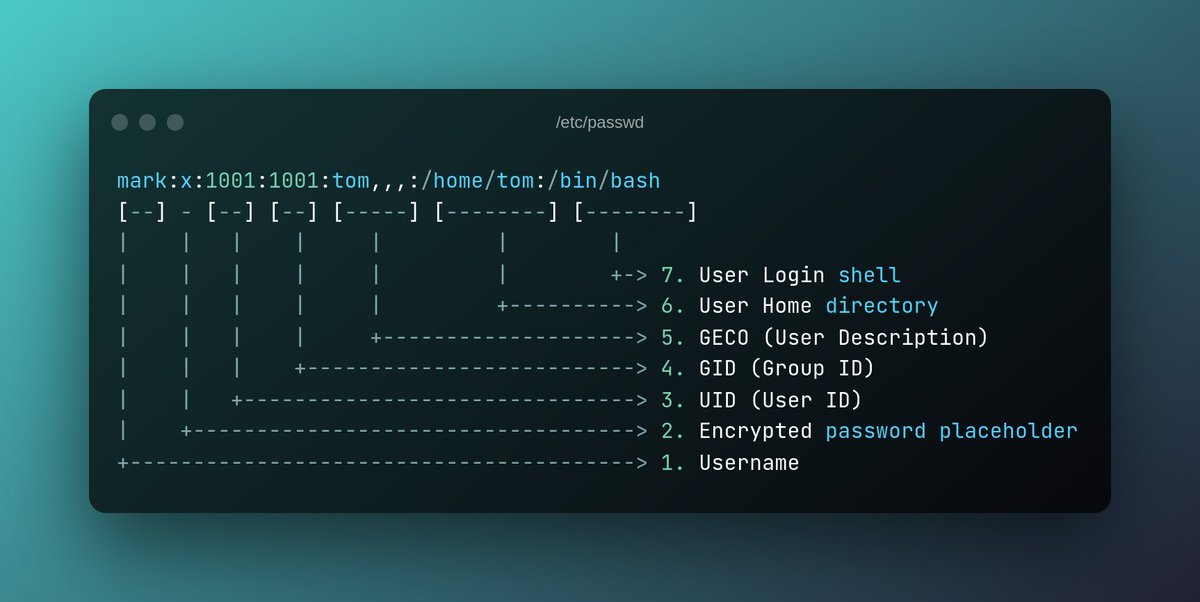
Typically, the first line describes the root user, followed by the regular system or service and user accounts. A new entry is appended to the end of the file.
Now that we know the fields of `/ etc/password`, let's understand what they are and what they are used for in the system.
1. Username or Login name
The first field stores a username or unique login name. The login process compares the value stored in this field with the value we entered into the Username field at the login prompt.
The first field stores a username or unique login name. The login process compares the value stored in this field with the value we entered into the Username field at the login prompt.
If the two values match, the login process assumes that the username is valid.
During username comparison, the login process begins by searching for the specified username in the first field of each line, starting with the first line, and continues searching until a match is found or all rows have been checked.
The maximum username length is limited to 32 characters.
2. Encrypted password
The second field stores the encrypted password. Historically, this field was used to store user passwords encrypted with the DES algorithm. Over time, computing power improved and the DES algorithm became easier to crack.
The second field stores the encrypted password. Historically, this field was used to store user passwords encrypted with the DES algorithm. Over time, computing power improved and the DES algorithm became easier to crack.
To use a more secure algorithm, Linux moved user passwords to a separate `/ etc/shadow` file.
The user's password is no longer stored in this field, so a temporary value of x is used to indicate that the actual password is stored elsewhere.
The user's password is no longer stored in this field, so a temporary value of x is used to indicate that the actual password is stored elsewhere.
3. User ID
The third field stores the user's UID. In Linux, each user has a unique identifier called a User ID (UID). UIDs are 32-bit integers.
Linux allows users to create files, change system properties, start applications and processes, and more.
The third field stores the user's UID. In Linux, each user has a unique identifier called a User ID (UID). UIDs are 32-bit integers.
Linux allows users to create files, change system properties, start applications and processes, and more.
The system use UIDs to track and manage each of our activities: The first UID (0) is always assigned to the user root. Besides 0, other low UIDs (usually less than 500) are assigned to the following service accounts for example: news, mail games, and so on.
A typical user account UID usually starts at 500.
4. Group ID
A group is a collection of user accounts that are similar or require access to the same resource.
Linux is a network operating system that supports multiple users. The most time-consuming task is managing individual user accounts based on services.
A group is a collection of user accounts that are similar or require access to the same resource.
Linux is a network operating system that supports multiple users. The most time-consuming task is managing individual user accounts based on services.
This task is made easier by grouping. For example, you may be asked to grant access to a specific service to twenty users from a specific group.
You must set the permission twenty times without grouping.
However, grouping allows you to complete the task in a single step.
You must set the permission twenty times without grouping.
However, grouping allows you to complete the task in a single step.
In Linux, each user belongs to one or more groups. If we do not specify the group name when creating a user account, the shell will automatically create a new group and add a user account in this group.
This group is called the primary group or the user's default group.
This group is called the primary group or the user's default group.
Once a user account has been created, it can be added to other groups as needed. The other groups are considered the user's secondary groups. Usually the group name is the same as the user's name. The user's subgroups are listed in `/ etc/groups` file.
5. User description (GECOS)
The fifth field stores descriptive information about the user. In a multi-user environment where the system is used by multiple users, this field contains all required information about a user, such as full name, room number,.......
The fifth field stores descriptive information about the user. In a multi-user environment where the system is used by multiple users, this field contains all required information about a user, such as full name, room number,.......
work phone, home phone, email address and so on.
Generally, the chfn command is used to record user information and the finger command is used to read this information.home directory.
Generally, the chfn command is used to record user information and the finger command is used to read this information.home directory.
6. User’s home directory
The sixth field contains information about the user's home directory. The login process uses this information to decide where to place the user immediately after they log in.
The sixth field contains information about the user's home directory. The login process uses this information to decide where to place the user immediately after they log in.
In other words, this is the default directory that the user gets right after the login process. When creating a user, if this information is omitted, the shell automatically sets it to `/ home/username` or `~/`.
7. Login shell
The last field stores information about the user's default shell. If no shell information is provided when creating a normal user account, the shell uses `/ bin/bash` by default. You can leave this field blank if no shell is required.
The last field stores information about the user's default shell. If no shell information is provided when creating a normal user account, the shell uses `/ bin/bash` by default. You can leave this field blank if no shell is required.
Some special accounts do not require shell access. Administrators typically assign false shells such as `/ bin/false` or set this field to empty in these accounts. This prevents hackers from accessing your system through these accounts.
That's all for this thread! Thank you for getting this far. I hope you find this thread useful.
If you found this thread valuable:
1. Toss us a follow for more daily threads on Linux, sysadmin and devops → @linuxopsys
2. Like and RT the first tweet so other Linux folks can find it too.
1. Toss us a follow for more daily threads on Linux, sysadmin and devops → @linuxopsys
2. Like and RT the first tweet so other Linux folks can find it too.
Loading suggestions...