

You're not using Google Docs to its full potential.
12 features you'll regret not knowing about:
12 features you'll regret not knowing about:
1. Auto Replace Text
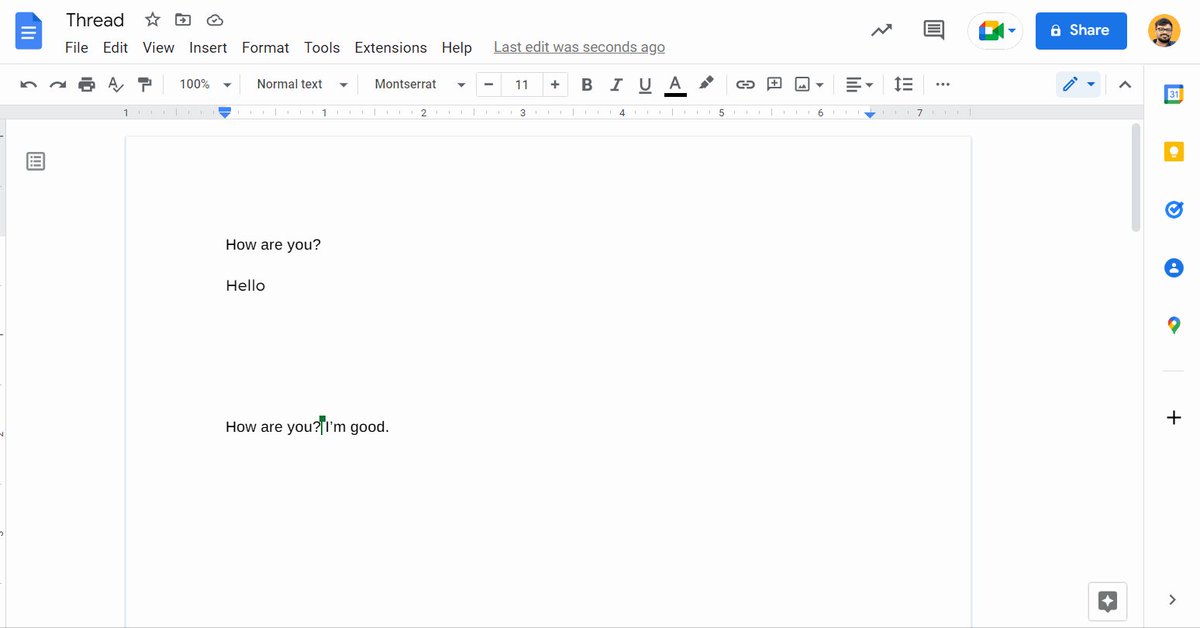
Save time and replace the texts, icons easily with text substitutes.
Create short text that will replace with link.
Never type handy links again.
Define once. Use forever!
Save time and replace the texts, icons easily with text substitutes.
Create short text that will replace with link.
Never type handy links again.
Define once. Use forever!
2. Google Search within Document
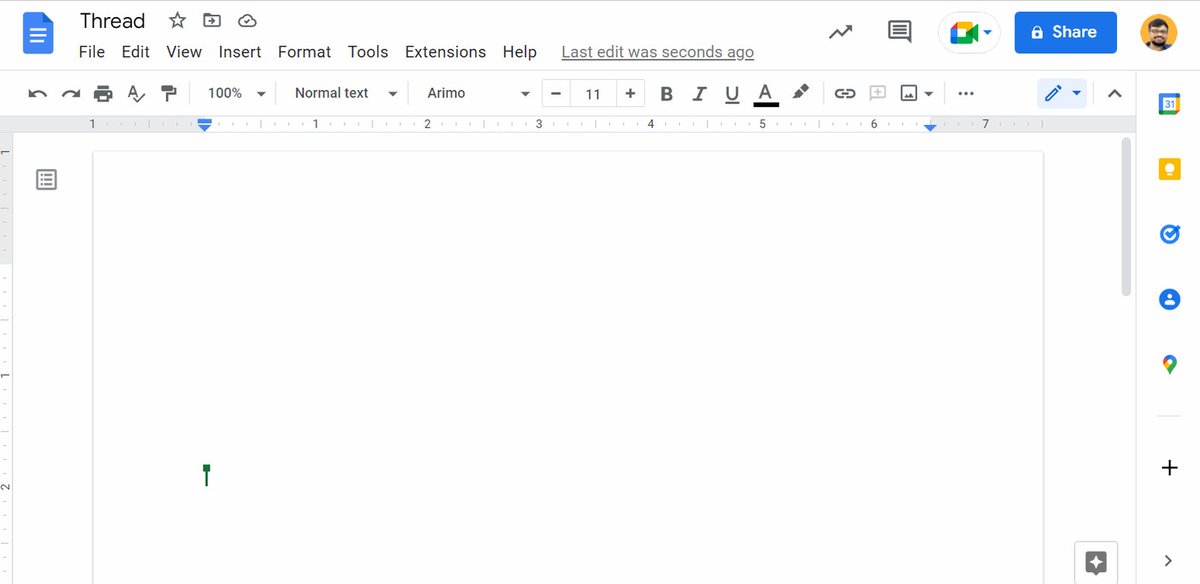
Copy Images, text, and links from google search without leaving the document.
10X Productivity!
Copy Images, text, and links from google search without leaving the document.
10X Productivity!

3. Spelling and Grammer Check
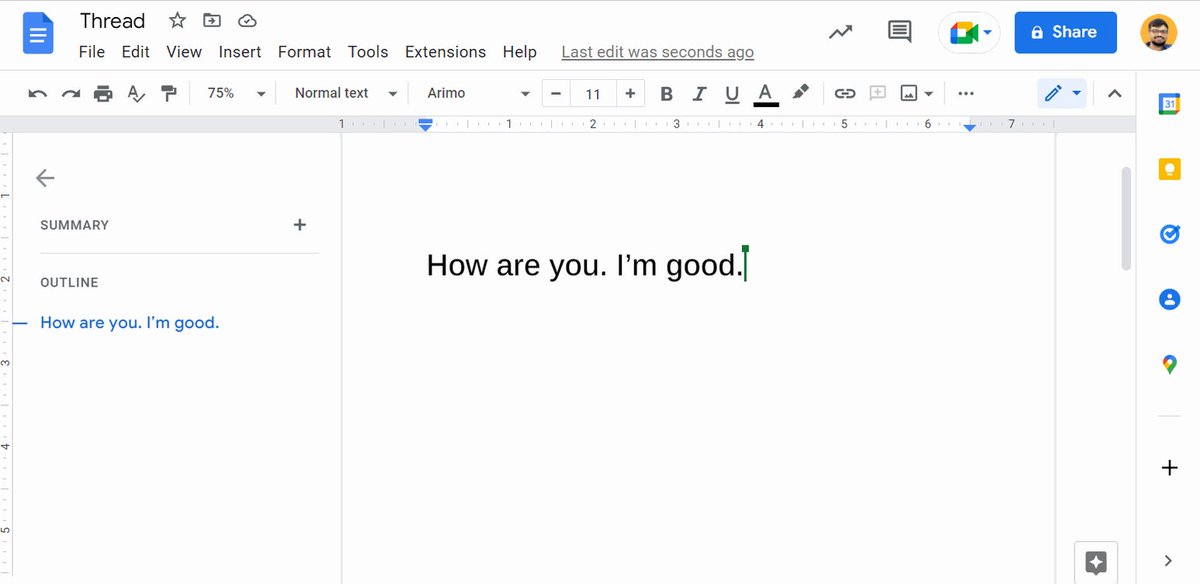
In seconds, resolve the obvious flaws in your writing.
Rely on writing assistance.
In seconds, resolve the obvious flaws in your writing.
Rely on writing assistance.
4. Download the document directly as a PDF
Remove edit from URL and Add '/export?format=pdf'
Share this link with everyone you wish to get the PDF immediately.
Remove edit from URL and Add '/export?format=pdf'
Share this link with everyone you wish to get the PDF immediately.

5. Change Default Fonts
Get rid of the default Arial fonts in seconds.
i. Click on 'Format' → 'Paragraph Styles' → 'Normal Text'. Select 'Update Normal Text to Match'
ii. Click on 'Format' → 'Paragraph Styles' → 'Options'. Select 'Save As My Default Styles'
Get rid of the default Arial fonts in seconds.
i. Click on 'Format' → 'Paragraph Styles' → 'Normal Text'. Select 'Update Normal Text to Match'
ii. Click on 'Format' → 'Paragraph Styles' → 'Options'. Select 'Save As My Default Styles'
6. Draw directly from GDocs
Want to add visuals super fast?
Insert a new drawing without leaving Google document.
10X Productivity!
Want to add visuals super fast?
Insert a new drawing without leaving Google document.
10X Productivity!

7. Access shortcuts directly with "@"
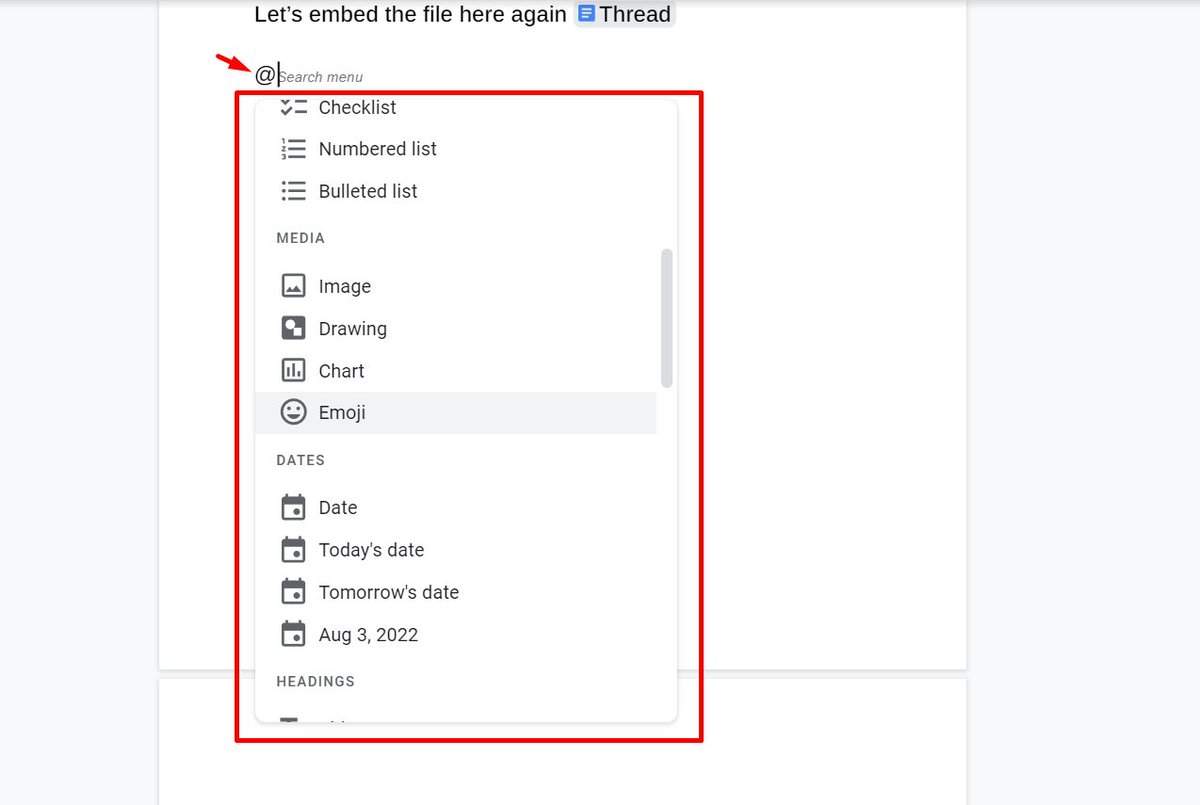
Avoid using the toolbar for selecting a title, header, etc.
Get Access to the List, Files, Media, and Dates.
Add Header, and Footer to the document in seconds.
This Search Menu is a blessing.
Avoid using the toolbar for selecting a title, header, etc.
Get Access to the List, Files, Media, and Dates.
Add Header, and Footer to the document in seconds.
This Search Menu is a blessing.
8. Bookmark for Quick Access
Bookmarks can be used to navigate to a specific section or page inside a document.
Use it to navigate faster and save 5x time!
Bookmarks can be used to navigate to a specific section or page inside a document.
Use it to navigate faster and save 5x time!

9. Suggesting Mode
You can provide suggestions for modifications to a document without altering the original content.
If the owner accepts your ideas, they will take the place of the original text.
You can provide suggestions for modifications to a document without altering the original content.
If the owner accepts your ideas, they will take the place of the original text.

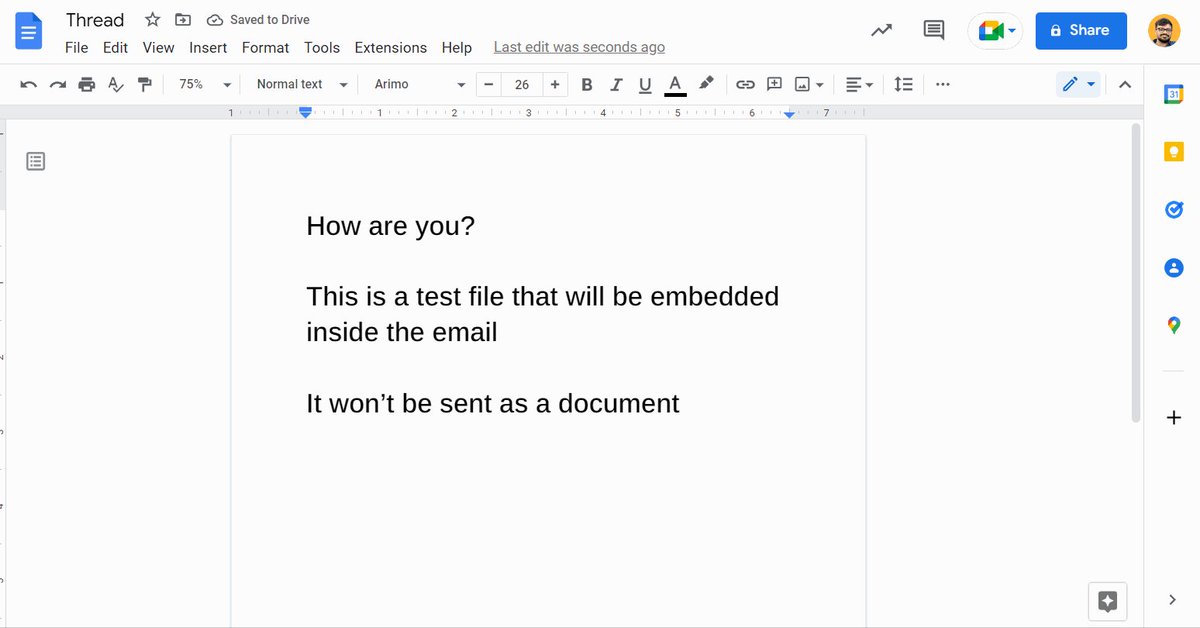
10. Embedding Document in Email
Do you want to avoid sending a link or a document as an attachment to someone?
You may easily embed a whole document in the email body.
Navigate to:
'File' → 'Email' → 'Email this file'
Do you want to avoid sending a link or a document as an attachment to someone?
You may easily embed a whole document in the email body.
Navigate to:
'File' → 'Email' → 'Email this file'
11. Smart Chips for better preview
Insert smart chips in your Google Doc to include information about:
i. Other users with Gmail or Workspace email addresses.
ii. Google Docs, Sheets, or Slides files.
iii. Dates or Google Calendar events.
Insert smart chips in your Google Doc to include information about:
i. Other users with Gmail or Workspace email addresses.
ii. Google Docs, Sheets, or Slides files.
iii. Dates or Google Calendar events.

12. Insert Special Characters
You may insert special characters like arrows, shapes, emoticons, and accent marks into your documents.
Navigate to:
'Insert' → 'Special Characters'
You may insert special characters like arrows, shapes, emoticons, and accent marks into your documents.
Navigate to:
'Insert' → 'Special Characters'
Thanks for checking this out.
Follow @Makadiaharsh for more such threads.
If you loved this thread, like and retweet the first tweet.
Follow @Makadiaharsh for more such threads.
If you loved this thread, like and retweet the first tweet.
Loading suggestions...