

Doing a literature review takes time — a lot of time.
Here's a Zotero+Research Rabbit workflow that will your literature review FASTER and EASIER:
Here's a Zotero+Research Rabbit workflow that will your literature review FASTER and EASIER:
1. Go to researchrabbitapp(dot)com, and log in to your account.

2. Once logged in, you will see a "Connect to Zotero" button in the top-left corner of your screen.
Click on it.
Click on it.

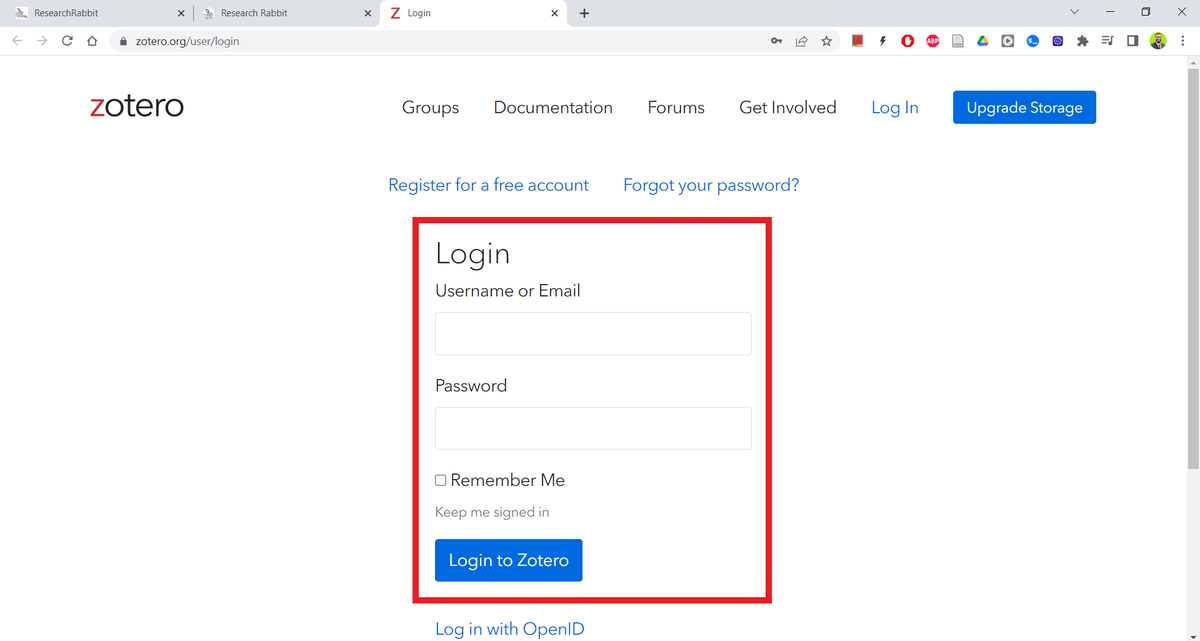
3. Research Rabbit will ask you to log in to your Zotero account.
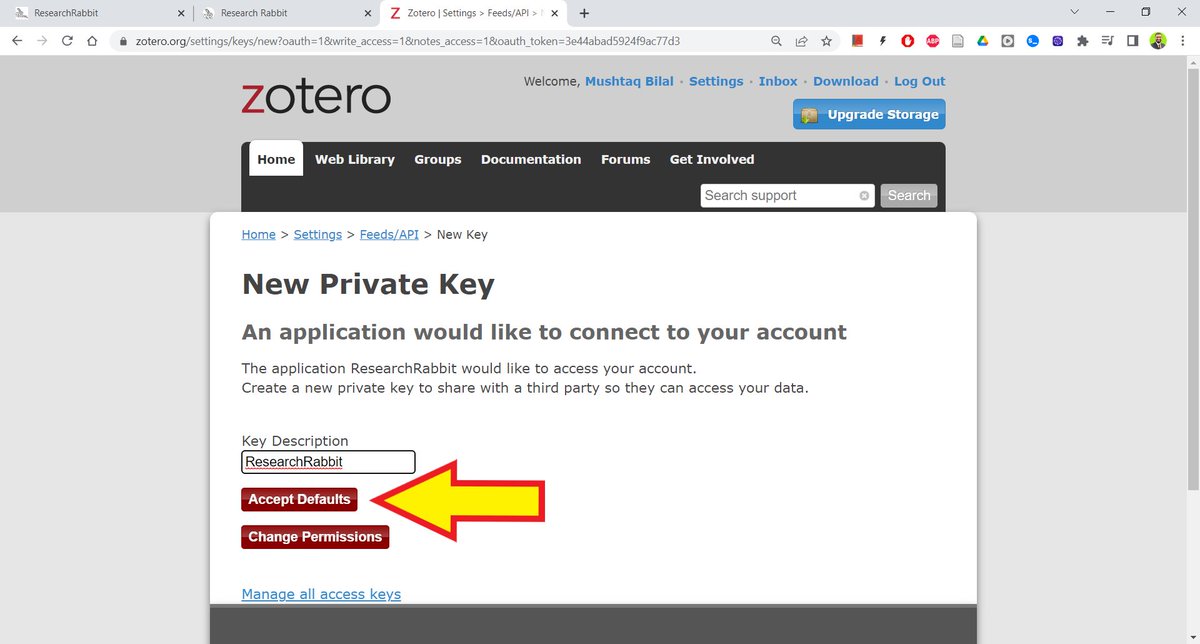
4. Zotero will prompt you that Research Rabbit is trying to connect to your account.
Click on "Accept Defaults."
Click on "Accept Defaults."
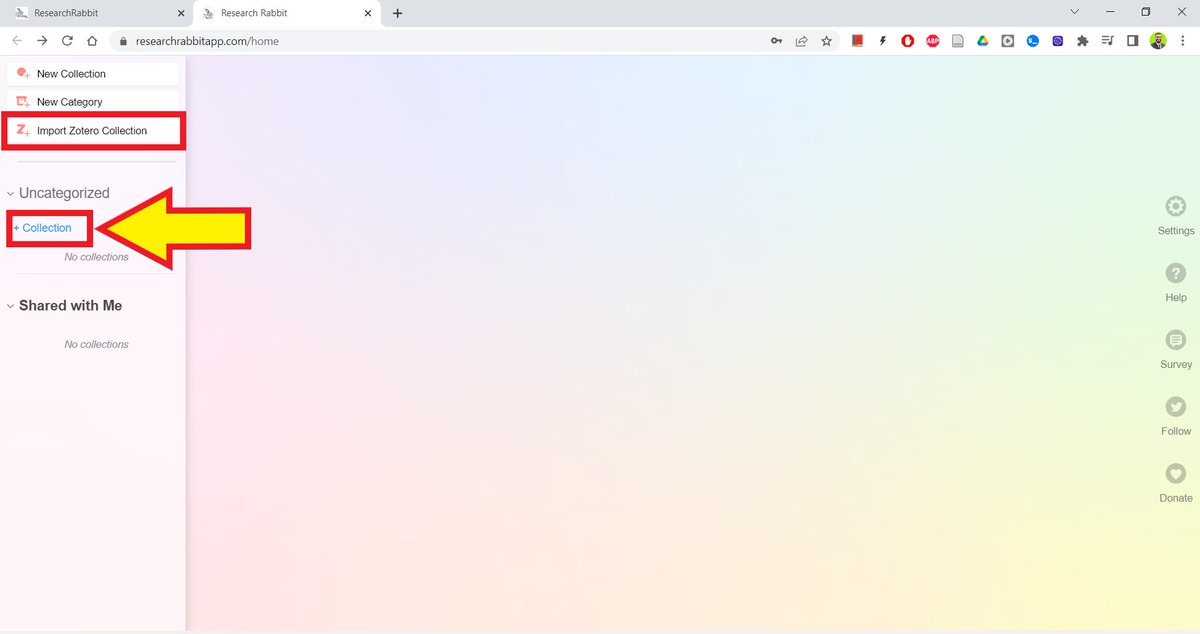
5. After you connect Research Rabbit with Zotero, you will see an "Import Zotero Connection" button in place of "Connect to Zotero."
Click on the "+ Collection" button under it to create a new collection.
Click on the "+ Collection" button under it to create a new collection.
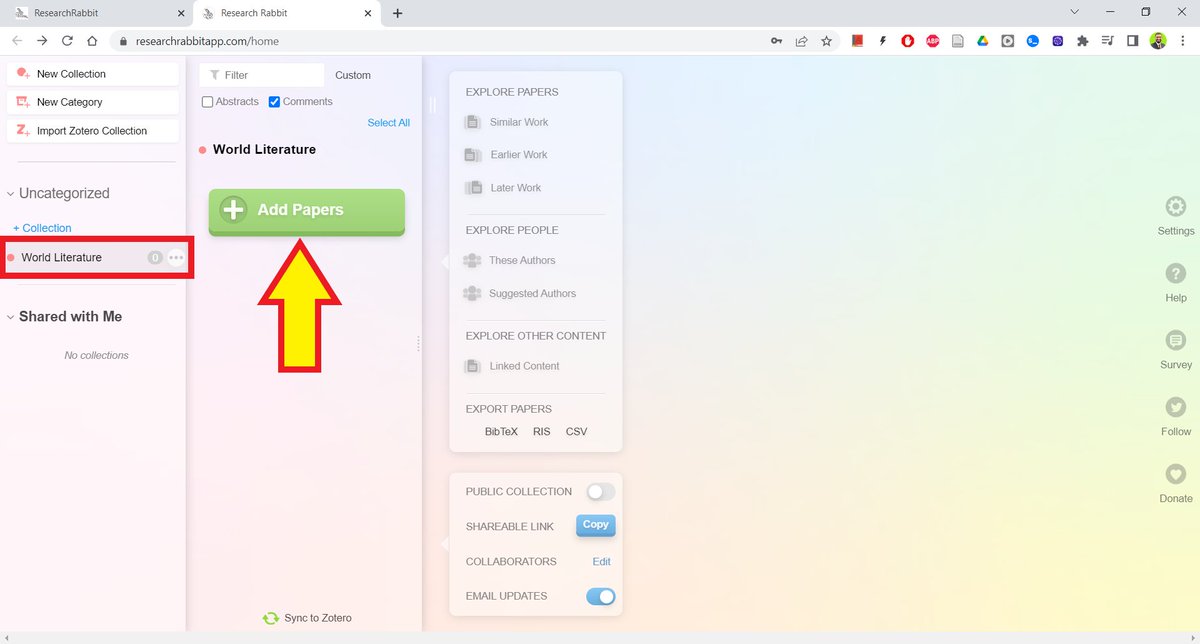
6. After you create a new collection, you will see a green button with "Add Papers" written on it.
Click on it.
Click on it.
7. Type in a few keywords relevant to your project in the search bar.
Research Rabbit will show a list of related papers along with their abstracts.
Carefully read the abstract of a paper before adding it to your collection.
Don't add a lot of papers.
Research Rabbit will show a list of related papers along with their abstracts.
Carefully read the abstract of a paper before adding it to your collection.
Don't add a lot of papers.

8. After you have added papers to your collection, you will see a "Similar Works" button in the column next to it.
Click on it.
Click on it.
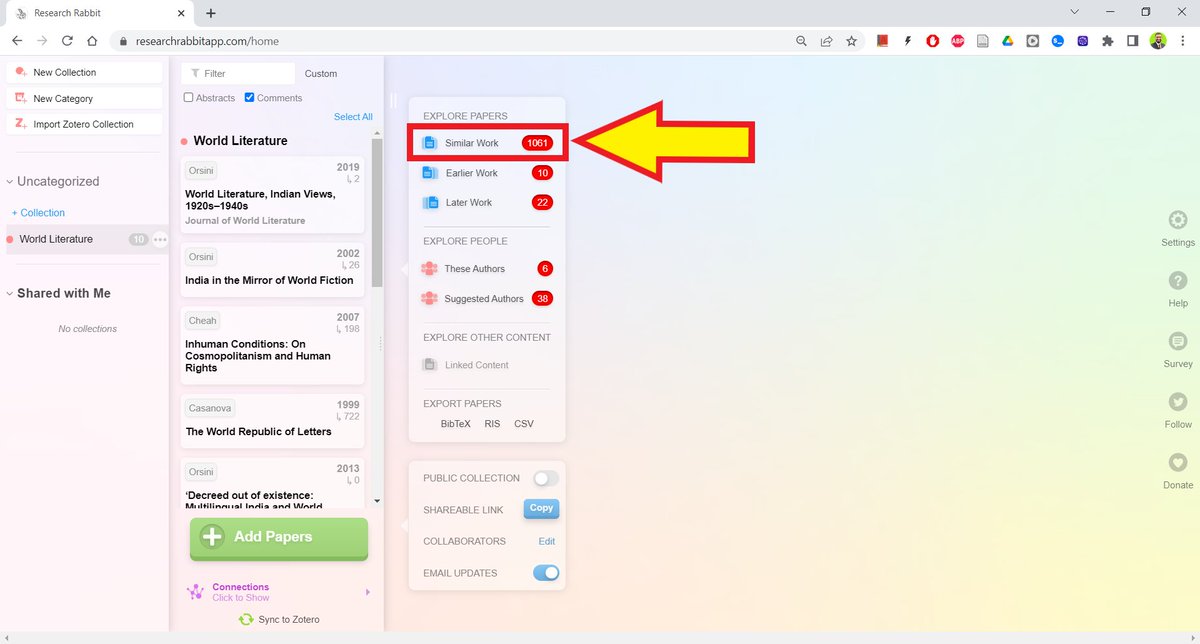
9. Research Rabbits will give you a new list of papers related to the ones you already have.
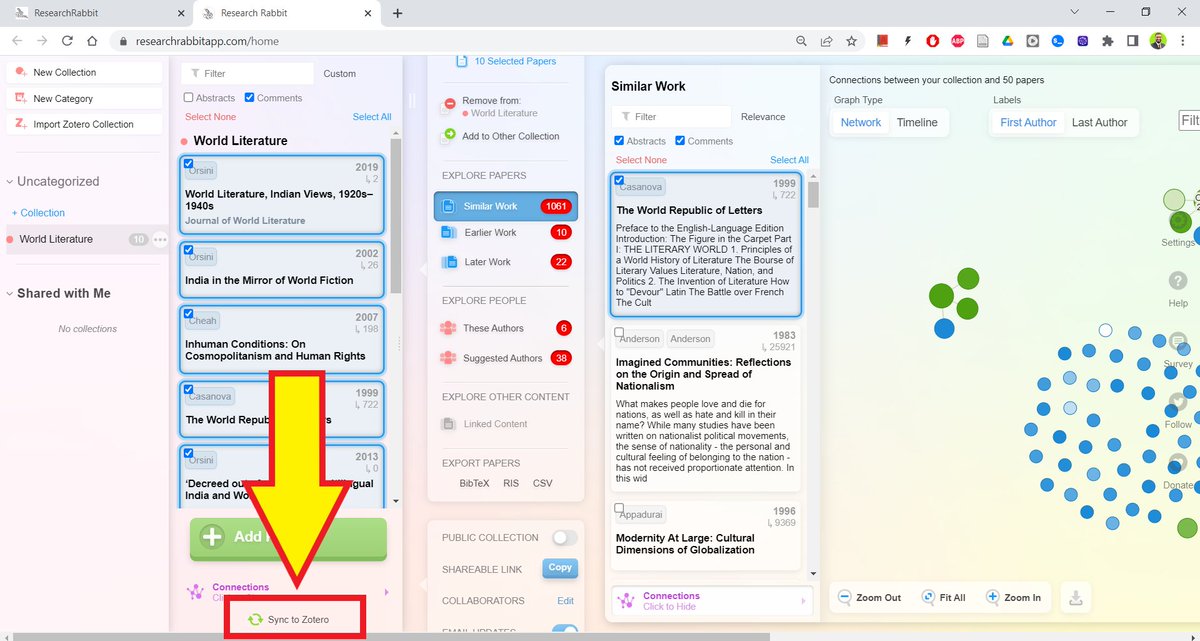
It will create an interactive visualization to show you how these papers are related.
Carefully read abstracts before adding papers to your collection.
It will create an interactive visualization to show you how these papers are related.
Carefully read abstracts before adding papers to your collection.

10. Once you have 8-10 papers relevant to your project, click on the "Sync to Zotero" button at the bottom of your screen.
11. Research Rabbit will ask you to name for your Zotero collection.
Type in the name of the collection you created in the beginning.
Type in the name of the collection you created in the beginning.

12. Research Rabbit will create a Zotero collection and export all your papers to this collection.
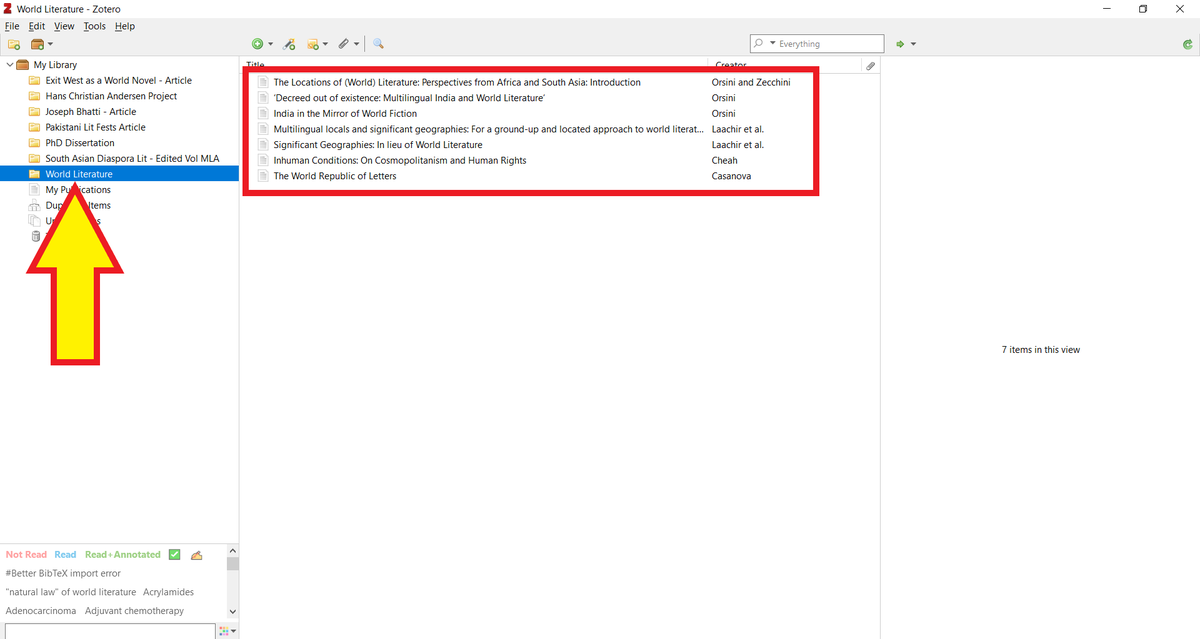
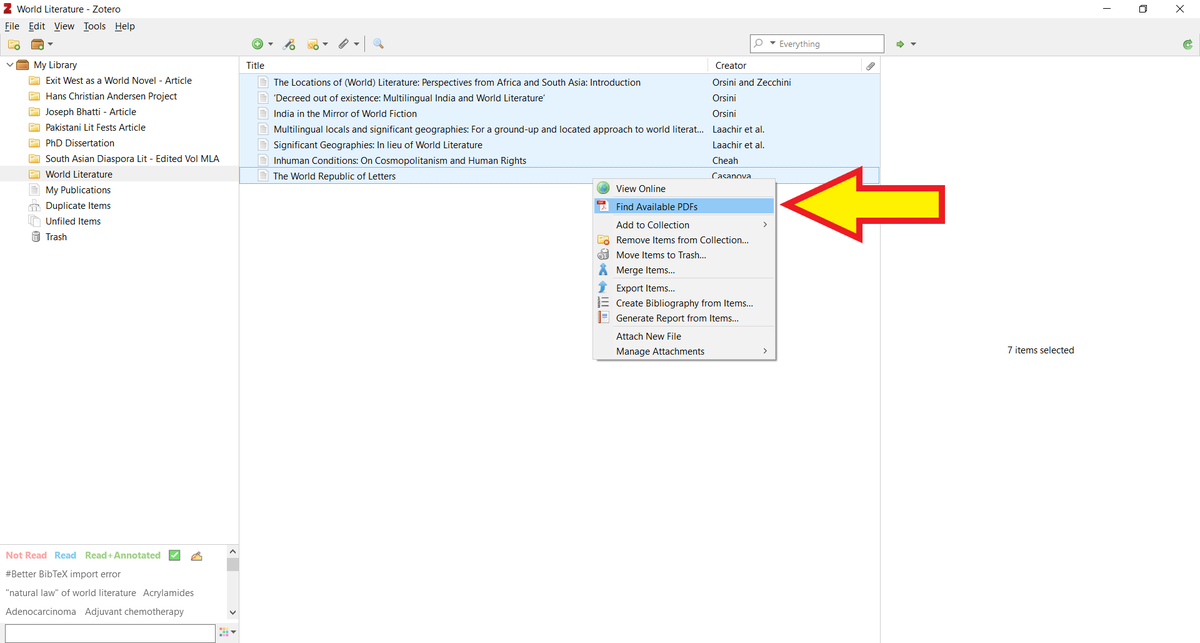
13. Select all papers in your Zotero collection and right click.
Click on "Find Available PDFs" and Zotero will retrieve PDFs of the papers.
Click on "Find Available PDFs" and Zotero will retrieve PDFs of the papers.
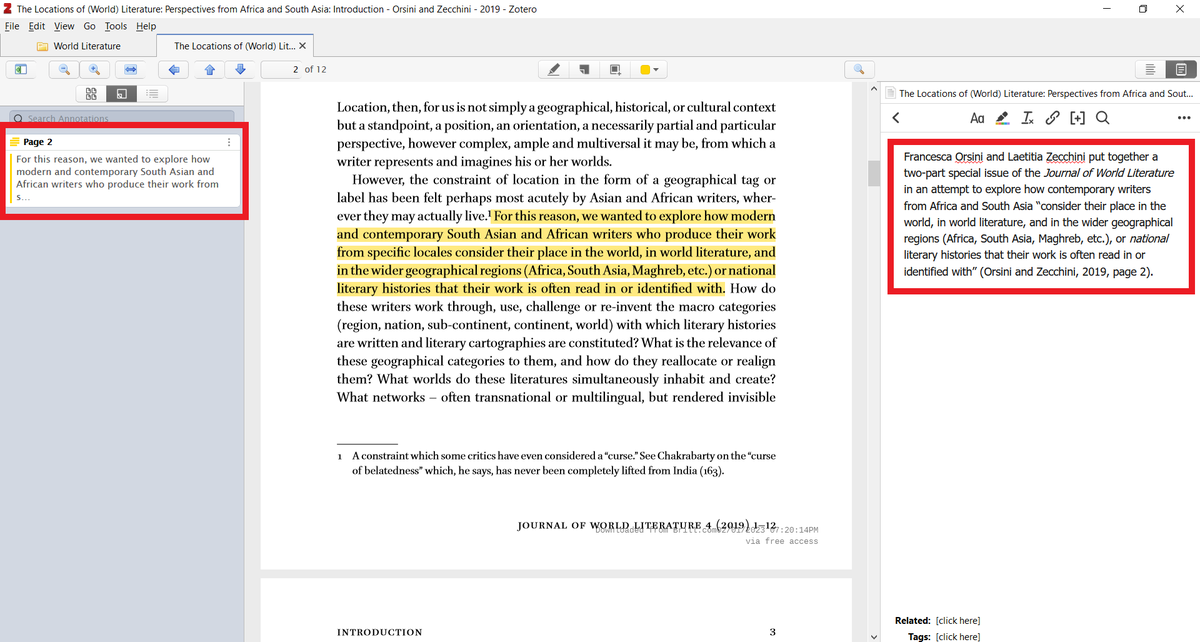
14. Double-click on a PDF and Zotero will open it in its inbuilt Note Editor.

15. Start reading — slowly and carefully. Don't rush.
Annotate the PDF (left) and take notes (right) — a lot of notes.
You can also add in-text citations while taking notes. To do so, press "[+]" in Note Editor.
Annotate the PDF (left) and take notes (right) — a lot of notes.
You can also add in-text citations while taking notes. To do so, press "[+]" in Note Editor.
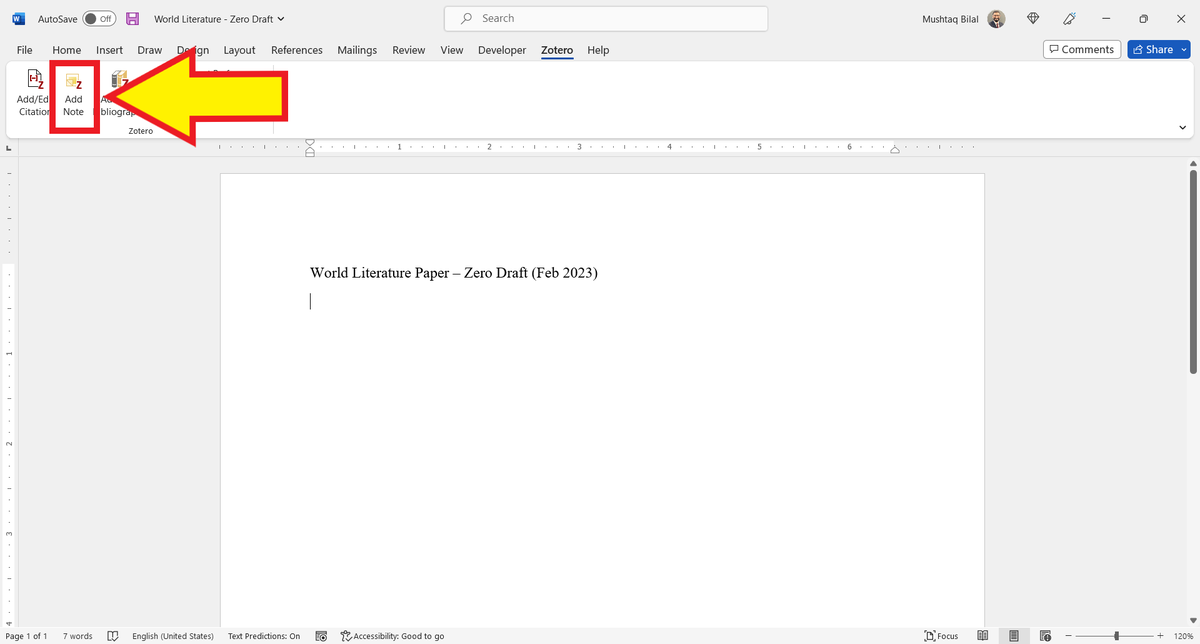
16. Open a blank document in MS Word, and click on the "Add Note" button in the Zotero tab.
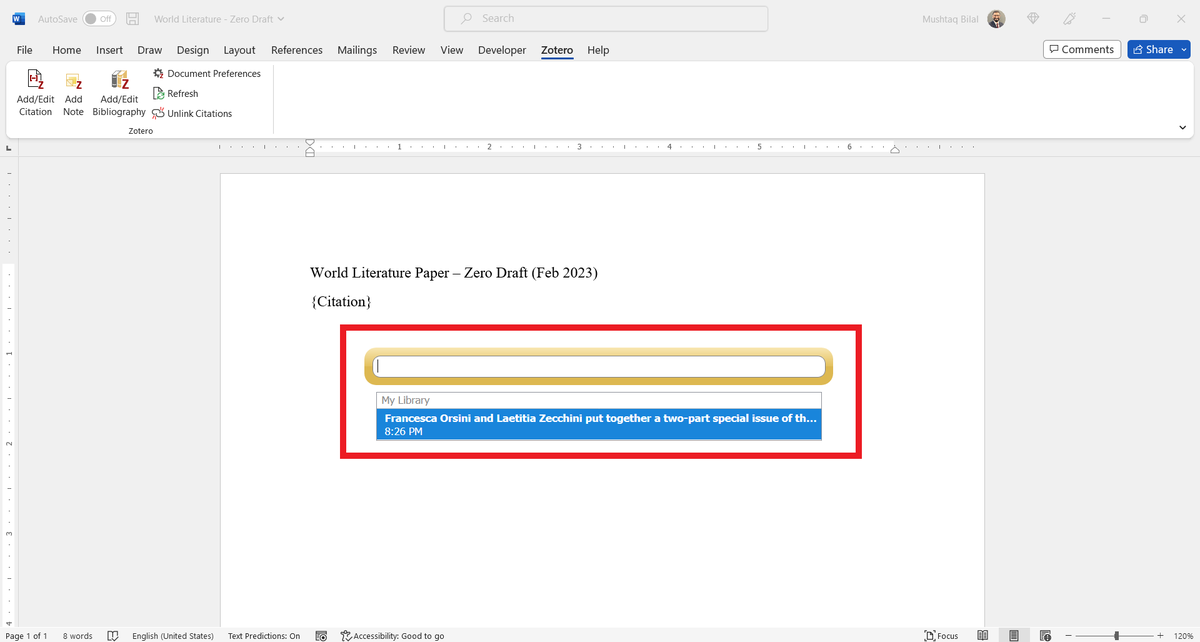
17. Zotero will open a yellow search bar along with a list of your notes.
Click on the note you want to import.
Click on the note you want to import.
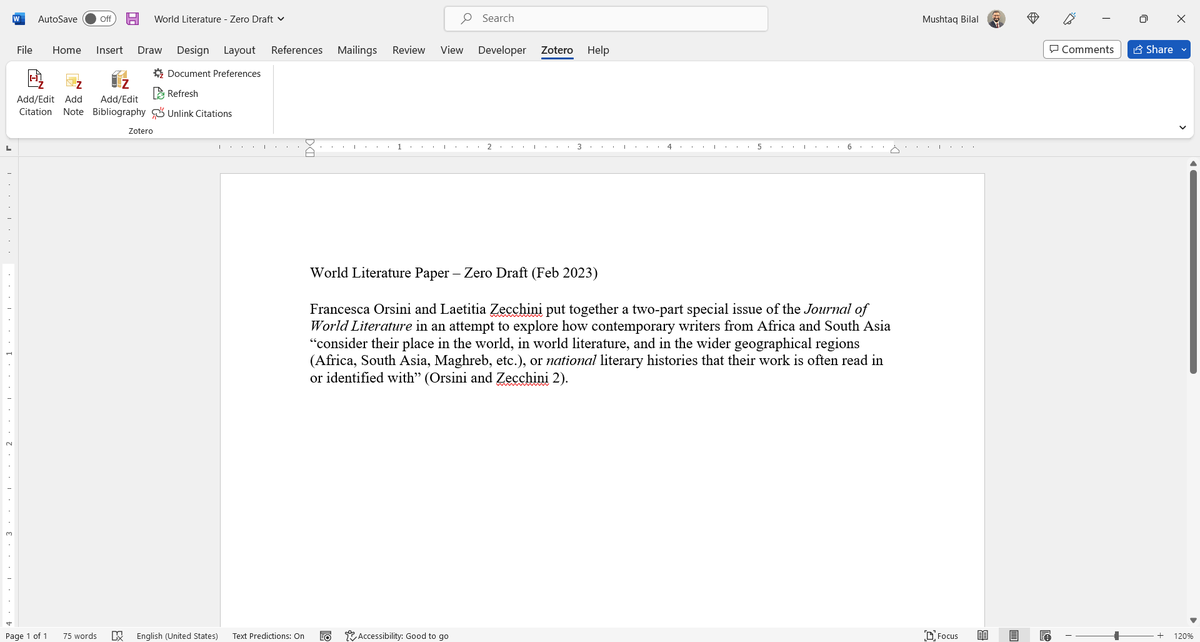
18. Zotero will export the relevant note to your MS Word document along with in-text citations.
Once you have around 15 pages of notes, start rewriting and you will have a decent first draft of your literature review.
Once you have around 15 pages of notes, start rewriting and you will have a decent first draft of your literature review.
Found this thread helpful?
• Scroll to the top and press the "Like" button on the first tweet.
• Follow me @MushtaqBilalPhD for more threads on Zotero and academic writing.
• Scroll to the top and press the "Like" button on the first tweet.
• Follow me @MushtaqBilalPhD for more threads on Zotero and academic writing.
Would you like academic writing tips and workflows delivered to your inbox?
Sign up below for my FREE newsletter, "Keep Writing."
In tomorrow's newsletter, I will break down my research proposal that got my a postdoc at U of Southern Denmark.
keepwriting.beehiiv.com
Sign up below for my FREE newsletter, "Keep Writing."
In tomorrow's newsletter, I will break down my research proposal that got my a postdoc at U of Southern Denmark.
keepwriting.beehiiv.com

A typo is the first tweet 🤦🏻♂️🤦🏻♂️🤦🏻♂️
Loading suggestions...