

10 most-used Excel shortcuts:
1. CTRL SHIFT F3
CTRL SHIFT F3 creates a named range named after the row/column header that can be referenced directly in formulas. Now, you can simply type the name of the column you want to reference in your formula instead of manually selecting it!
CTRL SHIFT F3 creates a named range named after the row/column header that can be referenced directly in formulas. Now, you can simply type the name of the column you want to reference in your formula instead of manually selecting it!
2. CTRL SHIFT &
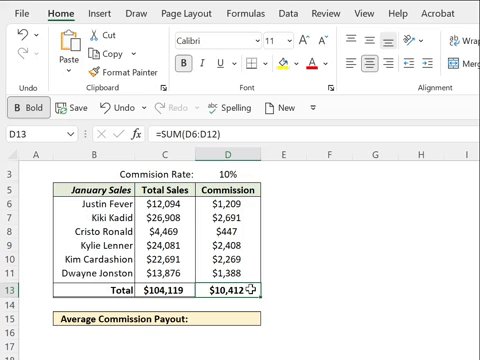
Instead of clicking through the ribbon every time you want to add borders to a selected data, try the CTRL SHIFT & shortcut instead! CTRL SHIFT & automatically adds outside borders to the selection.
Instead of clicking through the ribbon every time you want to add borders to a selected data, try the CTRL SHIFT & shortcut instead! CTRL SHIFT & automatically adds outside borders to the selection.

3. CTRL ARROW
Say goodbye to the scroll wheel on the mouse and hello to the CTRL ARROW shortcuts. Depending on which arrow, CTRL ARROW allows us to quickly navigate through large data sets by jumping to the very top, very bottom, far left, or far right of the data.
Say goodbye to the scroll wheel on the mouse and hello to the CTRL ARROW shortcuts. Depending on which arrow, CTRL ARROW allows us to quickly navigate through large data sets by jumping to the very top, very bottom, far left, or far right of the data.

4. CTRL [
Tracing down cell references can be like finding a needle in a haystack. Instead of tracing the file path, opening the file, navigating to the worksheet, and mapping the cell, just press CTRL [ to teleport to a cell reference.
Tracing down cell references can be like finding a needle in a haystack. Instead of tracing the file path, opening the file, navigating to the worksheet, and mapping the cell, just press CTRL [ to teleport to a cell reference.
5. F8
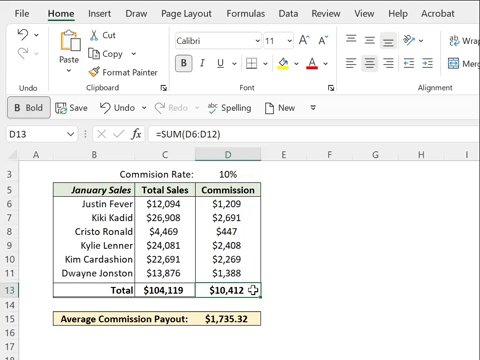
Don’t be that person who still selects data using their mouse. Instead, use the F8 shortcut. F8 activates extend selection mode. Once this mode is activated, choose the data you want to include in the selection using the arrow keys.
Don’t be that person who still selects data using their mouse. Instead, use the F8 shortcut. F8 activates extend selection mode. Once this mode is activated, choose the data you want to include in the selection using the arrow keys.
6. CTRL SHIFT L
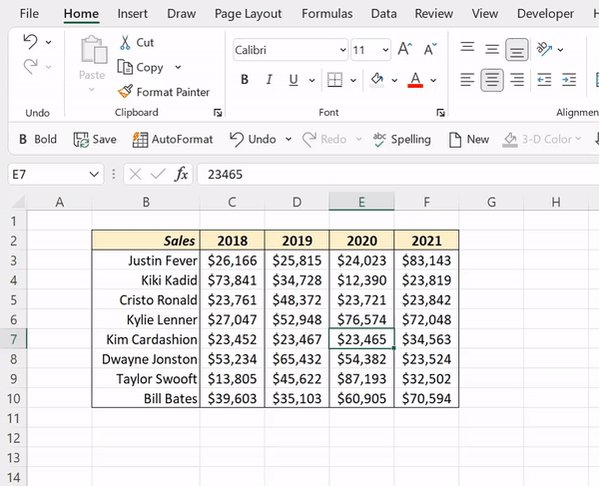
Make analyzing large data sets a little easier with the CTRL SHIFT L shortcut. CTRL SHIFT L adds the Sort&Filter toggles to the top row of the data set, so you can quickly sort and filter data.
Make analyzing large data sets a little easier with the CTRL SHIFT L shortcut. CTRL SHIFT L adds the Sort&Filter toggles to the top row of the data set, so you can quickly sort and filter data.

7. CTRL ~
When cranking out formulas in Excel, checking each one individually in the formula bar can be tedious. Instead, try the CTRL ~ shortcut! CTRL ∼ toggles between displaying the cells’ formulas and values in the active worksheet.
When cranking out formulas in Excel, checking each one individually in the formula bar can be tedious. Instead, try the CTRL ~ shortcut! CTRL ∼ toggles between displaying the cells’ formulas and values in the active worksheet.

8. ALT F1
If you spend too much time creating charts to visualize your data, meet ALT F1. These two magical keys automatically generate a bar chart using the selected data and insert it into the active worksheet!
If you spend too much time creating charts to visualize your data, meet ALT F1. These two magical keys automatically generate a bar chart using the selected data and insert it into the active worksheet!

9. F4
We’ve all accidentally forgotten to lock a cell reference in a formula. Well, at least I know I have. To ensure this mistake never happens again, use the F4 shortcut. F4 cycles through absolute, mixed, and relative cell references.
We’ve all accidentally forgotten to lock a cell reference in a formula. Well, at least I know I have. To ensure this mistake never happens again, use the F4 shortcut. F4 cycles through absolute, mixed, and relative cell references.

10. SHIFT F11:
Let's say we need to insert a new worksheet into our workbook, but we lost our mouse. Not a problem! Just hit SHIFT F11. SHIFT F11 quickly inserts a new worksheet into the active workbook.
Let's say we need to insert a new worksheet into our workbook, but we lost our mouse. Not a problem! Just hit SHIFT F11. SHIFT F11 quickly inserts a new worksheet into the active workbook.

Reply with your score out of ten of how many you knew. 😜
Follow @exceldictionary for more tips and tricks.
To learn all of Excel’s shortcuts and productivity hacks like this, check out my new course, ebooks, merch, and more linked below. 👇🏼
excel-dictionary.com
Follow @exceldictionary for more tips and tricks.
To learn all of Excel’s shortcuts and productivity hacks like this, check out my new course, ebooks, merch, and more linked below. 👇🏼
excel-dictionary.com

10/10 😉
Loading suggestions...