

Don't let ChatGPT distract you from other apps currently available for academic writing.
Here's an app especially designed to make academic writing faster and easier — ClioVis:
Here's an app especially designed to make academic writing faster and easier — ClioVis:
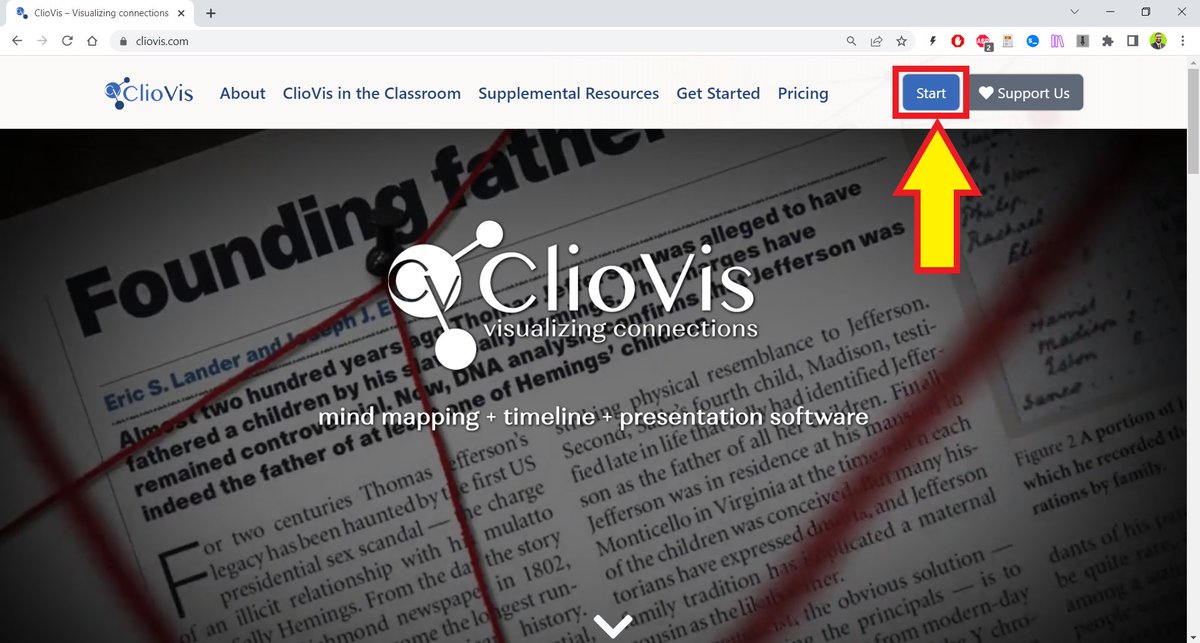
Go to cliovis(dot)com, click on the "Start" button, and sign up.
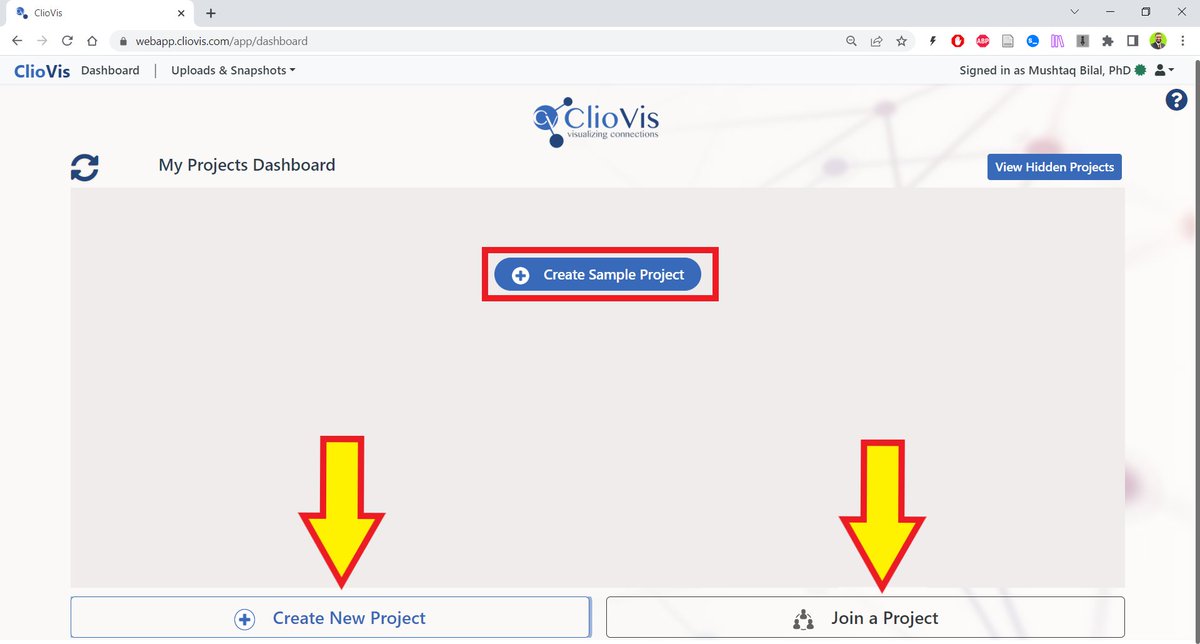
You can either create a new project or join a project. You can also create a sample project to get started.
For the purposes of this tutorial, I'll be creating a new project.
For the purposes of this tutorial, I'll be creating a new project.
Give you project a title and add a few details about it.
You can also add a map pin to situate your project geographically.
You can also add a map pin to situate your project geographically.

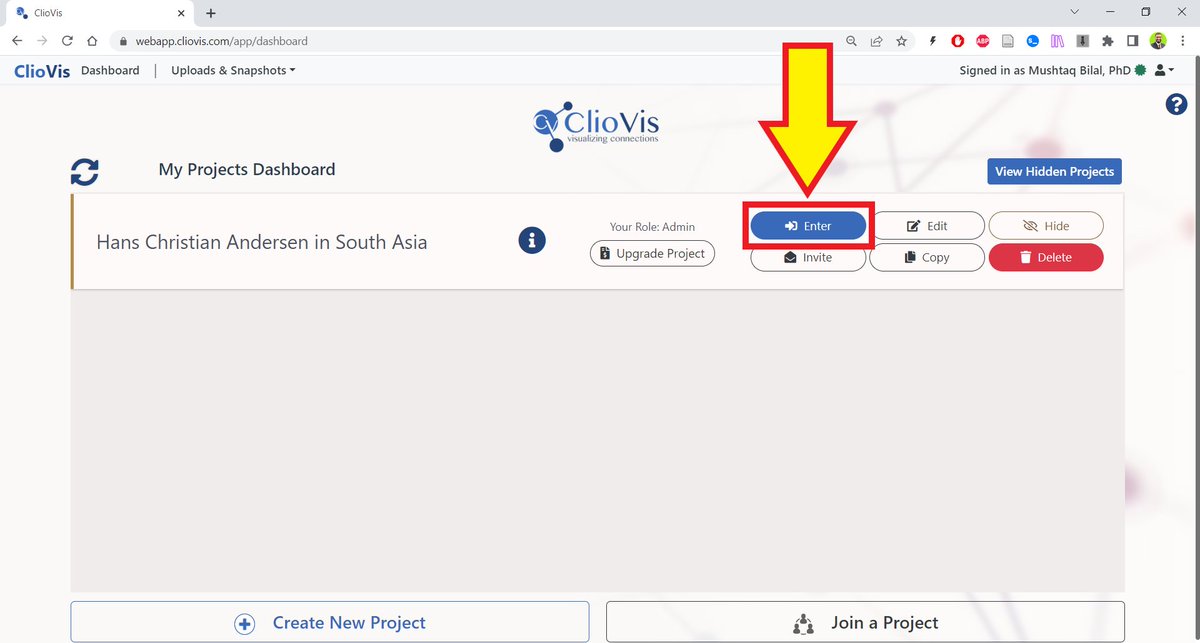
Once you have created a project, click on the "Enter" button.
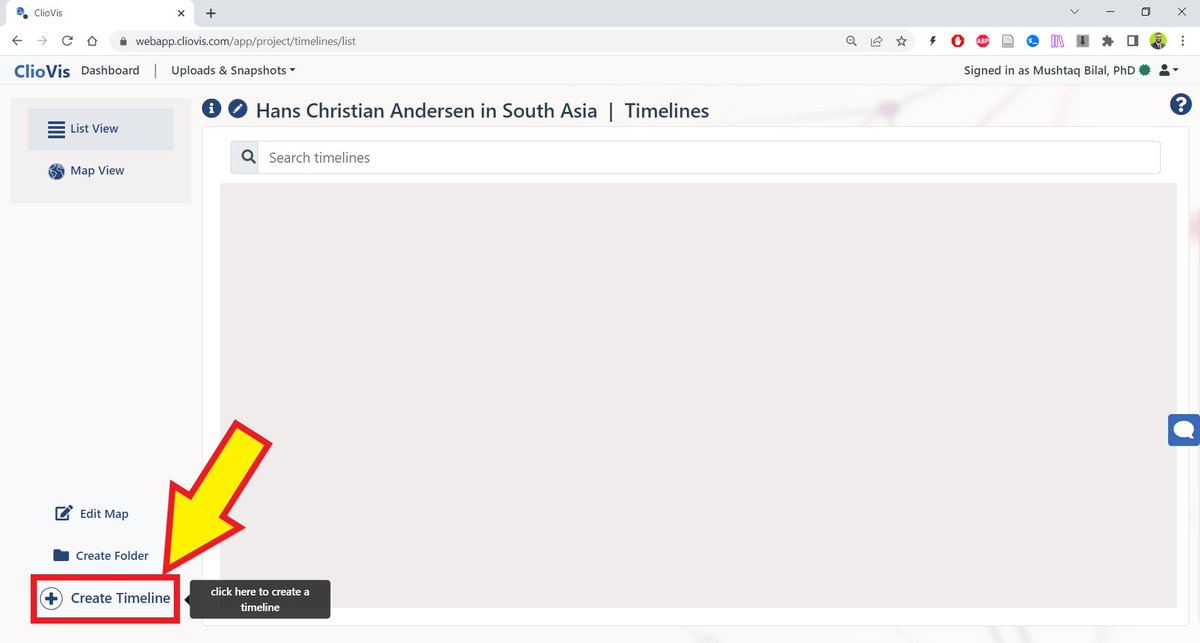
After entering a project, click on "Create Timeline."
Give a name to your timeline.
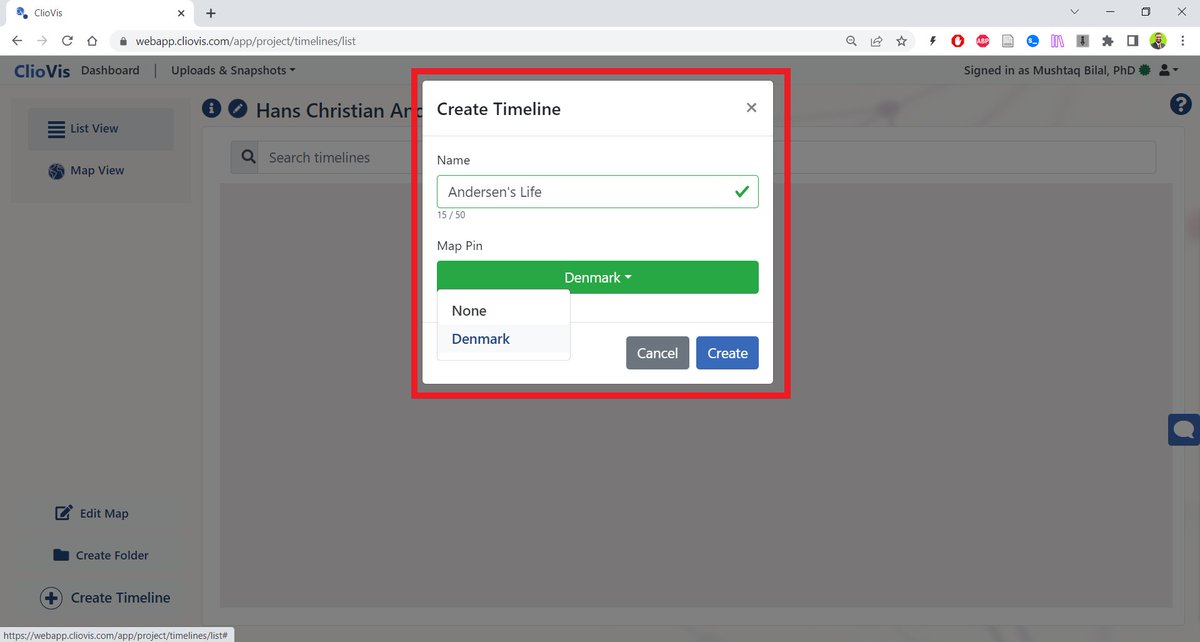
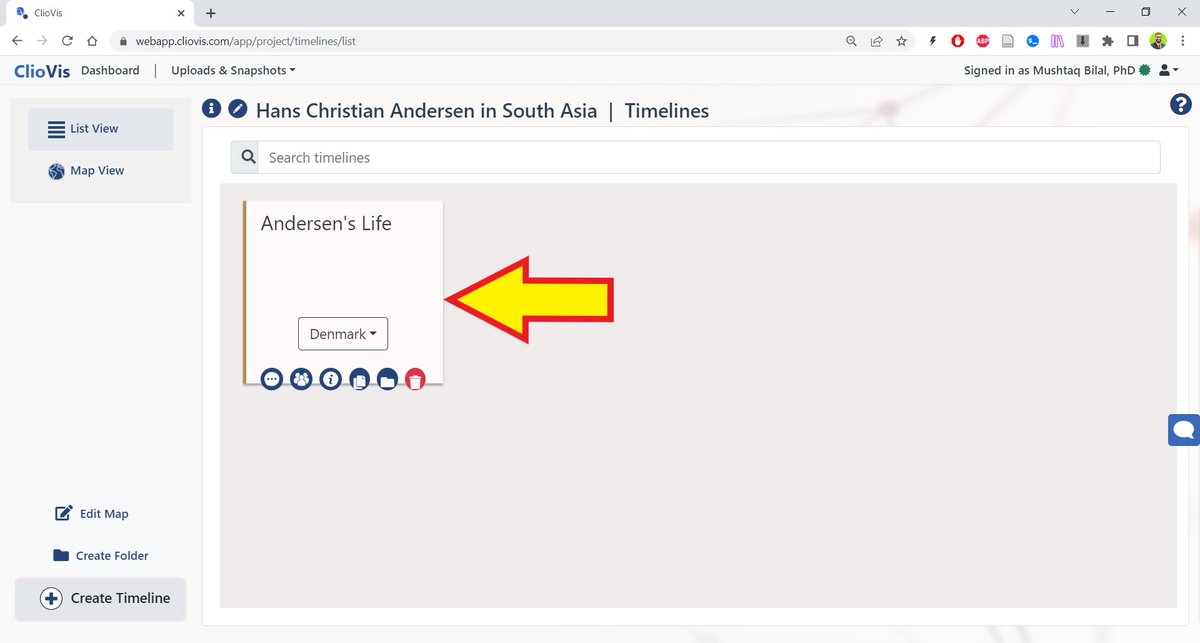
ClioVis will create an "empty" timeline for your.
Click on the timeline box to start filling it in.
Click on the timeline box to start filling it in.
Once you have entered the timeline, click on the "Create" button.
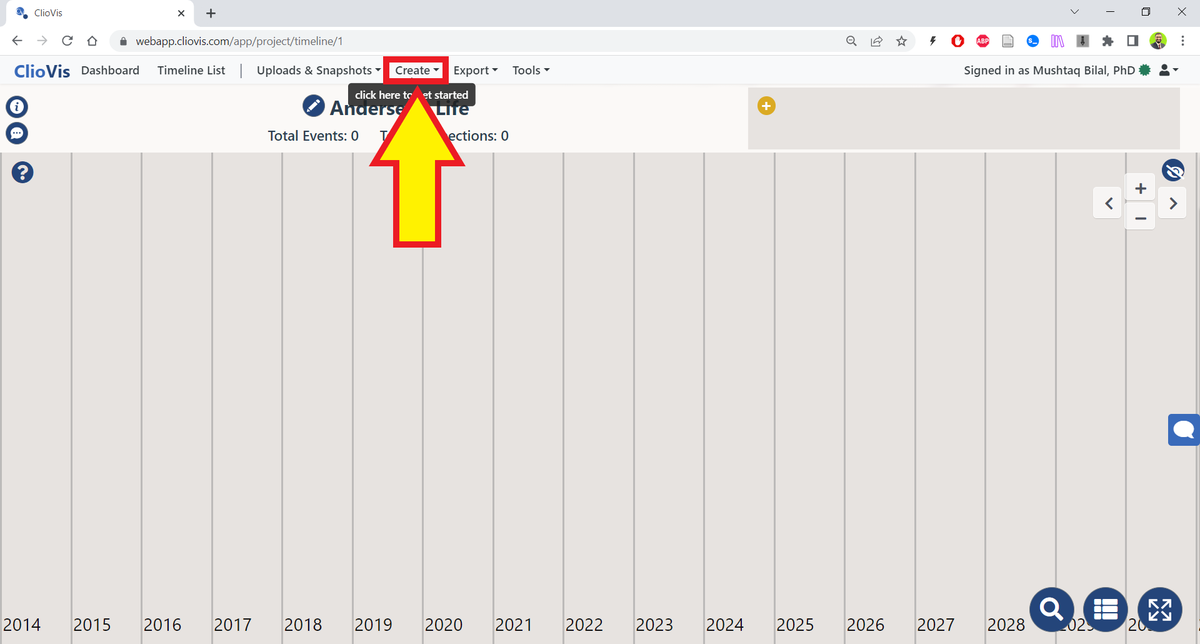
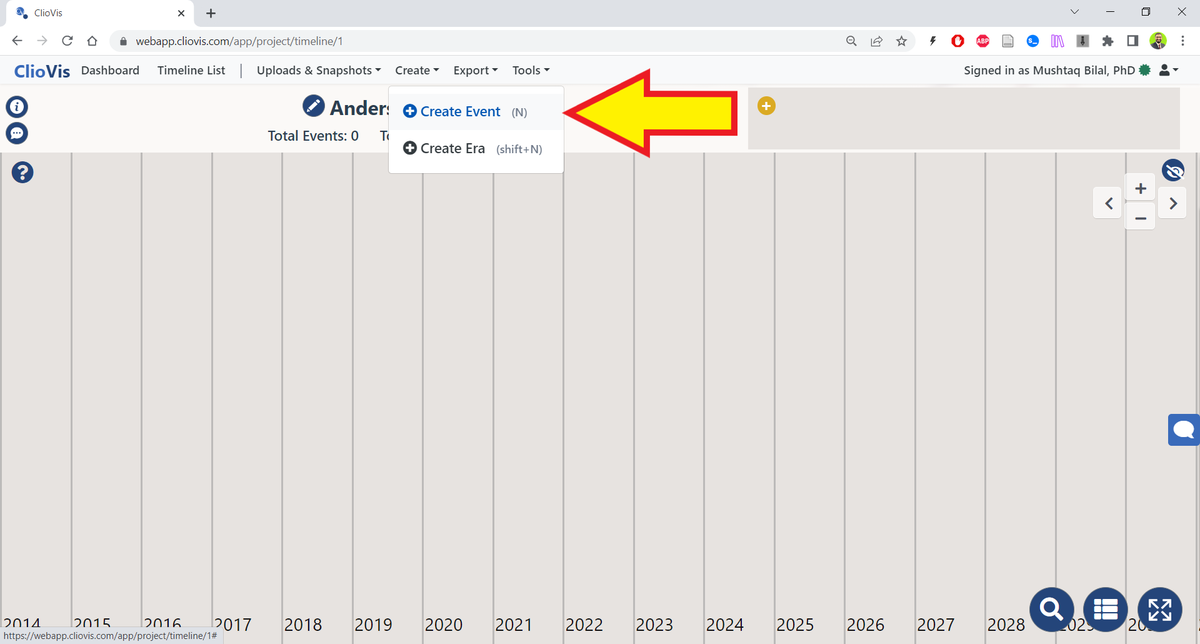
You can fill your timeline with two types of things: Events and Eras.
To create an event, click on the "Create Event" button.
To create an event, click on the "Create Event" button.
Fill in the details about the event you want to record.
Here I am recording the year of birth of Hans Christian Andersen.
But that's not it.
Here I am recording the year of birth of Hans Christian Andersen.
But that's not it.

You can add links to YouTube videos relevant to an event.
You can also add voice notes.
I have never seen these options in any other app for academic writing.
You can also add voice notes.
I have never seen these options in any other app for academic writing.

If you want to know about how AI-powered apps can help you become an efficient academic writer, I have an ebook for you.
It's 143-page long and contains complete workflows.
You can get it here: efficientacademicwriter.carrd.co
It's 143-page long and contains complete workflows.
You can get it here: efficientacademicwriter.carrd.co

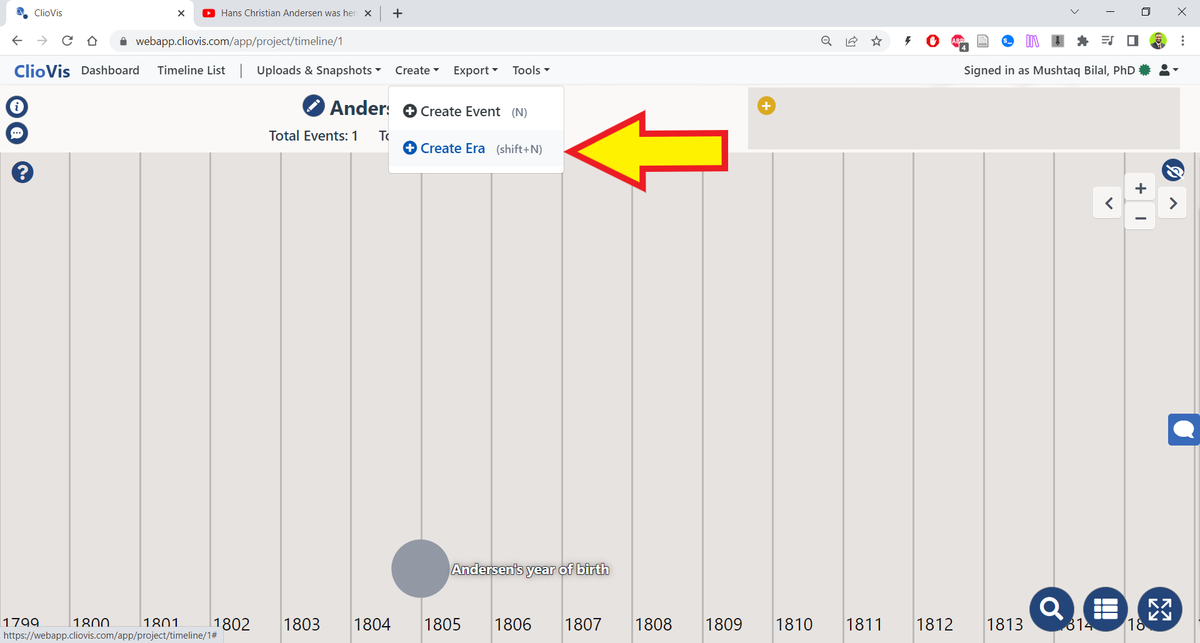
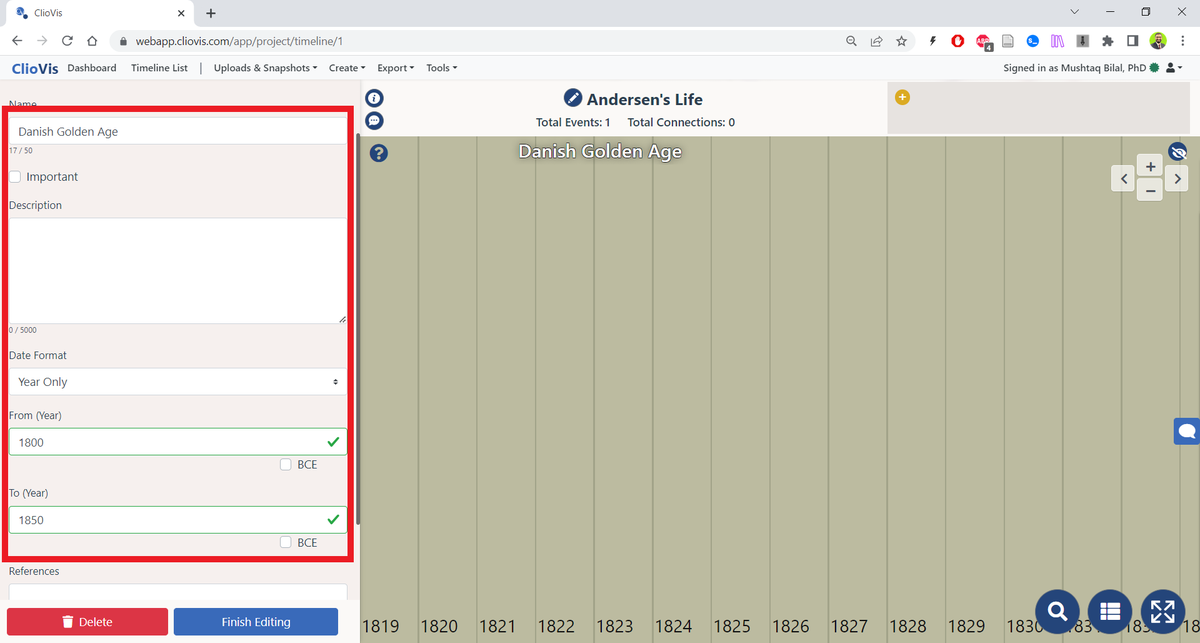
You can also create eras in ClioVis.
Here I have created an era for Danish Golden Age from 1800 to 1850.
Once you have several events on your timeline, you can create connections between them.
These connection could be forward, backward, or bidirectional.
These connection could be forward, backward, or bidirectional.

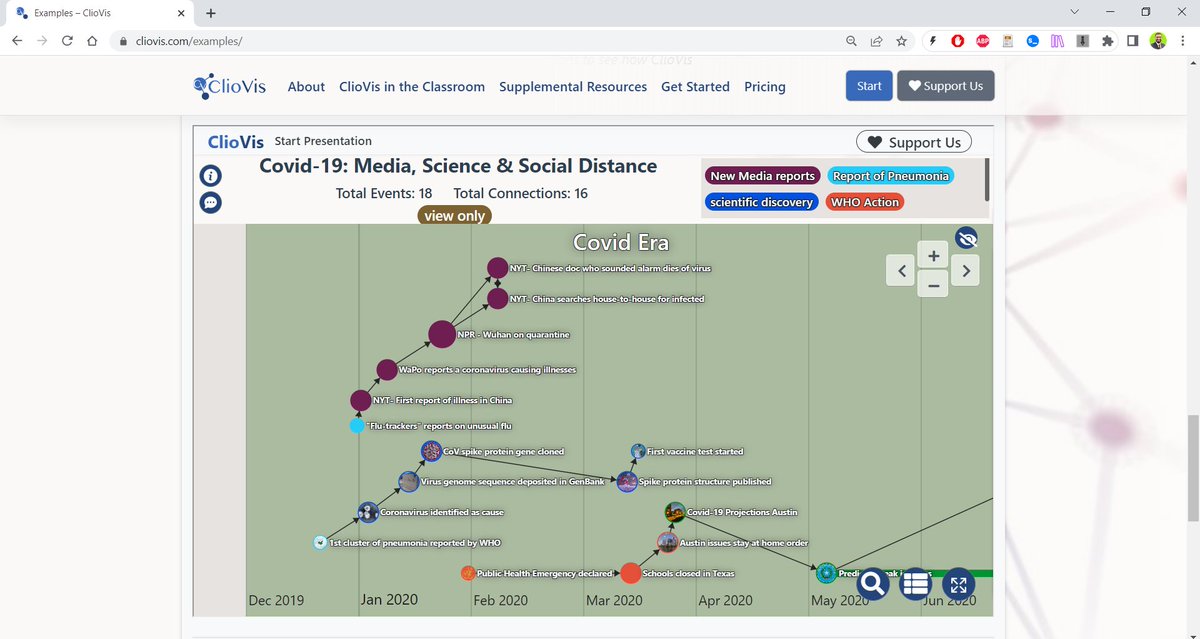
Here's a how a timeline filled with several events looks like in ClioVis.
This is all well and good, but the real magic happens when you download your timeline as a Word file.
To do so, click on "Export" and then "Download as DOCX."
To do so, click on "Export" and then "Download as DOCX."
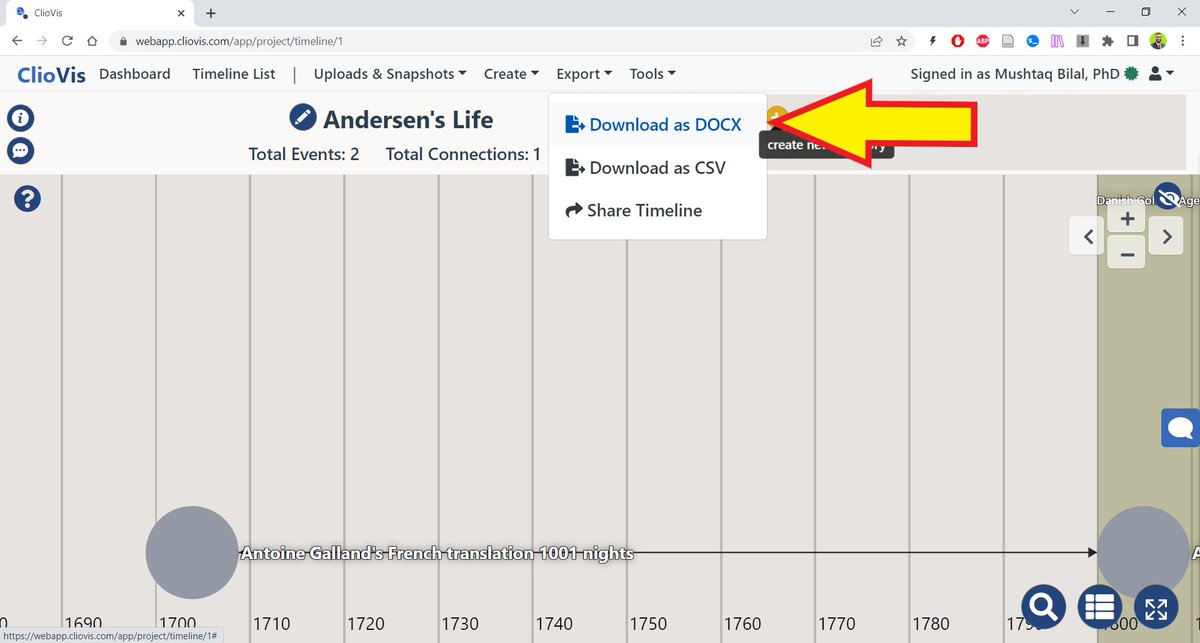
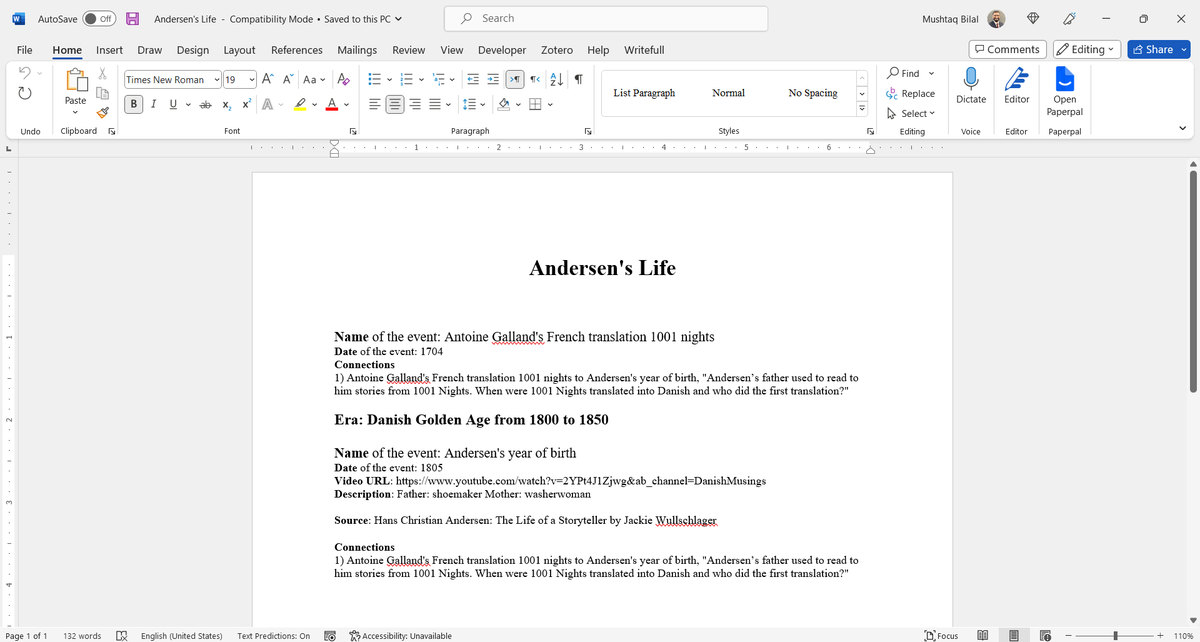
ClioVis will create a nicely formatted Word file with all the details of all the events in your timeline.
Just delete the headings and the metadata and you have a decent draft of your project.
Just delete the headings and the metadata and you have a decent draft of your project.
You can also create categories to better organize your timeline.
To do so, click on the "create new category" button.
To do so, click on the "create new category" button.
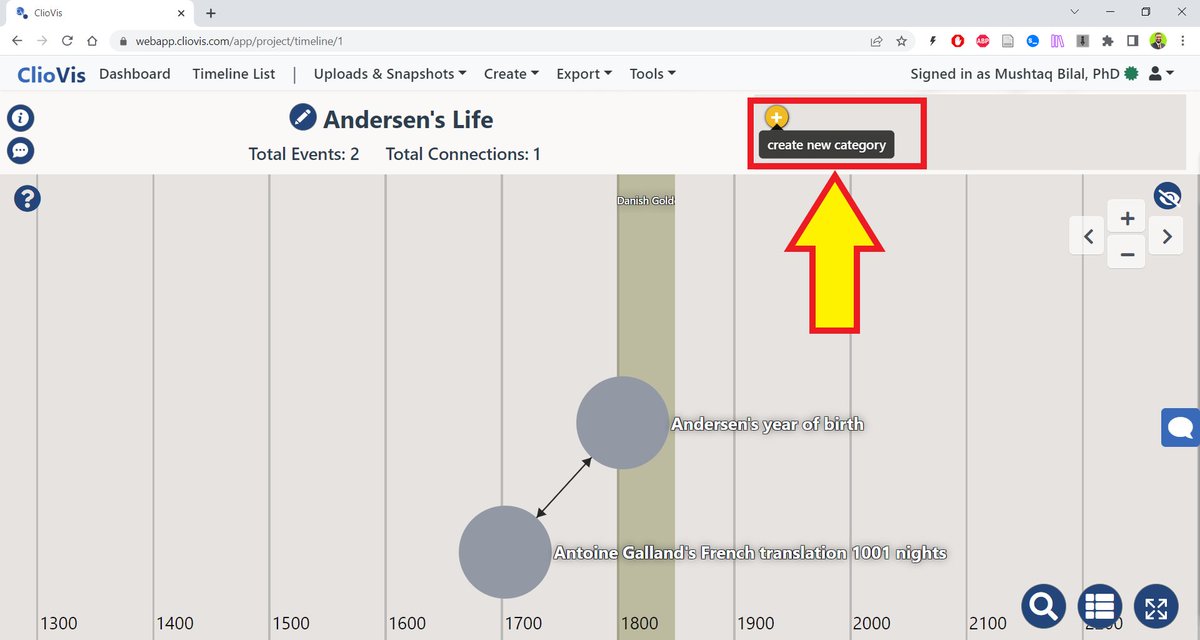
You can use these categories to help you clarify your thought processes.

If you want to present your project, you don't have to create a separate presentation.
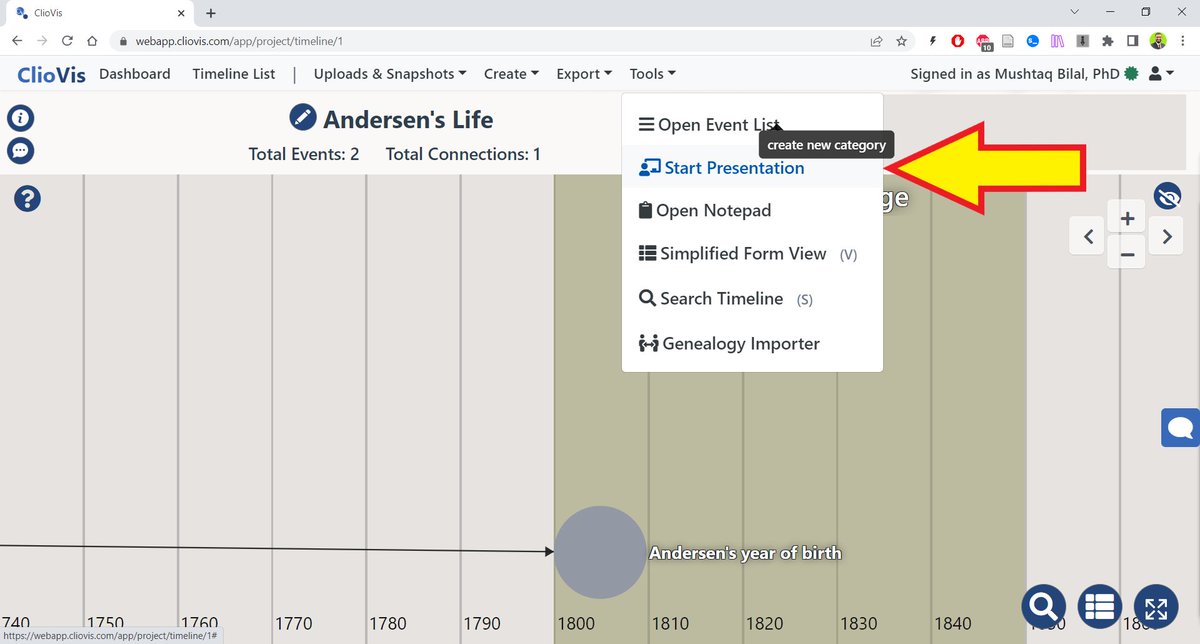
Just go to "Tools" and click on "Start Presentation" and ClioVis will create a presentation for you.
Just go to "Tools" and click on "Start Presentation" and ClioVis will create a presentation for you.
ClioVis offers both free and paid plans.
If you are an instructor, you can integrate it with Canvas.
Use the code "MB2023" for a 25% discount.
If you are an instructor, you can integrate it with Canvas.
Use the code "MB2023" for a 25% discount.
Found this thread helpful?
1. Scroll the top and hit the "Like" button on the first tweet.
2. Follow me @MushtaqBilalPhD for regular tips on academic writing.
1. Scroll the top and hit the "Like" button on the first tweet.
2. Follow me @MushtaqBilalPhD for regular tips on academic writing.
Want me to email you tips on academic writing?
Sign up for my newsletter. It's FREE!
keepwriting.beehiiv.com
Sign up for my newsletter. It's FREE!
keepwriting.beehiiv.com

Loading suggestions...