

25 must-know Microsoft Excel shortcuts so you never use a mouse again (and maximize productivity 10x to leave work earlier):
Repeat the Last Action:
• Ctrl + Y
Example:
You have just applied a formatting style to a cell, use Ctrl + Y to quickly apply the same formatting to another cell.
• Ctrl + Y
Example:
You have just applied a formatting style to a cell, use Ctrl + Y to quickly apply the same formatting to another cell.

Display Formulas in cells:
• Ctrl + ~
Example:
If you have a cell that contains a formula, you can use Ctrl + ~ to switch between the formula view and the value view of the cell. This allows you to see the underlying formula used to calculate the cell value.
• Ctrl + ~
Example:
If you have a cell that contains a formula, you can use Ctrl + ~ to switch between the formula view and the value view of the cell. This allows you to see the underlying formula used to calculate the cell value.
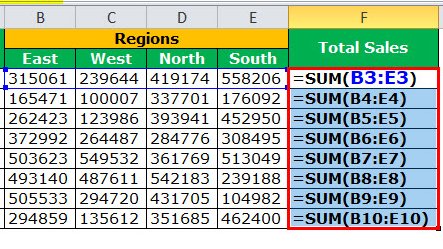
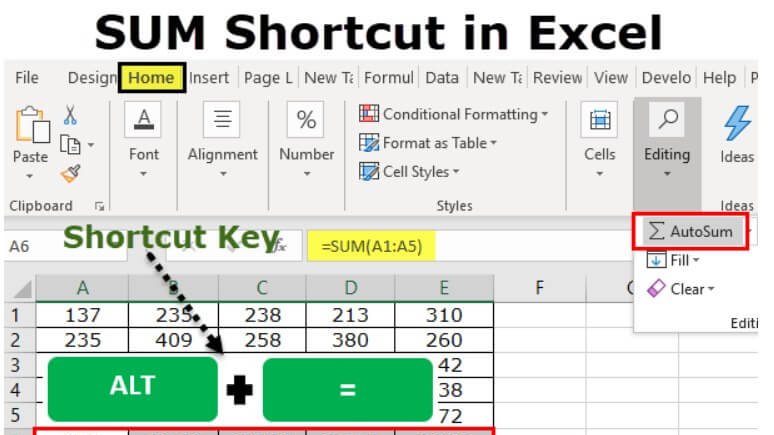
AutoSum:
• Alt + =
Example:
The AutoSum shortcut is useful for quickly calculating the sum of a range of cells without having to manually type in the formula
• Alt + =
Example:
The AutoSum shortcut is useful for quickly calculating the sum of a range of cells without having to manually type in the formula
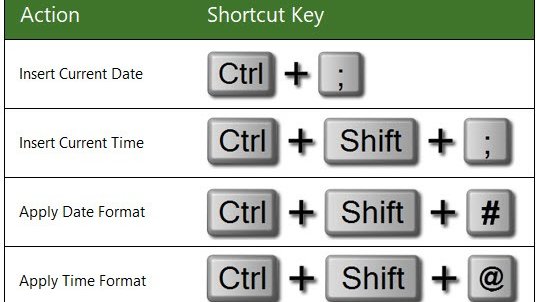
Insert current date / Insert current time:
• Ctrl + ; (date)
• Ctrl + Shift + ; (time)
Example: When tracking the progress of a project, add the date each time a task is completed. Use Ctrl + ; to quickly insert the current date.
• Ctrl + ; (date)
• Ctrl + Shift + ; (time)
Example: When tracking the progress of a project, add the date each time a task is completed. Use Ctrl + ; to quickly insert the current date.
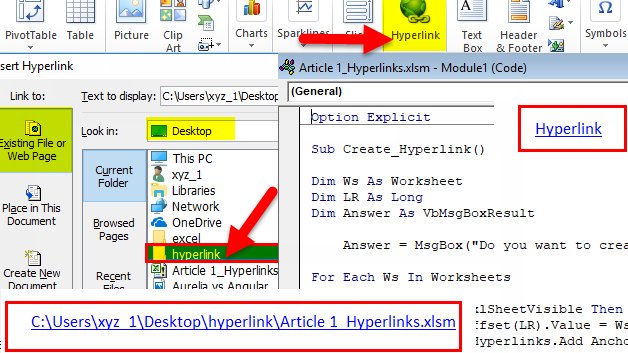
Insert a hyperlink:
• Ctrl + K
Example:
This shortcut is useful for quickly creating a hyperlink to a website, file, or another location in your spreadsheet.
• Ctrl + K
Example:
This shortcut is useful for quickly creating a hyperlink to a website, file, or another location in your spreadsheet.
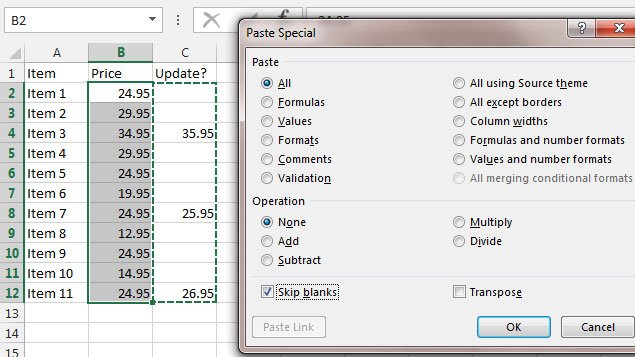
Paste Special:
• Ctrl + Alt + V
Example:
This shortcut opens the Paste Special dialog box, allowing you to select the options for pasting the copied data, such as formatting, formulas, values, or comments.
• Ctrl + Alt + V
Example:
This shortcut opens the Paste Special dialog box, allowing you to select the options for pasting the copied data, such as formatting, formulas, values, or comments.
Fill down / Fill right:
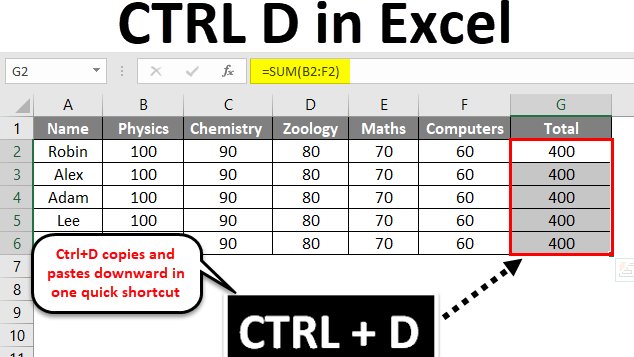
• Ctrl + D (down)
Example: This is useful for quickly copying data or formulas from the top cell to the cells below.
• Ctrl + R (right)
Example: This is useful for quickly copying data or formulas from the leftmost cell to the cells to the right.
• Ctrl + D (down)
Example: This is useful for quickly copying data or formulas from the top cell to the cells below.
• Ctrl + R (right)
Example: This is useful for quickly copying data or formulas from the leftmost cell to the cells to the right.
Freeze Panes- Rows & Columns:
• Alt + W + F + F
Example:
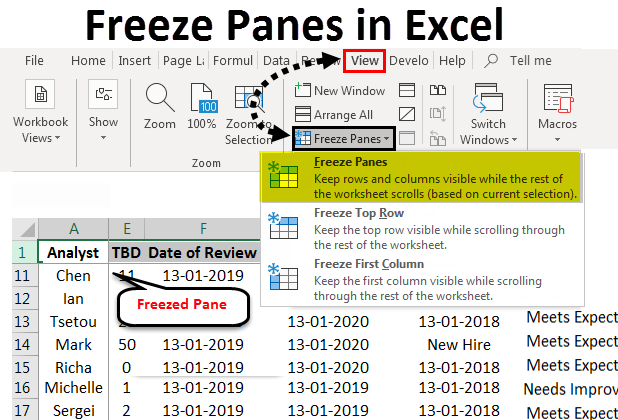
If you have data with headers in the top row, and you want to keep the headers visible while scrolling, use Alt + W + F + F to freeze the top row, so the headers remain visible while scrolling through the data.
• Alt + W + F + F
Example:
If you have data with headers in the top row, and you want to keep the headers visible while scrolling, use Alt + W + F + F to freeze the top row, so the headers remain visible while scrolling through the data.
Autosize columns:
• Alt + H + O + I
Example:
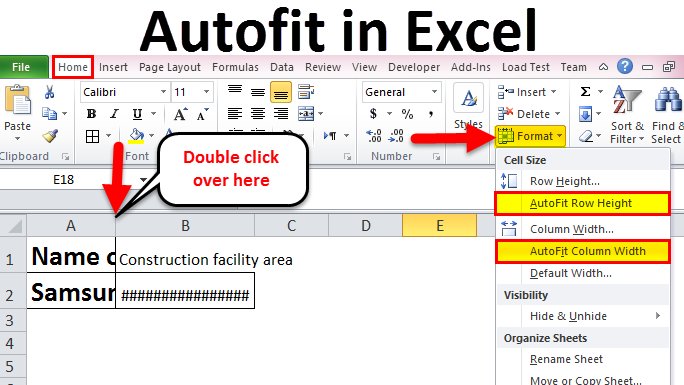
If you have multiple columns, and some of the columns contain text or numbers that are too wide to display in full, then use Alt + H + O + I to quickly adjust the width of the columns to display the full content of the cells.
• Alt + H + O + I
Example:
If you have multiple columns, and some of the columns contain text or numbers that are too wide to display in full, then use Alt + H + O + I to quickly adjust the width of the columns to display the full content of the cells.
Add Filters:
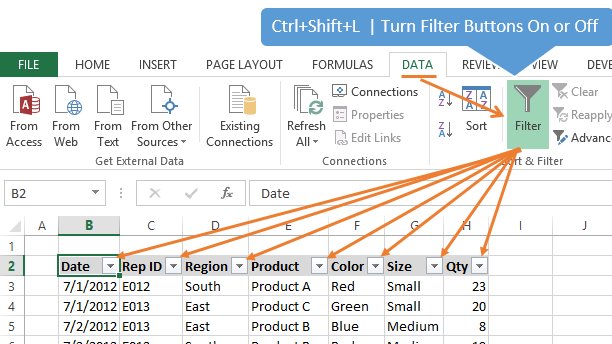
• Ctrl + Shift + L
Example:
This shortcut adds a filter to the selected cells, allowing you to sort and filter the data based on certain information, such as sales data for a time period or region.
Use filter options to display only the information you need.
• Ctrl + Shift + L
Example:
This shortcut adds a filter to the selected cells, allowing you to sort and filter the data based on certain information, such as sales data for a time period or region.
Use filter options to display only the information you need.
Find & replace:
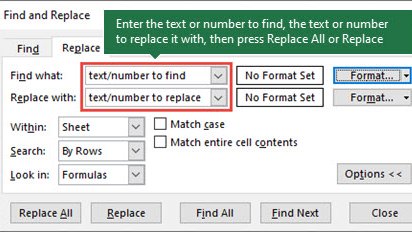
• Ctrl + H
Example:
If you have a word or value you need to replace with something else, use Ctrl + H to enter the text or value you want to find, and then enter the text or value you want to replace it with, to replace all instances of it.
• Ctrl + H
Example:
If you have a word or value you need to replace with something else, use Ctrl + H to enter the text or value you want to find, and then enter the text or value you want to replace it with, to replace all instances of it.
Open spelling & grammar check:
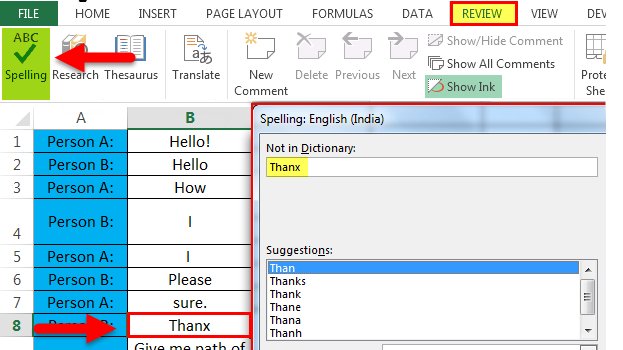
• F7
Example:
Useful for quickly checking your worksheet for spelling and grammar errors to ensure accuracy and professionalism.
• F7
Example:
Useful for quickly checking your worksheet for spelling and grammar errors to ensure accuracy and professionalism.
Insert and Edit Comment in a Cell:
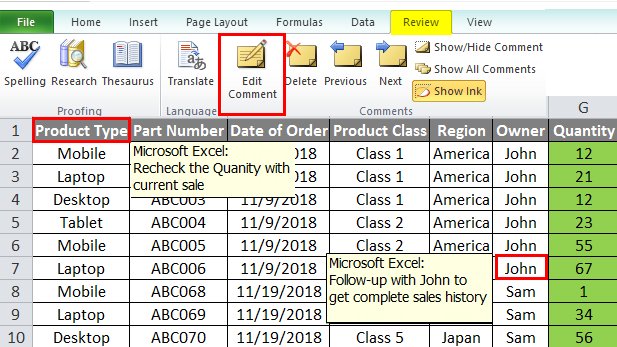
• Shift + F2
Example:
This shortcut is useful for adding comments to cells to provide additional information or context about the data.
• Shift + F2
Example:
This shortcut is useful for adding comments to cells to provide additional information or context about the data.
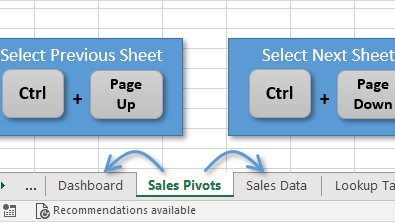
Move Between Workbook Sheets:
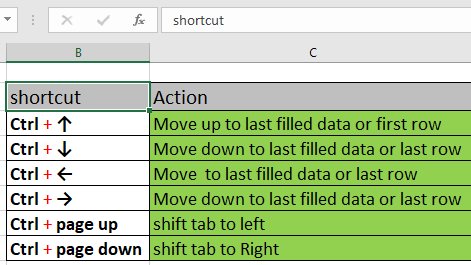
• Ctrl + Page Up
• Ctrl + Page Down
Examples:
This allows you to quickly move between sheets in a workbook, without having to manually click on each sheet tab.
This saves time compared to manually clicking on each sheet tab to navigate.
• Ctrl + Page Up
• Ctrl + Page Down
Examples:
This allows you to quickly move between sheets in a workbook, without having to manually click on each sheet tab.
This saves time compared to manually clicking on each sheet tab to navigate.
Move Between Different Workbooks:
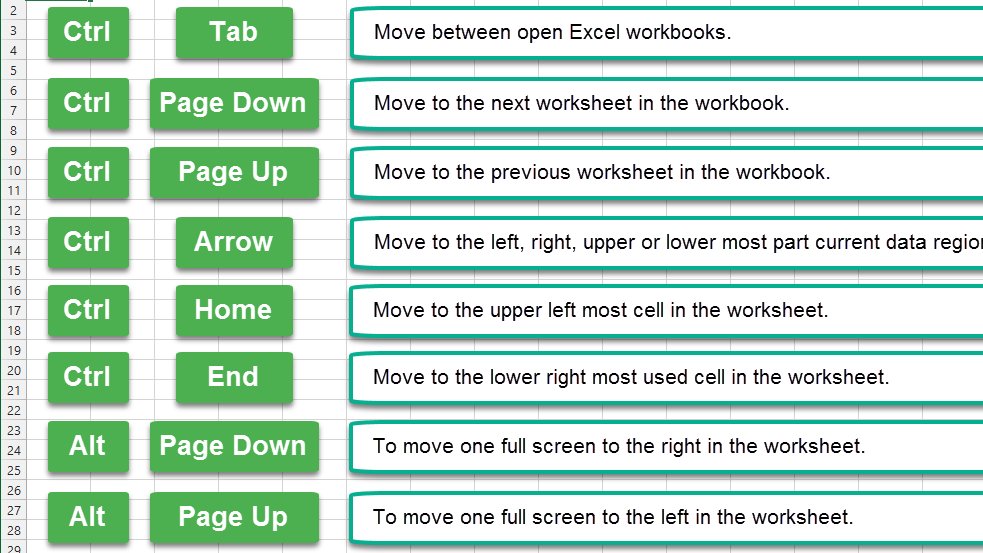
• Ctrl + Tab
Example:
This shortcut allows you to quickly switch between different Excel workbooks that are open on your computer, allowing you to reference data from each as needed.
• Ctrl + Tab
Example:
This shortcut allows you to quickly switch between different Excel workbooks that are open on your computer, allowing you to reference data from each as needed.
Jump to the top or bottom of a column:
• Ctrl + Home (top)
• Ctrl + End (bottom)
Example:
Quickly navigate to the top or bottom of a column in a worksheet, without having to manually scroll through the column using your mouse or keyboard.
• Ctrl + Home (top)
• Ctrl + End (bottom)
Example:
Quickly navigate to the top or bottom of a column in a worksheet, without having to manually scroll through the column using your mouse or keyboard.
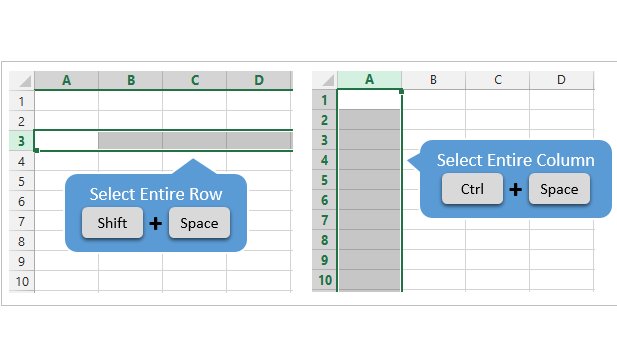
Select the Entire Row or Column:
• Shift + Spacebar (row)
• Ctrl + Spacebar (column)
Example:
Useful when working with large data sets. This will save you time and effort compared to manually clicking and dragging to select the cells in the column.
• Shift + Spacebar (row)
• Ctrl + Spacebar (column)
Example:
Useful when working with large data sets. This will save you time and effort compared to manually clicking and dragging to select the cells in the column.
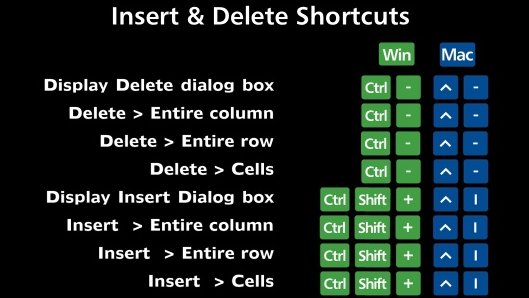
Insert and Delete a Row or Column:
• Ctrl + Shift + + (insert)
• Ctrl + - (delete )
• Ctrl + Shift + + (insert)
• Ctrl + - (delete )
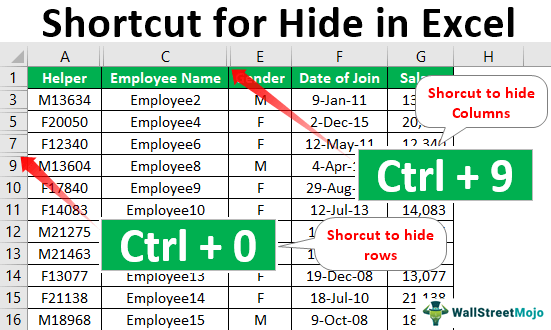
Hide and unhide a Row or column:
• Ctrl + 9 (row)
• Ctrl + 0 (column)
• Ctrl + 9 (row)
• Ctrl + 0 (column)
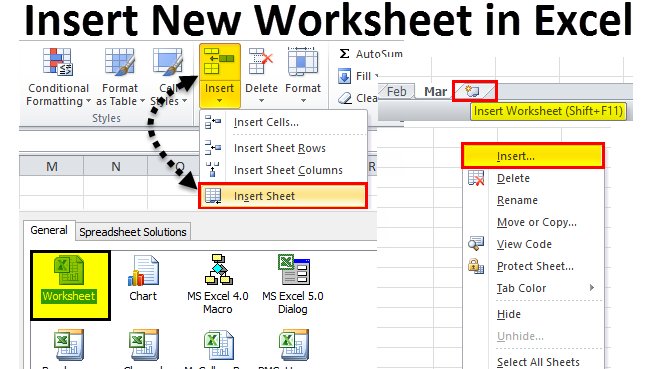
Insert a New Sheet:
• Shift + F11
Rename a sheet:
• Alt + H, O, R
• Shift + F11
Rename a sheet:
• Alt + H, O, R
Navigation Shortcuts:
• Ctrl + Tab (move between Excel workbooks)
• Ctrl + Page Down (move to the next worksheet)
• Ctrl + Page Up (move to the previous worksheet)
• Ctrl + Home (move to the upper leftmost cell)
• Ctrl + End (move to the lower right-most used cell)
• Ctrl + Tab (move between Excel workbooks)
• Ctrl + Page Down (move to the next worksheet)
• Ctrl + Page Up (move to the previous worksheet)
• Ctrl + Home (move to the upper leftmost cell)
• Ctrl + End (move to the lower right-most used cell)

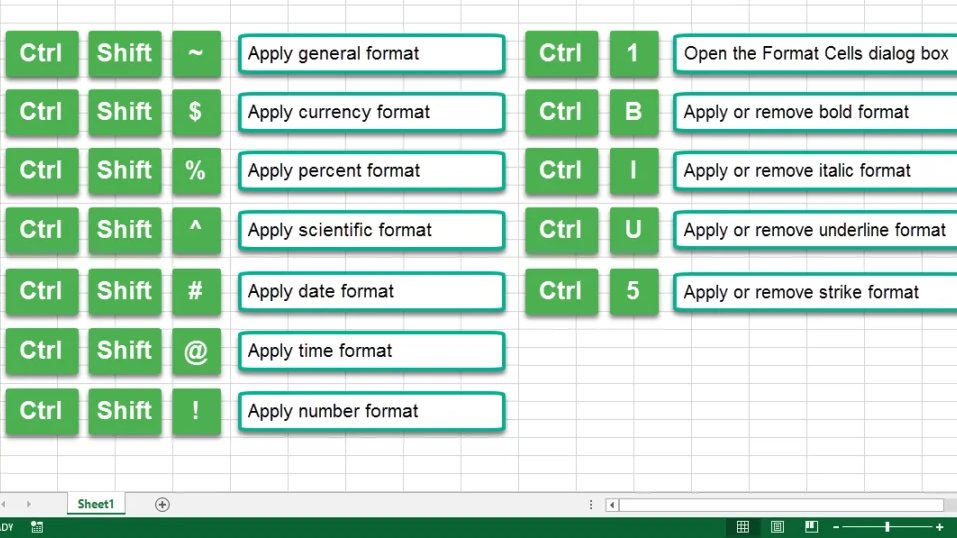
Formatting Shortcuts:
• Ctrl + Shift + $ (currency format)
• Ctrl + Shift + % (percent format)
• Ctrl + Shift + # (date format)
• Ctrl + B A (bold format)
• Ctrl + I (italic format)
• Ctrl + U (underline format)
• Ctrl + 5 (strike format)
• Ctrl + 1 (Format Cells box)
• Ctrl + Shift + $ (currency format)
• Ctrl + Shift + % (percent format)
• Ctrl + Shift + # (date format)
• Ctrl + B A (bold format)
• Ctrl + I (italic format)
• Ctrl + U (underline format)
• Ctrl + 5 (strike format)
• Ctrl + 1 (Format Cells box)
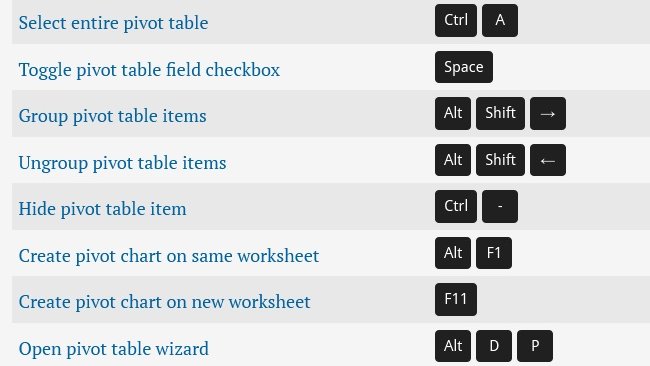
Pivot Table Shortcuts:
• ALT + N + V (create pivot table)
• ALT + J + T + L (view/Hide Field List)
• Alt + H, S, C (unhide / clear filter on an item)
• ALT + N + V (create pivot table)
• ALT + J + T + L (view/Hide Field List)
• Alt + H, S, C (unhide / clear filter on an item)
Excel is used by 99% of the World’s Businesses & over 1 Billion people. It's valuable for every career.
If you found this thread helpful:
• RT the FIRST tweet🔁
• Follow me @FluentInFinance
• Sign-up for my FREE newsletter to learn valuable skills: FluentInFinance.Substack.com!
If you found this thread helpful:
• RT the FIRST tweet🔁
• Follow me @FluentInFinance
• Sign-up for my FREE newsletter to learn valuable skills: FluentInFinance.Substack.com!

Loading suggestions...