

You asked for it, and here it is.
"How I built a functioning Chrome Extension in 10 steps and 45 minutes, with no coding experience. Using ChatGPT + Replit."
Let's dive in people. 👾
"How I built a functioning Chrome Extension in 10 steps and 45 minutes, with no coding experience. Using ChatGPT + Replit."
Let's dive in people. 👾
(Before we start: to re-iterate, I *cannot code*. I've never shipped a product outside of basic no-code. While I have experience in the tech industry, it is as a PM/UX Researcher.
I know the name of certain things, e.g. an IDE, but I am not a developer, not even a hobbyist.
I know the name of certain things, e.g. an IDE, but I am not a developer, not even a hobbyist.
Step 1: Choose your idea
For a while, I'd wanted to make a Chrome Extension for members of a founder community I run (ramenclub.so) where it displayed startup related quotes with each new browser tab.
For a while, I'd wanted to make a Chrome Extension for members of a founder community I run (ramenclub.so) where it displayed startup related quotes with each new browser tab.

After checking the Chrome Web Store (where I eventually submitted the extension), I couldn't find anything with that name or closely related to its functionality, so that was good enough for me.
In the words of a famous egghead: "it's time to build".
In the words of a famous egghead: "it's time to build".

Step 2 - Setup a @Replit account
Replit is a cloud based IDE (Integrated Development Environment) where you can write, run and deploy code.
The beauty is you don't have to spend time setting up your dev environment or installing code: making it great for beginners. I use Pro.
Replit is a cloud based IDE (Integrated Development Environment) where you can write, run and deploy code.
The beauty is you don't have to spend time setting up your dev environment or installing code: making it great for beginners. I use Pro.

Step 3 - Get ChatGPT Plus
Go to chat.openai.com and upgrade to Plus for $20/month - so you can use their most powerful new model, GPT-4.
It is noticeably more nuanced, intelligent and useful than its predecessor, GPT-3 IMHO.
Go to chat.openai.com and upgrade to Plus for $20/month - so you can use their most powerful new model, GPT-4.
It is noticeably more nuanced, intelligent and useful than its predecessor, GPT-3 IMHO.
Step 4 - Do your first prompt
Select 'GPT-4' from the dropdown menu at the top. I then wrote what I wanted to build, its functionality, my setup and that I wanted a step by step, beginners guide, including code needed.
This doesn't have to be perfect - just refine it later.
Select 'GPT-4' from the dropdown menu at the top. I then wrote what I wanted to build, its functionality, my setup and that I wanted a step by step, beginners guide, including code needed.
This doesn't have to be perfect - just refine it later.

Step 5 - Create a new Repl in Replit
Think of a Repl as a folder for your project, where your code files will live. When you setup a new one, it'll ask you what 'Template' (aka language) you want - for a Chrome Extension it's usually 'HTML, CSS, JS'.
Think of a Repl as a folder for your project, where your code files will live. When you setup a new one, it'll ask you what 'Template' (aka language) you want - for a Chrome Extension it's usually 'HTML, CSS, JS'.

From your original prompt, ChatGPT should have already told you which 'Template' to select. If it doesn't, just follow up with this question.
Remember to name your Repl, describe it if you want, and I'd usually advise setting it to 'Private'.
Remember to name your Repl, describe it if you want, and I'd usually advise setting it to 'Private'.
Important note: ChatGPT is (currently) only trained up until 2021, so some of its knowledge is slightly out of date, including on Replit's interface.
Just tell it when it's obviously wrong (e.g. where a button is) and it'll usually apologise and give you better advice.
Just tell it when it's obviously wrong (e.g. where a button is) and it'll usually apologise and give you better advice.
Some more quick tips:
- ChatGPT is under heavy load right now, so sometimes the history is down or the amount of prompting is throttled.
- On a few occasions, its answer stopped midway through (only during especially long responses). Just hit "continue" and it'll do the rest.
- ChatGPT is under heavy load right now, so sometimes the history is down or the amount of prompting is throttled.
- On a few occasions, its answer stopped midway through (only during especially long responses). Just hit "continue" and it'll do the rest.
Step 6 - Create files & paste in your code
ChatGPT should already have told you the exact files to create in your Repl, and the code to paste into them. If it isn't this specific, just ask it to do this.
Here's an example of my setup on Replit. Click 'Run' when you're done.
ChatGPT should already have told you the exact files to create in your Repl, and the code to paste into them. If it isn't this specific, just ask it to do this.
Here's an example of my setup on Replit. Click 'Run' when you're done.

Step 7 - Debugging
This is another area ChatGPT is very impressive. After you clicked 'Run', the 'Webview' on the right should display something resembling what you're trying to build. However, often, there is something wrong.
This is another area ChatGPT is very impressive. After you clicked 'Run', the 'Webview' on the right should display something resembling what you're trying to build. However, often, there is something wrong.
If you get a specific error message, paste that into ChatGPT, and it'll often give you the right answer, or options.
If it's not a specific issue, describe the problem, or just say you have a problem. Then try the different options you're provided. Ask it to simplify if needed.
If it's not a specific issue, describe the problem, or just say you have a problem. Then try the different options you're provided. Ask it to simplify if needed.
Step 8 - Export your files
As we've built a Chrome Extension, you can't deploy directly from Replit (you can for other things). So you must export your files, zip them, then upload to Chrome DevTools.
As we've built a Chrome Extension, you can't deploy directly from Replit (you can for other things). So you must export your files, zip them, then upload to Chrome DevTools.
To do this, first click on the three dots in the left-hand side of your Repl, and click 'Download as zip'.
For certain projects, if you also need to add additional files (such as images) to this, unzip, add the files and then zip it again. I use Archive Utility for this on Mac.
For certain projects, if you also need to add additional files (such as images) to this, unzip, add the files and then zip it again. I use Archive Utility for this on Mac.

Step 9 - Submit to the Chrome Web Store
Next, using Google's Chrome browser (if you don't have it, download it), you need to create a Chrome Web Store developer account here: chrome.google.com.
This will cost a one-time $5 registration fee. After that, sign-up.
Next, using Google's Chrome browser (if you don't have it, download it), you need to create a Chrome Web Store developer account here: chrome.google.com.
This will cost a one-time $5 registration fee. After that, sign-up.

After filling in your details in 'Account', click 'Items' on the left, then 'New Item'. After this, you can upload your .zip file.
If you struggle here, as always, just explain your issue and ChatGPT should tell you how to solve it. My issue was that I zipped the file wrong. 🤦♂️
If you struggle here, as always, just explain your issue and ChatGPT should tell you how to solve it. My issue was that I zipped the file wrong. 🤦♂️
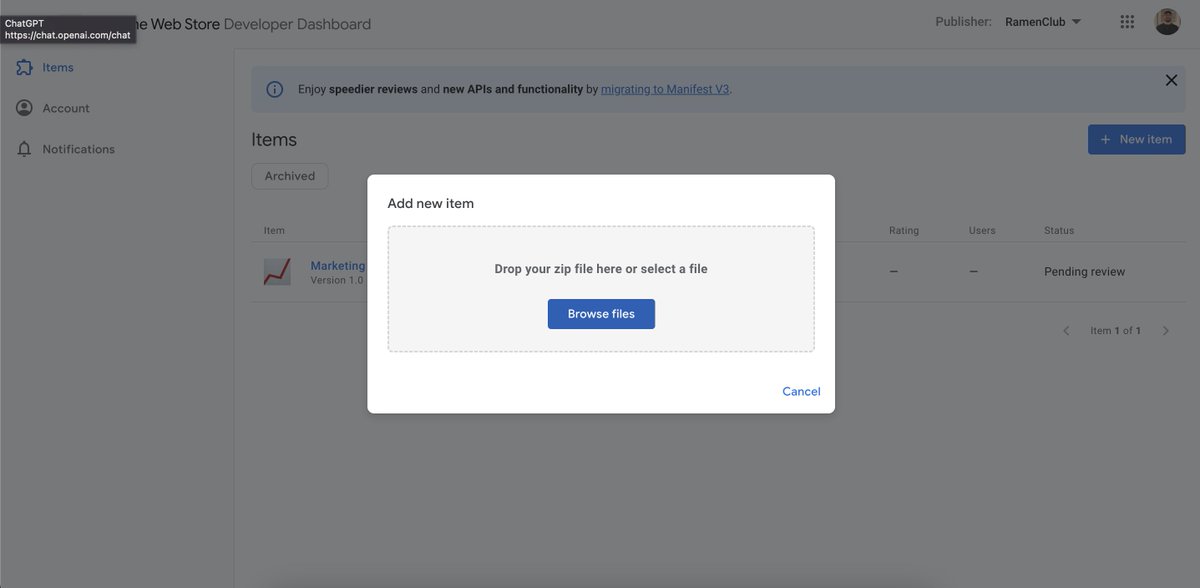
Fill in all the fields required, troubleshoot any issues, and submit!
Congrats, you've created your first Chrome Extension MVP. It can take up to a few weeks for them to either accept you, or give you feedback on what to update.
Congrats, you've created your first Chrome Extension MVP. It can take up to a few weeks for them to either accept you, or give you feedback on what to update.
Step 10 - Share your project
Lots of other makers want to see how you built your Chrome Extension, or anything else you made. Remember to share a breakdown to inspire and educate us.
I feel like there's a lot of cool shit to come. 🔥
Lots of other makers want to see how you built your Chrome Extension, or anything else you made. Remember to share a breakdown to inspire and educate us.
I feel like there's a lot of cool shit to come. 🔥
Lots of people are mocking people building MVPs on ChatGPT right now, but ignore the haters.
Whether people like it or not, the genie's out of the bottle. When a 10x productivity improvement comes along, which is very rare, you need to grab the opportunity with both hands.
Whether people like it or not, the genie's out of the bottle. When a 10x productivity improvement comes along, which is very rare, you need to grab the opportunity with both hands.
Finally, a thank you for reading. I don't have a Soundcloud, but if you want to join a community of 140+ amazing founders, come and join us at ramenclub.so 🍜 (@RamenClubHQ)
If you enjoyed this thread, follow my handle: @charlierward for more tweets like this.
And if you're feeling extra generous, like and RT the original post. ❤️🔥
And if you're feeling extra generous, like and RT the original post. ❤️🔥
Something I found interesting, which may be new:
The easiest part of the process was creating the code.
The hard parts were dealing with all the intermediary steps like making the right files in Replit, and entering/uploading the right information to the Chrome Web Store.
The easiest part of the process was creating the code.
The hard parts were dealing with all the intermediary steps like making the right files in Replit, and entering/uploading the right information to the Chrome Web Store.
Again, this is talking about a very simple MVP. I'm not arguing this has solved software development.
But I'd wager that the above tweet was not true even 1 year ago.
But I'd wager that the above tweet was not true even 1 year ago.
I want to clarify this point:
Instead of 'hit continue', I meant write the prompt 'continue', and it'll finish it off.
Idk if this is a bug, but this has always resolved it for me.
Instead of 'hit continue', I meant write the prompt 'continue', and it'll finish it off.
Idk if this is a bug, but this has always resolved it for me.
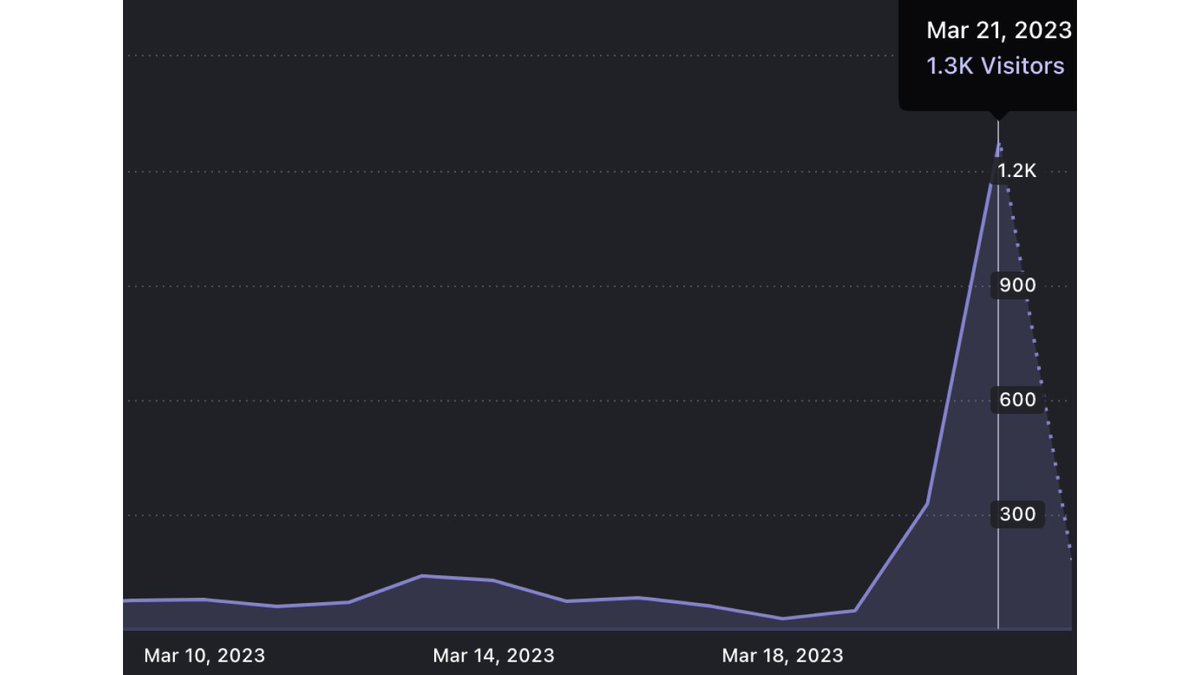
1k bookmarks 🎉


We made it to @bensbitesdaily gang 🫡
bensbites.co
Finally, I can look my father in the eye without shame
bensbites.co
Finally, I can look my father in the eye without shame

Update: Chrome Web Store already came back to me with a couple of pieces of feedback before they can allow it.
I copied and pasted the email text into ChatGPT, prompted "regenerate the code to factor these changes in", copied and pasted the new code, re-exported the files, and…
I copied and pasted the email text into ChatGPT, prompted "regenerate the code to factor these changes in", copied and pasted the new code, re-exported the files, and…
I can’t bloody keep up!
New thread 👀
V2 of Marketing Quotes has been submitted to the Chrome Web Store:
🛳️ 3x as many marketing quotes
🛳️ Updated branding to match ramenclub.so
🛳️ Backlink to our site
WIP version: marketingquotes.studioramen.repl.co
🛳️ 3x as many marketing quotes
🛳️ Updated branding to match ramenclub.so
🛳️ Backlink to our site
WIP version: marketingquotes.studioramen.repl.co
We've made this @replit Repl public, meaning you can use it as a template yourself.
@studioramen/Quote-Chrome-Extension?v=1" target="_blank" rel="noopener" onclick="event.stopPropagation()">replit.com
Duplicate and edit however you see fit!
Also follow @studioramen" target="_blank" rel="noopener" onclick="event.stopPropagation()">replit.com, for more templates like this in future.
@studioramen/Quote-Chrome-Extension?v=1" target="_blank" rel="noopener" onclick="event.stopPropagation()">replit.com
Duplicate and edit however you see fit!
Also follow @studioramen" target="_blank" rel="noopener" onclick="event.stopPropagation()">replit.com, for more templates like this in future.
Loading suggestions...