

Little Big Updates are here… and they're BIG.
Introducing 30+ new quality-of-life updates for Figma and FigJam to help improve your workflow.
Hint: You’re definitely going to want to check out the full thread 😉
figma.com?
Introducing 30+ new quality-of-life updates for Figma and FigJam to help improve your workflow.
Hint: You’re definitely going to want to check out the full thread 😉
figma.com?

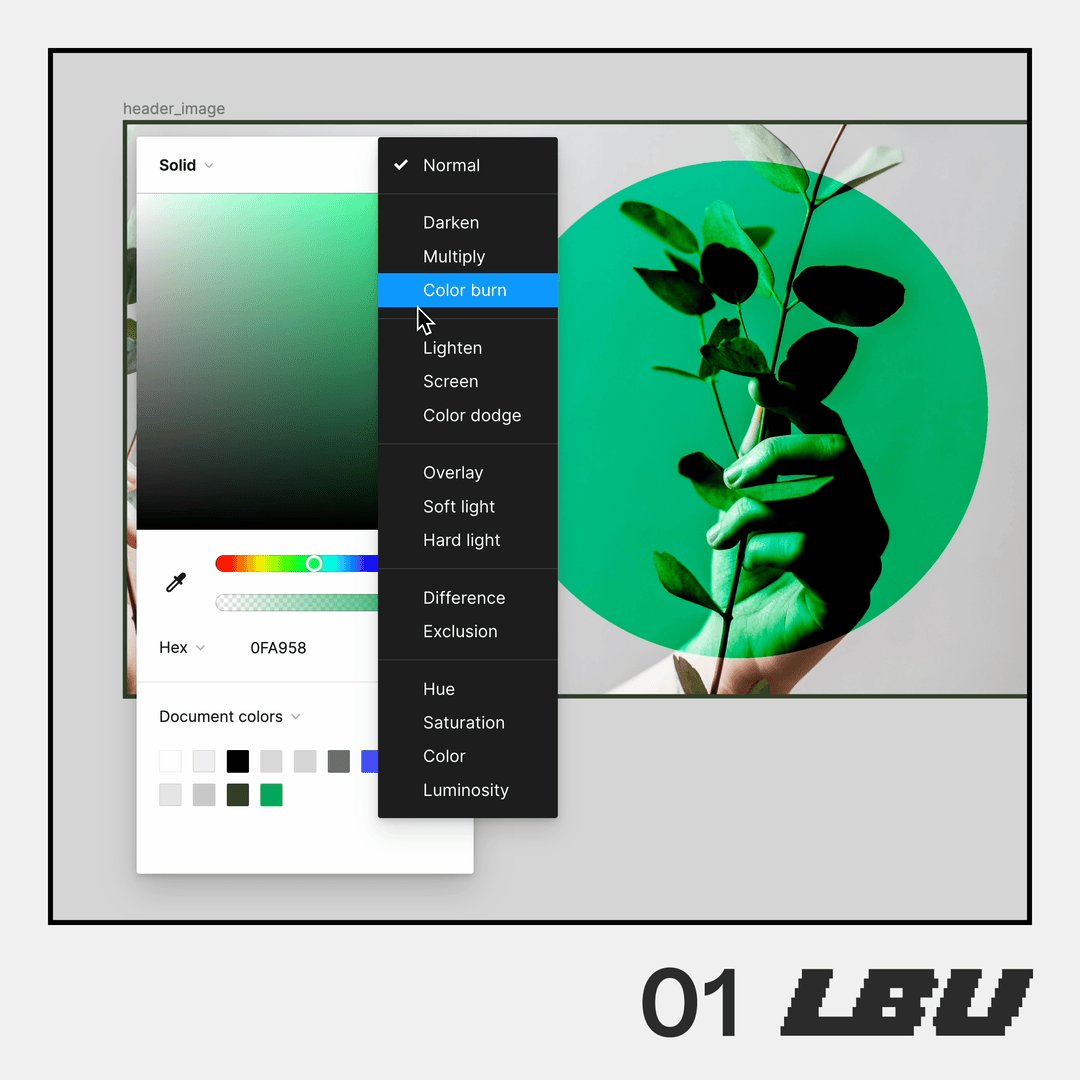
1/32 On-canvas preview
Hover over design panel options to preview different settings and properties before committing to them.
(Font preview is in the works!)
Hover over design panel options to preview different settings and properties before committing to them.
(Font preview is in the works!)
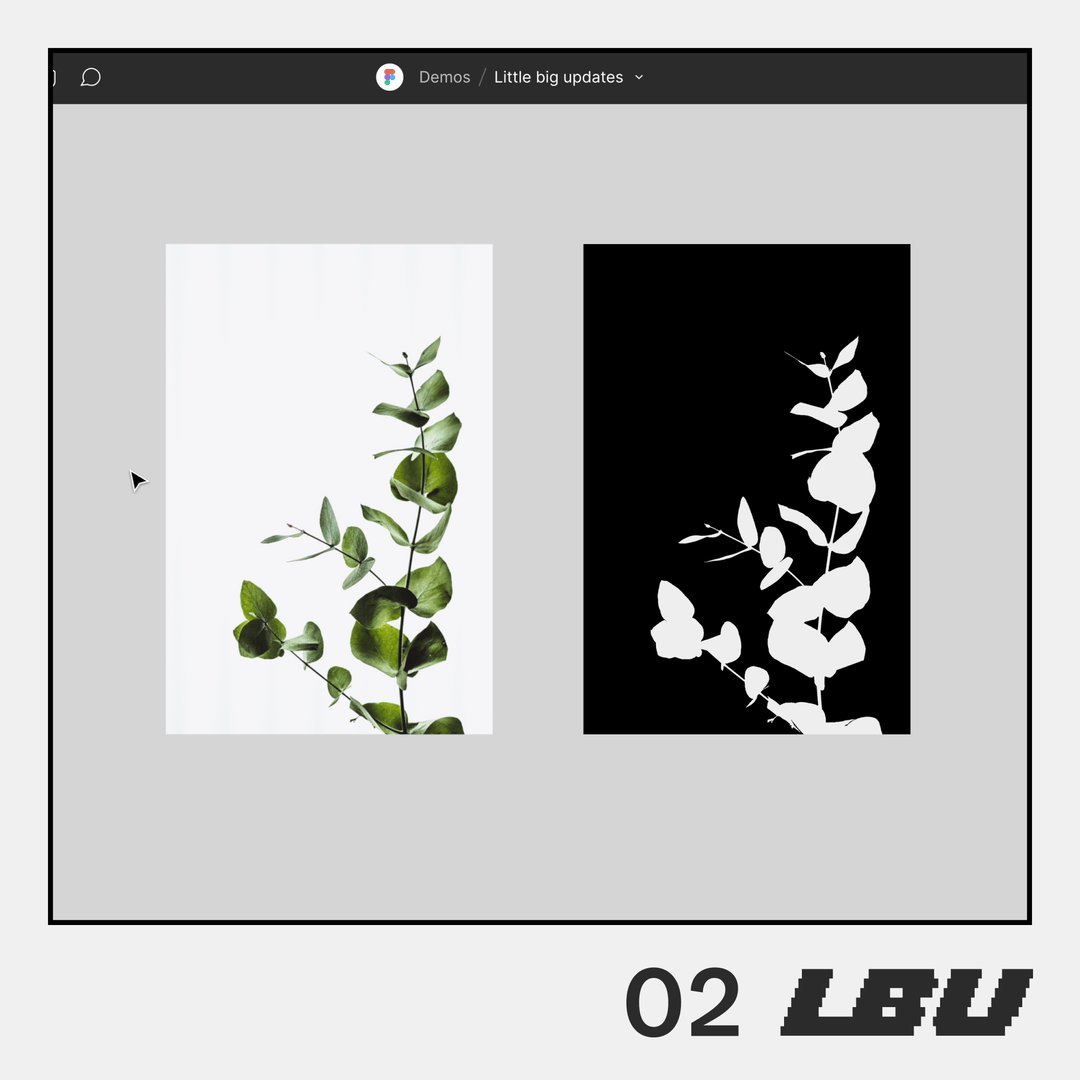
2/32 Luminance mask support
Create masks based on image or object brightness.
Create masks based on image or object brightness.
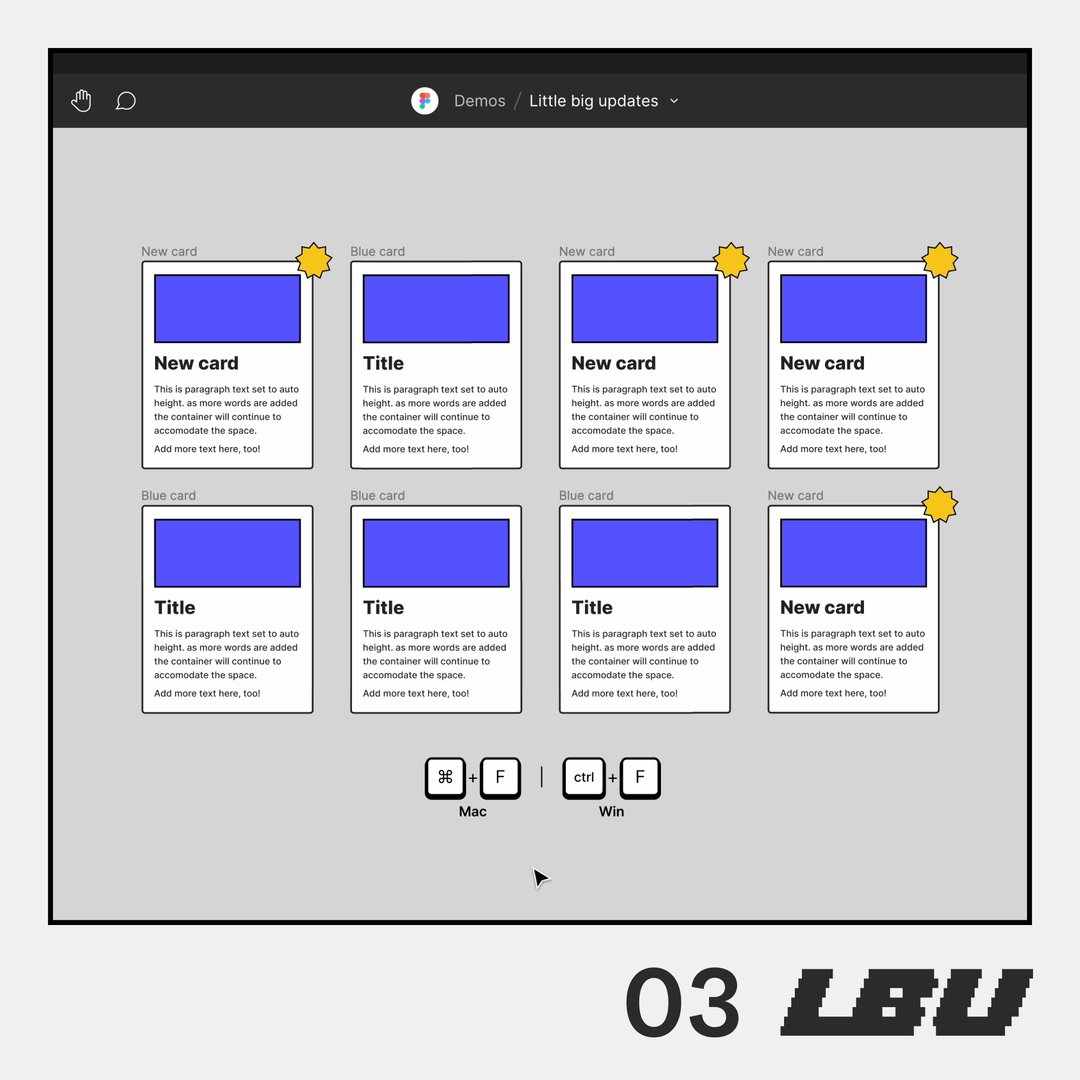
3/32 Multi-select search
Use Shift + Click or Cmd (Windows: Ctrl) + Click to select specific search results to edit or replace.
Use Shift + Click or Cmd (Windows: Ctrl) + Click to select specific search results to edit or replace.
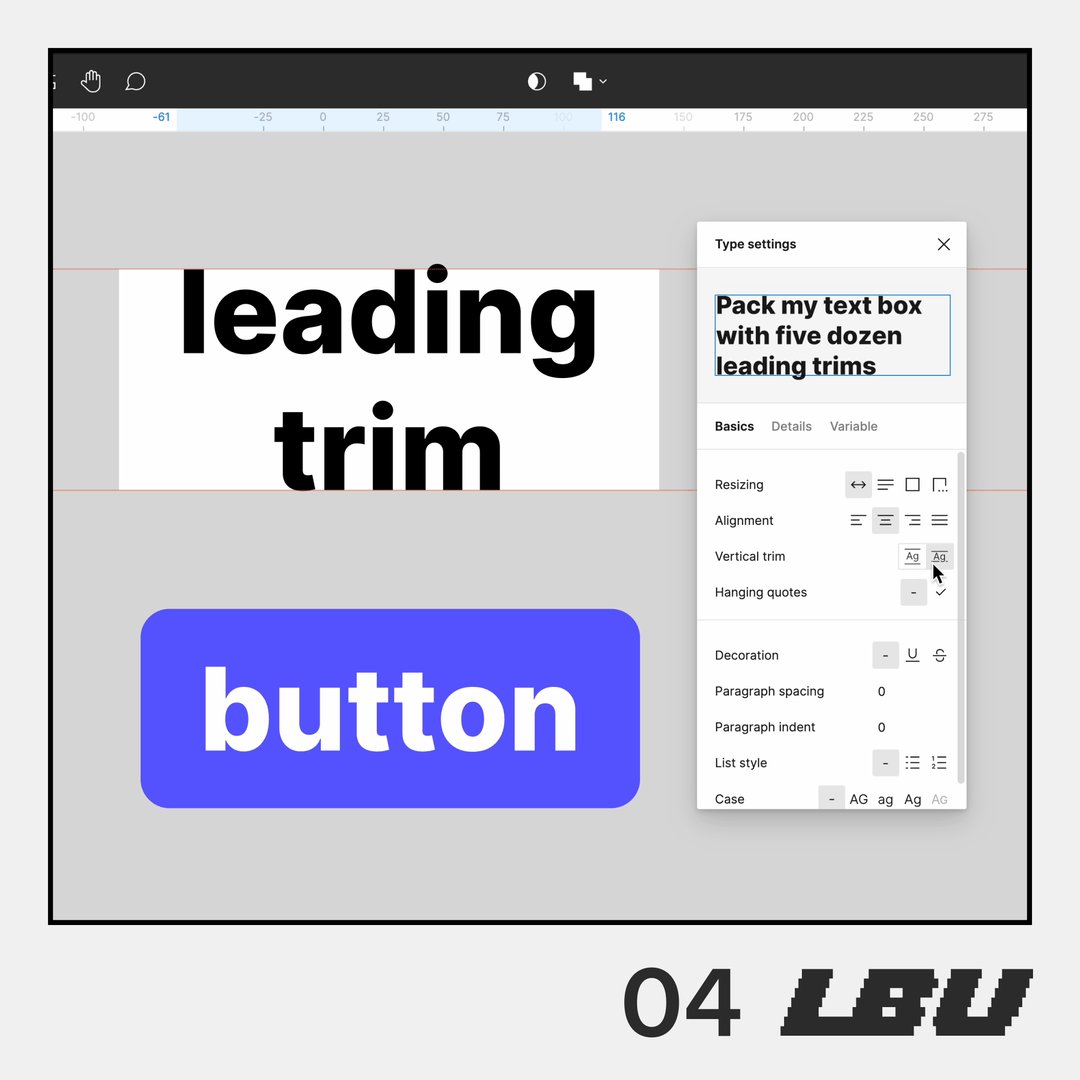
4/32 Leading trim
Align and style your text just the way you want it by trimming that extra spacing.
Align and style your text just the way you want it by trimming that extra spacing.
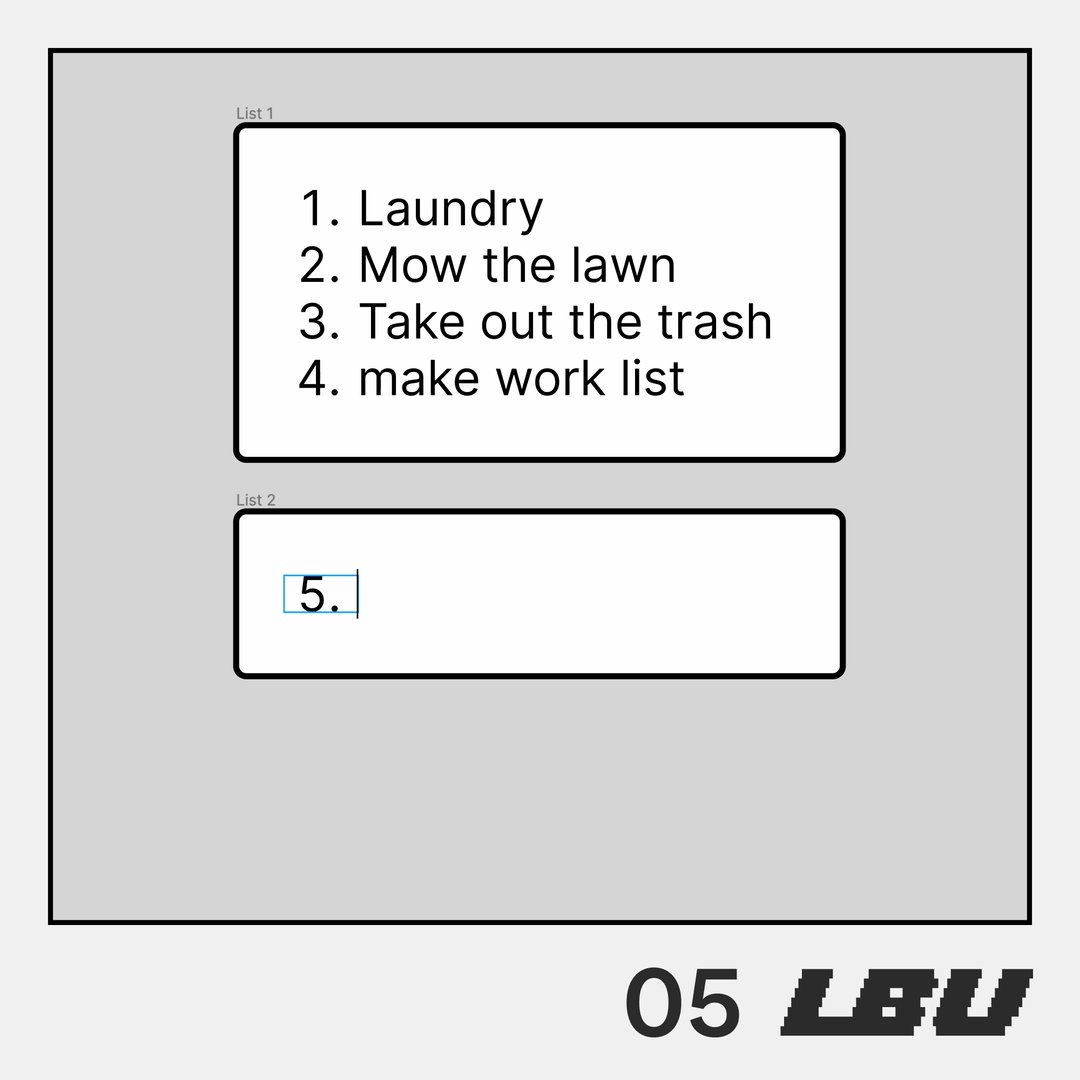
5/32 Non-1 lists
Format your number lists no matter where they begin.
Format your number lists no matter where they begin.
6/32 Hanging punctuation
Preserve the flow of your text by letting punctuation, like quotation marks, hang outside of the text box.
Preserve the flow of your text by letting punctuation, like quotation marks, hang outside of the text box.

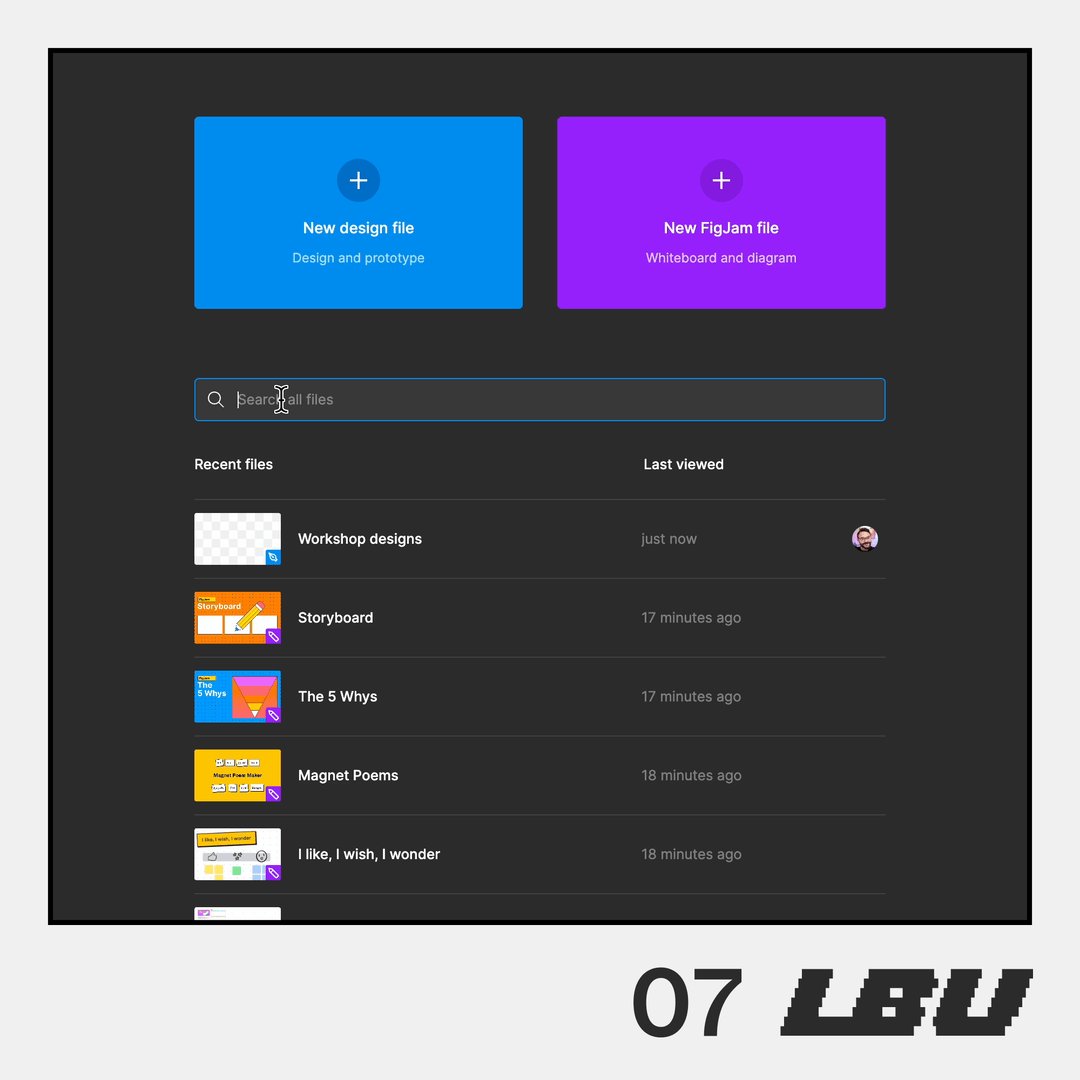
7/32 Search in new tab on desktop
Quickly find and jump into the right file no matter where you are.
Quickly find and jump into the right file no matter where you are.
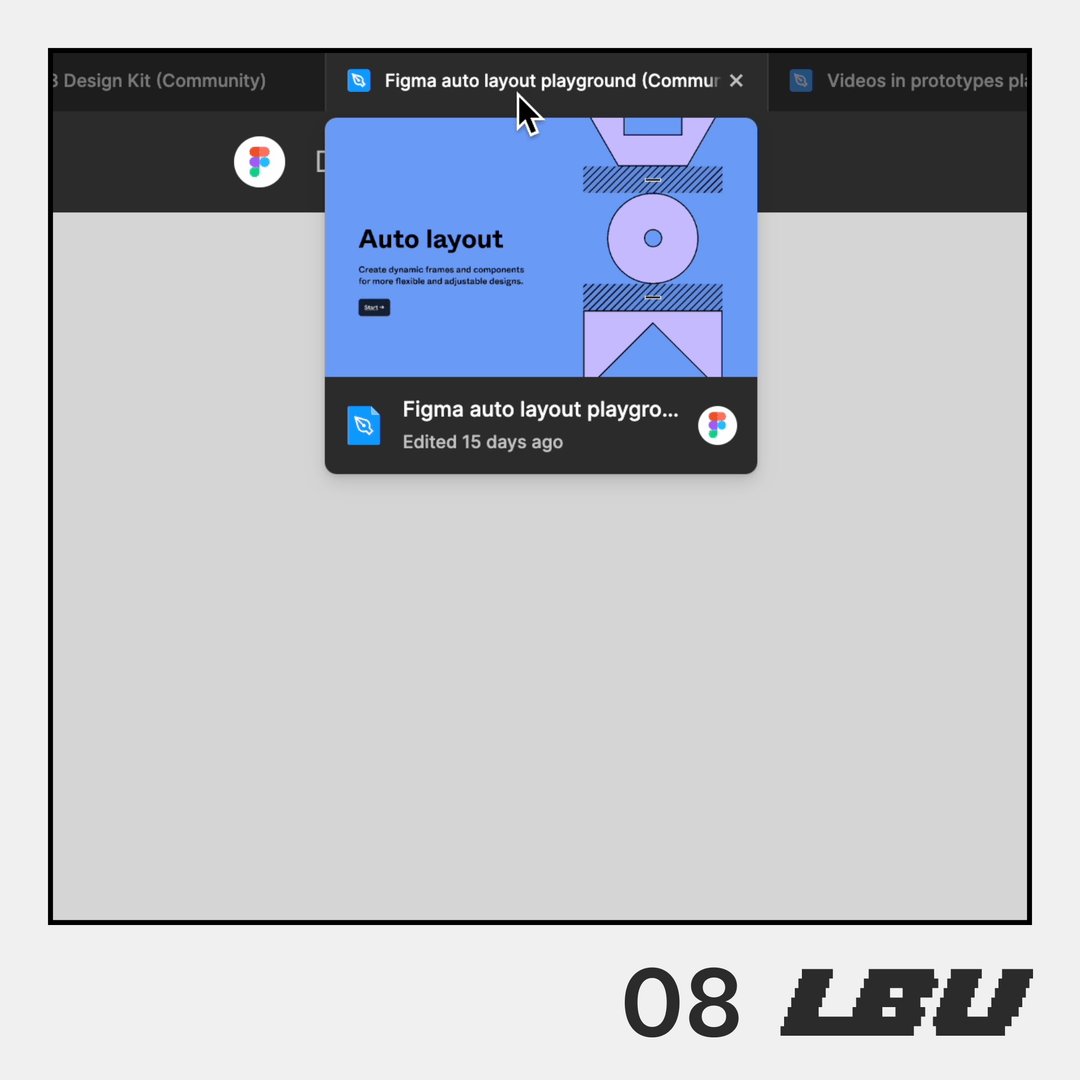
8/32 Desktop tab hover previews
Know what you're getting into by hovering over your tabs for quick file previews.
Know what you're getting into by hovering over your tabs for quick file previews.
9/32 Haptics on desktop app (Mac)
Feel design and collaboration coming together with new haptics when you emote, high-five in FigJam, and more.
(And if you don't like it, you can turn it on/off in Preferences)
Feel design and collaboration coming together with new haptics when you emote, high-five in FigJam, and more.
(And if you don't like it, you can turn it on/off in Preferences)
10/32 Rich text in comments
Get more across by bolding, italicizing, and adding links.
To hyperlink your comments, select the text then hit Cmd + K (Ctrl + K on Windows).
Get more across by bolding, italicizing, and adding links.
To hyperlink your comments, select the text then hit Cmd + K (Ctrl + K on Windows).
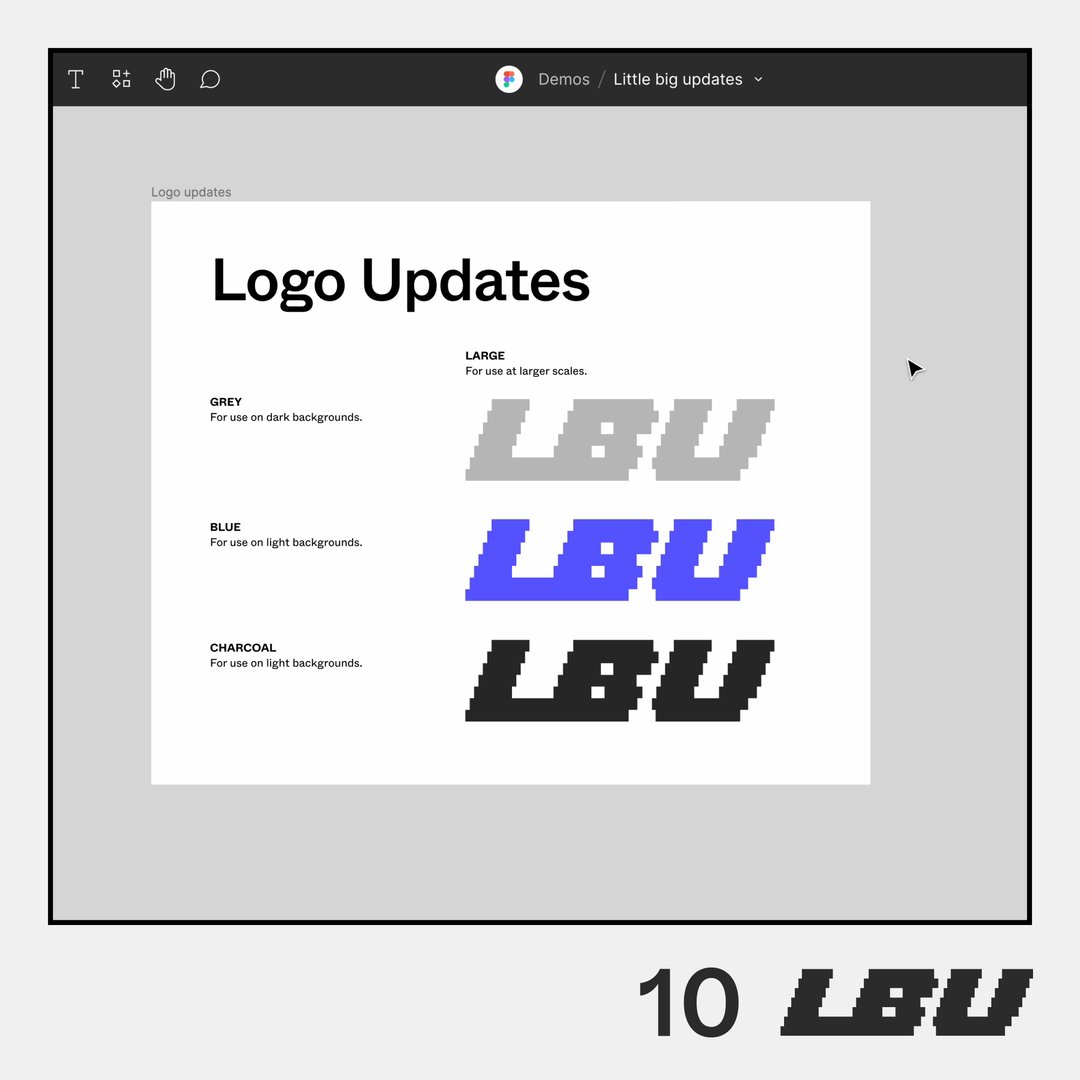
11/32 Batched comment notification emails
Stay updated on design feedback without the unnecessary distractions with consolidated email notifications.
Stay updated on design feedback without the unnecessary distractions with consolidated email notifications.

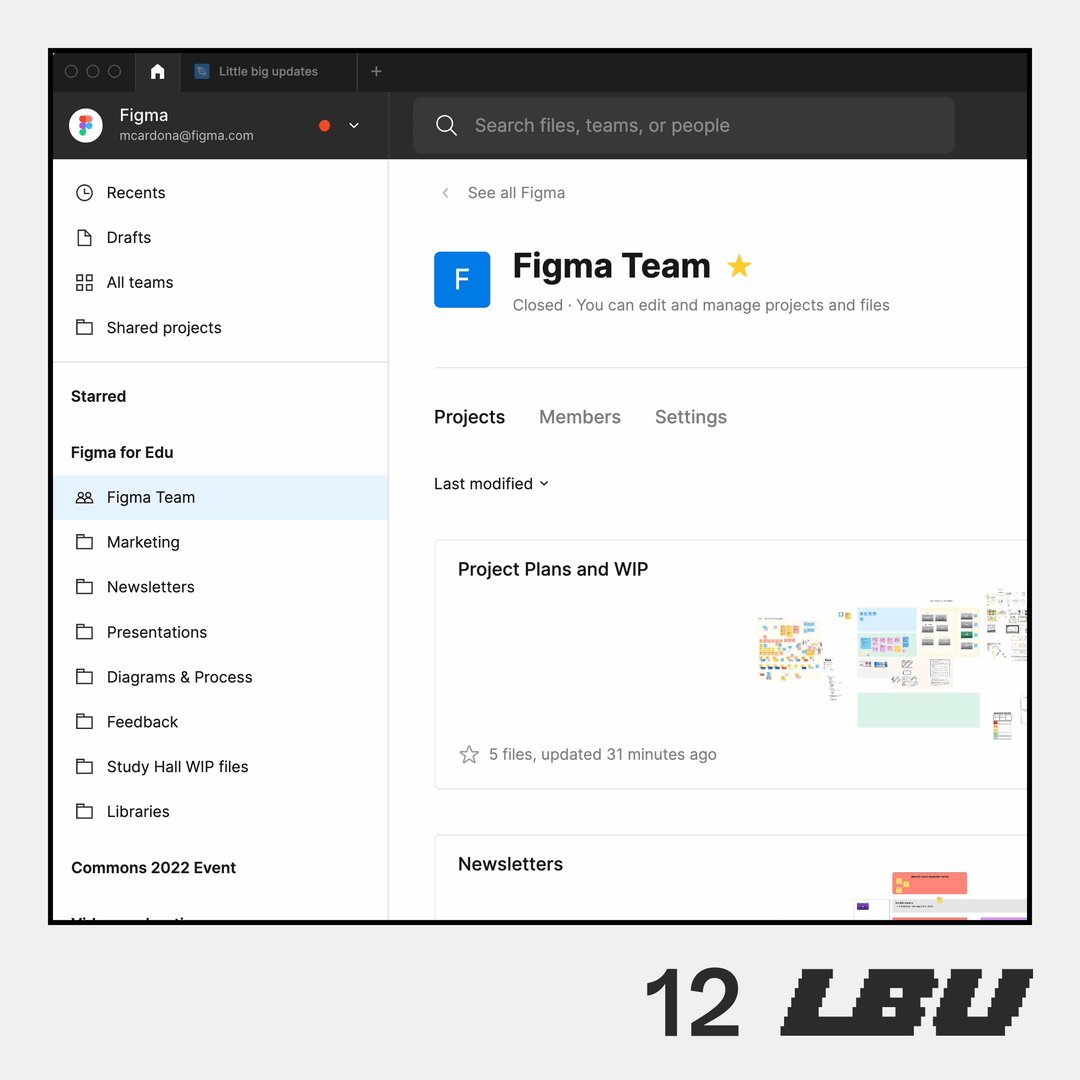
12/32 Updates to move project
Stay organized with easier ways to move and consolidate Figma projects.
Stay organized with easier ways to move and consolidate Figma projects.
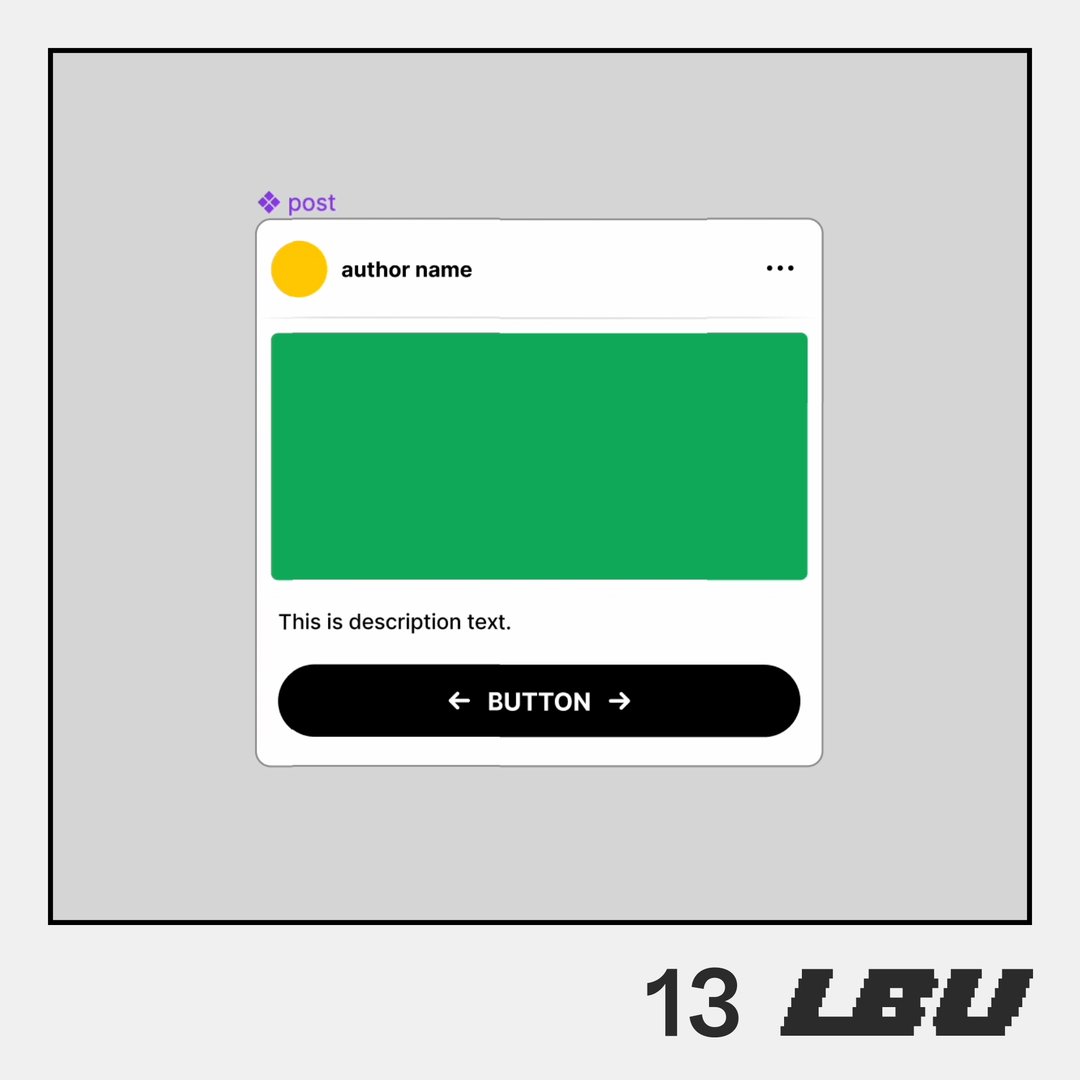
13/32 Component properties: exposed nested instances
The ability to bubble up properties of nested instances is now default turned on for everyone.
The ability to bubble up properties of nested instances is now default turned on for everyone.
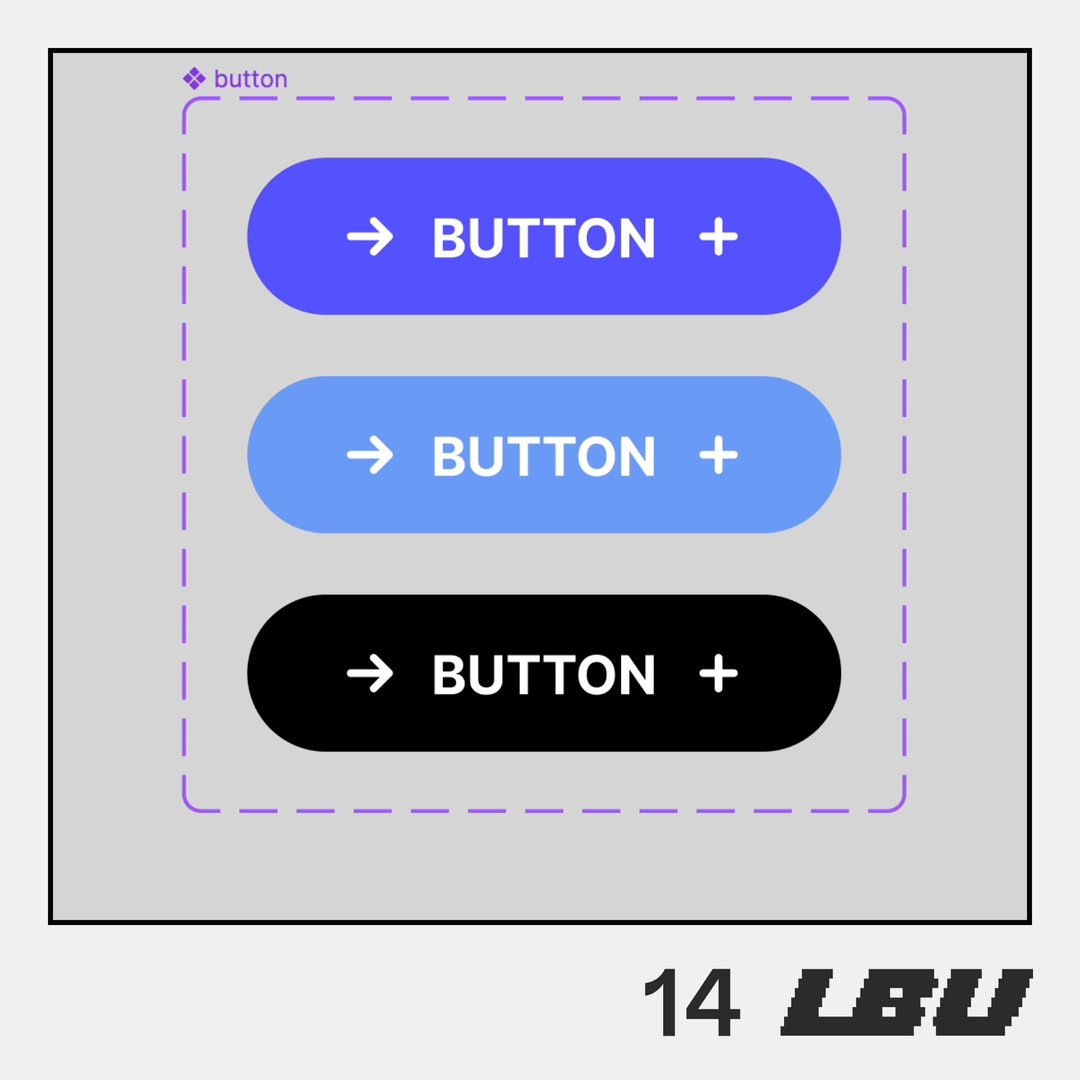
14/32 Component properties: preferred instances
Everyone can also use instance swapping with more confidence by defining a list of preferred instances.
Everyone can also use instance swapping with more confidence by defining a list of preferred instances.
15/32 Better snapping (or no snapping!)
Size your images just right with on-canvas snapping whenever you vertically or horizontally resize and hit the perfect aspect ratio.
If you want to disable snapping all together, just hold Ctrl.
Size your images just right with on-canvas snapping whenever you vertically or horizontally resize and hit the perfect aspect ratio.
If you want to disable snapping all together, just hold Ctrl.

16/32 Pasting improvements
Only make edits where you want them—paste images and videos into a specific fill without replacing all fills in a layer. This also works when you try pasting and replacing with another fill!
Only make edits where you want them—paste images and videos into a specific fill without replacing all fills in a layer. This also works when you try pasting and replacing with another fill!

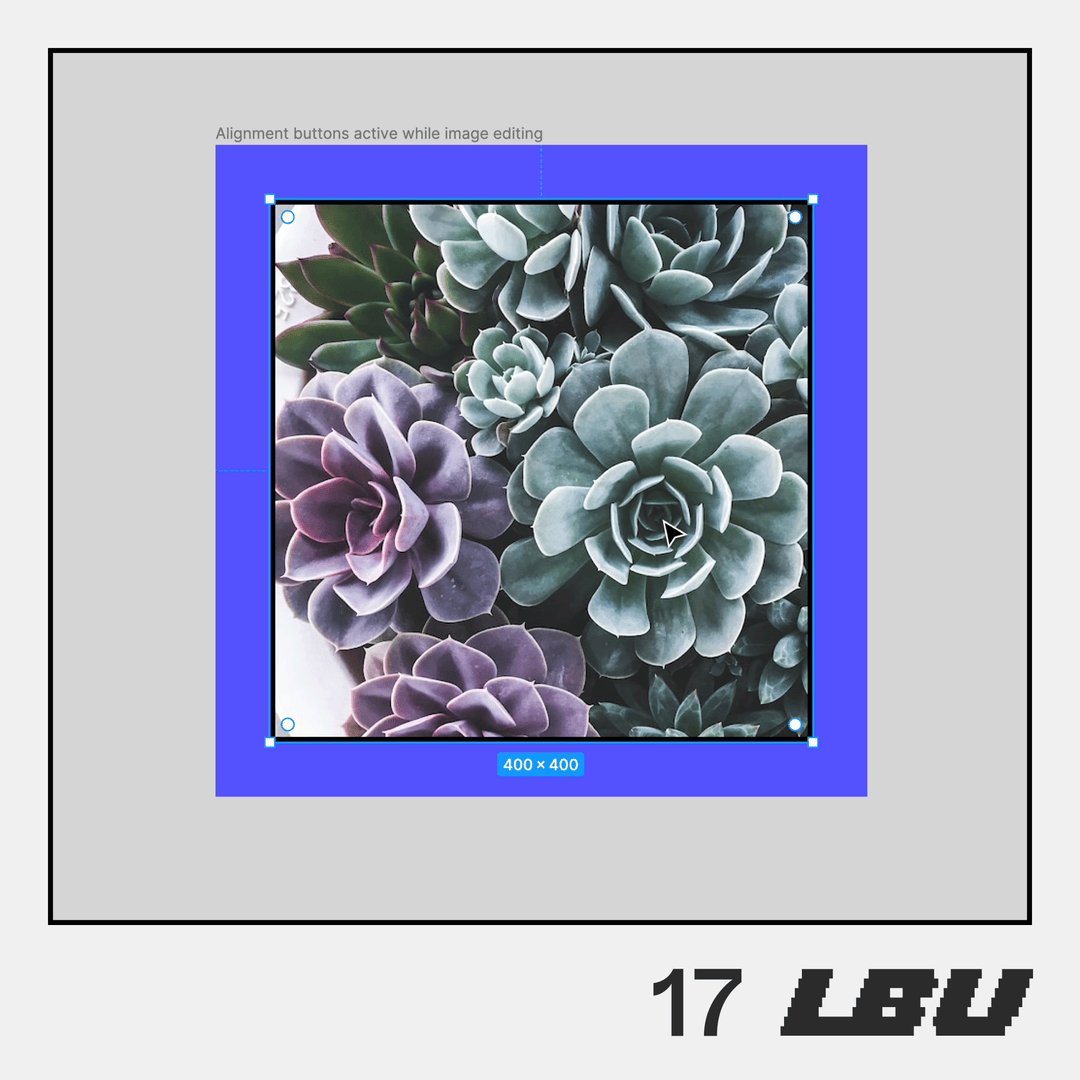
17/32 Re-align during image editing
Reposition your images using the alignment options even while in editing mode.
Reposition your images using the alignment options even while in editing mode.
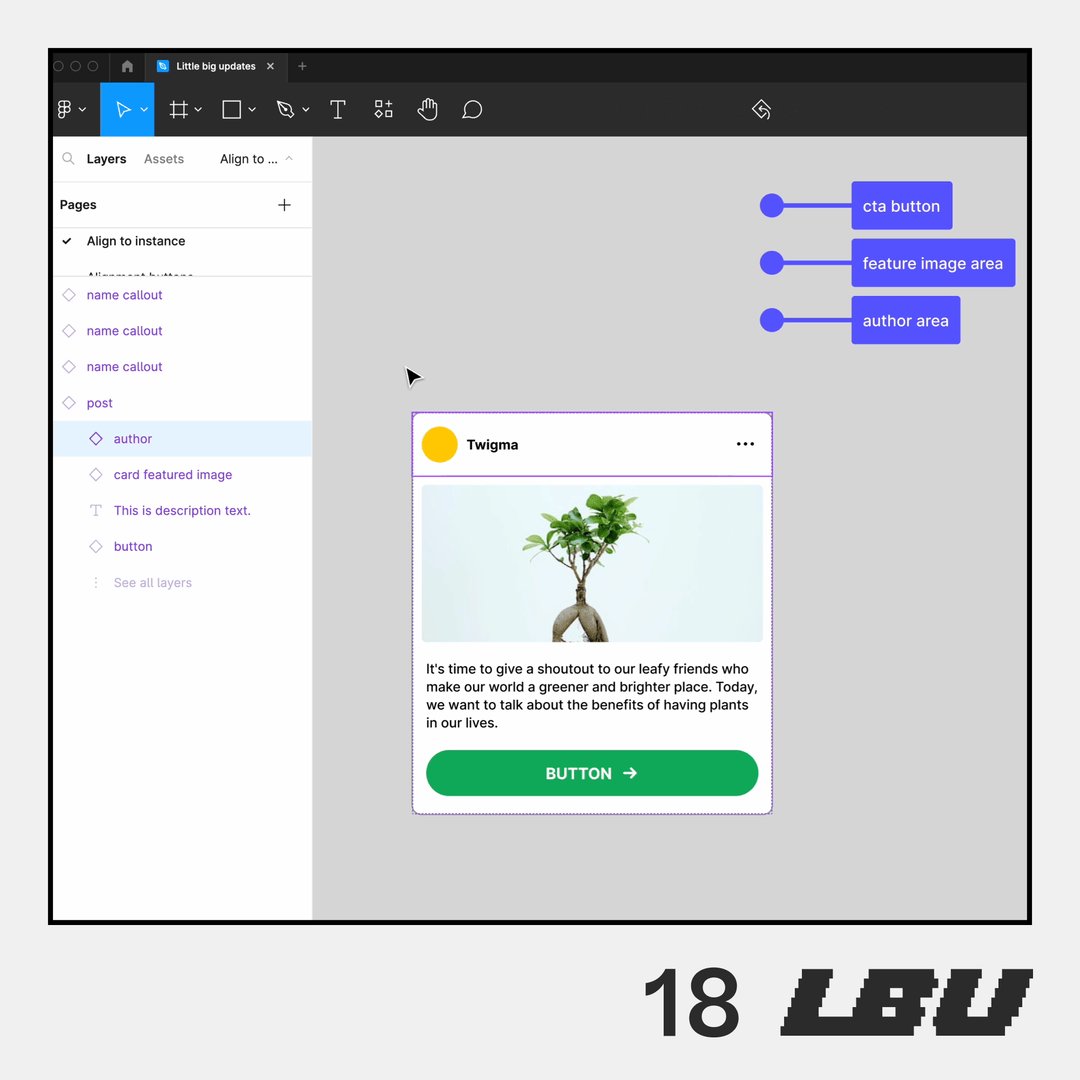
18/32 Align to nested instances
Now you can select layers to align to nested instance sublayers.
Now you can select layers to align to nested instance sublayers.
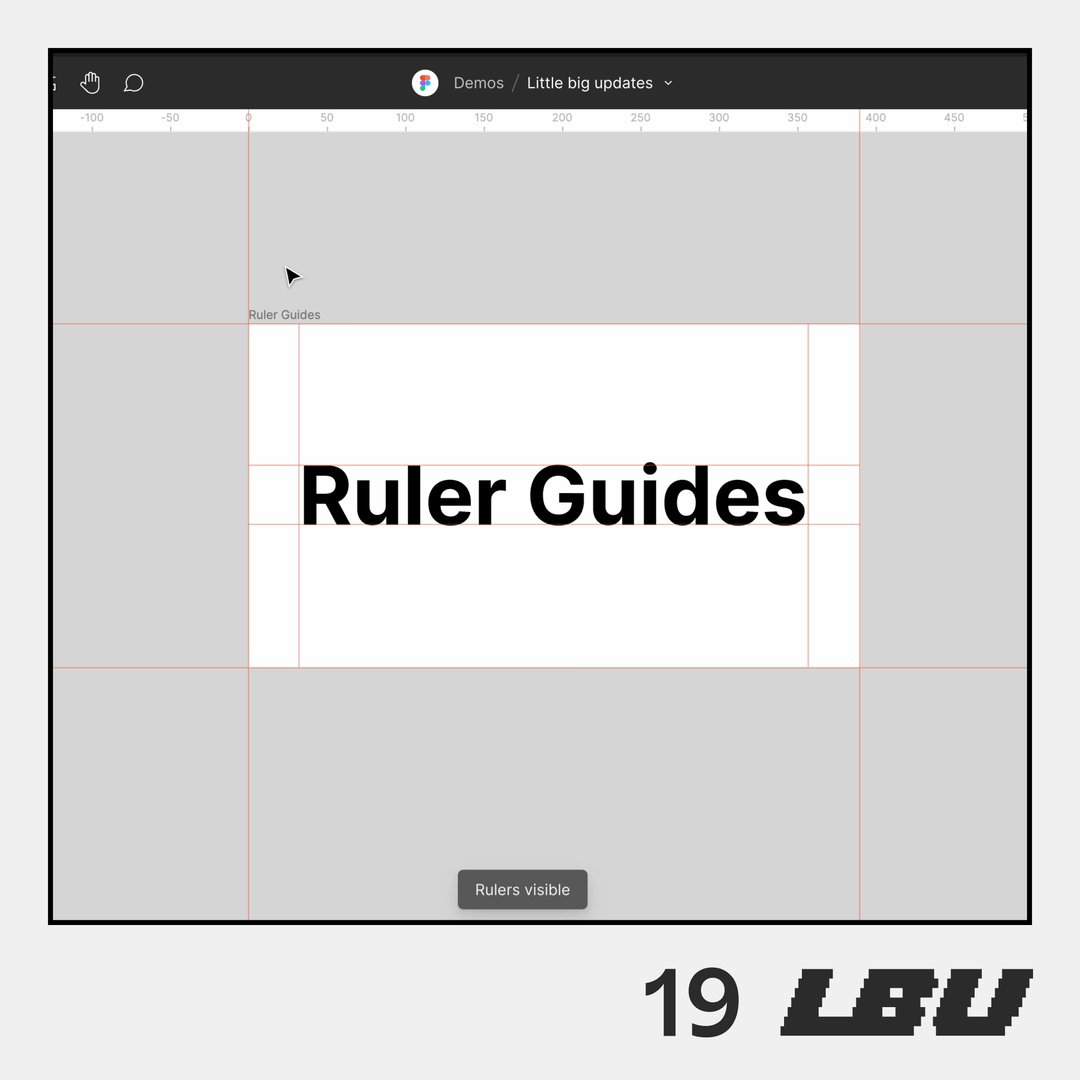
19/32 Right click to remove rulers
Quickly hide rulers and remove vertical guides by right-clicking and selecting from new dropdown menu.
Quickly hide rulers and remove vertical guides by right-clicking and selecting from new dropdown menu.
20/32 Library update improvements
Don't forget: You can now more confidentally approve library updates with a visual preview of the changes and the ability to apply them to individual instances and layers.
Don't forget: You can now more confidentally approve library updates with a visual preview of the changes and the ability to apply them to individual instances and layers.

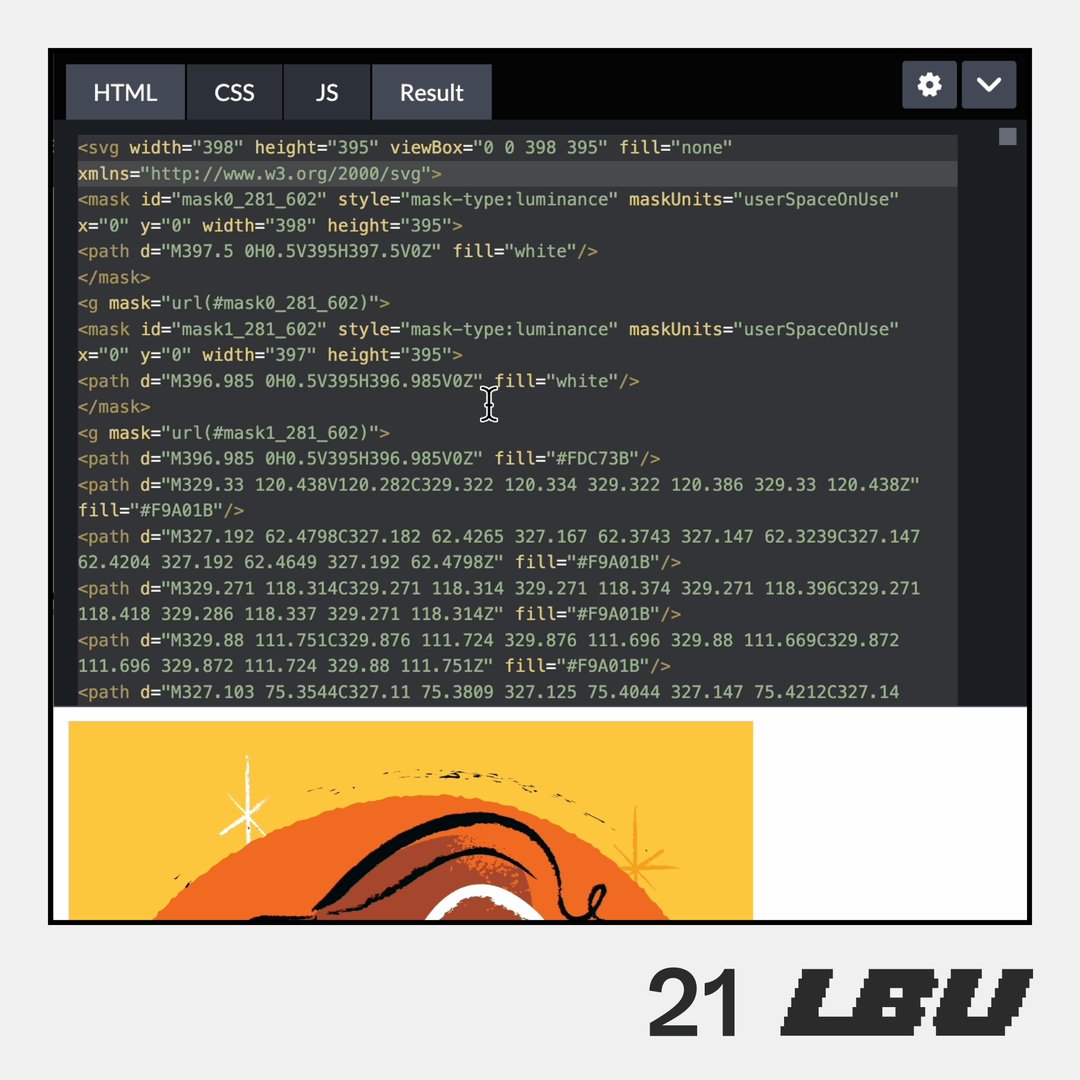
21/32 SVG import bug fixes
Import SVGs with a greater peace of mind knowing clip paths are supported and you'll no longer run into that weird bug that resulted in extra path segments.
Import SVGs with a greater peace of mind knowing clip paths are supported and you'll no longer run into that weird bug that resulted in extra path segments.
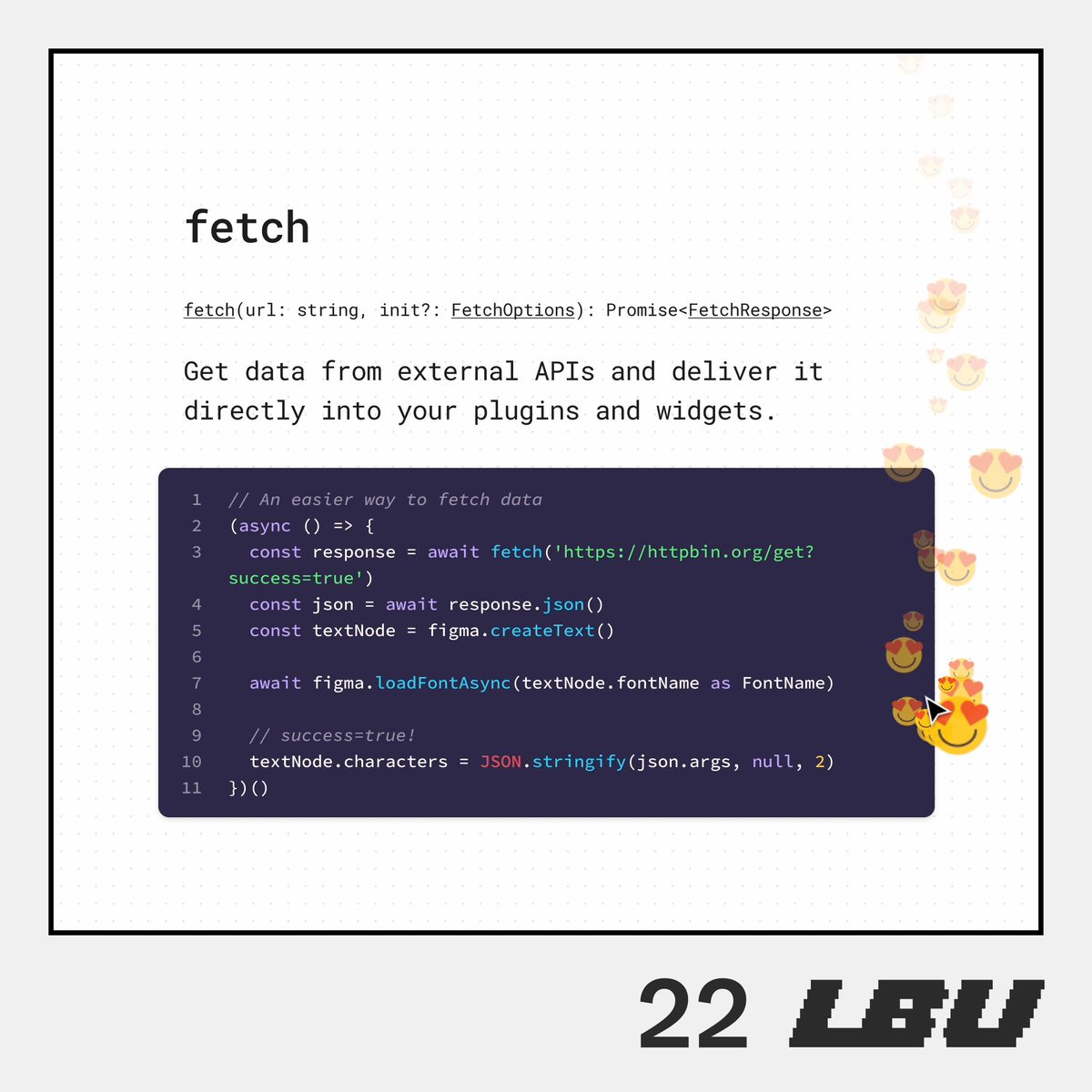
22/32 New Fetch API for plugins
Build better Figma plugins with easier ways to make requests.
Build better Figma plugins with easier ways to make requests.
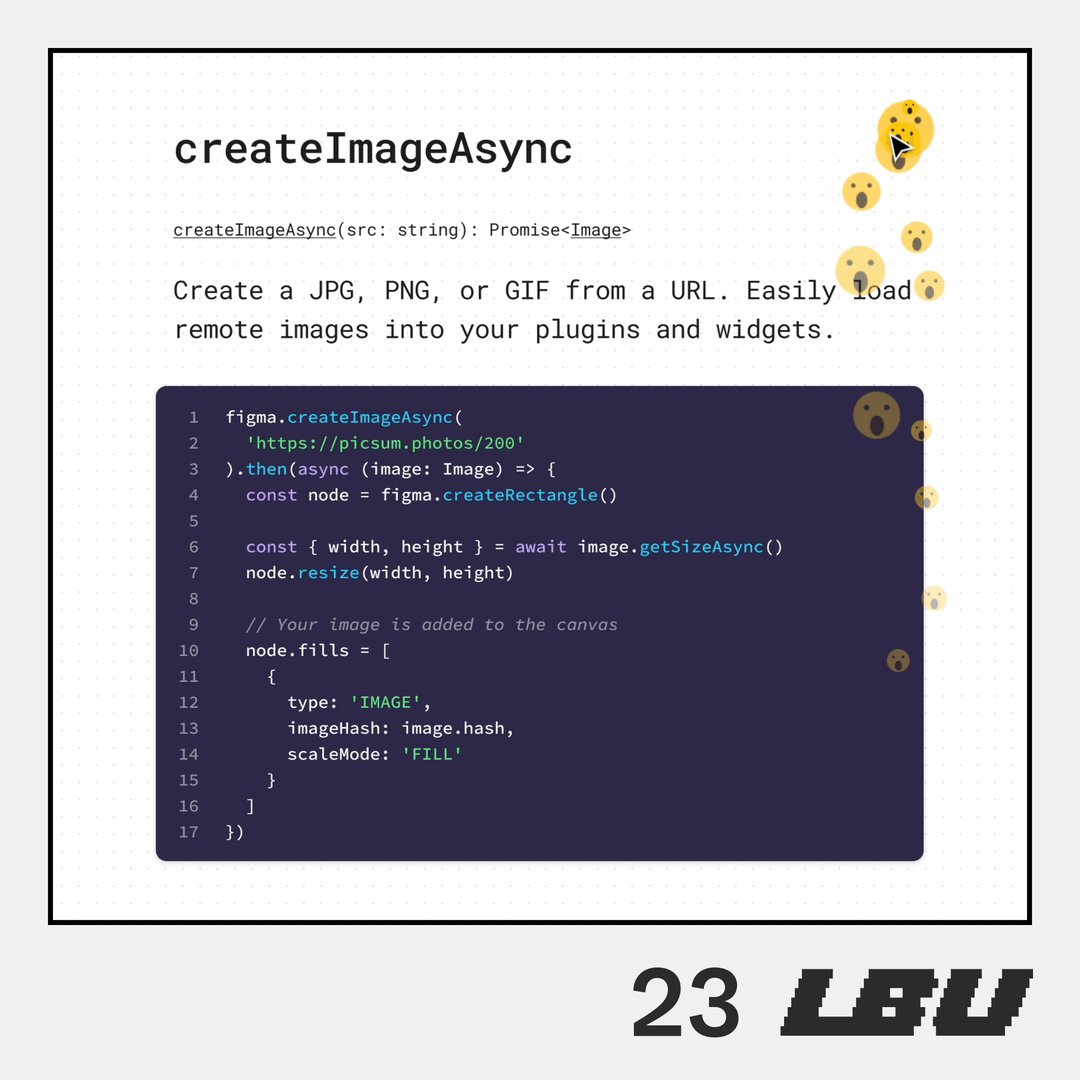
23/32 New createImageAsync API for plugins
And easier ways for Figma plugins to create images.
And easier ways for Figma plugins to create images.
24/32 Photo booth widget shows mirror image
Taking FigJam selfies now shows mirror image.
Taking FigJam selfies now shows mirror image.

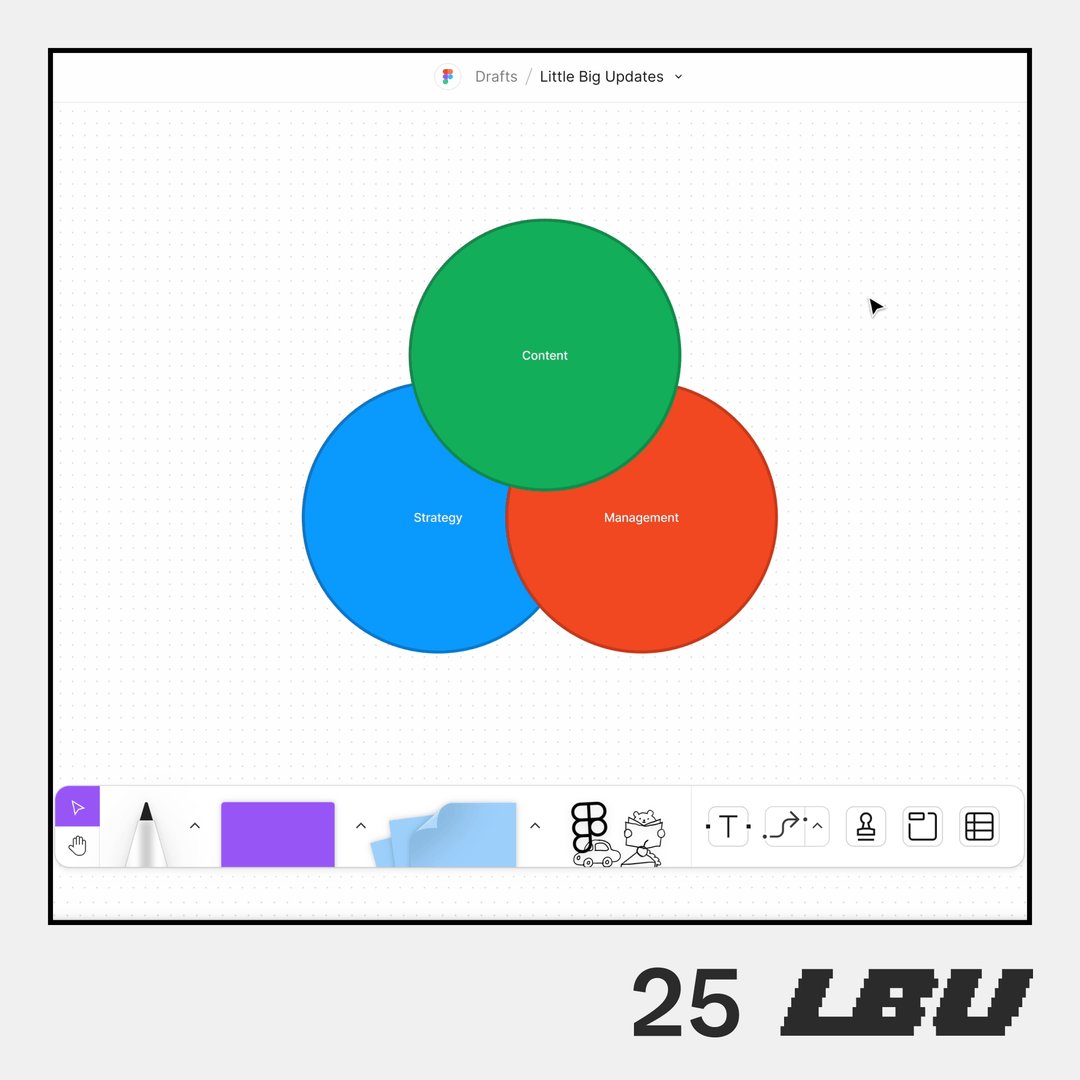
25/32 Transparency for FigJam shape fill
Apply transparency for your shape fills to add more mystery or pizzazz to your FigJams.
Apply transparency for your shape fills to add more mystery or pizzazz to your FigJams.
26/32 FigJam shape colors in toolbar
Set the default FigJam shape color directly in the toolbar.
Set the default FigJam shape color directly in the toolbar.

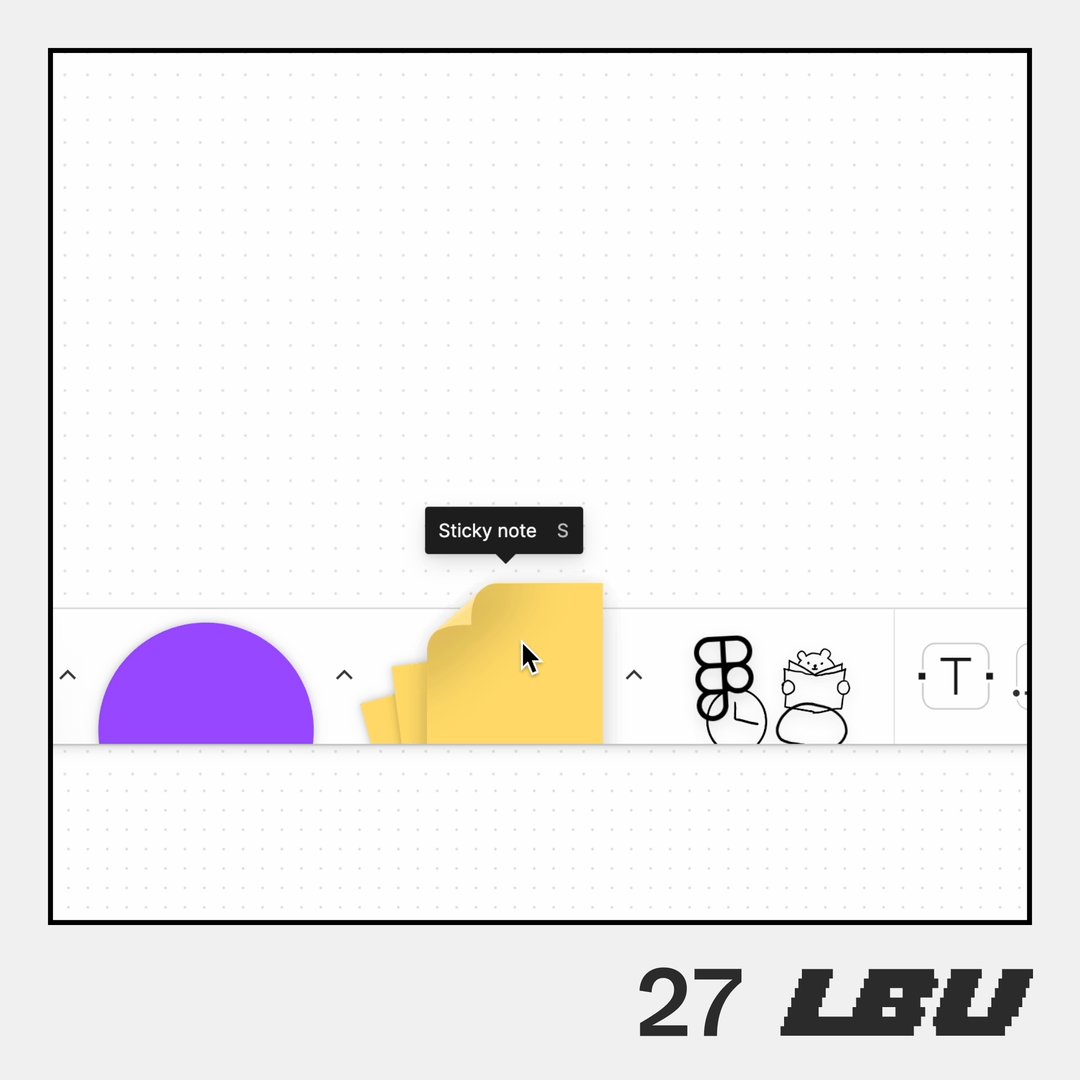
27/32 FigJam sticky note animation
Is it a square is it a sticky note? Now you know with the new curl animation for stickies.
Is it a square is it a sticky note? Now you know with the new curl animation for stickies.
28/32 Sticky scrolling in prototyping
Keep what’s important up top, like a persistent banner, using new sticky scrolling option.
Keep what’s important up top, like a persistent banner, using new sticky scrolling option.

29/32 Archived frames in prototype settings
Older device frames now also available when you prototype.
Older device frames now also available when you prototype.

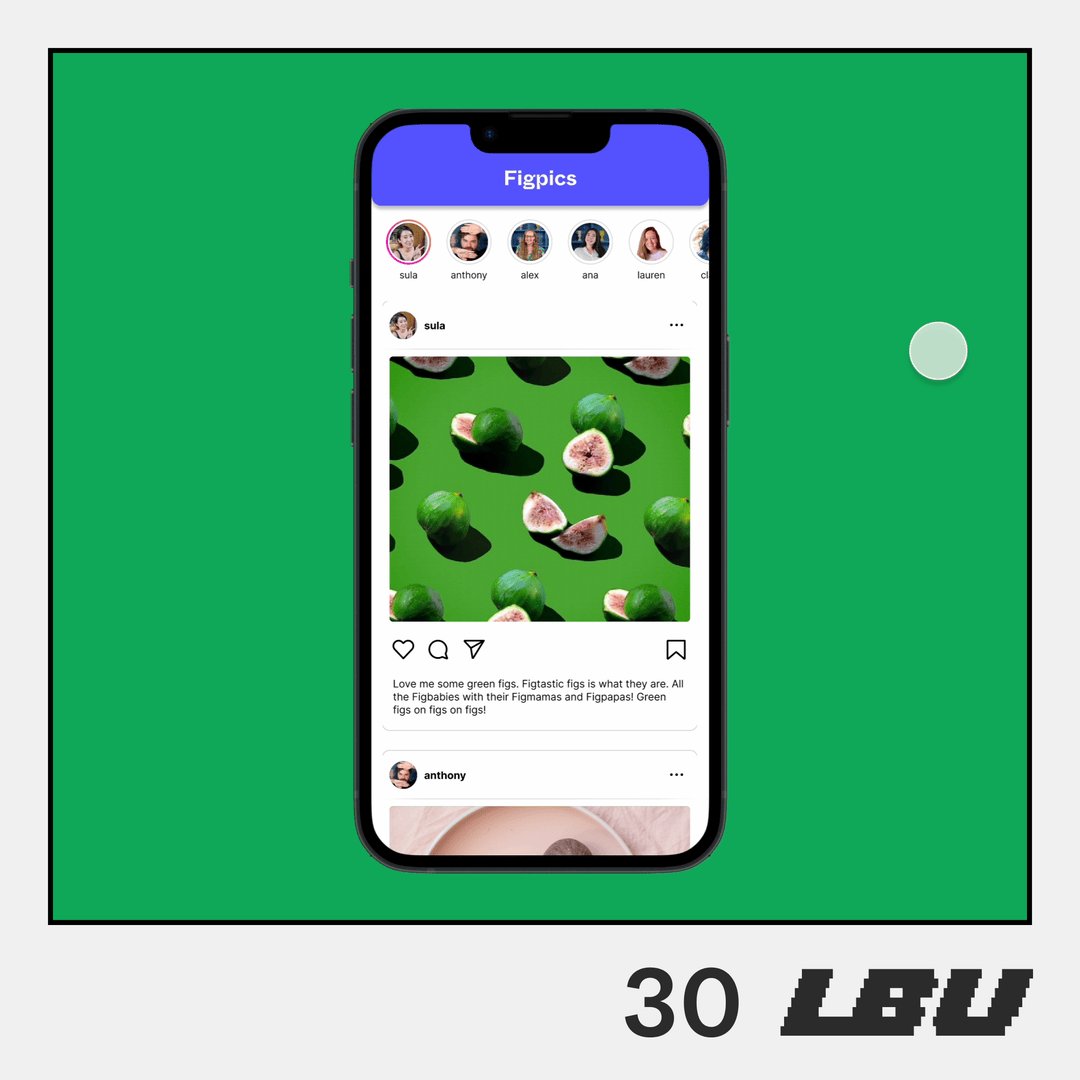
30/32 Background blur effects in overlays
Now when you add an overlay with background blur in prototyping, things actually get a little fuzzy.
Now when you add an overlay with background blur in prototyping, things actually get a little fuzzy.
31/32 Prototyping URLs open in same tab
Link to prototypes across pages and open them in the same tab for a more seamless experience.
Link to prototypes across pages and open them in the same tab for a more seamless experience.
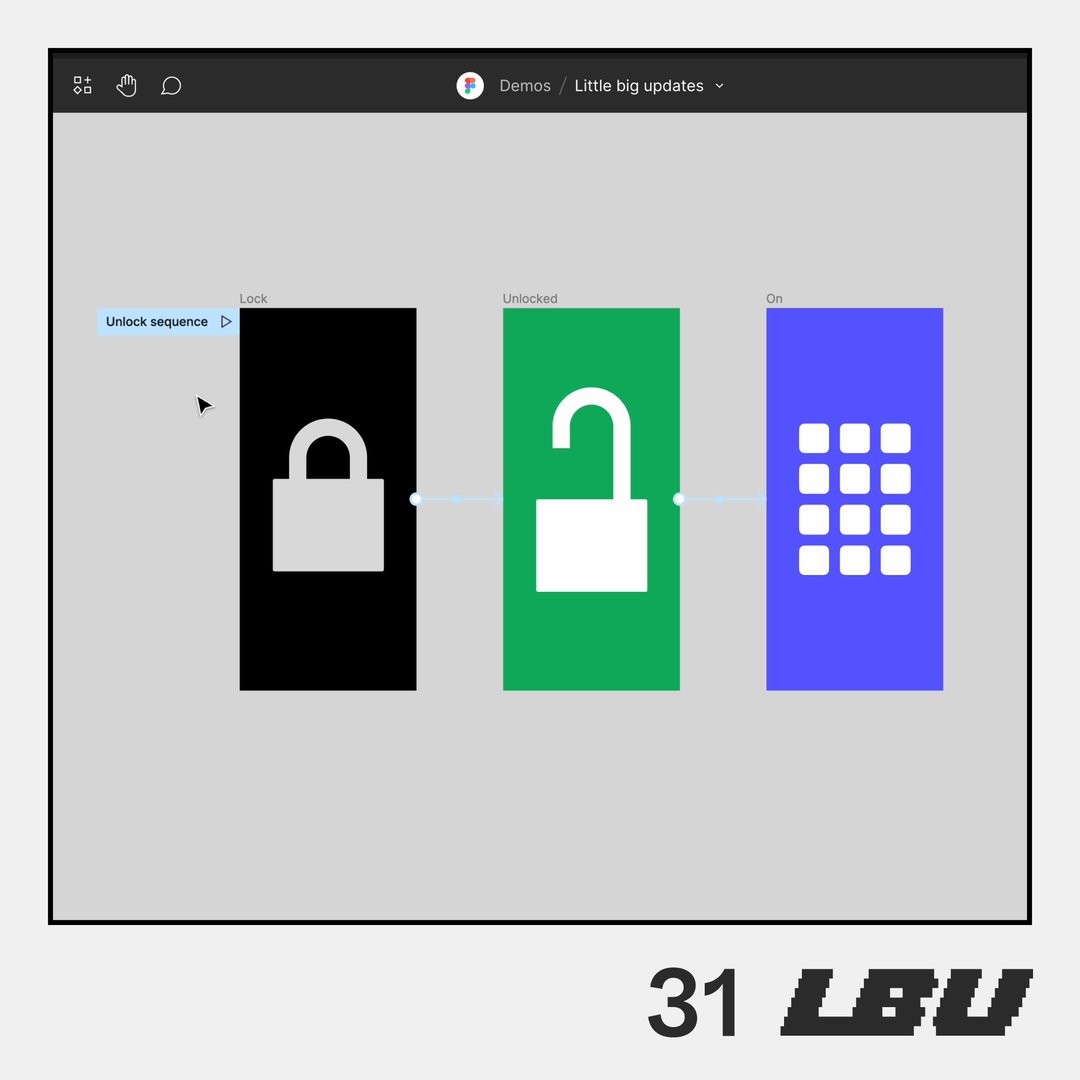
32/32 Multi-create prototyping
And finally: Don't forget this major life hack launched over the holiday! No more creating interactions one-by-one. Just select multiple frames to create them all at once.
And finally: Don't forget this major life hack launched over the holiday! No more creating interactions one-by-one. Just select multiple frames to create them all at once.

Loading suggestions...