

Lost in the abyss of endless research papers?
Get a handle on your topic by drilling down on the right papers quickly.
Here's how to find the most important papers to read from scratch, using the free research tool @LitmapsApp #ad
Get a handle on your topic by drilling down on the right papers quickly.
Here's how to find the most important papers to read from scratch, using the free research tool @LitmapsApp #ad
Here, we'll address 2 key challenges when facing the sheer volume of research out there:
1. Finding the right papers for your topic
2. Prioritising what to read first
We'll cover both of these using @LitmapsApp
1. Finding the right papers for your topic
2. Prioritising what to read first
We'll cover both of these using @LitmapsApp
You'll first need to sign up with an account.
Go to litmaps (dot) com and click "Sign In". It takes just a minute to make an account.
Use your academic email if possible. If you want to upgrade later, there's a discount for academics and students.
Go to litmaps (dot) com and click "Sign In". It takes just a minute to make an account.
Use your academic email if possible. If you want to upgrade later, there's a discount for academics and students.

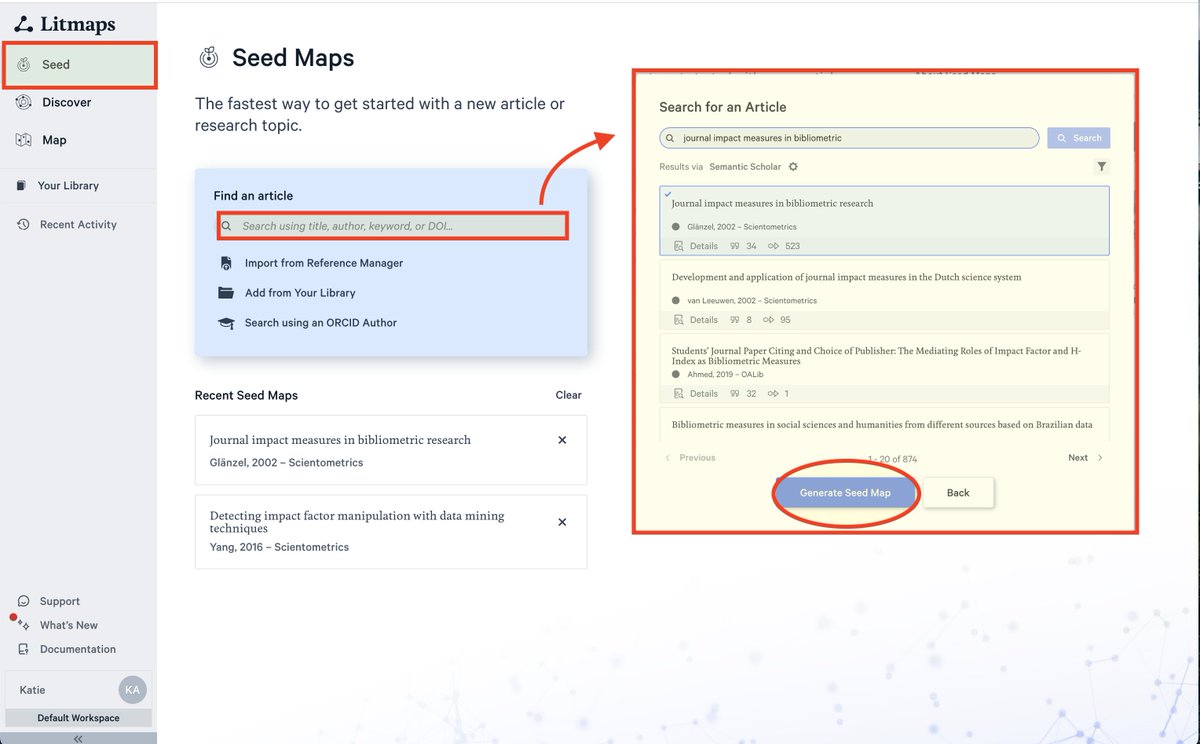
To start looking for papers from scratch click on "Seed"
Seed finds relevant papers - using the citation network - based on one initial paper.
You can upload papers by DOI, title, author, etc.
Click Seed on the Litmaps sidebar, "Find an Article", then "Generate Seed Map"
Seed finds relevant papers - using the citation network - based on one initial paper.
You can upload papers by DOI, title, author, etc.
Click Seed on the Litmaps sidebar, "Find an Article", then "Generate Seed Map"
The Seed Map displays each paper as a dot - with lines connecting papers that cite one another.
The Litmaps algorithm traverses the citation network to find the most relevant, inter-related papers to this one.
It automates the whole process of looking through references.
The Litmaps algorithm traverses the citation network to find the most relevant, inter-related papers to this one.
It automates the whole process of looking through references.
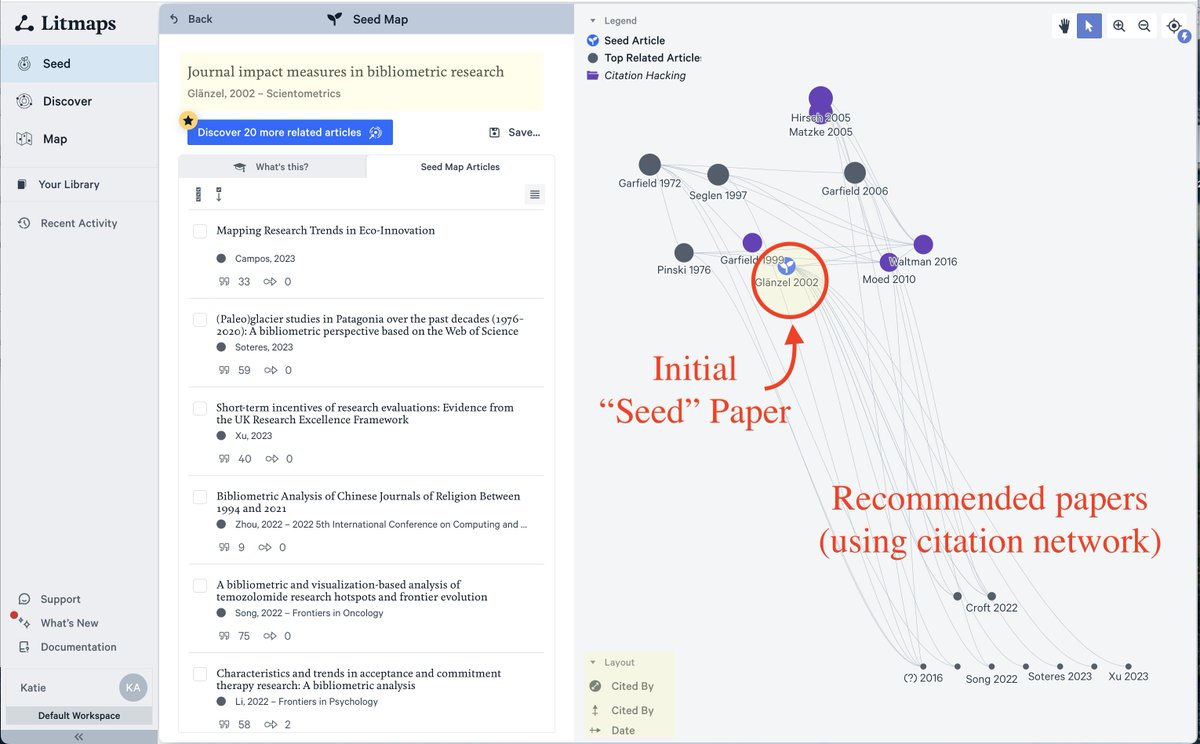
Explore recommended papers on the Map.
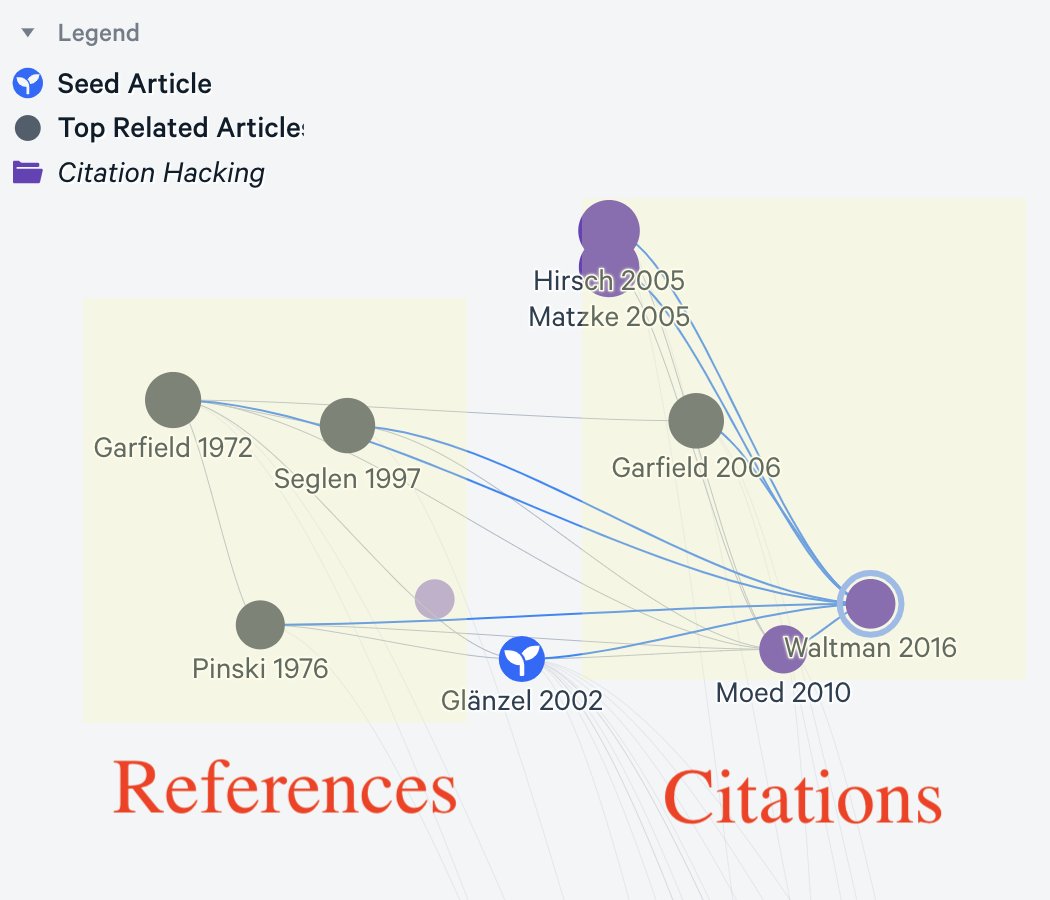
The y-axis is ordered by citation count and the x-axis by date, so papers to the left of your Seed are references. Papers to the right cite the Seed paper.
Click on the papers you like in the sidebar. In the next step, we'll save them.
The y-axis is ordered by citation count and the x-axis by date, so papers to the left of your Seed are references. Papers to the right cite the Seed paper.
Click on the papers you like in the sidebar. In the next step, we'll save them.
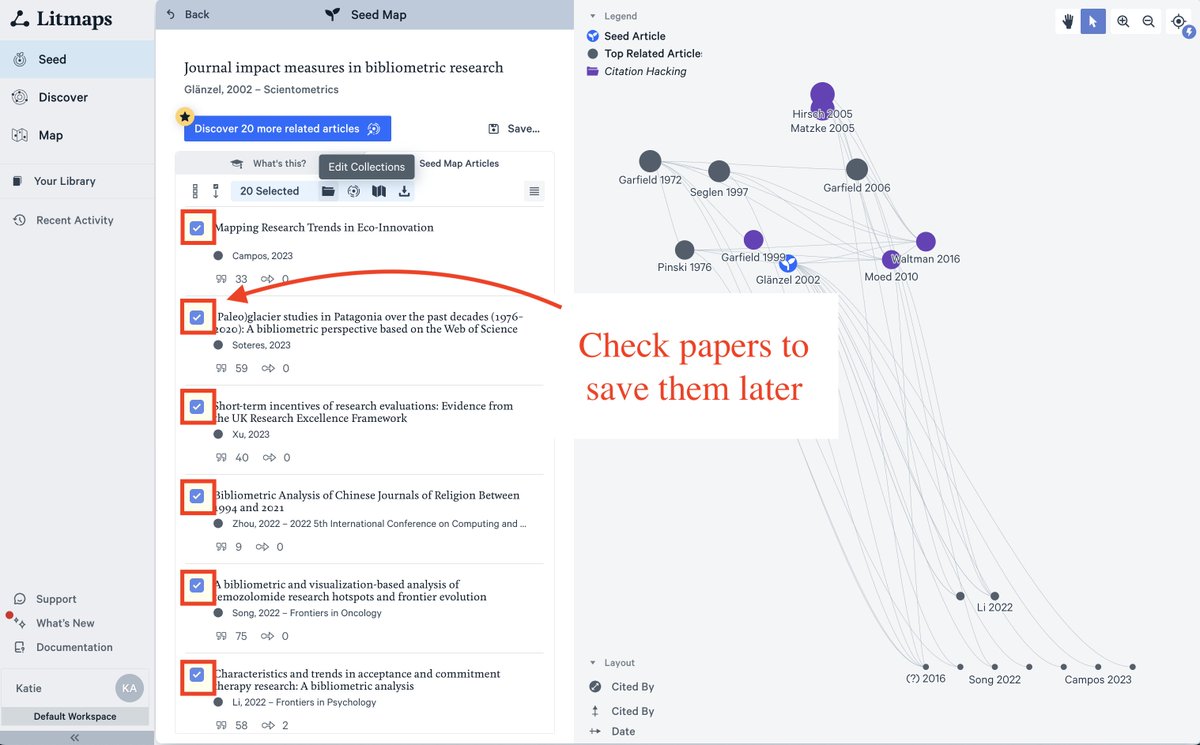
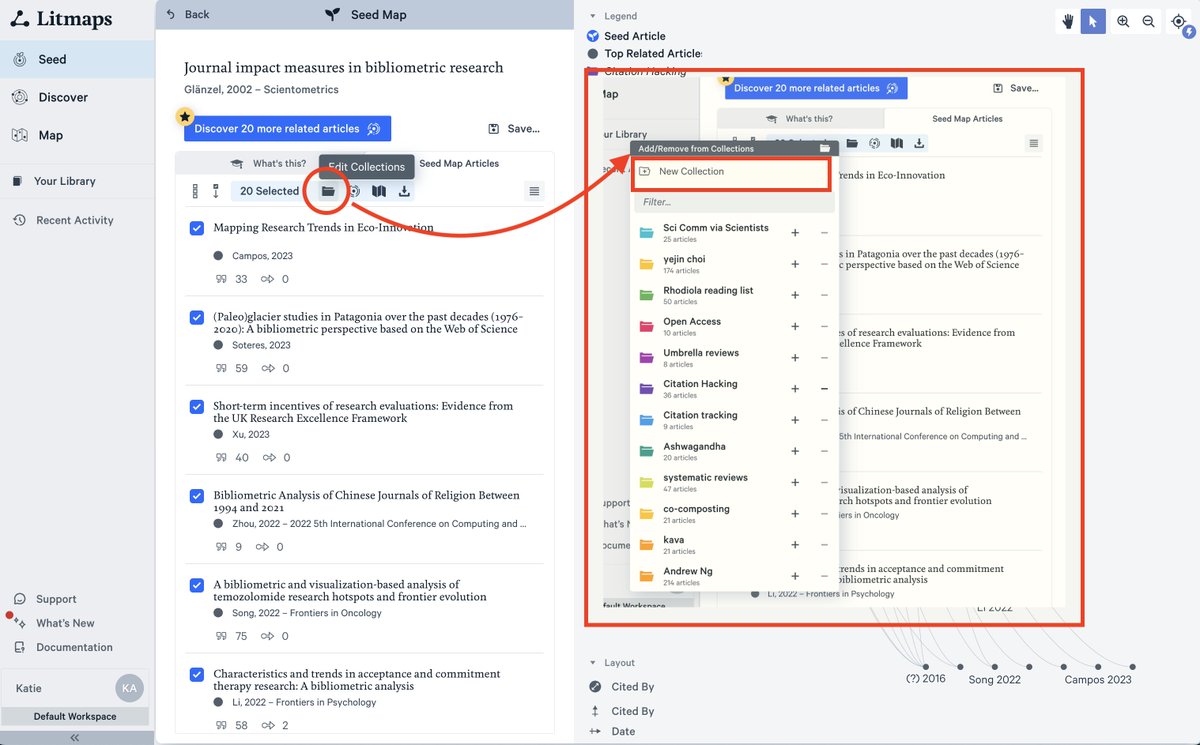
Save the papers you like so far.
Click on the Folder icon, then "New Collection"
Collections make it easy to keep track of all the papers you discover in Litmaps.
At the end, you can easily export those papers out of Litmaps, and pull them into your reference manager.
Click on the Folder icon, then "New Collection"
Collections make it easy to keep track of all the papers you discover in Litmaps.
At the end, you can easily export those papers out of Litmaps, and pull them into your reference manager.
Seed Maps are a great way to start finding papers - but they are just the beginning.
Next, we'll use all the papers we found as an input to discover even more relevant papers.
Go to your Library and click "Related Articles" on the new collection.
Next, we'll use all the papers we found as an input to discover even more relevant papers.
Go to your Library and click "Related Articles" on the new collection.
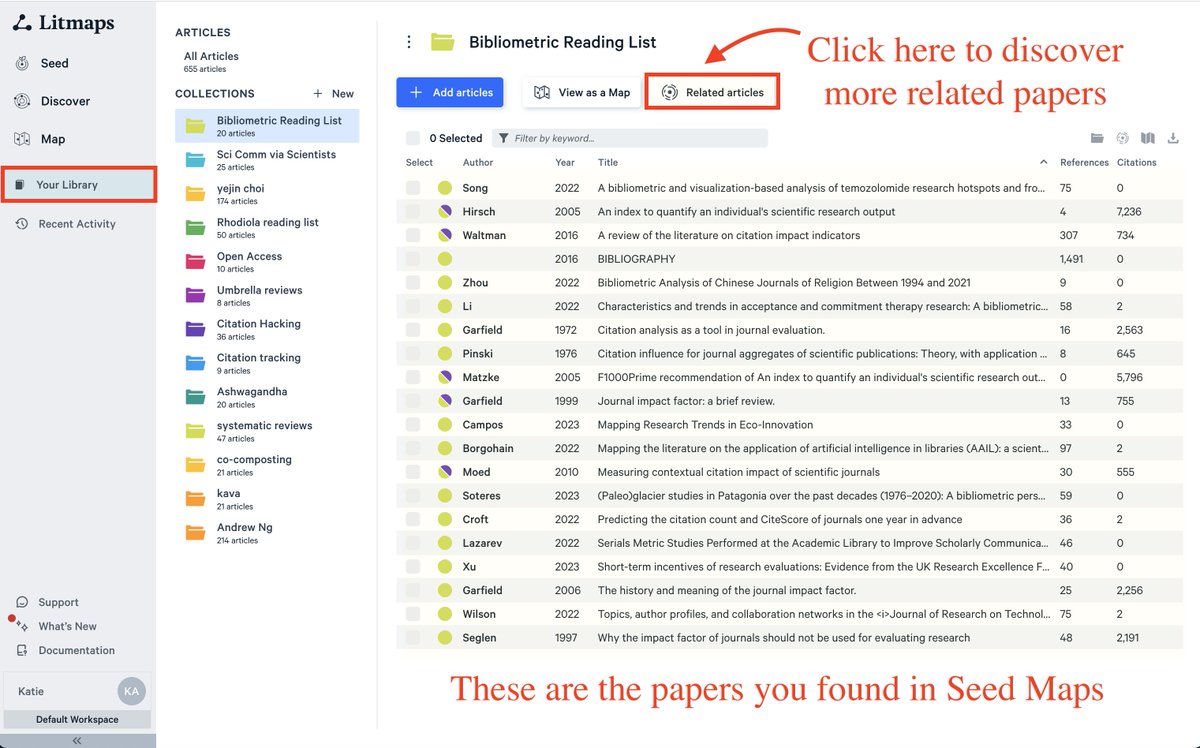
Litmaps Discover will find the most relevant papers: those that connect the most to the papers in your collection.
You can explore papers in the sidebar - click "Details" to see their abstracts.
Or, click around the ring of the Discover visualisation.
You can explore papers in the sidebar - click "Details" to see their abstracts.
Or, click around the ring of the Discover visualisation.
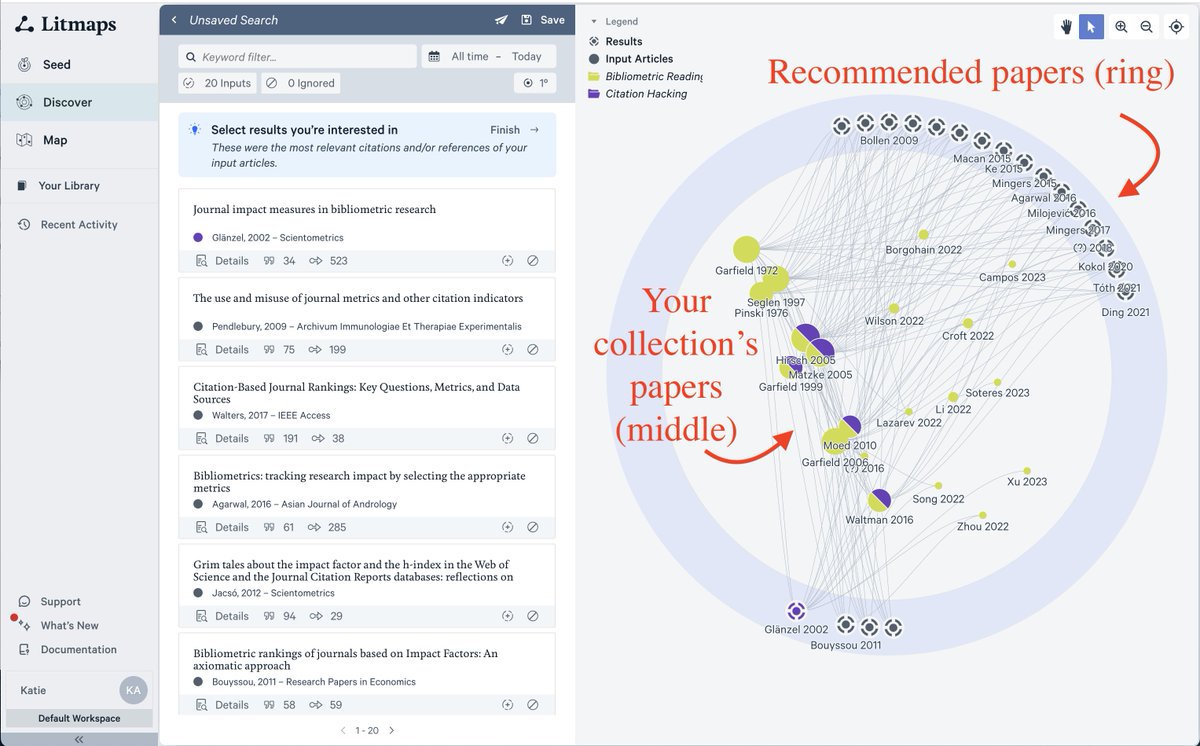
Click on any relevant paper in the sidebar.
Just like before, we'll save these and add them to our growing collection.
When you're done going through the recommended papers, click "Finish".
Just like before, we'll save these and add them to our growing collection.
When you're done going through the recommended papers, click "Finish".
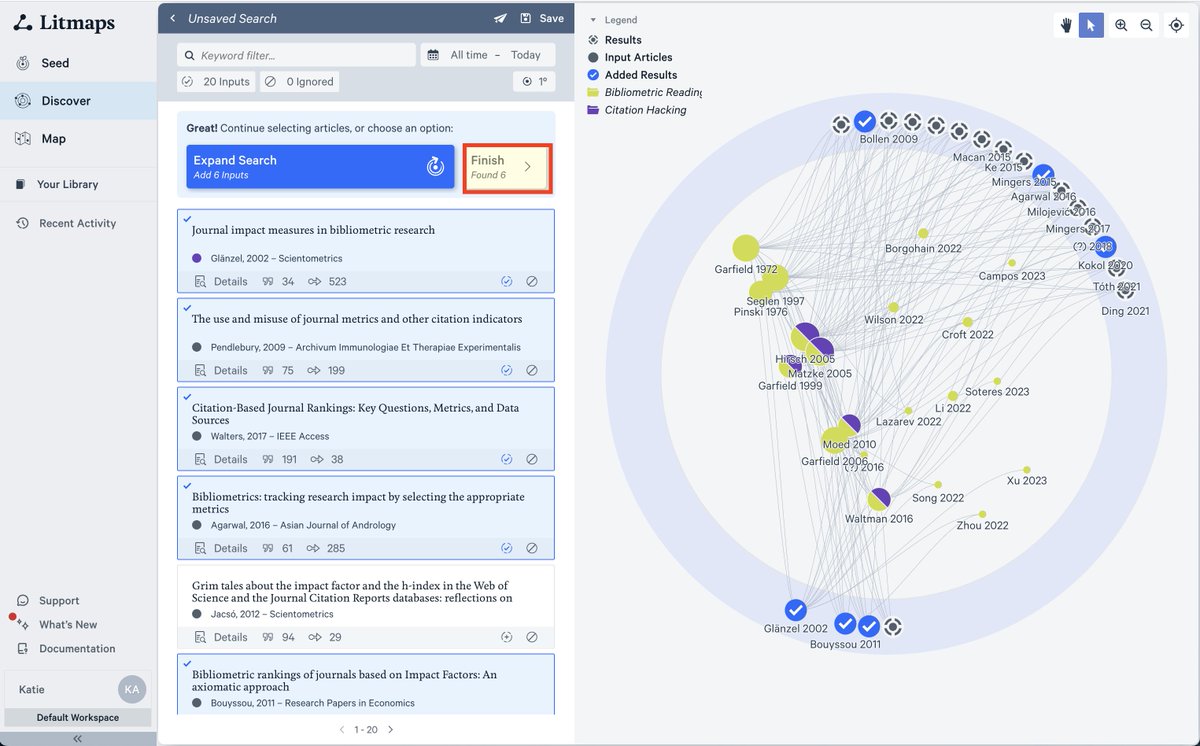
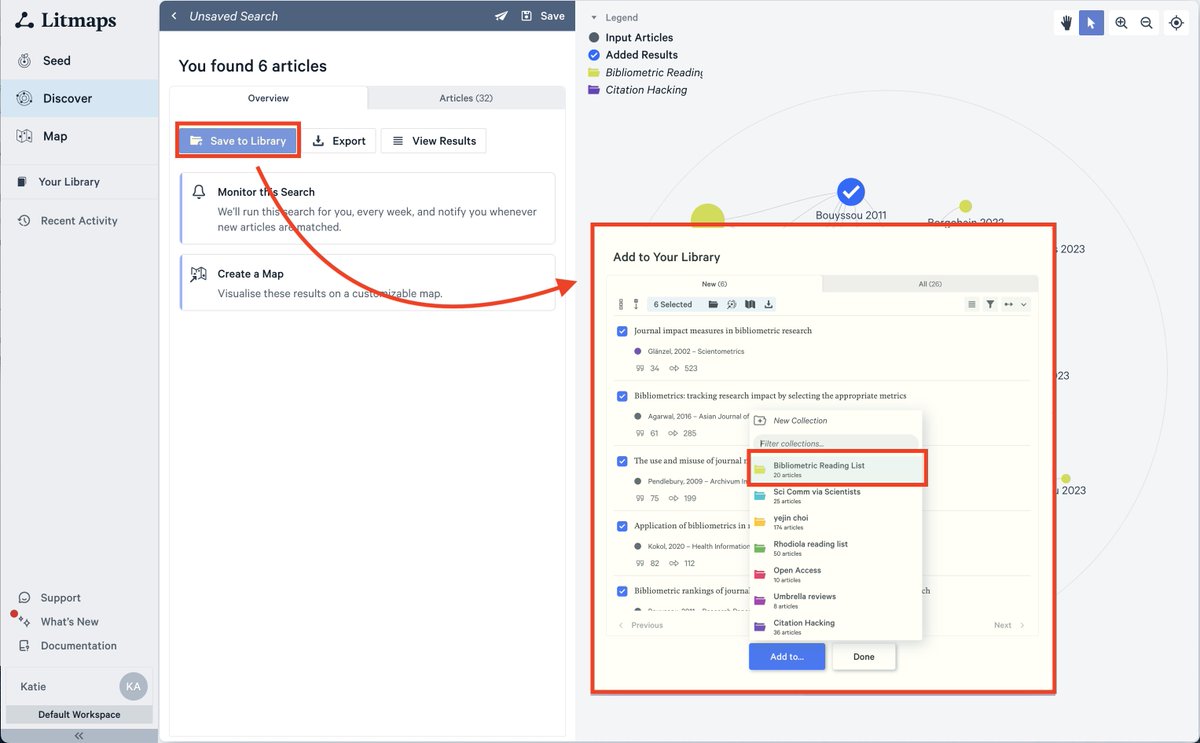
Now, save all the papers to your Collection by clicking "Save to Library" and selecting your collection.
From here, you can also export right out of Litmaps to a BibTeX, CSV, or RIS - so you import these papers into your reference manger (Zotero, EndNote, Mendeley etc).
From here, you can also export right out of Litmaps to a BibTeX, CSV, or RIS - so you import these papers into your reference manger (Zotero, EndNote, Mendeley etc).
We've collected all these papers - but how do we now effectively prioritise where to start?
We'll visualise all our papers in one citation map and use different characteristics to quickly rank which paper is most important to start with.
Click "View as a Map" from Collection.
We'll visualise all our papers in one citation map and use different characteristics to quickly rank which paper is most important to start with.
Click "View as a Map" from Collection.
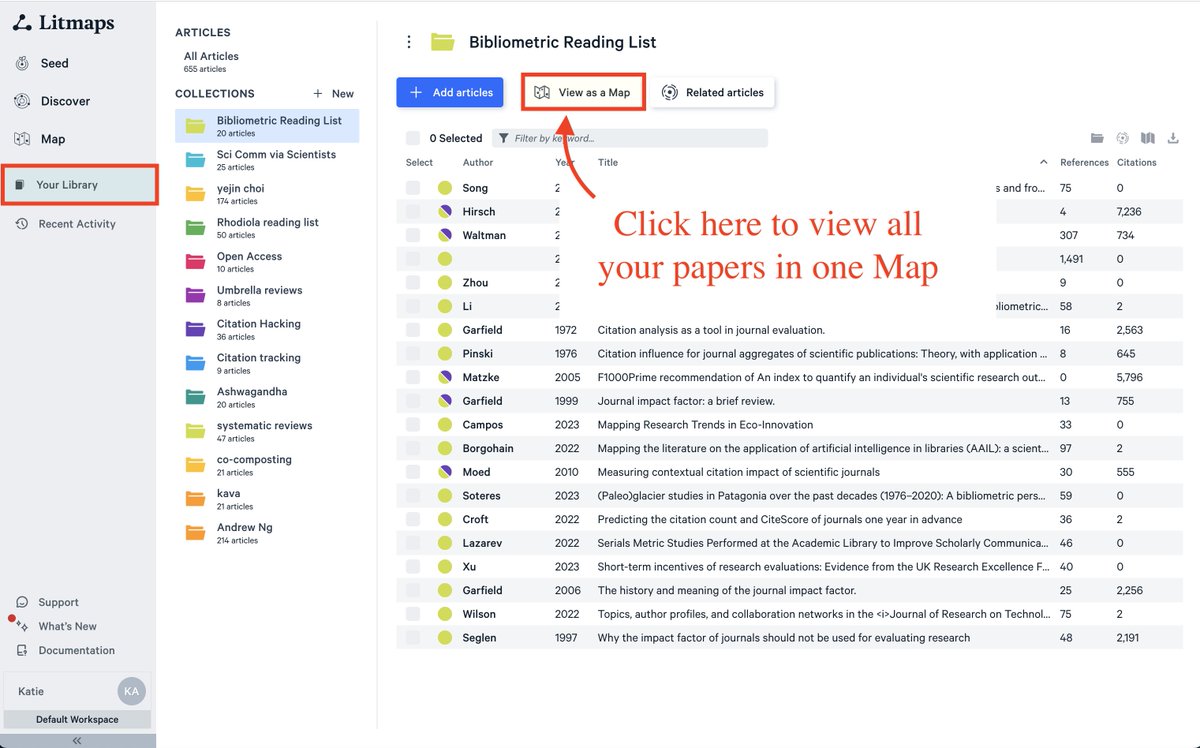
By default, the Map is sorted by Date on the x-axis and Citation Count on the y-axis.
If you wanted to prioritise by recency or impact - you can already see this from the Map.
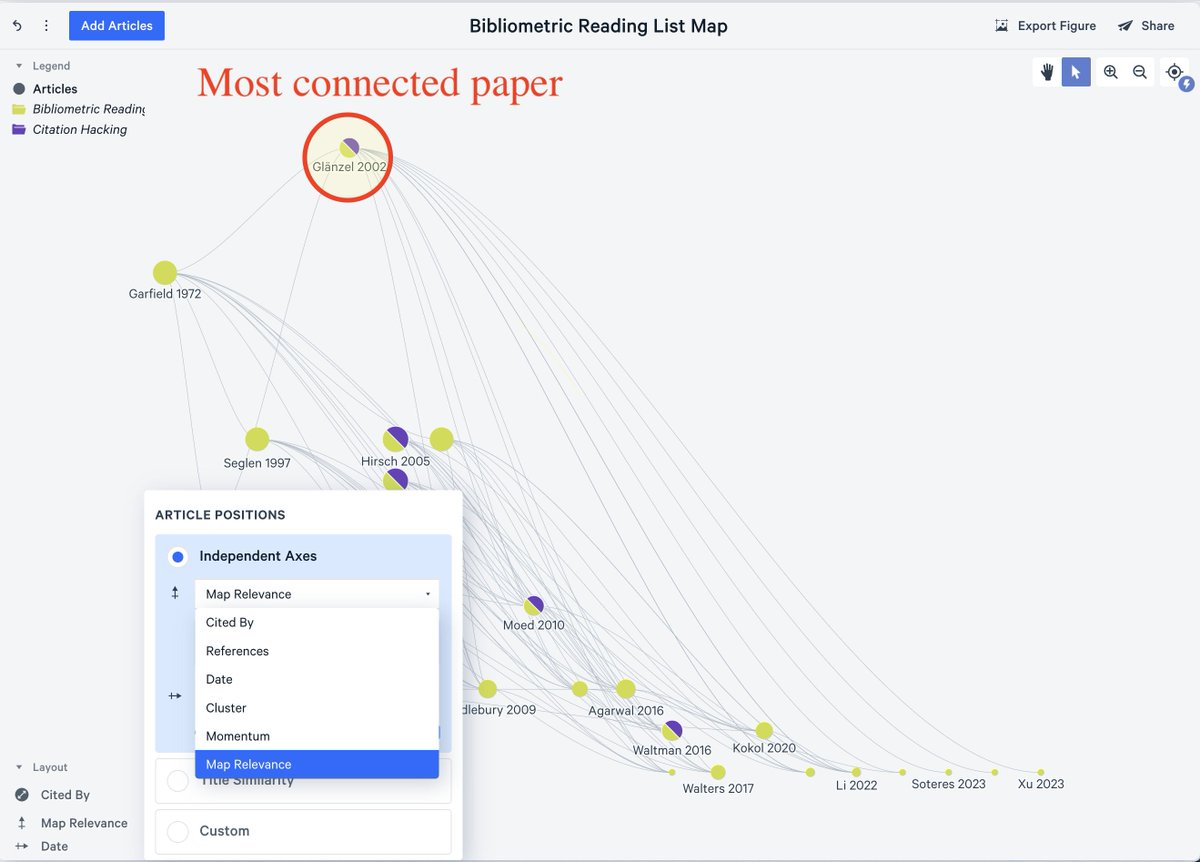
But, there are plenty of other options too. Click on the legend at the bottom left to change them.
If you wanted to prioritise by recency or impact - you can already see this from the Map.
But, there are plenty of other options too. Click on the legend at the bottom left to change them.

Want to find the paper with the most breadth on your topic?
Then sort by "Map Relevance" - that orders your papers based on how connected they are to the rest of the collection.
Here, one clear paper comes to the top, which may be a great starting place to read on this topic.
Then sort by "Map Relevance" - that orders your papers based on how connected they are to the rest of the collection.
Here, one clear paper comes to the top, which may be a great starting place to read on this topic.
Want to find the most recently impactful papers?
You can't use citation count OR date alone -- since older papers always have more citations.
Instead, use "Momentum". This is citation count adjusted for time. Plus, you can adjust how strong the date correction is.
You can't use citation count OR date alone -- since older papers always have more citations.
Instead, use "Momentum". This is citation count adjusted for time. Plus, you can adjust how strong the date correction is.

In this flow, we went from nothing, to a list of papers, to a clear visual priority of where to begin.
Did you find it helpful for your research?
Then please like and retweet the first tweet in this thread.
Follow us and @LitmapsApp for more helpful research productivity tips.
Did you find it helpful for your research?
Then please like and retweet the first tweet in this thread.
Follow us and @LitmapsApp for more helpful research productivity tips.
Loading suggestions...