

🌟CONTROLNET TUTORIAL THREAD🌟
Tutorial thread is back! In this one, learn to transform your images into whole new mediums and forms! Seen the viral spiral AI art? This is how those are made.
It's easy, then annoying, then easy--then yours forever, in 11 tweets! Ready? Lets go!
Tutorial thread is back! In this one, learn to transform your images into whole new mediums and forms! Seen the viral spiral AI art? This is how those are made.
It's easy, then annoying, then easy--then yours forever, in 11 tweets! Ready? Lets go!


Step 1!
Install Auto1111. This is what we'll be using to run everything. This tutorial is for Windows with Nvidia GPUs, but for AMD GPUs or Mac, there's separate tutorials on the github (first pic).
Okay? Okay!
Visit:
github.com
and download sd. webui. zip 💪
Install Auto1111. This is what we'll be using to run everything. This tutorial is for Windows with Nvidia GPUs, but for AMD GPUs or Mac, there's separate tutorials on the github (first pic).
Okay? Okay!
Visit:
github.com
and download sd. webui. zip 💪


Step 2: unzip the file, open the update file, then after it finishes, open the run file.
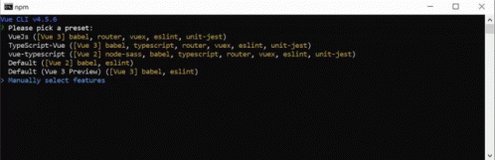
It will open a scary black command prompt window--looks a little like this gif.😳
Just let it do its thing. It'll take awhile. When done, it will open a new browser window with the webui!🤓
It will open a scary black command prompt window--looks a little like this gif.😳
Just let it do its thing. It'll take awhile. When done, it will open a new browser window with the webui!🤓
The next couple steps are the hardest part. Get through them and you've got access to this infinitely useful tool forever.
Stick with me! 💪🌟
Stick with me! 💪🌟

Now that the webui has launched, don't be intimidated!
Click the "Extensions" tab, then the "install from URL" tab. Paste this in the first empty box:
github.com
and hit install. Installed? Close the webui and the cmd window for now.
Click the "Extensions" tab, then the "install from URL" tab. Paste this in the first empty box:
github.com
and hit install. Installed? Close the webui and the cmd window for now.


You're doing great! This is the worst part. Crush it.
Visit huggingface.co
Download the files that end in pth (little arrows on the far right).
They're BIG files. Once downloaded, drag them into this folder:
sdwebui\extensions\sd-webui-controlnet\models
Visit huggingface.co
Download the files that end in pth (little arrows on the far right).
They're BIG files. Once downloaded, drag them into this folder:
sdwebui\extensions\sd-webui-controlnet\models


Download your models.
You need v1-5-pruned.safetensors, which you can download here: huggingface.co
For more models, visit civitai.com (Note! There are NSFW models here, be careful!)
I'm using civitai.com (be careful, it also has nsfw!)
You need v1-5-pruned.safetensors, which you can download here: huggingface.co
For more models, visit civitai.com (Note! There are NSFW models here, be careful!)
I'm using civitai.com (be careful, it also has nsfw!)


huggingface.co/runwayml/stabl…
runwayml/stable-diffusion-v1-5 at main
We’re on a journey to advance and democratize artificial intelligence through open source and open s...

civitai.com/models/25694/e…
epiCRealism - Natural Sin RC1 VAE | Stable Diffusion Checkpoint | Civitai
Natural Sin Final and last of epiCRealism Since SDXL is right around the corner , let's say it is th...
civitai.com/models
Civitai | Share your models
You got through the worst part. Congratulations! Almost ready! 🌸🌟🌸
Drag all of these new models, including the v1-5 safetensors, into this folder:
webui\models\stable-diffusion
Drag all of these new models, including the v1-5 safetensors, into this folder:
webui\models\stable-diffusion

I know you're tired. I know. But you're in too deep now. You didn't come too far just to come this far. Almost done--now is the fun part.
Let's go~🌸
Let's go~🌸

Fire up the webui again by double-clicking webui-user.bat in the webui folder. Wait for the cmd box to run & the page to launch.
You're in!
Click the dropdown on the top left & load the model you want :)
See the controlnet box near the bottom of the page? Click it to open it.
You're in!
Click the dropdown on the top left & load the model you want :)
See the controlnet box near the bottom of the page? Click it to open it.


Type your prompt in box at the top of the page. Type what you DONT want in the box below it.
Click to load an image to transform in controlnet. Click "canny" beneath. This follows the lines of your image.
Set the sliders--you can use my setup if you like.
Click generate!
Click to load an image to transform in controlnet. Click "canny" beneath. This follows the lines of your image.
Set the sliders--you can use my setup if you like.
Click generate!


Ta-da! You can do this with any image, any model, any prompt. Play with the buttons in controlnet!
Please keep in mind--many realistic models will give nsfw content sometimes. Just hit generate again (and dont use it at work!)
I knew you could do it! Proud of you! Have fun!🥳🌸
Please keep in mind--many realistic models will give nsfw content sometimes. Just hit generate again (and dont use it at work!)
I knew you could do it! Proud of you! Have fun!🥳🌸



Loading suggestions...